

Gebruikersgids vir die SpecFive-spooropsporingstoestel
verbyview
Hierdie gids verduidelik hoe om jou SpecFive Trace-toestel op te stel en te gebruik om jou hond of spanlede op te spoor. Die toestel maak gebruik van GPS en maasnetwerke om intydse liggingopdaterings te verskaf. Die SpecFive Trace kan aan 'n hondehalsband geheg word om 'n hond op te spoor of, met behulp van die Molle-montering, aan taktiese toerusting geheg word om 'n span op te spoor.
Aan die gang
Wat is ingesluit
- SpecFive Trace tracking device
- USB-laaikabel
- Dog collar or Molle attachment
- Gebruikershandleiding
Vereistes
- Smartphone or tablet with the Meshtastic app installed
- Access to Wi-Fi for initial setup and downloading offline maps
- Optional: Additional Meshtastic devices for network expansion

Stel die toestel op
Stap 1: Laai die toestel
- Loosen the 2 Thumb screws on the housing enough to rotate them 90deg away from the housing. Open the housing to expose the radio and USB-C connector
- Use the provided USB cable to fully charge the device.
- An Orange LED indicates the device is charging. The Green LED will illuminate indicating the device is running. The Orange LED will turn off when the device is fully charged.
- Press and hold the USER button(closest to the hinge) for 6 seconds to turn off the device. The Green LED will switch to solid for a few seconds as the device shuts down and then remains off. If the Green LED is blinking the device is on.

Stap 2: Installeer die Meshtastic-app
- Download the Meshtastic app from the Google Play Store or Apple App Store.
- Open the app and follow the prompts for general user instructions
Stap 3: Koppel die toestel met die toepassing
- Turn on the device by pressing the RESET button. The Green LED will illuminate and begin flashing steadily.
- Open the Meshtastic app

- Select your device from the list of available devices. The Trace will show up as S5TC- ####(the last 4 digits are randomized).

- Enter the device’s pin when prompted, which is by default set to: 123456
- Your Device is now paired to the app for further configuration

Stap 4: Verandering van die toestelnaam
- If you’re tracking multiple devices, it’s recommended to change the default device name to easily distinguish between them.
- Find the Radio Configuration/Setting Tab on your app
a. Android: Click the 3 vertical dots on the top right and select Radio Configuration
b. iOS: Select the Settings tab

- Gaan na die Gebruiker-oortjie
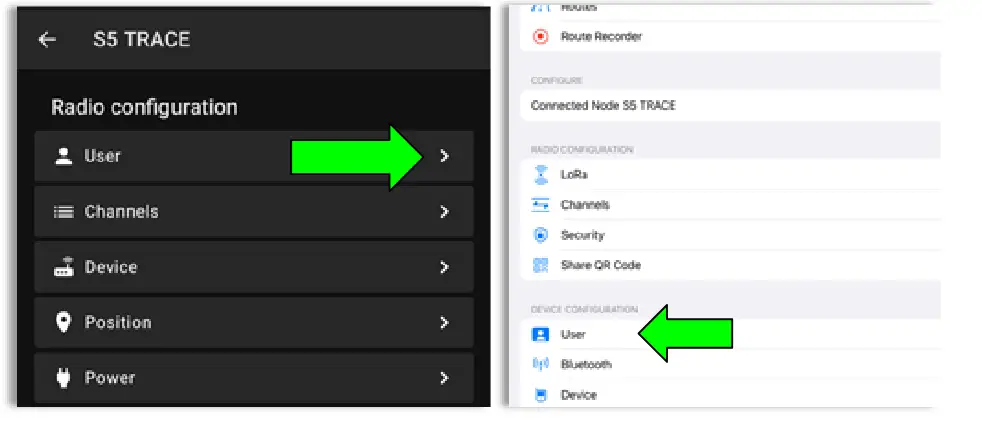
- Update the Long and Short name of your Trace to the name of your dog or Team Member. Long Name can be up to 30 characters including emojis. Short Name can be up to 4 characters, numbers and letters only.

- Once you have updated the device name to your desired name, click Send(Android) or Save(iOS) and the device will reboot.
Stap 5: Skep 'n Privaat Kanaal
The SpecFive Trace comes pre-programmed to communicate on Meshtastic’s public channel, “LongFast.” This means that any nearby Meshtastic user will be able to see your Trace’s location. If you intend to use your Trace within a mesh network with other Meshtastic users and want to share its location, you can keep the default LongFast channel.
However, if you prefer a private network, the instructions in the next section will guide you through creating a private channel for your Trace and sharing access with specific Meshtastic devices.
- Gaan na die Radiokonfigurasie-oortjie en kies Kanaal.
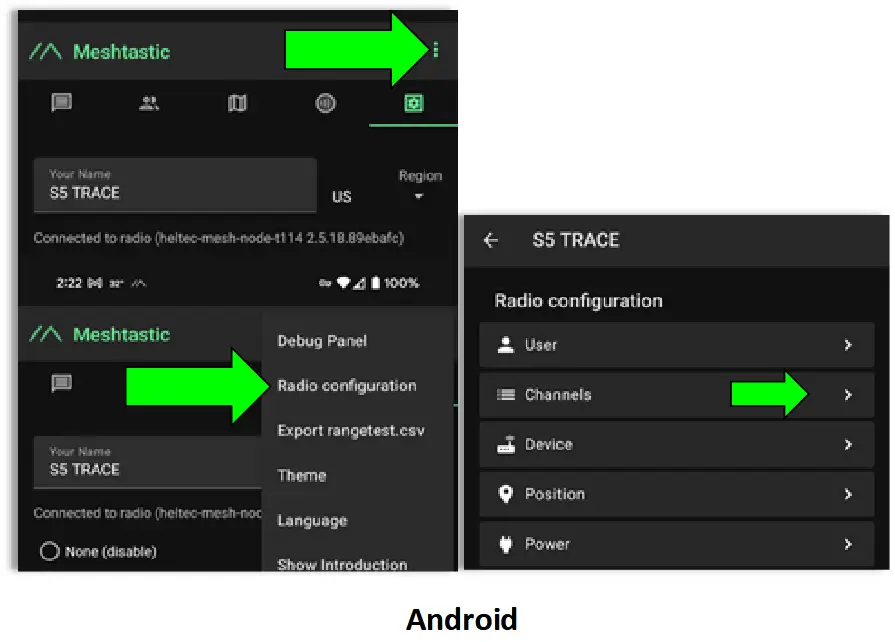
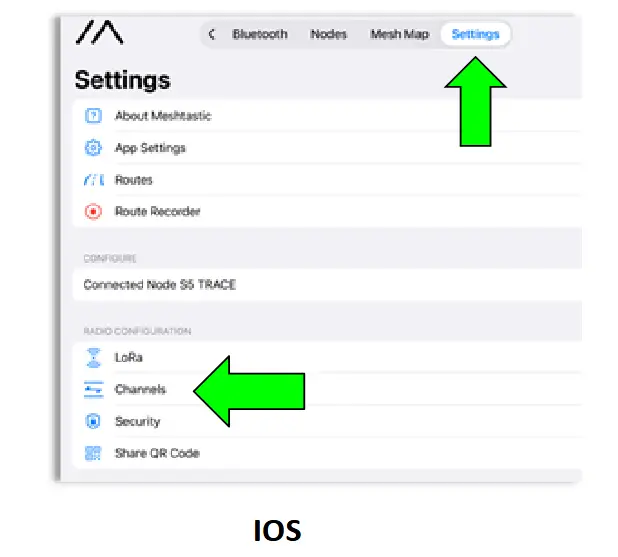
- On Android delete the public channel “LongFast”. On iOS you cannot delete the primary channel but you can edit it.

- Add a new Channel by clicking the “+” button

- Create the Custom Channel on Android. Edit the Primary channel on iOS.
a. Noem die nuwe kanaal na jou smaak.
b. Click the Refresh Button on the PSK to create a new randomized pre-shared key.
c. Turn on “Position Endabled” and “Precise Location”.
d. Click Save and then Send to update the channel on the device. The device will reboot.

Stap 6: Deel die persoonlike/privaat kanaal met jou ander toestelle
- Navigate to the Channels tab on the Meshtastic app. Your phone needs to be connected via bluetooth to your Trace to share the channels
- Select your custom channel. The QR code and URL sal opdateer wanneer keuses verander word.
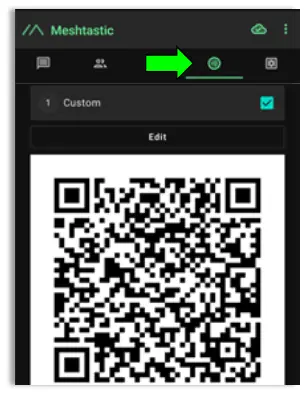
a. As jy hierdie kanaal by 'n ander toestel voeg met dieselfde foon/tablet, sal jy die URL en stoor dit na die knipbord of na 'n teks file.
b. As jy hierdie kanaal deel met 'n toestel wat aan 'n ander foon of tablet gekoppel is, skandeer eenvoudig die QR-kode met behulp van die Meshtastic-app op die tweede foon/tablet.
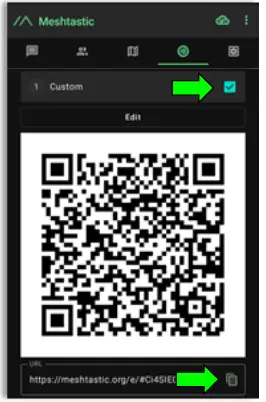
You are now done with the configuration of your Trace. Follow these same instructions for multiple Trace devices. - Add the Custom/Private Channel on your personal mesh radio.This will be the device you keep on your person while the Trace is attached to your dog/pet.
a. Connect your second device to the Meshtastic app.
b. Under the Channels tab on the app you will erase the hyperlink under “URL” en plak die hiperskakel wat jy in die vorige stap gestoor het, in.
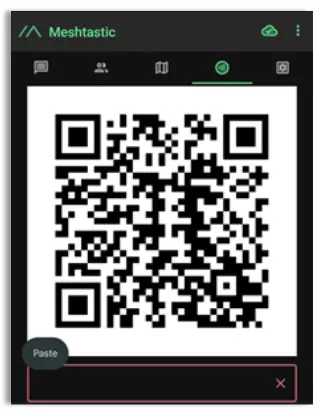
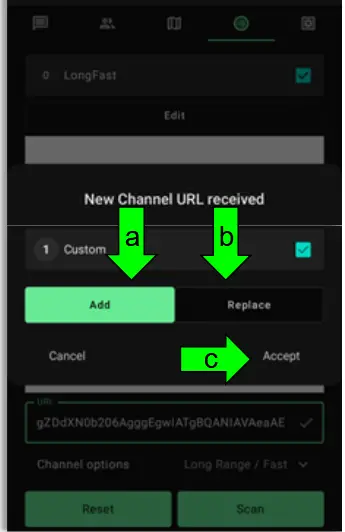
- A window will appear giving you 2 options
a. Voeg by: Dit sal die persoonlike kanaal as 'n sekondêre kanaal op jou persoonlike toestel byvoeg. Dit is 'n goeie opsie wanneer jy die publieke kanaal "LongFast" op jou toestel wil hou om met ander Meshtastic-gebruikers te kommunikeer.
b. Vervang: Dit sal die standaard publieke kanaal "Longfast" vervang met jou persoonlike kanaal sodat jy slegs die toestelle op jou persoonlike kanaal kan sien en daarmee kan kommunikeer.
c. Klik Aanvaar om die nuwe kanaal na die toestel te stuur.
Stap 7: Heg die toestel aan
- For Dog Tracking: Secure the device using the provided collar attachment. Ensure the Trace is on the back of the neck of your dog so that the internal GPS antenna faces the sky for optimal signal reception.
- For Team Tracking: Use the Molle mount to attach the device securely to tactical gear, with the “S” in “spec5” pointing up so that the internal GPS antenna faces towards the sky for optimal signal reception.
Gebruik van die dopfunksies
Laai kaarte af vir vanlyn gebruik (Android)
- Open the Meshtastic app and navigate to the map tab while connected to WIFI or your Cellular network.
- Move your map to locate the area to anticipate needing offline maps for.
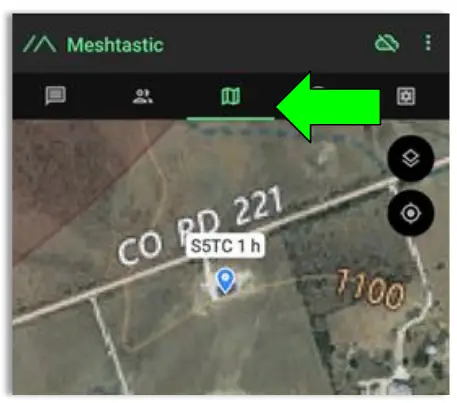
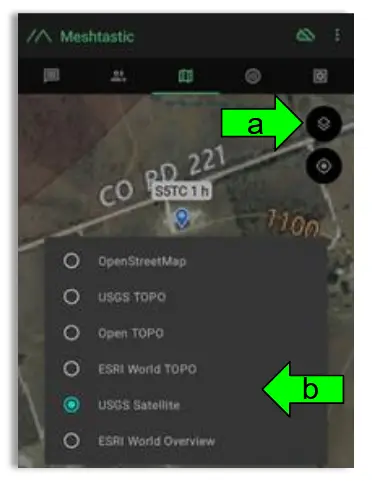
- Select the Map Type you wish to use
a. Click the Map options button
b. Select your preferred Map
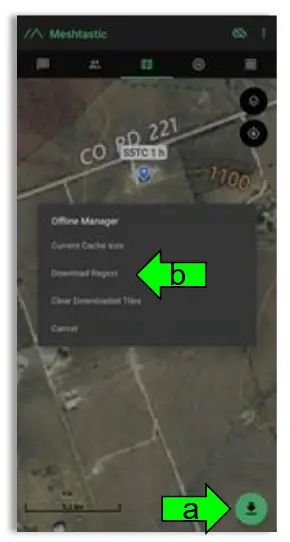
- Download the Map region
a. Click the Download Button
b. Click “Download Region” to download the current map region your map is zoomed to. Use the “Current Cache Size” to see how much storage your current offline maps are using. “Clear Downloaded Tiles” to remove map data for regions you are no longer using.
Intydse liggingopsporing
- Open the Meshtastic app and connect to your personal device.
- Go to the map tab to see the locations of all of the devices in your mesh including your Trace.
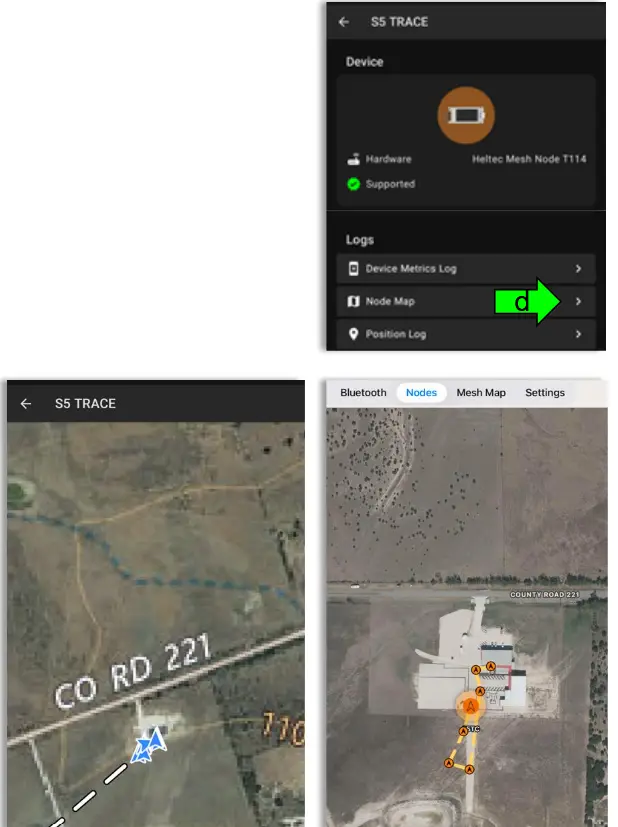
- To see the present and past locations of your Trace
a. Go to the nodes list
b. Select you Trace by clicking on the Short name
c. Select More Details
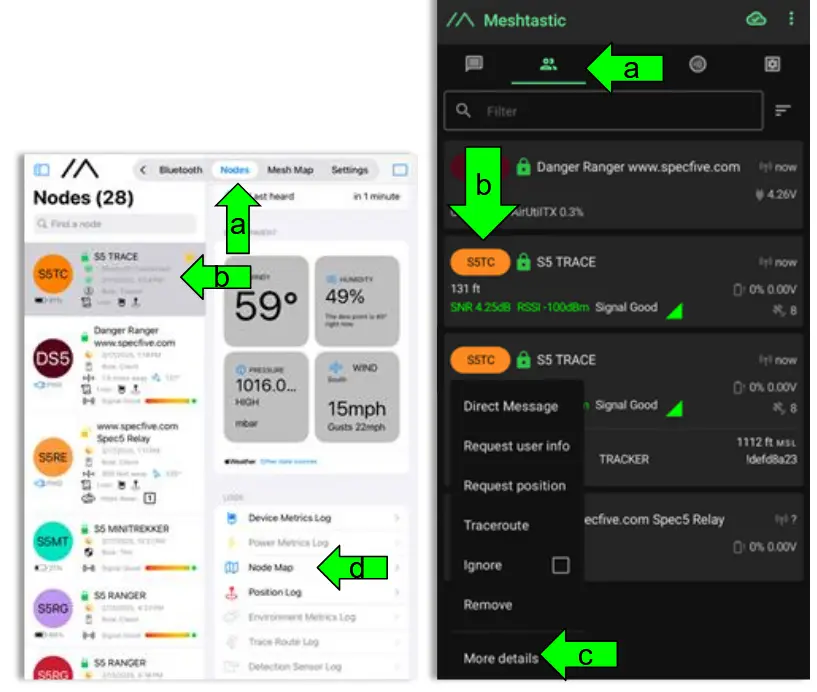
d. Kies “Nodekaart” om view vorige en huidige GPS-liggings van jou Trace
Ondersteuning en kontakinligting
If you experience issues or have questions, contact us at:
• E-pos: general@specfive.com
• Webwebwerf: www.specfive.com
With your SpecFive Trace device, you can track your dog or team members confidently and stay connected no matter where your adventures take you!
© 2024, SpecFive LLC Alle Reg Voorbehou
specfive.com
Dokumente / Hulpbronne
 | Spooropsporingstoestel |
Verwysings
- Complete Meshtastic Devices Powered By SpecFive LLCspecfive.com
- Complete Meshtastic Devices Powered By SpecFive LLCwww.specfive.com
- Gebruikershandleidingmanual.tools