
Magene C606 V2
Magene C606 V2 Smart GPS Bike Computer User Manual
Comprehensive instructions for setting up, operating, and maintaining your Magene C606 V2 Smart GPS Bike Computer.
Produk verbyview
The Magene C606 V2 Wireless GPS Bike Computer offers premium performance with a bright 2.8-inch color TFT touchscreen. It integrates advanced features like Multi-Scenario ClimbPro, Strava Live Segments support, Cycling Dynamics analysis, and comprehensive wireless ecosystem integration to optimize your training and riding experience.
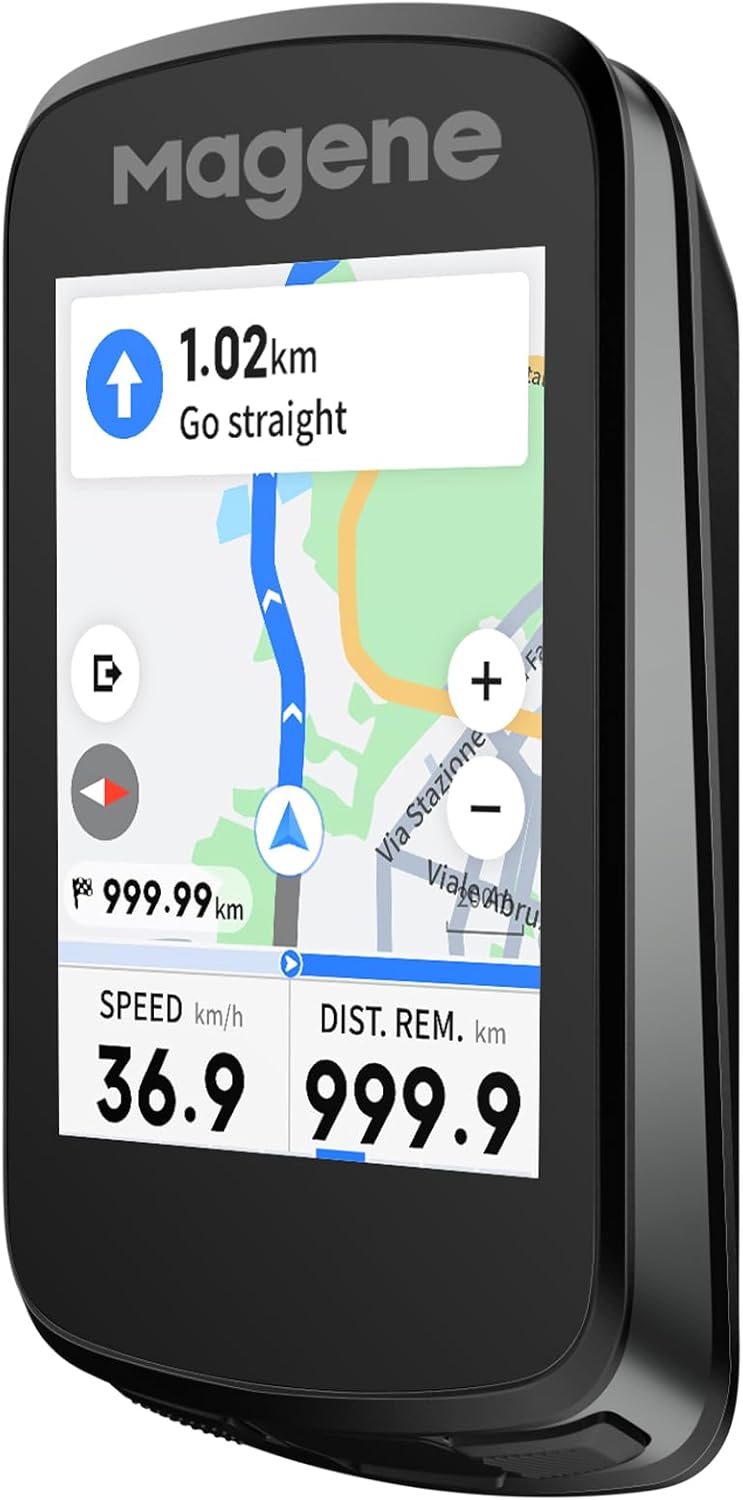
Image: Magene C606 V2 Smart GPS Bike Computer, showcasing sy slanke ontwerp en lewendige skerm.
Sleutel kenmerke:
- Multi-Scenario ClimbPro: Full route climb planning and automatic mid-ride detection with real-time gradient, remaining distance, and elevation data.
- Strava Regstreekse Segmente: Real-time segment display on map and list, Wi-Fi auto-sync, approach alerts, and live PK battles.
- Cycling Dynamics: Advanced pedaling insights including Power Phase, Seated/Standing Time, and Platform Center Offset (with compatible power meters).
- 2.8" Vibrant Color Touchscreen: Large, responsive TFT display for clear data and intuitive control.
- Wireless Offline Smart Navigation: Multi-source route planning, online rerouting, and support for routes up to 1,000 km.
- Advanced Indoor Training: Simulate outdoor routes, import TrainingPeaks courses, and direct smart trainer control.
- Smart Wireless Camera Control: One-tap operation of DJI Action & Insta360 cameras with real-time battery/storage display.
- Fast Wi-Fi + Bluetooth Sync: 28x faster data upload than Bluetooth alone, automatic AGNSS positioning, and seamless syncing.
- Highly Customizable Interface: 12 riding modes, up to 10 data pages each, 110+ data fields, and customizable lap function.
- Duursame ontwerp: IPX7 waterproof rating, replaceable mount system, included protective case and tempered glass protector.
Wat is in die boks
The Magene C606 V2 Smart GPS Bike Computer package includes the following items:
- Magene C606 V2 Wireless GPS Bike Computer ×1
- TPU Protective Case ×1 (pre-installed)
- Tempered Glass Screen Protector ×1
- Tipe-C-laaikabel ×1
- Gebruikershandleiding ×1
- Koord × 1
- Stem Mount ×1
- Replacement Mount Base ×1
- Replacement Quarter-Turn Adapter ×1
- Rubber Bands ×4
- Seskantsleutel ×1

Image: All components included in the Magene C606 V2 Bike Computer package.
Opstelling en aanvanklike konfigurasie
1. Fietsrekenaarinstallasie
The Magene C606 V2 offers two mounting methods:
- Using the Bike Computer Mount: Wrap the provided rubber band around your handlebar. Secure the mount base using the bike computer mount.
- Using the Out-Front Mount: It is recommended to install the included stem mount onto a suitable bike computer out-front mount for the best fit.
After securing the mount, press the bike computer onto the mount and rotate it following the arrow direction until it locks into place. Ensure the bike computer faces upward after installation for optimal GPS signal reception and to avoid affecting your riding experience.

Image: Demonstrates the installation of the bike computer onto a handlebar mount.
2. Initial Configuration and App Pairing
To configure your bike computer, you need to install the "OnelapFit" app:
- Download and install "OnelapFit" from your phone's app store or by scanning the QR code in the manual.
- Complete registration and log in. Fill in your personal information.
- Long press the bike computer button to power it on.
- Open "OnelapFit", tap the "+" icon (bike computer) in the top right corner, and select the corresponding model.
- Scan the QR code displayed on the bike computer for pairing.
- After successful pairing, you can enter the guide interface within the app to complete further setup.
3. Bike Computer Positioning (GPS Acquisition)
For accurate GPS data, operate the bike computer in an open outdoor area without blockage from tall buildings, trees, or overpasses. Power on the device and wait for it to acquire a GPS signal. While acquiring, the positioning icon in the top left corner of the screen will flash. After successful positioning, the icon will remain lit.
Bedien die toestel
1. Knoppie Funksies
- Long Press Button A: Power on/off, turn off screen during ride, lock screen.
- Short Press Button B (on ride dashboard): Switch data pages.
- Click Button C (bottom right): Start or pause a ride.
- Long Press Button C (bottom right): Start or end a ride.
- Short Press/Long Press (on bike computer home page): Directly start a ride.
- Long Press Button C (on other interfaces): Quickly start a ride.
2. Starting a Ride
From the home screen, click any riding mode (e.g., Road, Commute) or use the short/long press of Button C to enter a ride. More riding modes and dashboard pages can be customized via the OnelapFit app.
3. Viewing Ride History
On the home page, select "History" to view past ride data. This includes "Data Statistics" (total mileage, time, riding days) and "Routes" (specific detailed information of past route records).
Gevorderde kenmerke en funksies
1. Peripheral Device Connection
The C606 V2 bike computer supports connection and pairing with various types of sensor devices via ANT+ and Bluetooth protocols. This includes action cameras, speed sensors, cadence sensors, heart rate monitors, power meters, indoor trainers, radar tail lights, smart tail lights, and electronic derailleurs.
The device remembers multiple sensors of the same type, automatically attempting to connect when powered on. Sensor enable/disable functionality is supported. You can configure peripherals both on the bike computer and within the OnelapFit app.

Image: Illustrates the broad device compatibility of the Magene C606 V2, including various sensors and cameras.
After connecting peripherals, you can view corresponding data or control peripherals via the data page on the bike computer. For radar tail light type sensors, connect under both "Radar" and "Tail Light" categories. After successful connection, tail light control functions can be accessed within the data items on the bike computer.
2. Navigasie
The OnelapFit app allows for mobile app and bike computer interconnection for navigation. You can plan routes by drawing on the map. The app supports four methods for route creation: map creation, GPX file import, converting ride records to routes, and third-party app import.
During map creation, drag the map to set start point, end point, and add waypoints. After completion, connect the bike computer for one-click import. During a ride, enter the navigation page to select a route. You can view the track, switch routes, or quickly navigate back to the start point anytime during the ride.

Image: The Magene C606 V2 displaying smart navigation features on its screen.
3. ClimbPro
The bike computer has a built-in intelligent ClimbPro function that automatically identifies climb segments longer than 400 meters with a gradient ≥2.5%. It categorizes them into five levels based on difficulty, from Category 4 gentle slopes to HC-level steep slopes.
When importing third-party routes or ride records, it provides a warning 100 meters in advance and switches to the exclusive ClimbPro dashboard at the start point.
Let wel: Only third-party tracks or historical records can trigger reminders. Safe sections will be prioritized. Imported routes must have elevation data to have ClimbPro reminders.

Image: Visual representation of the Multi-Scenario ClimbPro feature on the device.
4. Strava Live Segments
When the bike computer detects an approaching segment during your ride, it switches to the segment dashboard to alert you. During the segment, based on default or user-defined challenge goals, it calculates and displays whether you are ahead or behind your target. After completing the segment, your result is saved, and you can view detailed segment analysis in the app.
Currently, only Strava segment imports are supported. Segment results support two synchronization methods: matching segment information and displaying results directly via Fit files generated by the bike computer, or the system automatically matches public segments based on GPS tracks and calculates results (synchronization frequency depends on platform rules).
Furthermore, the social feature "Friends Rode" enhances user interaction and competitive motivation by syncing followed users' segment completions, comments, and favorite activity to the information feed.

Image: The Magene C606 V2 displaying Strava Live Segments data during a ride.
5. Cycling Dynamics
When users use a power meter with riding dynamics capabilities and a Magene bike computer, they can display the user's dynamic information on the bike computer dashboard during the ride. It also supports users viewing detailed information of riding dynamics data using the APP after the ride ends.

Image: The Magene C606 V2 displaying cycling dynamics data such as power phase and seated/standing time.
6. Smart Assistant
Smart Assistant is your riding partner, helping you easily manage smart devices during your ride. In "OnelapFit", enter "Smart Assistant" to perform comprehensive function configuration. It provides preset commands such as automatic light activation, heart rate alerts, etc.
Data information from the bike computer or external devices can all be used as trigger conditions, and can make the bike computer as well as multiple external devices synchronously execute command operations.
Byvoorbeeldample, you can set a condition for when speed is greater than 10km/h, the L508 radar tail light automatically turns on. Or, if heart rate is greater than 180bpm, an H803 armband vibrates as a reminder. You can also set a condition for a specific time, like 6:00 PM, an AT series front light turns on.
You can use the custom buttons of Shimano Di2 electronic shifting to achieve quick operations like controlling bike light on/off, controlling intercom, bike computer page turning, switching front/rear tail light modes, ensuring your safety during the ride.
Let wel: To ensure the Smart Assistant function works normally, please ensure the firmware versions of the bike computer and peripherals are upgraded to the latest. Also, during the ride, please ensure the bike computer maintains connection with the peripherals.

Image: The Magene C606 V2 displaying smart notifications and reminders.
7. Advanced Indoor Training
The C606 V2 bike computer supports connecting to an indoor trainer for indoor workouts. Before using the bike computer for workouts, you can create training via OnelapFit or directly select official workouts to import to the bike computer.
In OnelapFit, enter the "Bike computer Settings" page, select "Workouts". You can click "Official Workouts", browse the workouts provided officially, select suitable workouts to import to the bike computer. You can also click "New Training" according to your training needs, create requirements for each interval, confirm the number of intervals, save the training and import it to the bike computer, then use this Workout for training.
You can sync workouts to your bike computer via TrainingPeaks. By default, it syncs Workouts data for the current day and the next seven days. In OnelapFit, enter the "Bike computer Settings" page, select "Workouts". You can click "TrainingPeaks" at the top, authorize to complete synchronization.

Image: The Magene C606 V2 displaying indoor training options and simulated routes.
Instellingskieslys
1. Quick Settings Menu
Pull down the screen to bring up the Quick Settings menu. From here, you can:
- Set Silent Mode.
- Enable Long Battery Life Mode.
- Enable Do Not Disturb (DND) mode.
- Adjust brightness/volume by dragging the progress bar.
- Swipe to the second page to manage sensors.
- The third page manages previously received notifications.
Let wel: Remember to enable permissions in the app first for notifications to function.
2. Ride Settings
Access "Ride Settings" to configure various ride-related options:
- Outo pouse: Once enabled and a speed condition is set, the bike computer will automatically pause when it detects speed below this threshold.
- Outo begin: Enable auto start and set the auto-start speed condition. If continuously above the set speed threshold when not yet started riding, it will automatically start ride recording.
- Lap Settings: Set the on/off for auto lap. You can set lap by time, by location, or by distance, and set lap conditions.
- Data Calculation: Provides options for whether average cadence and average power calculations include zeros.
- Ride Alerts: Quickly set ride alert on/off. After enabling ride alerts, the system will automatically detect recording status and riding speed and intelligently prompt to start, pause, or resume tracking.
3. Wi-Fi-instellings
In OnelapFit, enter the "Wi-Fi" option in the bike computer settings. Add a 2.4G network. After connection, the bike computer will automatically remember it. Next time in a Wi-Fi environment, it will connect instantly. Currently, only supports 2.4G band.
4. Phone Pairing & Sound/Dark/Light Mode
In Settings, you can manage phone pairing and unpairing. Enter settings to turn on button sounds and ride prompt sounds. Dark/Light mode settings can set light/dark mode. Light/dark mode can quickly set the overall theme color of the interface. You can also enable auto mode, which will automatically enable dark mode after obtaining local sunset time, not glaring at night.
5. Navigasie-instellings
In Navigation Settings, you can toggle the display of map elements like mountains, water, etc. You can also set the Navigation perspective to be either Heading Up or North Up. Navigation cards can switch between Classic Mode and Simple Mode. There are two planning strategy choices: choose end direction or nearest intersection point.
6. ClimbPro Settings & Segment Settings
In the ClimbPro settings option, you can set whether to remind during route navigation, whether to remind during FreeRide, and you can filter preferred climbs by grade. Segment settings allow you to set whether to enable segment reminders. Switching challenge targets allows setting Personal Record (PR) mode or KOM/QOM mode.
7. Power Management & Preference Settings
In Power Management options, you can control auto power off, auto power off time, auto screen off, auto screen off time, ride pause, long battery life, etc. Preference settings allow modifying unit preferences (temperature unit, time format) and language. Currently supports 13 languages; more will be supported in the future.
8. Stelselinstellings
System Settings allow viewing remaining memory, resetting settings, restoring factory settings, regulatory information statements, and about information, etc.
Databestuur
1. Map Download Management
After connecting the bike computer, click the device settings page to enter the map download page. Drag the selection box to lock the riding area (limited to within 200km). Check the required map types (Map/Navigation/FreeRide), enter a unique file name. Note: single file ≤2G. You can download up to 3 files, but only one can be applied at a time. For cross-border riding, the Schengen area supports multi-country downloads. Non-Schengen areas automatically select the country with maximum coverage. Before clicking download, ensure the bike computer is connected to Wi-Fi and battery >20%. If interrupted, it can resume without restarting! After completion, turn on the "Apply" switch to immediately generate Navigation routes.
2. Data Memory Management
Click "Data Re-transmission". The app will retrieve all data within the bike computer. If some data has already been uploaded, it will be directly overwritten, no need to worry about data duplication.
Persoonlike Profile
"OnelapFit" is professional cycling training software. Entering accurate information in the personal profile page of "OnelapFit" will help calculate and count your sports data more precisely.
In the personal profile settings page, besides setting basic data like birthday, height, weight, you can also set comprehensive personal and equipment data such as FTP, MHR, Lactate Threshold Heart Rate, bike weight, bike name, etc.
AGNSS Assisted Positioning
AGNSS Assisted Positioning accelerates bike computer satellite acquisition. AGNSS Assisted Positioning can obtain ephemeris data via "OnelapFit" or Wi-Fi and transmit it to the bike computer, speeding up bike computer positioning.
When connected to Wi-Fi, the bike computer will automatically sync ephemeris data every two days. You can also manually update and sync ephemeris data.
In "OnelapFit", enter the "Bike computer Settings" page, click the "Sync" button under the AGNSS Assisted Positioning module to sync the latest ephemeris.
Viewing, Syncing, and Sharing Ride Records
After a ride ends, the bike computer will automatically sync and save the ride record when connected to "OnelapFit". After ride record synchronization is complete, you can view exercise details in the data records. Click the top right corner to share or download the current ride record.
Produkspesifikasies
| Kenmerk | Detail |
|---|---|
| Handelsmerk | Magene |
| Modelnommer | C606 V2 |
| Skerm grootte | 2.8 duim |
| Tipe vertoon | Kleurvertoning |
| Batterylewe | Tot 25 ure |
| Verbindingstegnologie | ANT, Bluetooth, Wi-Fi |
| Montage tipe | Stam Mount |
| Menslike koppelvlak-invoer | Raakskerm |
| Internasionale Beskermingsgraad | IPX7 |
Waarborg en Ondersteuning
The Magene C606 V2 Bike Computer comes with a 2-jaar vervaardigerwaarborg.
For detailed user guides, troubleshooting, or further assistance, please refer to the QR code in the included User Manual or visit the official Magene support webwebwerf.
You can also find additional support and resources through the Magene Store on Amazon.
Official Operation Video
Video: A comprehensive operation video for the Magene C606 V2 Bike Computer, demonstrating setup, features, and usage.
Ask a question about this manual
Ask about setup, troubleshooting, compatibility, parts, safety, or missing instructions. Manuals+ will review the question and use this page’s manual context to help answer it.