
1. Inleiding
Thank you for choosing the ACEMAGIC LX16PRO Gaming Laptop. This manual provides essential information for setting up, operating, maintaining, and troubleshooting your new device. The LX16PRO is designed for performance and productivity, featuring an AMD Ryzen 7 7730U processor, a 16-inch IPS display, 16GB DDR4 RAM, and a 512GB NVMe SSD, running on Windows 11 Pro.

Beeld: Oorview of the ACEMAGIC LX16PRO laptop, highlighting its AMD Ryzen 7 7730U processor, AMD Radeon Graphics, 16-inch FHD IPS display, up to 64GB DDR4 RAM, up to 4TB NVMe SSD, WiFi 6, and backlit keyboard.
2. Opstelling
2.1 Aanvanklike aanskakeling
- Pak uit: Verwyder die skootrekenaar en alle bykomstighede versigtig uit die verpakking.
- Koppel krag: Plug the power adapter into the DC jack on the laptop and then into a power outlet.
- Krag aan: Open the laptop lid and press the power button, usually located on the keyboard deck.
- Windows-opstelling: Follow the on-screen instructions to complete the Windows 11 Pro initial setup, including language, region, network connection, and user account creation.
2.2 Aansluiting van randapparatuur
The LX16PRO offers various ports for connecting external devices:
- USB 3.2: Koppel USB-toestelle soos muise, sleutelborde of eksterne stoorskywe.
- Type-C (Full Function): Use for data transfer, video output, or charging compatible devices.
- HDMI: Koppel aan eksterne monitors of TV's vir uitgebreide vertoon.
- 3.5 mm koptelefoonaansluiting: Sluit koptelefoon of eksterne luidsprekers aan.
- TF-kaartsok: Insert a TF (microSD) card for additional storage or data transfer.

Beeld: Regterkant view of the laptop, displaying the DC power input, a full-function Type-C port, an HDMI port, and a USB 3.2 port.
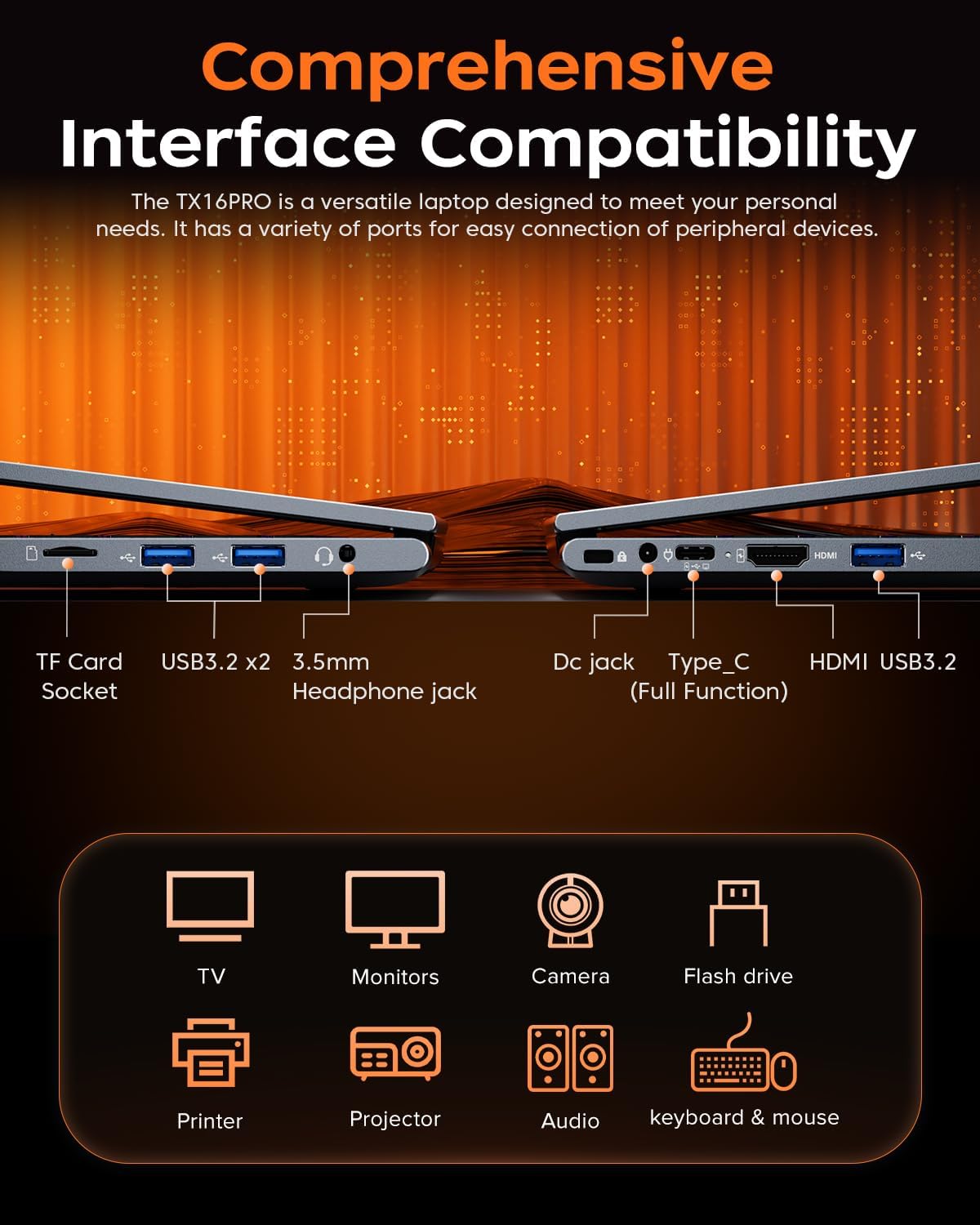
Beeld: Linkerkant view of the laptop, showing the TF card socket, two USB 3.2 ports, and the 3.5mm headphone jack.
3. Bedryfsinstruksies
3.1 Sleutelbord en raakvlak
The laptop features a backlit keyboard and a responsive touchpad with multi-touch capabilities. The backlit keyboard enhances visibility in low-light conditions, and the numeric keypad provides convenience for data entry.
- Agterligbeheer: Use the dedicated function keys (e.g., Fn + Fx) to adjust keyboard backlight brightness or toggle it on/off.
- Raakbordgebare: Utilize multi-touch gestures for navigation, zooming, and other functions within Windows 11 Pro.

Image: Close-up of the laptop's backlit keyboard and large touchpad, illustrating its design and functionality.
3.2 Vertoon
The 16-inch IPS display offers Full HD (1920x1200) resolution for clear and vibrant visuals. Adjust display settings through Windows settings for optimal viewondervinding.

Image: The laptop screen showcasing vivid graphics, emphasizing the 16-inch display with Full HD (1920x1200) resolution and IPS technology.
3.3 Draadlose verbinding
The LX16PRO supports WiFi 6 and Bluetooth 5.2 for fast and reliable wireless connections.
- WiFi 6: Connect to high-speed wireless networks for internet access and online activities.
- Bluetooth 5.2: Koppel met Bluetooth-geaktiveerde toestelle soos oorfone, luidsprekers of ander randapparatuur.

Image: A visual comparison demonstrating the improved transfer speeds and reduced latency of WiFi 6 over WiFi 5, beneficial for gaming and streaming.
3.4 kragmodusse
Optimize performance and battery life by adjusting power modes in Windows settings (Settings > System > Power & battery).
- Beste prestasie: Maximizes system speed for demanding tasks like gaming.
- Gebalanseerd: Offers a good compromise between performance and power efficiency for everyday use.
- Best Power Efficiency: Conserves battery life for extended usage, suitable for light tasks.

Image: The laptop displayed alongside three power modes, indicating their respective performance levels and recommended uses for gaming, work, and extended battery life.
4. Onderhoud
4.1 Batterysorg
- Vermy om die battery gereeld heeltemal te ontlaai.
- Bêre die skootrekenaar op 'n koel, droë plek wanneer dit nie vir lang tye gebruik word nie.
- Vir optimale batteryleeftyd, vermy blootstelling van die skootrekenaar aan uiterste temperature.

Beeld: 'n Interne view of the laptop highlighting the 54Wh battery, indicating its capacity for extended use.
4.2 Bergingbestuur
- Regularly clean up unnecessary files and applications to maintain optimal performance of the 512GB NVMe SSD.
- Consider external storage or cloud services for large files to free up internal drive space.

Image: A visual representation of the laptop's memory (16GB DDR4 RAM, upgradable to 64GB) and storage (512GB NVMe SSD, upgradable to 4TB) capabilities.
4.3 Skoonmaak
- Gebruik 'n sagte, pluisvrye lap om die skerm en buite-oppervlaktes skoon te maak.
- Vermy harde chemikalieë of skuurmateriaal.
- Periodically clean the cooling vents to ensure proper airflow and prevent overheating.

Image: An illustration of the laptop's internal cooling system, featuring dual copper pipes and a dedicated fan designed to maintain low temperatures during operation.
5. Probleemoplossing
If you encounter issues with your ACEMAGIC LX16PRO laptop, refer to the following common solutions:
- Geen krag: Maak seker dat die kragadapter stewig aan beide die skootrekenaar en 'n werkende kragaansluiting gekoppel is. Kontroleer die kragaanwyserliggie.
- Vertoon kwessies: If the screen is blank, try connecting an external monitor via HDMI to check if the issue is with the laptop's display or graphics output. Adjust display settings in Windows.
- Verbindingsprobleme: For WiFi issues, restart your router and the laptop. For Bluetooth, ensure the device is discoverable and within range.
- Stadige prestasie: Close unnecessary applications, check for background processes, and ensure your system is up to date. Consider running a disk cleanup.
- Stelselvries: If the system becomes unresponsive, press and hold the power button for 10-15 seconds to force a shutdown. Restart the laptop.
For further assistance, please contact ACEMAGIC customer support.
6. Spesifikasies
Below are the detailed specifications for the ACEMAGIC LX16PRO Gaming Laptop:
| Kenmerk | Detail |
|---|---|
| Model Naam | LX16PRO |
| Verwerker | AMD Ryzen 7 7730U (8 kerns, 16 drade, tot 4.5 GHz) |
| Grafika | AMD Radeon ™ Graphics |
| RAM | 16GB DDR4 (2666 MHz), Max 64GB |
| Berging | 512GB NVMe SSD (PCIE x 4), Max 4TB |
| Vertoon | 16-inch IPS, 1920x1200 (FHD), 60 Hz |
| Bedryfstelsel | Windows 11 Pro |
| Konnektiwiteit | WiFi 6 (802.11ax), Bluetooth 5.2 |
| Hawens | 1x HDMI, 1x Type-C (Full Function), 3x USB 3.2, 1x 3.5mm Audio Jack, 1x TF Card Socket, 1x DC Jack |
| Sleutelbord | Backlit Keypad, QWERTY Layout |
| Raakblad | Multi-touch |
| Webnok | Yes (Front) |
| Battery | 1 Lithium Ion, 55 Watt Hours (approx. 4 hours life) |
| Afmetings | 35.73 x 22.86 x 1.67 cm |
| Gewig | 1.78 kg |
7. Waarborg en Ondersteuning
ACEMAGIC provides customers with a one-year limited warranty and 30-day returns. Lifetime technical support and offline maintenance are also available. For any issues or inquiries, please feel free to contact ACEMAGIC customer support.
8. Produk verbyview Video
Video: 'n Kort oorsigview of the ACEMAGIC TX16PRO Laptop, showcasing its 16-inch FHD display, 180-degree hinge, backlit keyboard, and various connectivity ports including DC jack, Type-C, HDMI, USB 3.2, TF card socket, and 3.5mm headphone jack. This video highlights the physical features and design of the laptop.