
1. Inleiding
This manual provides detailed instructions for the setup, operation, maintenance, and troubleshooting of your GMKtec G3 Pro Mini PC. Please read this guide thoroughly before using your device to ensure optimal performance and longevity.
The GMKtec G3 Pro is a compact desktop computer designed for various applications, including office work, business, multimedia, and online learning. It features an Intel Core i3-10110U processor, 16GB DDR4 RAM, and a 512GB PCIe M.2 SSD, offering efficient performance in a small form factor.
2. Wat is in die boks
Verifieer dat alle items in die pakket teenwoordig is:
- GMKtec Nucbox G3 Pro Mini PC (16GB RAM, 512GB SSD)
- HDMI kabel
- Kragadapter
- Gebruikershandleiding
- VESA Mount with Screws

3. Produk verbyview
The GMKtec G3 Pro Mini PC is designed for compact and efficient computing. It features a robust set of ports and internal components to support various tasks.
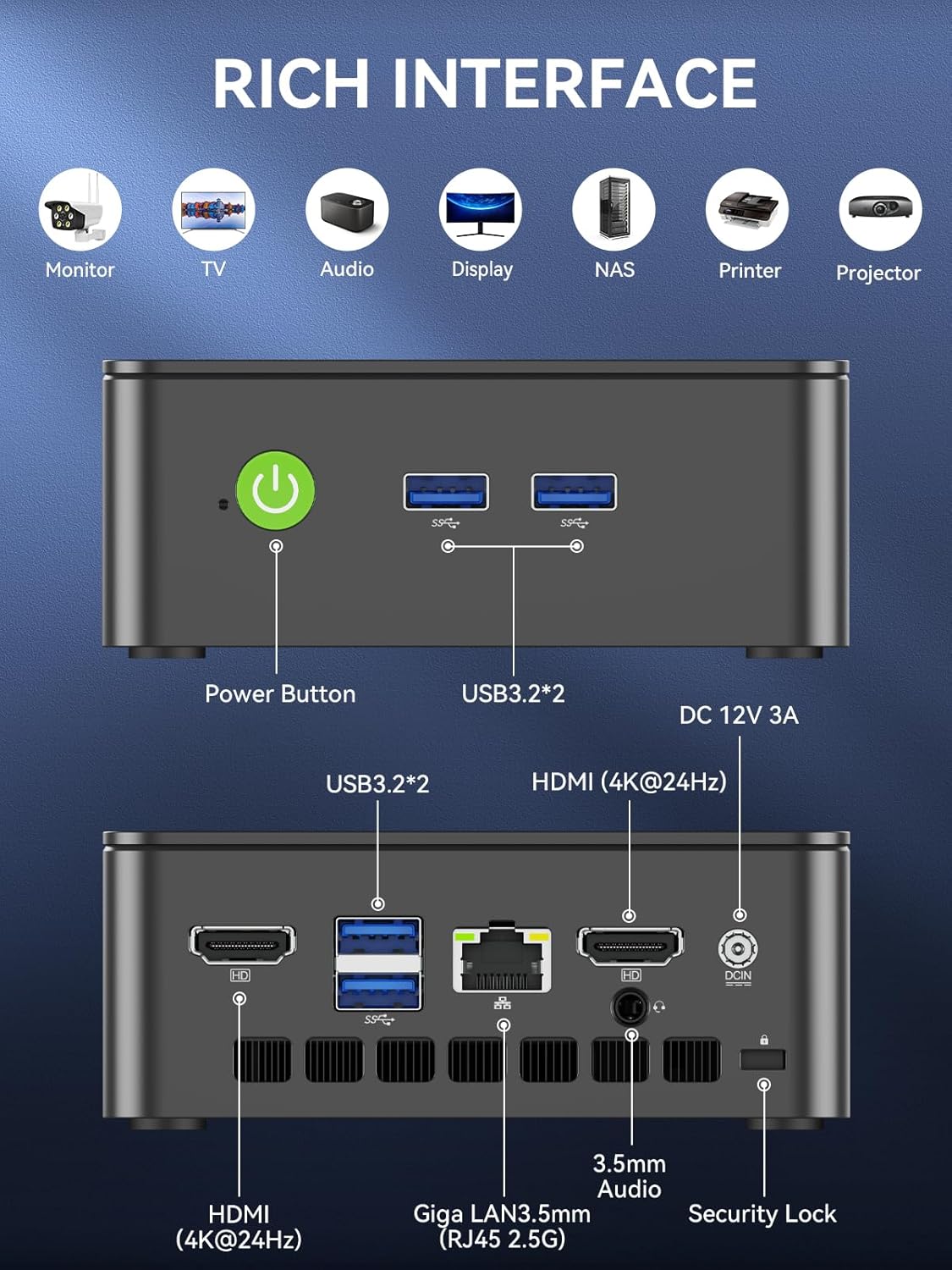
Voorpaneel
- Kragknoppie: Om die toestel aan/af te skakel.
- USB 3.2 x 2: For connecting peripherals such as keyboards, mice, or external storage devices.
Agterpaneel
- HDMI (4K@60Hz) x 2: For connecting to displays, supporting dual 4K output.
- USB 3.2 x 2: Bykomende poorte vir randapparatuur.
- 3.5 mm oudio-aansluiting: Vir die koppeling van oorfone of eksterne luidsprekers.
- Giga LAN (RJ45 2.5GbE): Vir bedrade netwerkverbinding.
- DC IN: Kraginvoerpoort.
- Sekuriteitslotgleuf: For securing the device to a desk.
Interne komponente
- Dual DDR4 RAM Slots: Supports up to 64GB RAM.
- M.2 2280 PCIe Gen3*4 Slot: For NVMe SSDs, supporting up to 8TB.
- M.2 2242 SATA3.0 Slot: For SATA SSDs, supporting up to 1TB.
- Cooling Fan & Vents: Integrated cooling system to maintain optimal operating temperatures.

4. Opstelgids
Volg hierdie stappe vir aanvanklike opstelling:
- Koppel randapparatuur: Connect your keyboard, mouse, and any other necessary USB devices to the available USB 3.2 ports.
- Verbind skerm: Use an HDMI cable to connect your monitor(s) to the HDMI ports on the rear panel. The device supports dual 4K@60Hz displays.
- Koppel krag: Plug the power adapter into the DC IN port on the mini PC, then plug the adapter into a power outlet.
- Krag aan: Druk die kragknoppie op die voorpaneel om die mini-rekenaar aan te skakel.
- Initial Operating System Setup: Volg die instruksies op die skerm om die Windows 11 Pro-opstelling te voltooi.
- Netwerk konneksie: For faster setup, avoid connecting to a wired LAN initially. Connecting LAN might trigger long updates, delaying desktop access. Connect to Wi-Fi 6 or connect to the 2.5GbE LAN port after initial setup is complete.

5. Bedryfsinstruksies
Krag aan/af
- Om aan te skakel: Druk een keer die kragknoppie.
- Om af te skakel: From the operating system, select 'Shut down'. Alternatively, press and hold the power button for 5 seconds to force a shutdown (use only when necessary).
BIOS Settings and Performance Modes
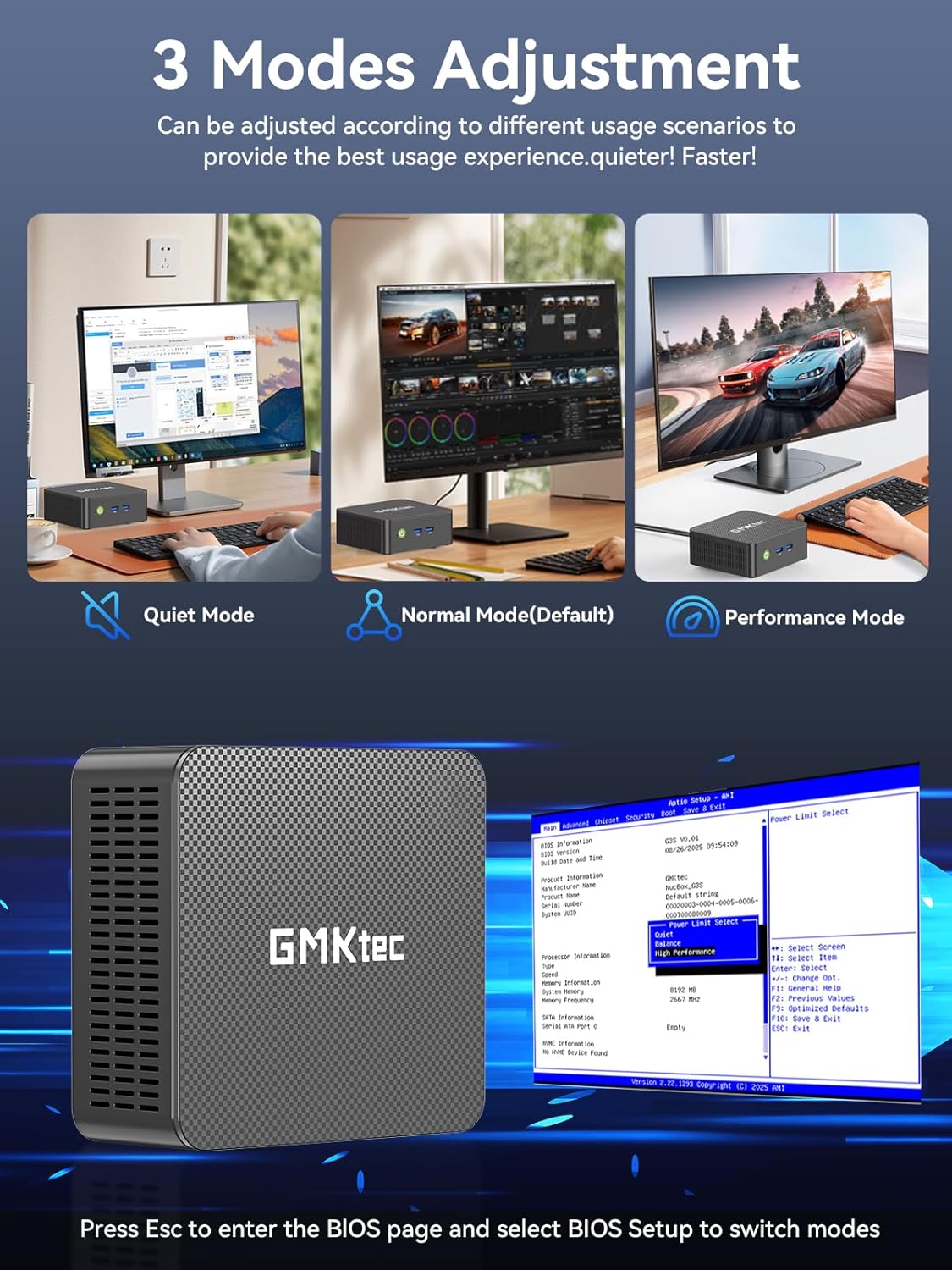
The GMKtec G3 Pro supports different performance modes that can be adjusted via the BIOS settings to optimize for quiet operation, normal use, or maximum performance.
- Toegang tot BIOS: Press the 'Esc' key repeatedly during startup to enter the BIOS page.
- Verstelmodusse: Navigate to the BIOS Setup and select your desired mode (Quiet Mode, Normal Mode, Performance Mode) based on your usage scenario.
6. Berging Uitbreiding
The GMKtec G3 Pro offers flexible storage expansion options:
- M.2 2280 NVMe PCIe Slot: Supports high-speed NVMe SSDs up to 8TB for primary storage or additional high-performance storage.
- M.2 2242 SATA Slot: Supports SATA SSDs up to 1TB for additional storage capacity.
To install or upgrade storage, refer to the detailed instructions in the full user manual or consult a qualified technician.
7. Konnektiwiteit
The Mini PC provides comprehensive connectivity options:
- Wi-Fi 6 (802.11ax): Offers high-speed wireless internet access up to 600Mbps.
- Bluetooth 5.2: For connecting wireless devices such as keyboards, mice, and headphones.
- 2.5GbE Ethernet (RJ45): Provides ultra-fast wired network speeds, up to 2.5 times faster than standard Gigabit Ethernet.

8. Dubbele skermopstelling
The GMKtec G3 Pro supports connecting two 4K@60Hz displays simultaneously via its two HDMI 2.0 ports. This allows for an extended desktop experience, enhancing productivity for multitasking, content creation, or entertainment.
Simply connect two monitors using HDMI cables to the respective ports on the rear of the mini PC. The operating system will automatically detect the displays, and you can configure their arrangement and resolution through the display settings.

9. Verkoelingstelsel
The GMKtec G3 Pro is equipped with a smart quiet cooling fan and strategically placed cooling vents to ensure efficient heat dissipation. This design allows for ultra-quiet operation, typically below 38dB, even under load, providing a comfortable working environment.

10. Spesifikasies
| Kenmerk | Spesifikasie |
|---|---|
| Handelsmerk | GMKtec |
| Model Naam | G3Pro |
| Bedryfstelsel | Windows 11 Pro |
| SVE Model | Intel Core i3-10110U |
| SVE-spoed | Tot 4.1 GHz |
| Grafiese medeverwerker | Intel UHD Graphics 1200MHz |
| RAM-geheue geïnstalleer | 16 GB DDR4 (Dual Channel) |
| RAM Geheue Maksimum Grootte | 64 GB |
| Hardeskyf beskrywing | 512 GB M.2 2280 PCIe Gen3*2 + 1*M.2 2242 SATA |
| Verbindingstegnologie | Bluetooth 5.2, WiFi 6, Ethernet (2.5GbE), HDMI (4K@60Hz) |
| Video-uitset | HDMIx2 |
| Maksimum vertoonresolusie | 4096 × 2160 piksels |
| Totale USB-poorte | 4 3.2 (USB XNUMX) |
| Kragverbruik | 6 Watt (tipies) |
| Spesiale kenmerke | Wake On LAN, PXE Boot, RTC Wake, Auto Power On |
11. Onderhoud
To ensure the longevity and optimal performance of your GMKtec G3 Pro Mini PC, consider the following maintenance tips:
- Hou skoon: Regularly clean the exterior of the mini PC with a soft, dry cloth. Ensure cooling vents are free from dust and obstructions.
- Sagteware-opdaterings: Hou jou bedryfstelsel en drywers opgedateer na die nuutste weergawes vir sekuriteits- en werkverrigtingverbeterings.
- Behoorlike afskakeling: Always shut down the mini PC properly through the operating system to prevent data corruption.
- Omgewingstoestande: Operate the mini PC in a well-ventilated area, away from direct sunlight, excessive heat, and moisture.
12. Probleemoplossing
If you encounter issues with your GMKtec G3 Pro Mini PC, try the following basic troubleshooting steps:
- Geen krag: Maak seker dat die kragadapter stewig aan beide die mini-rekenaar en 'n werkende kragaansluiting gekoppel is. Probeer 'n ander aansluiting indien nodig.
- Geen skerm: Verify that the HDMI cables are securely connected to both the mini PC and the monitor(s). Ensure monitors are powered on and set to the correct input source.
- Geen internetverbinding nie: For Wi-Fi, check your router and network settings. For wired Ethernet, ensure the cable is properly connected and the network adapter is enabled in the operating system.
- Stadige prestasie: Close unnecessary applications, check for background processes, and ensure sufficient free storage space. Consider adjusting performance modes in BIOS.
- Perifere probleme: Try connecting USB devices to different ports. Ensure drivers are installed correctly for specialized peripherals.
For more complex issues, refer to the comprehensive troubleshooting section in the full user manual or contact customer support.
13. Waarborg en Ondersteuning
Your GMKtec G3 Pro Mini PC comes with a 1-jaar beperkte waarborg from the date of purchase, covering defects due to design and workmanship.
For any questions, technical assistance, or warranty claims, please utilize the following support channels:
- E-pos ondersteuning: Contact the professional after-sales team at support@gmktec.com.
- Aanlyn ondersteuning: Visit the GMKtec store on Amazon or the official GMKtec webwebwerf vir algemene vrae en bykomende hulpbronne.
- 24/7 Client Support: Dedicated support is available to assist you with your needs.