
1. Inleiding
This manual provides essential information for the proper setup, operation, and maintenance of your MESWAO 15.6-inch Android 14 Tablet (Model MES-B3). Please read this manual thoroughly before using the device to ensure optimal performance and longevity. Keep this manual for future reference.
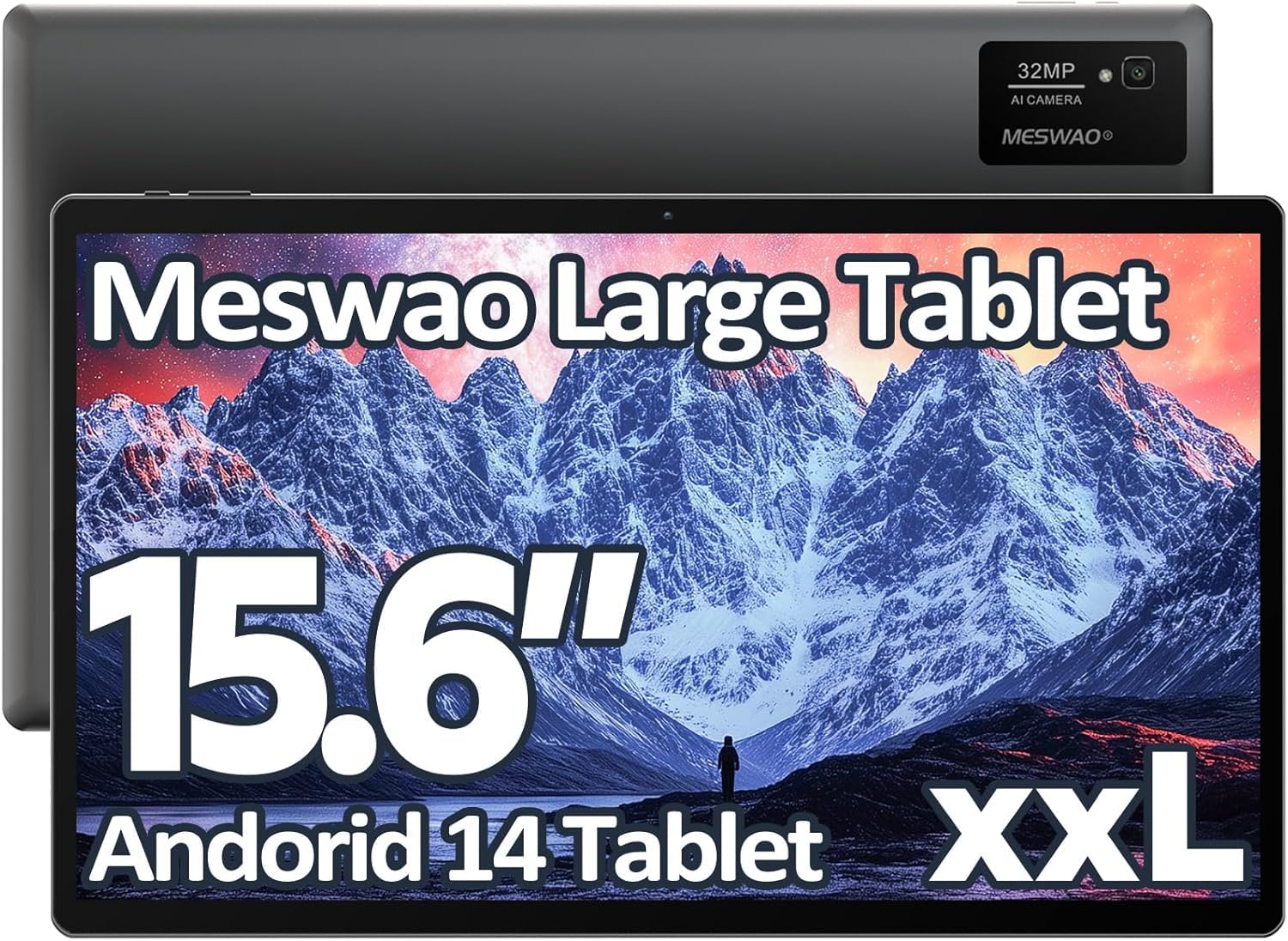
Image: The MESWAO 15.6-inch Android 14 Tablet, showcasing sy groot skerm en slanke ontwerp.
2. Opstelling
2.1 Uitpak en Aanvanklike Inspeksie
Verwyder alle komponente versigtig uit die verpakking. Verifieer dat alle items wat in die verpakkingsinhoud gelys word, teenwoordig en onbeskadig is. Indien enige items ontbreek of beskadig is, kontak kliëntediens onmiddellik.
2.2 Laai die tablet
Before first use, fully charge the tablet. Connect the provided USB-C cable to the tablet's charging port and the other end to the power adapter. Plug the power adapter into a wall outlet. The charging indicator will illuminate. A full charge typically takes approximately 3 hours with the 30W fast charging capability.
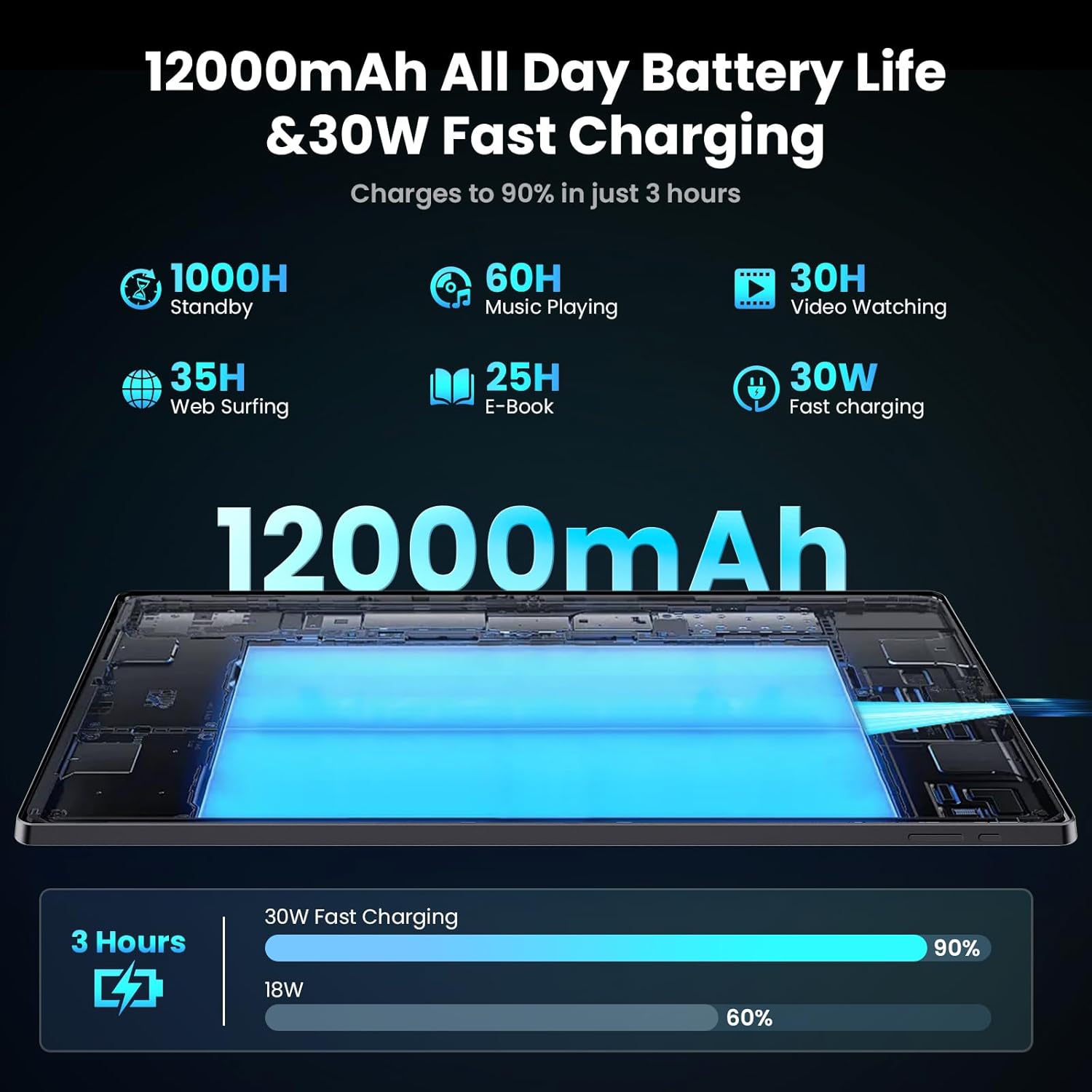
Image: Diagram illustrating the 12000mAh battery capacity and 30W fast charging feature, showing a charge to 90% in 3 hours.
2.3 Aanskakeling en aanvanklike konfigurasie
- Press and hold the Power button until the MESWAO logo appears.
- Volg die aanwysings op die skerm om jou taal en streek te kies en aan 'n Wi-Fi-netwerk te koppel.
- Meld aan met jou Google-rekening of skep 'n nuwe een om toegang tot die Google Play Winkel en ander dienste te verkry.
- Complete any remaining setup steps, such as setting up a screen lock (PIN, pattern, or password) and reviewprivaatheidinstellings.
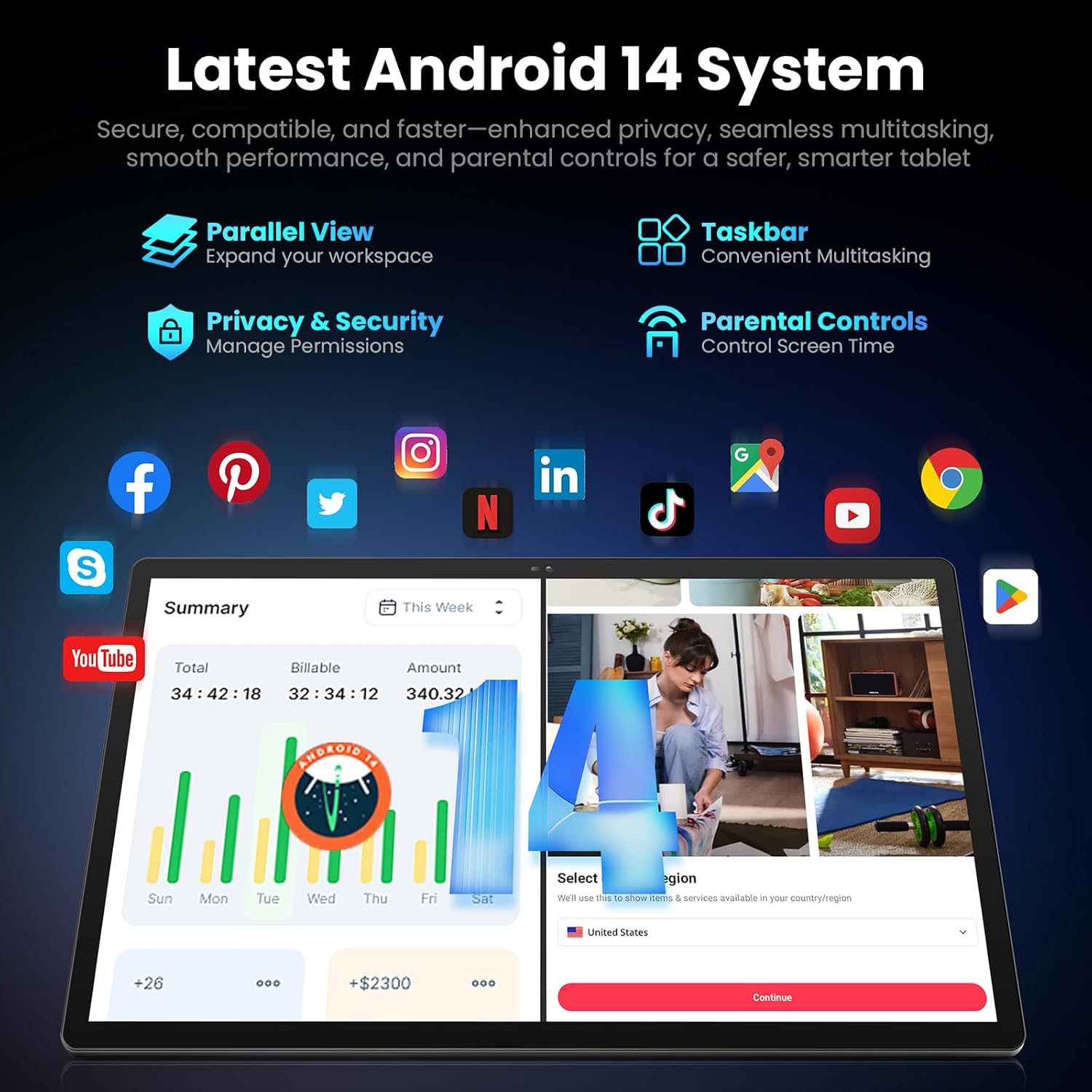
Image: Screenshot of the Android 14 system interface on the MESWAO tablet, highlighting features like Parallel View, Taskbar, Privacy & Security, and Parental Controls.
3. Bedryfsinstruksies
3.1 Basiese navigasie
- Raakgebare: Tik om te kies, swiep om te blaai, knyp om te zoem.
- Tuisskerm: Kry toegang tot programme, widgets en kennisgewings.
- Kennisgewingpaneel: Swiep af vanaf die bokant van die skerm na view kennisgewings en vinnige instellings.
- App-laai: Vee opwaarts van die onderkant van die skerm om toegang tot alle geïnstalleerde toepassings te verkry.
3.2 Vertoning en Visuele Ervaring
The 15.6-inch Full HD (1920x1080) IPS display offers vivid colors and wide viewing angles. Adjust brightness and display settings in the Settings menu under "Display" for optimal viewing comfort. The large screen is ideal for multitasking and immersive media consumption.

Image: The MESWAO tablet displaying a high-definition image, emphasizing the 1920x1080P Full HD IPS display with eye protection features.
3.3 Werkverrigting en berging
Equipped with an Octa-Core Helio G99 processor and Android 14, the tablet provides smooth performance for various applications. It includes 8GB RAM and 256GB internal storage, expandable up to 1TB via a TF (microSD) card. To insert a TF card, locate the card slot on the side of the tablet, open the tray, and carefully place the card into the designated slot before reinserting the tray.
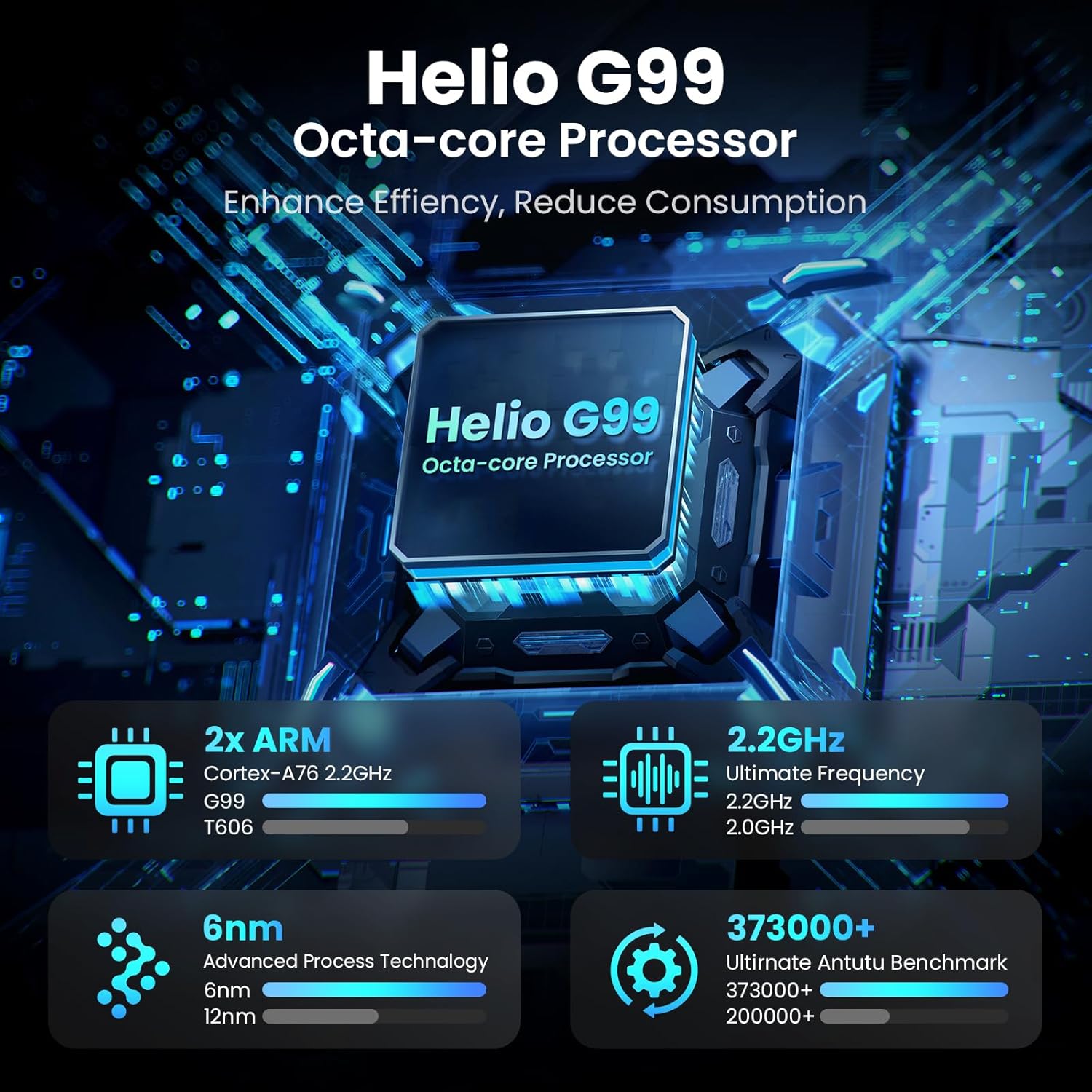
Image: Visual representation of the Helio G99 Octa-core Processor, detailing its architecture and performance metrics like 2.2GHz frequency and 6nm process technology.

Image: The MESWAO tablet screen showing multiple open applications and storage capacity details: 8GB RAM, 256GB ROM, and support for up to 1TB external storage.
3.4 Kameragebruik
The tablet features a 32MP rear camera with flash and a 5MP front camera. Open the Camera application to capture photos, record videos, or engage in video calls. Ensure good lighting for best results.

Image: A visual demonstrating the MESWAO tablet's 5MP front camera and 32MP rear camera, showing a family photo being taken and a video call in progress.
3.5 Konnektiwiteit
The tablet supports dual-band Wi-Fi (2.4GHz & 5GHz) for stable internet connectivity. Bluetooth is also available for connecting wireless accessories. Access these settings via the Notification Panel or the main Settings app.
4. Onderhoud
4.1 Skoonmaak van die tablet
Gebruik 'n sagte, pluisvrye lap om die skerm en liggaam van die tablet skoon te maak. Vir hardnekkige vlekke, vee dit effens af.ampMaak die lap skoon met water of 'n skermveilige skoonmaakoplossing. Vermy die gebruik van harde chemikalieë of skuurmiddels.
4.2 Sagteware-opdaterings
Kontroleer gereeld vir stelselopdaterings en installeer dit om te verseker dat jou tablet die nuutste kenmerke, sekuriteitsopdaterings en werkverrigtingverbeterings het. Gaan na Instellings > Stelsel > Stelselopdatering om te kyk vir opdaterings.
4.3 Batterysorg
- Vermy uiterste temperature, aangesien dit die batterylewe kan verminder.
- Moenie die battery gereeld heeltemal laat leegloop nie.
- Gebruik slegs die meegeleverde laaier of 'n gesertifiseerde versoenbare laaier.
5. Probleemoplossing
5.1 Tablet skakel nie aan nie
- Ensure the tablet is sufficiently charged. Connect it to the charger for at least 30 minutes before attempting to power on again.
- Druk en hou die aan/af-knoppie vir 10-15 sekondes in om 'n geforseerde herbegin uit te voer.
5.2 Wi-Fi-verbindingsprobleme
- Check if Wi-Fi is enabled in the Quick Settings or Settings menu.
- Herbegin jou Wi-Fi-router en die tablet.
- Vergeet die netwerk in Wi-Fi-instellings en koppel weer aan.
- Maak seker dat jy binne die bereik van die Wi-Fi-sein is.
5.3 Stadige Werkverrigting
- Maak onnodige agtergrondtoepassings toe.
- Clear cache data for frequently used apps (Instellings > Programme > [Programnaam] > Berging en kas > Vee kas uit).
- Ensure sufficient free storage space. Delete unused files of toepassings.
- Herbegin die tablet gereeld.
5.4 Skerm reageer nie
- Perform a forced restart (hold Power button for 10-15 seconds).
- Maak seker dat die skerm skoon en vry van vog of puin is.
6. Spesifikasies
| Kenmerk | Detail |
|---|---|
| Model Naam | MES-B3 |
| Vertoon grootte | 15.6 duim |
| Maksimum skermresolusie | 1920 x 1080 Pixels (Full HD IPS) |
| Bedryfstelsel | Android 14 |
| Verwerker | Octa-Core Helio G99 (up to 2.2 GHz) |
| RAM | 8 GB |
| Interne berging (ROM) | 256 GB |
| Uitbreidbare berging | Tot 1TB (TF-kaart) |
| Battery kapasiteit | 12000mAh |
| Laai | 30W vinnig laai |
| Agterste kamera | 32MP met flits |
| Voorste kamera | 5MP |
| Konnektiwiteit | Dual-band Wi-Fi (2.4GHz & 5GHz), Bluetooth |
| Afmetings (LxBxH) | 14.53 x 8.78 x 0.43 duim |
| Item gewig | 3.84 pond |
7. Waarborg en Ondersteuning
7.1 Waarborginligting
MESWAO products are covered by a limited warranty. Please refer to the warranty card included in your product packaging for specific terms and conditions. Keep your proof of purchase for warranty claims.
7.2 Kliëntediens
For technical assistance, troubleshooting, or warranty inquiries, please contact MESWAO customer support. Contact information can typically be found on the official MESWAO webwebwerf of op die waarborgkaart.
Online resources such as FAQs and support forums may also be available on the MESWAO webwebwerf.