
1. Opstelling
This section guides you through the initial setup of your CHUWI CoreBook X laptop.
1.1 Uitpak en Aanvanklike Aanskakeling
- Verwyder die skootrekenaar en alle bykomstighede versigtig uit die verpakking.
- Connect the provided USB-C power adapter to the laptop's USB-C port (PD Charging/USB 2.0) and then to a power outlet.
- Open the laptop lid. The laptop may power on automatically or you may need to press the power button located on the keyboard.
- Volg die instruksies op die skerm om die aanvanklike opstelling van Windows 11 Pro te voltooi, insluitend taalkeuse, netwerkverbinding en die skep van 'n gebruikersrekening.
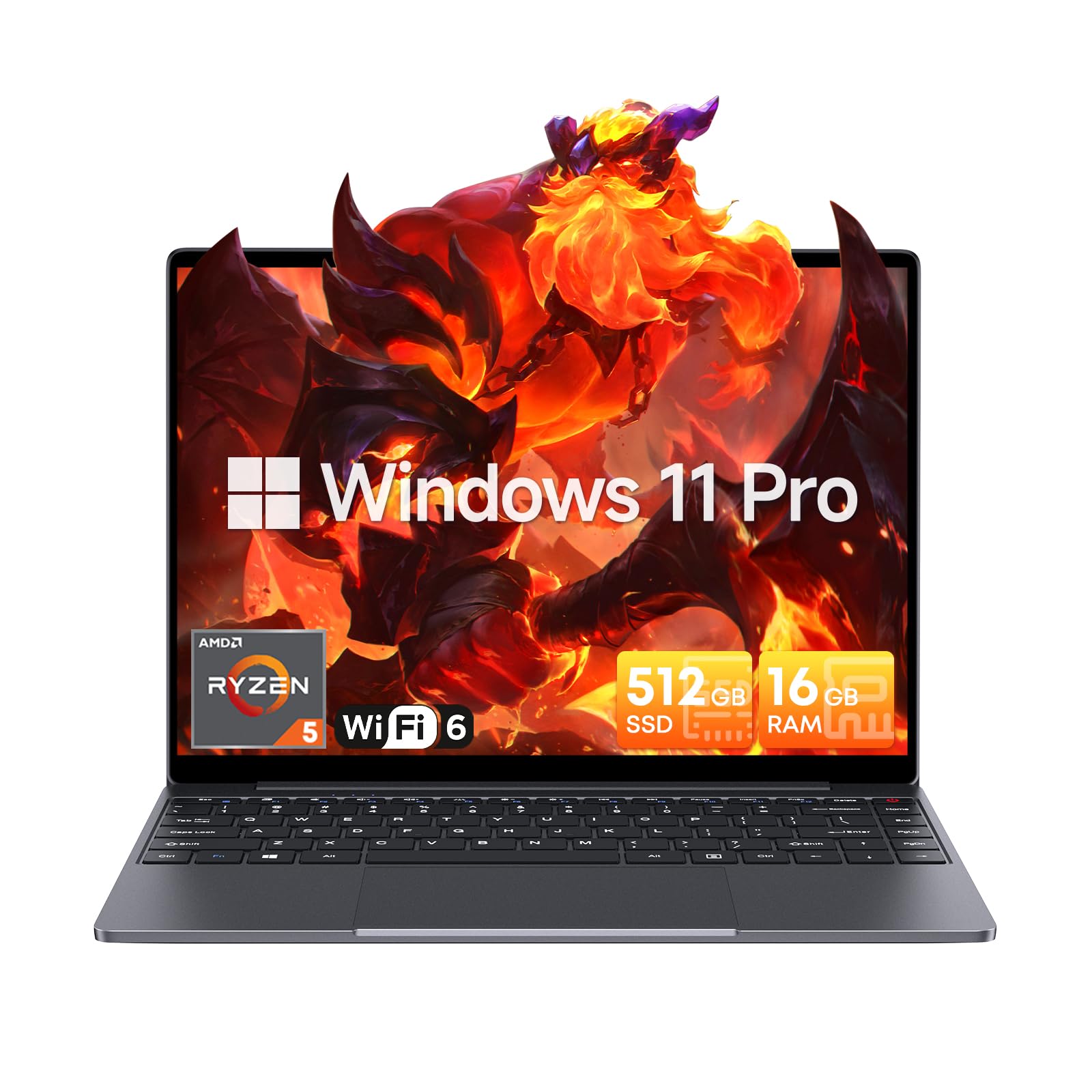
Image: The CHUWI CoreBook X laptop open on a desk, ready for use.
1.2 Aansluiting van randapparatuur
- USB-toestelle: Connect USB mice, keyboards, or external storage devices to the available USB 3.0 ports.
- Eksterne vertoning: Use the HDMI 1.4 port or the full-featured USB Type-C port to connect an external monitor.
- Oudiotoestelle: Koppel oorfone of eksterne luidsprekers aan die 3.5 mm-klankaansluiting.
- TF kaart: Insert a TF card into the TF card slot for additional storage.

Beeld: Gedetailleerd view of the laptop's ports, including TF Card Slot, 3.5mm Headphone Jack, USB 3.0 Port, Lock Slot, USB Type-C (PD Charging/USB 2.0), HDMI 1.4, and Full-featured USB Type-C Port.
1.3 Network and Bluetooth Connection
- Wi-Fi 6: Om aan 'n draadlose netwerk te koppel, klik die Wi-Fi-ikoon in die taakbalk, kies jou netwerk en voer die wagwoord in.
- Bluetooth 5.2: To pair Bluetooth devices, go to Windows Settings > Bluetooth & devices, turn on Bluetooth, and select your device to pair.
2. Bedryf
This section covers the basic operation of your CHUWI CoreBook X laptop.
2.1 Kragbestuur
- Krag aan: Druk die kragknoppie.
- Slaap stelling: Maak die deksel toe of kies "Slaap" vanaf die Start-kieslys.
- Sluit af: Select "Shut down" from the Start menu.
- Herbegin: Select "Restart" from the Start menu.
2.2 Sleutelbord en raakvlak
- The laptop features a full-sized backlit keyboard with white illumination. Use the function keys (Fn) in combination with other keys for shortcuts like adjusting brightness, volume, or toggling the backlight.
- The large touchpad supports multi-touch gestures for navigation. Refer to Windows settings for customizing touchpad gestures.

Beeld: 'n Nabyskoot view of the laptop's backlit keyboard and large touchpad, highlighting its navigation features.
2.3 Skerm en klank
- The 14-inch IPS display offers a 2160*1440 resolution. Adjust display settings (brightness, resolution, scaling) through Windows Display Settings.
- The laptop is equipped with stereo speakers. Volume can be controlled via the keyboard function keys or the Windows sound settings.
- 'n HD webcam is integrated for video conferencing.

Image: The laptop's 14-inch 2K IPS display showcasing vibrant colors and a comparison of 3:2 and 16:9 aspect ratios.
2.4 Video oorview
Video: An official product video demonstrating various features and usage scenarios of the CHUWI CoreBook X laptop, including its performance, display, and connectivity options.
3. Onderhoud
Behoorlike onderhoud verseker die lang lewensduur en optimale werkverrigting van jou skootrekenaar.
3.1 Skoonmaak
- Gebruik 'n sagte, pluisvrye lap om die skerm skoon te maak. Vir hardnekkige merke, dampen the cloth slightly with water or a screen-safe cleaner.
- Wipe the chassis and keyboard with a soft, dry cloth. Avoid using harsh chemicals or abrasive materials.
- Periodically use compressed air to clear dust from the vents to maintain efficient cooling.
3.2 Batterysorg
- Avoid fully discharging the battery frequently. Charge the laptop when the battery level is low.
- Store the laptop in a cool, dry place if not used for extended periods, with the battery charged to around 50-70%.
- Use only the original or certified compatible USB-C PD charger.
3.3 Stoorplek- en geheue-opgraderings
The laptop supports RAM and SSD upgrades.
- The 16GB DDR4 RAM can be expanded up to 64GB via 2 SODIMM slots.
- The 512GB PCIe SSD can be expanded up to 2TB using the M.2 2280 PCIe slot.
- A convenient detachable bottom cover allows for easier access to upgrade components without removing the entire back panel.

Image: The underside of the laptop with the detachable cover removed, revealing the dual-channel SO-DIMM slot for RAM upgrades.
4. Probleemoplossing
Hierdie afdeling bied oplossings vir algemene probleme wat u mag teëkom.
4.1 Algemene kwessies en oplossings
- Skootrekenaar skakel nie aan nie:
- Maak seker dat die kragadapter stewig aan beide die skootrekenaar en 'n werkende kragaansluiting gekoppel is.
- Verifieer dat die kragaansluiting funksioneel is.
- Probeer om die aan/af-knoppie vir 10-15 sekondes in te hou om 'n harde herstel uit te voer.
- Skermprobleme (geen beeld, flikkering):
- Adjust screen brightness using function keys.
- As 'n eksterne monitor gekoppel is, probeer om dit te ontkoppel.
- Herbegin die skootrekenaar.
- Wi-Fi or Bluetooth connectivity problems:
- Maak seker dat Wi-Fi/Bluetooth in Windows-instellings geaktiveer is.
- Herbegin jou router/modem vir Wi-Fi-probleme.
- Remove and re-pair Bluetooth devices.
- Update network and Bluetooth drivers through Device Manager.
- Stadige werkverrigting:
- Maak onnodige toepassings wat in die agtergrond loop toe.
- Check for Windows updates and driver updates.
- Maak seker dat daar genoeg vrye spasie op die SSD is.
- Voer 'n wanware-skandering uit.
Indien u probleme ondervind wat nie hier gedek word nie of verdere hulp benodig, verwys asseblief na die Ondersteuning-afdeling.
5. Spesifikasies
Detailed technical specifications for the CHUWI CoreBook X laptop.

Image: An illustration of the AMD Ryzen 5 processor, highlighting its core count, threads, and clock speed.
| Kenmerk | Spesifikasie |
|---|---|
| Model Naam | Corebook X |
| Verwerker | AMD Ryzen 5 (6 Cores, 12 Threads, up to 4.3 GHz) |
| Grafika | AMD Radeon Graphics (1800MHz, Max 2GB Memory) |
| RAM | 16GB DDR4 (Expandable up to 64GB via 2 SODIMM slots) |
| Berging | 512GB PCIe SSD (Expandable up to 2TB via M.2 2280 PCIe slot) |
| Vertoon | 14-inch IPS, 2160*1440 Resolution, 100% sRGB Color Gamut |
| Bedryfstelsel | Windows 11 Pro |
| Konnektiwiteit | Wi-Fi 6 (802.11ax), Bluetooth 5.2 |
| Hawens | USB Type-C (PD Charging/USB 2.0), USB 3.0, HDMI 1.4, Full-featured USB Type-C, 3.5mm Audio Jack, TF Card Slot, Lock Slot |
| Battery | 46.2Wh Lithium-Ion Battery, 65W USB-C PD Fast Charging |
| Sleutelbord | Full-sized Backlit Keyboard with White Illumination |
| Raakblad | Large Touchpad, Multi-touch |
| Webnok | HD Webnok |
| Afmetings | 12.2"L x 9"W x 0.67"Th (17mm thin) |
| Gewig | 2.2 pond (1.4 kg) |
6. Waarborg
The CHUWI CoreBook X laptop comes with a 1 jaar vervaardiger se waarborg.
This warranty covers defects in materials and workmanship under normal use. It does not cover damage caused by accidents, misuse, unauthorized repairs, or modifications. Please retain your proof of purchase for warranty claims.
7. Ondersteuning
For technical assistance, warranty claims, or further inquiries, please contact CHUWI customer support.
- Vervaardiger ondersteuning: Visit the official CHUWI webwebwerf vir ondersteuningsbronne, algemene vrae en kontakbesonderhede.
- Verkoperondersteuning: If purchased through a retailer, you may also contact the seller for assistance.


