
1. Inleiding
Die Swartview DCM8 is a portable triple-screen extender designed to enhance your laptop's display capabilities, providing two additional 15.6-inch Full HD IPS screens. This device is engineered for increased productivity and a versatile workspace, whether you are working, studying, or gaming. Its ultra-thin and lightweight design makes it suitable for travel and mobile use.
2. Wat is in die boks
Carefully unpack your Blackview DCM8 Triple Laptop Screen Extender. The package should contain the following items:
- 1 x Blackview DCM8 15.6" Triple Laptop Screen Extender
- 1 x Beskermende houer
- 2 x USB-C to USB-C Cables (Full-Featured)
- 1 x USB-A na USB-C kabel
- 1 x HDMI to USB-C Cable
- 1 x Gebruikershandleiding
- 1 x Quick Guide
Video: Swartview DCM8 Unboxing Video. This video demonstrates the unboxing process and shows the contents of the package.

Image: Contents of the Blackview DCM8 package, including the screen extender, protective case, and various connection cables.
3. Sleutel kenmerke
- Ultra-Thin & Lightweight Design: At just 4.5mm slim and 1kg light, this portable monitor is designed for easy transport and fits into most laptop bags.
- TÜV SÜD Low Blue Light Certification: Reduces harmful blue light emissions, providing eye-friendly viewing for extended use.
- 15.6" FHD IPS Display: Features 1920×1200 resolution, 300 nits brightness, 100% sRGB color accuracy, and 178° wide viewing angles for vivid and clear visuals. The 16:10 aspect ratio offers increased vertical space.
- Universal Compatibility & Plug-and-Play: Compatible with Mac (M1/M2/M3), Windows, Android, Linux, and Chrome OS. No drivers or extra software are needed.
- Veelvuldige verbindingsopsies: Equipped with 2 full-featured USB-C ports and 1 PD USB-C port for instant connectivity, fast data transfer, and 100W reverse charging.
- Durable Build & Ergonomic Design: Crafted with aerospace-grade aluminum alloy for scratch and fingerprint resistance. Features a 180° adjustable angle, quick-fit laptop mount (for 13.3"-17.3" laptops), and a built-in kickstand for stability.
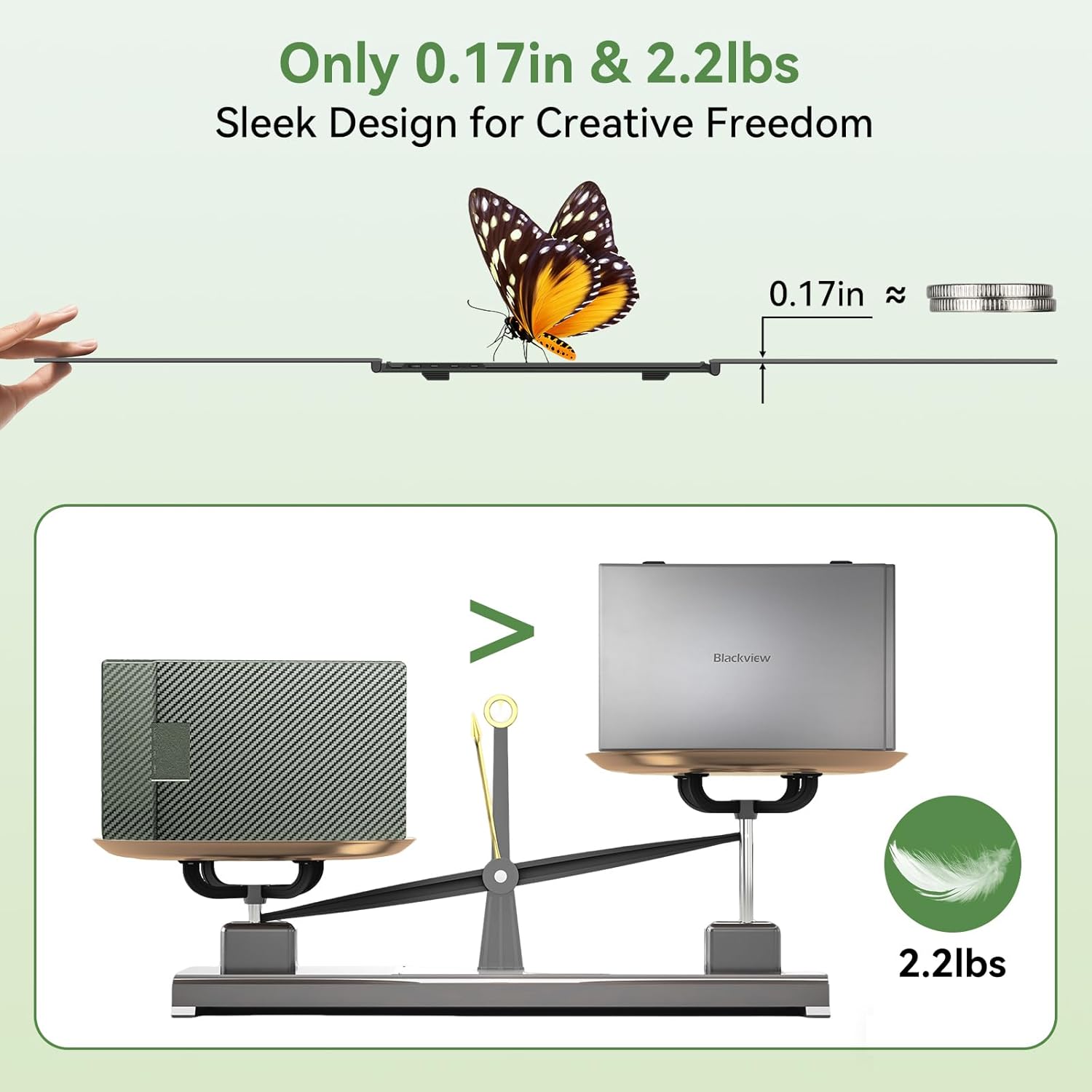
Image: The Blackview DCM8's slim profile (0.17 inches) and light weight (2.2 lbs) are highlighted, emphasizing its portability.

Image: A vibrant display on the Blackview DCM8 screen, showcasing its TÜV SÜD Low Blue Light certification for eye protection.

Image: Icons representing various compatible operating systems and devices, including Mac, Windows, Android, Linux, Chrome, Switch, and PS4/5.
4. Opstelling
4.1 Fisiese installasie
- Koppel aan skootrekenaar: Gently open the Blackview DCM8 extender. The central bracket is designed to securely clip onto the top edge of your laptop screen. Ensure it is centered and stable.
- Adjust Screens: Once attached, unfold the two side screens. They can be adjusted up to 180 degrees to achieve your desired viewing hoek.
- Use Kickstand (Optional): For added stability, especially with heavier laptops or when adjusting the screen angles, extend the built-in kickstand from the back of the central bracket. Adjust its length and angle (up to 90°) to provide optimal support.
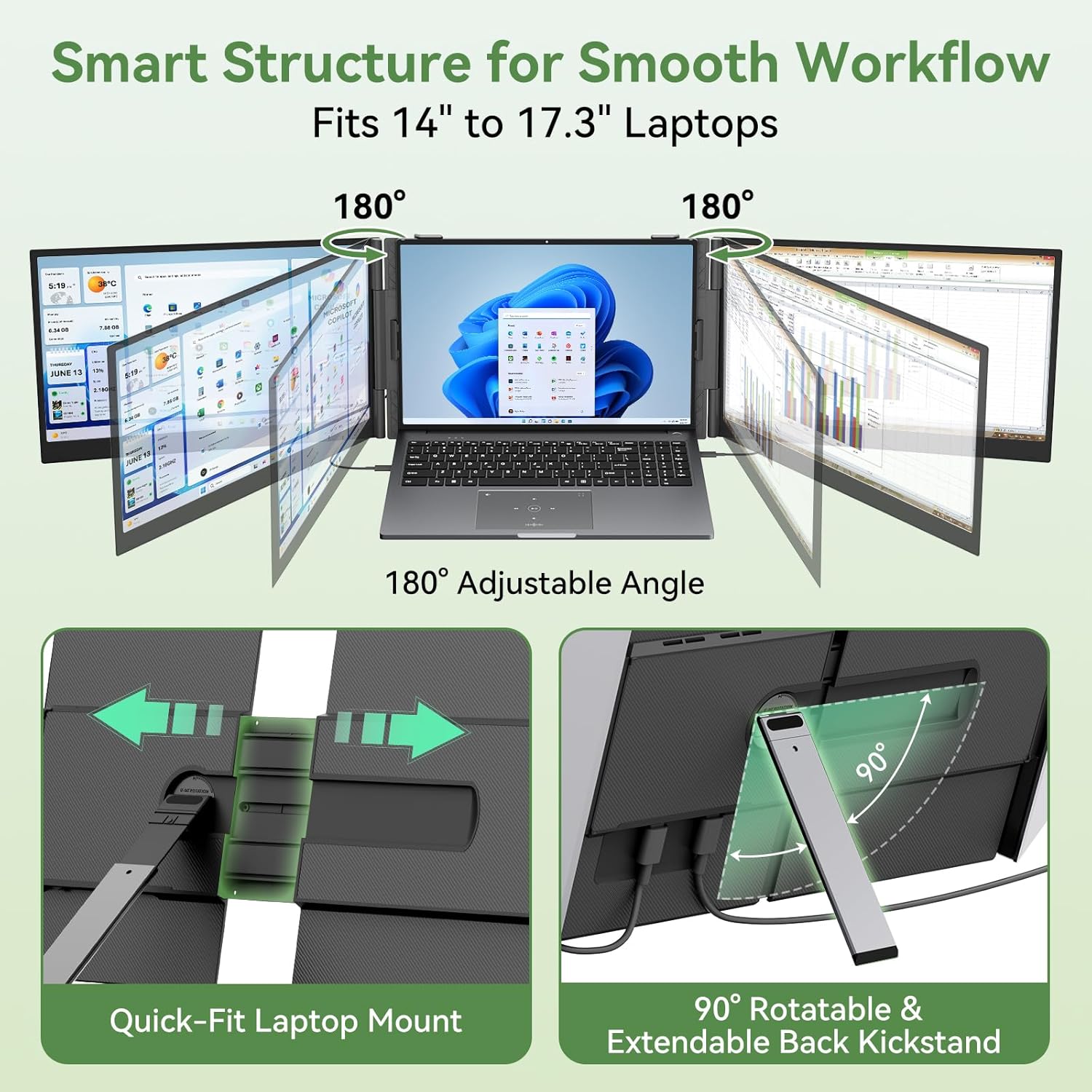
Beeld: 'n Nabyskoot view of the Blackview DCM8's quick-fit laptop mount and the adjustable 90-degree rotatable kickstand, demonstrating its secure attachment and support features.

Image: The Blackview DCM8 screens adjusted to a 180-degree angle, illustrating the flexibility in viewing posisies.
4.2 Verbindingsmetodes
Die Swartview DCM8 offers flexible connectivity to suit various laptop configurations. Please note that the ports marked with "Type-C1" and "Type-C2" on the back of the product are for video transmission and data, while the "POWER" port is for power supply.
- Device with Two Full-Featured USB-C Ports:
Connect each screen using a full-featured USB-C to USB-C cable. This setup allows for video, power, and data transmission simultaneously for both screens. - Device with One Full-Featured USB-C Port:
Connect one screen with a USB-C to USB-C cable. For the second screen, use an HDMI to USB-C cable and connect an external 5V/2A power adapter to the screen's POWER port. - Device without Full-Featured USB-C Port:
Use an HDMI conversion cable (H5-T) along with an HDMI to USB-C cable for video transmission. An external 5V/2A power adapter must be connected to the screen's POWER port for power supply. Note: The H5-T conversion cable may require driver installation.

Image: Diagram showing connection using two USB-C to USB-C cables for laptops with two full-featured USB-C ports.

Image: Diagram showing connection using one USB-C to USB-C cable and one HDMI to USB-C cable with external power for laptops with one full-featured USB-C port.

Image: Diagram showing connection using an HDMI conversion cable (H5-T) and an HDMI to USB-C cable with external power for laptops without full-featured USB-C ports.
4.3 Omgekeerde laai
The DCM8 supports 100W reverse charging. When the monitor is connected to an external power adapter, it can charge your laptop, ensuring uninterrupted workflow.

Image: Illustration of the Blackview DCM8 providing 100W reverse charging to a laptop when connected to an external power source.
5. Bedryfswyses
Die Swartview DCM8 offers various display modes to optimize your workflow:
- Uitgebreide modus: Expands your desktop across all three screens, allowing for multitasking with multiple applications open simultaneously.
- Spieëlmodus: Duplicates your main laptop screen onto the external displays, ideal for presentations or sharing content.
- Portretmodus: Allows one or both external screens to be rotated vertically, beneficial for coding, document review, or long web bladsye.

Image: Visual representation of Extended Mode, Mirror Mode, and Portrait Mode on the Blackview DCM8 triple screen extender.
5.1 On-Screen Display (OSD) Menu Settings
Each screen can have individual OSD settings adjusted to your preferences. Use the control buttons on the back of the screens to navigate the OSD menu and modify settings such as brightness, contrast, color temperature, and input source.

Image: A visual showing individual brightness settings being adjusted for each of the three screens via the OSD menu.
6. Onderhoud
To ensure the longevity and optimal performance of your Blackview DCM8 Triple Laptop Screen Extender, follow these maintenance guidelines:
- Skoonmaak: Gebruik 'n sagte, pluisvrye lap effens dampened with water or a screen-cleaning solution to wipe the display surfaces. Avoid harsh chemicals or abrasive materials.
- Berging: When not in use, fold the screens securely and store them in the provided protective case to prevent scratches and damage.
- Hantering: Always handle the extender with care. Avoid applying excessive force to the screens or hinges.
- Temperatuur: Operate and store the device within recommended temperature ranges to prevent damage to internal components.
7. Probleemoplossing
If you encounter any issues with your Blackview DCM8, refer to the following common troubleshooting steps:
- Geen vertoon op skerm(e):
- Ensure all cables are securely connected to both the extender and your laptop.
- Verify that your laptop's ports are functioning correctly.
- If using an HDMI connection, ensure the external power adapter is connected to the screen's POWER port.
- Check your laptop's display settings to ensure the external screens are detected and configured for extended or mirrored display.
- Flikkerende of onstabiele skerm:
- Ensure sufficient power supply. If the screen flashes abnormally, the power supply may be insufficient. Connect an external 5V/2A power adapter.
- Try using different cables or ports on your laptop.
- Dateer jou skootrekenaar se grafiese drywers op.
- Screens Not Detected:
- Restart your laptop with the screens connected.
- For devices without full-featured USB-C ports using the H5-T conversion cable, ensure the necessary drivers are installed.
- Check the OSD menu on the extender to ensure the correct input source is selected.
- Screens Not Charging Laptop (Reverse Charging):
- Ensure an external power adapter is connected to the screen's POWER port.
- Verify that the USB-C cable used for connection supports power delivery.
For further assistance, please refer to the contact information in the Warranty & Support section.
8. Spesifikasies
| Kenmerk | Spesifikasie |
|---|---|
| Handelsmerk | Swartview |
| Modelnommer | DCM8 |
| Skerm grootte | 15.6 duim |
| Resolusie | FHD 1080p (1920 x 1200 Pixels Native) |
| Aspekverhouding | 16:10 |
| Beskrywing van die skermoppervlak | Glans |
| Kontrasverhouding | 1200:1 |
| Herlaaitempo | 60 Hz |
| Vertoon tegnologie | IPS LCD |
| Viewing Hoek | 180 grade |
| Helderheid | 300 Candela |
| Kleur Omvang | 100% sRGB |
| Verbindingstegnologie | HDMI, USB Type C |
| Hardeware konneksie | USB Type C (3 Total USB Ports) |
| Bykomende kenmerke | Blue Light Filter, Eye Care, Lightweight, Portable, Ultra-Slim |
| Itemafmetings (D x B x H) | 8.1" D x 13.9" B x 0.9" H |
| Versoenbare toestelle | Rekenaar, Spelkonsole, Skootrekenaar, Slimfoon, Tablet |
9. Waarborg en ondersteuning
Jou Swartview DCM8 Triple Laptop Screen Extender comes with a 2 Jaar VervaardigerwaarborgBewaar asseblief u bewys van aankoop vir waarborgeise.
For technical support, video guides, or customer service, you can scan the QR codes provided on the product packaging or refer to the official Blackview support channels.


Images: QR codes for Blackview Customer Service and Technical Support.
U kan ook die Swartview Winkel op Amazon vir meer produkinligting en ondersteuningsbronne.