
1. Inleiding
This manual provides detailed instructions for the installation, operation, and maintenance of your Zebronics ZEB-WR3004G 4G/5G SIM Router. Please read this manual thoroughly before using the device to ensure proper functionality and safety. This router is designed to provide high-speed internet access using 4G or 5G nano SIM cards, featuring LAN/WAN auto-switching and WPA2-PSK security.
2. Veiligheidsinligting
- Gebruik slegs die kragadapter wat by die toestel voorsien is.
- Do not expose the router to water, moisture, or extreme temperatures.
- Avoid placing the router near heat sources or in direct sunlight.
- Verseker behoorlike ventilasie rondom die router om oorverhitting te voorkom.
- Moenie probeer om die toestel self oop te maak of te herstel nie. Verwys alle diens na gekwalifiseerde personeel.
- Keep the router away from children and pets.
3. Pakketinhoud
Verifieer dat alle items in die pakket teenwoordig is:
- Zebronics ZEB-WR3004G Router
- Kragadapter
- Netwerk kabel
- Gebruikershandleiding (hierdie dokument)
4. Produk verbyview
The Zebronics ZEB-WR3004G router is designed for reliable and high-speed internet connectivity. It features multiple external antennas for enhanced signal coverage and performance.
Beeld: Voorkant view of the Zebronics ZEB-WR3004G router, showcasing its sleek white design and external antennas.
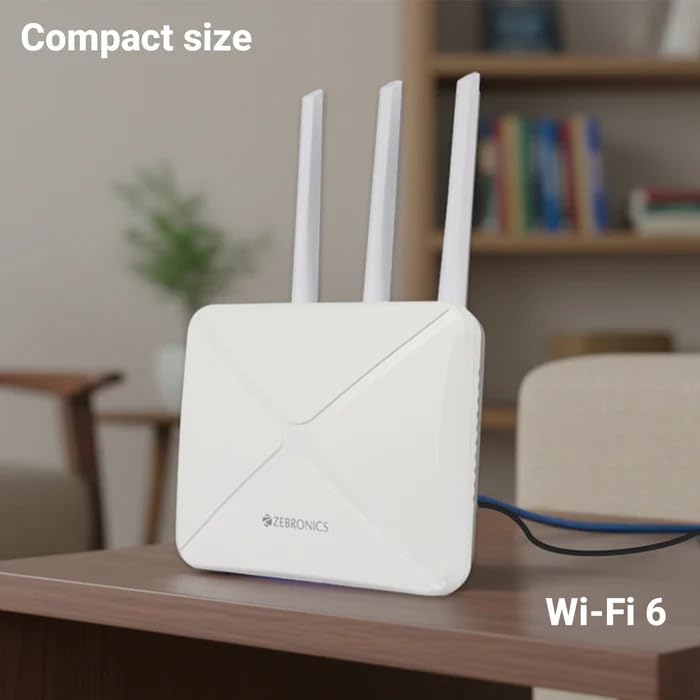
Image: The Zebronics ZEB-WR3004G router placed on a desk, illustrating its compact size and modern aesthetic.
4.1. Poorts en aanwysers
Familiarize yourself with the ports and indicators on your router:
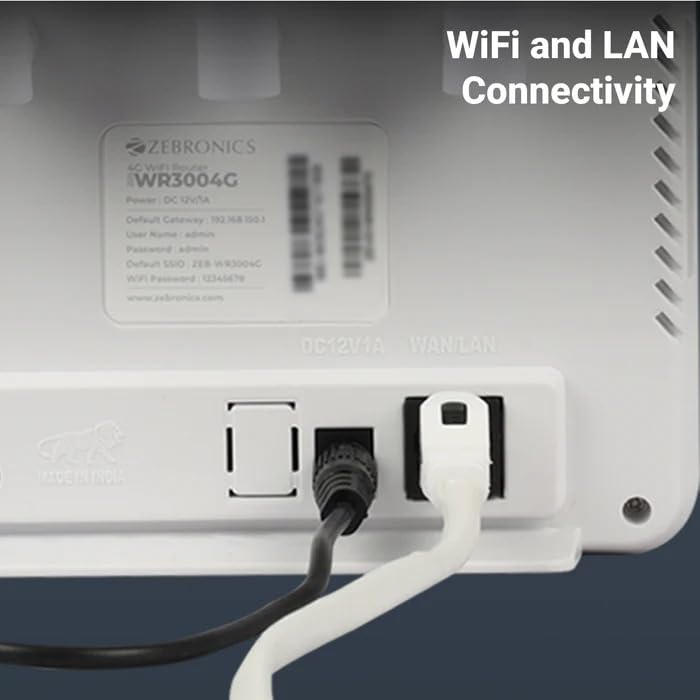
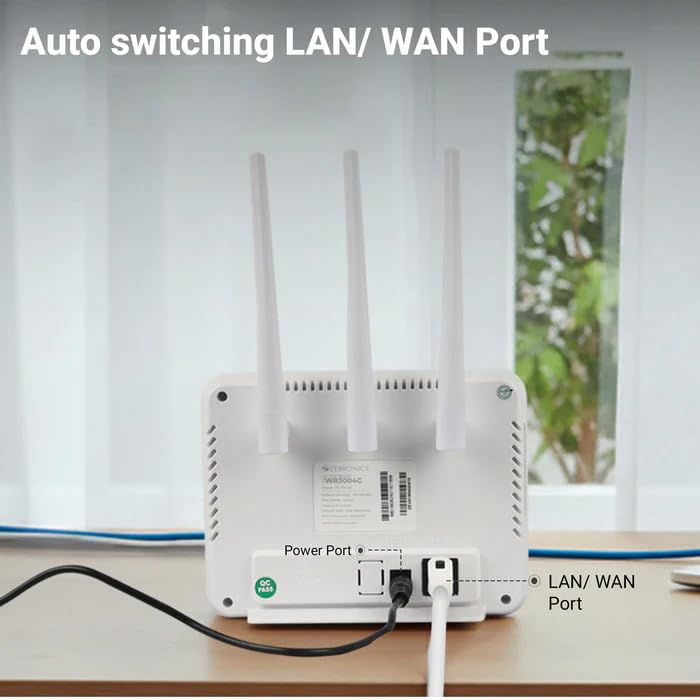
Beeld: Agter view of the Zebronics ZEB-WR3004G router, highlighting the power port and the auto-switching LAN/WAN port.
- Kragpoort: Koppel aan die kragadapter.
- LAN/WAN-poort: An auto-switching port for connecting to a wired network or an external modem.
- SIM-kaartgleuf: For inserting a nano SIM card.
- Herstel-knoppie: Used to restore factory default settings (usually a small pinhole button).
- LED-aanwysers: Provide status information for power, internet connectivity, Wi-Fi, and signal strength.
5. Opstelling
5.1. SIM-kaart installasie
- Maak seker dat die router afgeskakel is.
- Locate the SIM card slot on the router.
- Insert a nano SIM card into the slot with the gold contacts facing down and the notched corner aligned correctly. Push until it clicks into place.
5.2. Kragverbinding
- Connect the supplied power adapter to the router's power port.
- Steek die kragadapter in 'n muuraansluiting.
- The router will power on automatically. Wait for the LED indicators to stabilize, which may take a few minutes.
5.3. Aanvanklike konfigurasie
- Koppel aan Wi-Fi: On your computer or mobile device, search for available Wi-Fi networks. The default Wi-Fi name (SSID) and password are usually printed on a label on the bottom of the router.
- Toegang tot die administrasiepaneel: Maak oop a web blaaier en voer die standaard gateway IP-adres in (bv.
192.168.1.1) into the address bar. This IP address is also typically found on the router's label. - Teken in: Enter the default username and password (e.g.,
adminfor both). It is highly recommended to change these default credentials immediately for security. - Netwerkinstellings: Follow the on-screen wizard or navigate to the network settings to configure your internet connection. The router should automatically detect the SIM card and establish a connection.
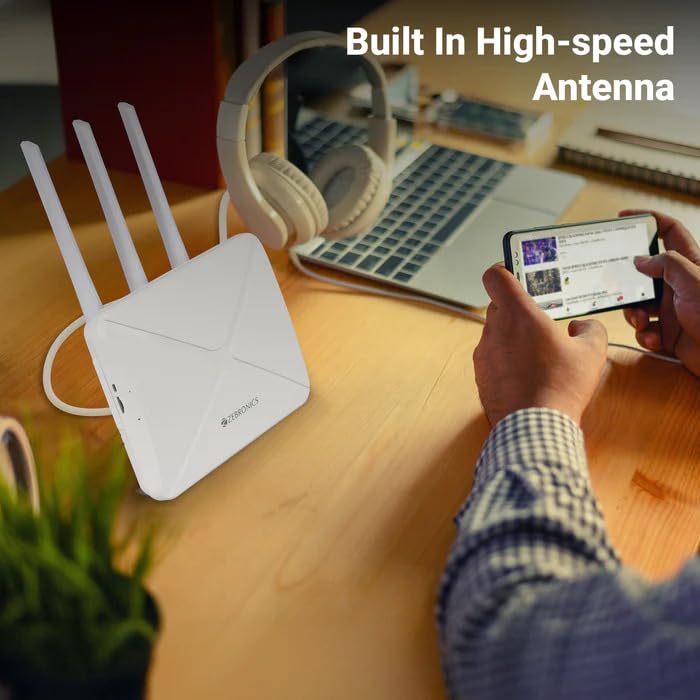
Image: The Zebronics ZEB-WR3004G router on a desk, emphasizing its built-in high-speed antenna system for optimal signal reception.
6. Bedryfsinstruksies
6.1. Verbind toestelle
- Wi-Fi-verbinding: On your wireless devices (smartphones, laptops, tablets), select the router's Wi-Fi network name (SSID) and enter the Wi-Fi password.
- LAN-verbinding: Use an Ethernet cable to connect devices like desktop computers, smart TVs, or gaming consoles to the LAN/WAN port on the router. The port automatically switches to LAN mode when a device is connected.
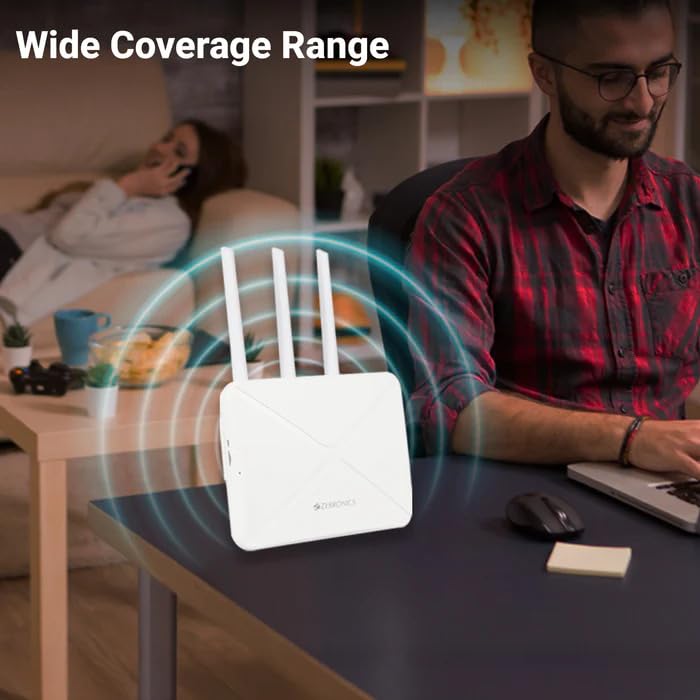
Image: The Zebronics ZEB-WR3004G router emitting a wide coverage range, indicating its ability to provide internet across a large area.
6.2. Roeter-instellings
Kry toegang tot die router se web-based management interface (as described in Section 5.3) to configure advanced settings:
- Wi-Fi-instellings: Change SSID, password, security type (WPA2-PSK is recommended), and channel.
- Netwerkmodus: Configure 4G/5G specific settings if required by your service provider.
- LAN/WAN Configuration: Adjust IP address, DHCP server settings, or switch between LAN and WAN modes manually if auto-switching is not desired.
- Sekuriteit: Set up firewall rules, port forwarding, and parental controls.
Image: The Zebronics ZEB-WR3004G router with visual cues indicating a faster and more efficient internet connection.
Image: The Zebronics ZEB-WR3004G router with visual representation of minimized network congestion, ensuring smoother data flow.
7. Onderhoud
7.1. Firmware-opdaterings
Periodically check the Zebronics official website for firmware updates. Keeping your router's firmware up-to-date ensures optimal performance, security, and access to new features. Follow the instructions provided with the firmware update carefully.
7.2. Skoonmaak
Use a soft, dry cloth to clean the exterior of the router. Do not use liquid cleaners or aerosols, as they may damage the device.
7.3. Optimale Plasing
For the best Wi-Fi coverage and signal strength, place the router in a central location in your home or office, away from obstructions like thick walls, metal objects, and other electronic devices that may cause interference.
8. Probleemoplossing
| Probleem | Moontlike oorsaak | Oplossing |
|---|---|---|
| Geen internet konneksie nie | SIM card not inserted correctly, no data plan, network issue, incorrect APN settings. | Check SIM card insertion. Verify data plan with your service provider. Check APN settings in the router's admin panel. Restart the router. |
| Swak Wi-Fi sein | Router placement, interference, outdated firmware. | Relocate the router to a central, open area. Avoid placing near other electronics. Update firmware. |
| Cannot access admin panel | Incorrect IP address, wrong credentials, network conflict. | Ensure correct IP address (e.g., 192.168.1.1). Verify username and password. Try a different browser. Reset router to factory defaults if necessary. |
| LAN/WAN port not working | Faulty cable, incorrect settings, device issue. | Try a different Ethernet cable. Ensure the connected device is working. Check LAN/WAN settings in the admin panel. |
9. Spesifikasies
| Kenmerk | Detail |
|---|---|
| Model | ZEB-WR3004G |
| Verenigbaarheid | 4G and 5G Nano SIM cards |
| Antennesisteem | Built-in High-speed Antenna, Multiple External Antennas |
| Hawens | 1x LAN/WAN Auto-switching Port, Power Port |
| Sekuriteit | WPA2-PSK encryption |
| Draadlose standaarde | 802.11b, 802.11g, 802.11n |
| Data-oordragtempo | Tot 150 Mbps |
| Bedryfstelselversoenbaarheid | Android, iOS, macOS, Windows |
| Krag Invoer | 12 Volt |
| Afmetings (LxBxH) | 20 x 15.2 x 18.5 cm |
| Gewig | 200 g |
10. Waarborg en Ondersteuning
For warranty information and technical support, please refer to the warranty card included with your product or visit the official Zebronics webwebwerf. Bewaar u aankoopbewys as bewys van aankoop vir waarborgeise.
Zebronics Customer Support:
- Webwebwerf: www.zebronics.com
- Contact information can typically be found in the 'Support' or 'Contact Us' section of the webwebwerf.