
HP DG0034
HP 2026 22" FHD All-in-One Desktop Computer User Manual
Model: DG0034
Inleiding
This manual provides essential information for setting up, operating, maintaining, and troubleshooting your HP 2026 22" FHD All-in-One Desktop Computer. Please read these instructions carefully before using your device to ensure optimal performance and longevity.
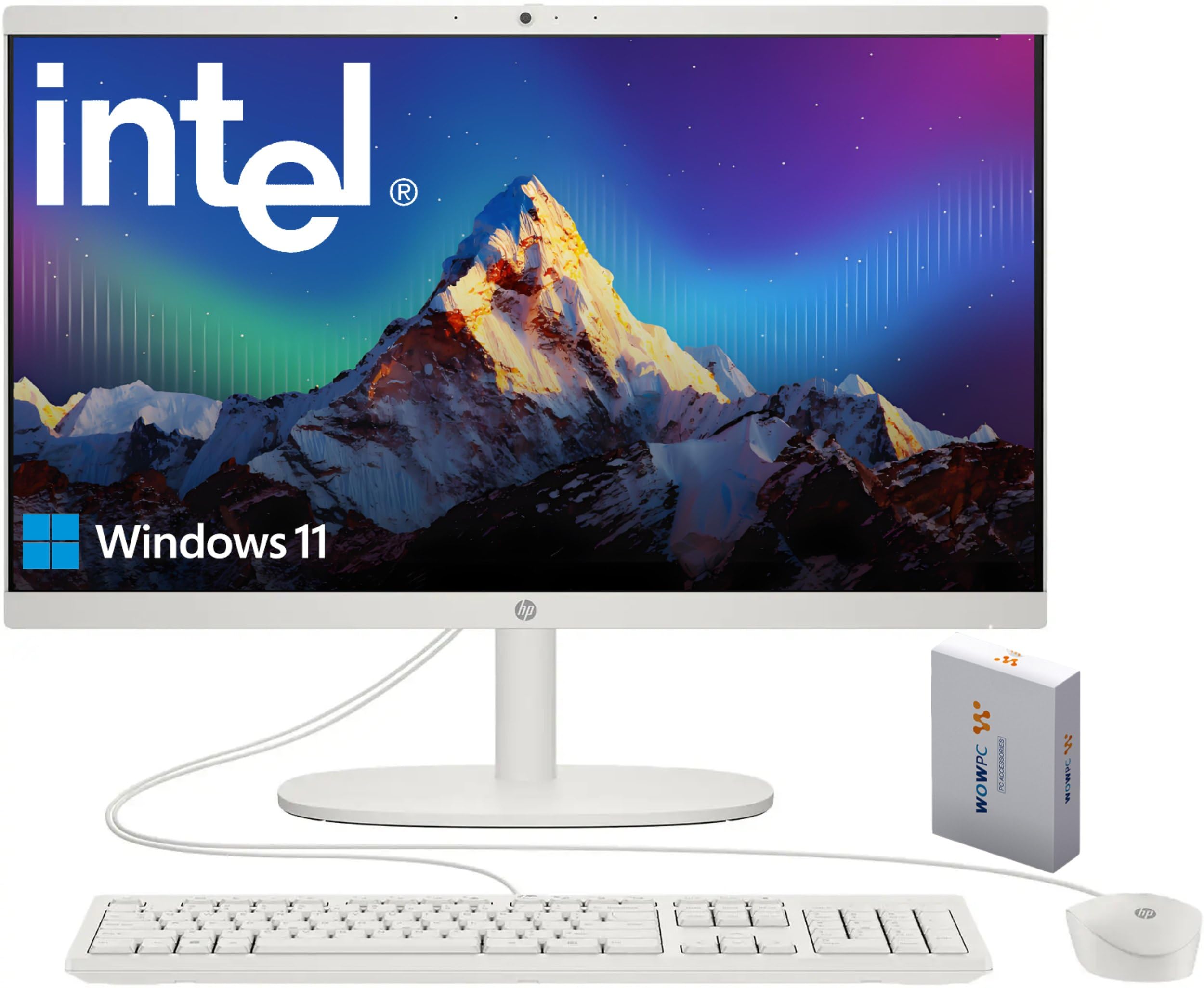
Figure 1: HP 2026 22" FHD All-in-One Desktop Computer
Wat is in die boks
Verifieer dat alle komponente in die verpakking teenwoordig is:
- HP 2026 22" FHD All-in-One Desktop Computer
- Bedrade USB-sleutelbord
- Bedrade USB -muis
- Kragadapter
- 500GB WOWPC 3-in-1 External Hard Drive Bundle, including:
- 2.5 inch SATA External Case
- 2-in-1 USB 3.0 Data Cable
- Skoonmaakdoek
- Windows Shortcut Sticker
- Leather Bag

Figure 2: External Hard Drive Bundle Components
Opstelling
- Uitpak: Carefully remove the computer and all accessories from the packaging. Place the computer on a stable, flat surface.
- Koppel sleutelbord en muis: Plug the wired USB keyboard and mouse into the available USB Type-A ports on the back of the All-in-One computer.
- Koppel krag: Connect the power adapter to the power input port on the computer, then plug the power cord into a wall outlet.
- Aanvanklike opstart: Press the power button, usually located on the side or back of the display. The computer will power on and guide you through the Windows 11 initial setup process. Follow the on-screen instructions to configure your operating system, network, and user accounts.
- Connect External Storage: Connect the 500GB WOWPC external hard drive to an available USB port on the computer using the provided USB 3.0 data cable. The system will automatically detect and prepare the drive for use.
- Optional: Connect to Network: For a wired connection, connect an Ethernet cable from your router or modem to the RJ-45 Ethernet port on the computer. For wireless, follow the Windows 11 setup prompts to connect to a Wi-Fi network.
- Optional: Connect External Display: If desired, connect an external monitor to the HDMI-out port using an HDMI cable.

Figure 3: Rear Ports of the All-in-One Computer
Bedryfsinstruksies
Krag aan/af
- Krag aan: Druk die kragknoppie.
- Sluit af: Klik die Start-knoppie in Windows en kies dan Aan/uit > Skakel af.
- Herbegin: Klik die Start-knoppie en kies dan Aan/uit > Herbegin.
- Slaap: Klik die Start-knoppie en kies dan Aan/uit > Slaapmodus.
Using Ports
- USB Type-C (5Gbps): For data transfer only. Connect compatible devices such as external drives or smartphones.
- USB Type-A (Hi-Speed / 5Gbps): Connect peripherals like keyboards, mice, printers, or USB flash drives.
- HDMI-uit: Koppel aan 'n eksterne skerm of projektor.
- 3.5mm Headphone/Microphone Combo Jack: Connect headphones, earbuds, or a headset with a built-in microphone.
- RJ-45 Ethernet-poort: Vir 'n stabiele bedrade internetverbinding.
Webkamera en klank
- Die geïntegreerde HD webcam features a privacy shutter. Slide the shutter to cover the camera lens when not in use for enhanced privacy.
- The built-in dual microphones and high-definition stereo speakers provide clear audio for video calls and multimedia.

Figure 4: Video Call Features
Draadlose konneksie
- Wi-Fi 6: Connect to wireless networks for internet access. Manage Wi-Fi connections through Windows settings.
- Bluetooth 5.3: Pair with Bluetooth-enabled devices such as wireless headphones, speakers, or mobile phones. Manage Bluetooth devices through Windows settings.

Figure 5: Connectivity and Display Features
Display and Multimedia
- The 21.5" Full HD IPS display offers sharp visuals with an anti-glare coating.
- Experience enhanced entertainment with a 3000:1 contrast ratio and speakers tuned by DTS Audio.

Figure 6: Display and Audio Enhancements
Onderhoud
Skoonmaak
- Vertoon: Gebruik 'n sagte, pluisvrye lap, effens gedrupampened with water or a screen-cleaning solution, to gently wipe the display. Avoid harsh chemicals.
- Onderstel: Vee die buite-oppervlaktes af met 'n sagte, droë lap.
- Poorte: Hou poorte vry van stof en puin. Gebruik saamgeperste lug indien nodig, maar vermy die invoeging van voorwerpe in die poorte.
Sagteware-opdaterings
- Regularly check for and install Windows updates to ensure system security and performance. Go to Instellings > Windows-opdatering.
- Ensure drivers for hardware components are up-to-date. HP Support Assistant or Windows Device Manager can help manage this.
Rugsteun van data
- Gereeld rugsteun belangrik files to the included 500GB external hard drive or a cloud storage service to prevent data loss.
Probleemoplossing
If you encounter issues with your HP All-in-One computer, refer to the following common solutions:
| Probleem | Moontlike Oplossing |
|---|---|
| Rekenaar skakel nie aan nie. | Ensure the power adapter is securely connected to both the computer and a working electrical outlet. Test the outlet with another device. |
| Geen vertoon op die skerm nie. | Check if the computer is powered on. Adjust screen brightness. If an external monitor is connected, ensure it is powered on and correctly configured. |
| Sleutelbord of muis reageer nie. | Ensure USB cables are firmly connected to the correct ports. Try connecting them to different USB ports. Restart the computer. |
| Geen internet konneksie nie. | For Wi-Fi, check network settings and ensure you are connected to the correct network. For wired, ensure the Ethernet cable is properly connected and your router/modem is working. Restart your router/modem. |
| External hard drive not detected. | Ensure the USB 3.0 data cable is securely connected to both the drive and the computer. Try a different USB port. Check Disk Management in Windows to see if the drive is listed. |
For more detailed troubleshooting or persistent issues, please refer to the HP support webwebwerf of kontak kliëntediens.
Spesifikasies
| Kenmerk | Detail |
|---|---|
| Handelsmerk | HP |
| Modelnommer | DG0034 |
| Bedryfstelsel | Windows 11 Home (64-bis) |
| Verwerker | 13th Gen Intel N100 (4 cores, up to 3.4GHz, 6MB cache) |
| Grafika | Geïntegreerde Intel UHD-grafika |
| RAM | 16GB DDR5 (uitbreidbaar tot 32GB) |
| Interne berging | 128GB UV |
| Eksterne berging | 500GB WOWPC 3-in-1 External Hard Drive Bundle |
| Vertoon | 21.5" Full HD (1920x1080) IPS Anti-glare Display, 16:9 Aspect Ratio, 60Hz Refresh Rate |
| Oudio | High-Definition stereo speakers |
| Webnok | HD webcam with privacy shutter, Built-in Dual Microphone |
| Hawens | 1x USB Type-C (5Gbps, data only), 2x USB Type-A (Hi-Speed), 1x USB Type-A (5Gbps), 1x 3.5mm combo jack, 1x RJ-45 Ethernet, 1x HDMI-out |
| Draadlose konneksie | WiFi 6, Bluetooth 5.3 |
| Afmetings (H × B × D) | Ongeveer 15.8 × 19.3 × 6.5 duim |
| Gewig | Ongeveer 10.5 pond |
| Kragtoevoer | 65-Watt AC adapter |
Waarborg en Ondersteuning
Your HP 2026 22" FHD All-in-One Desktop Computer comes with a 1-Year Seller Warranty.
For technical assistance, warranty claims, or further inquiries, please contact the seller or visit the official HP support website. Ensure you have your product model number (DG0034) and proof of purchase available when seeking support.
HP Amptelike Ondersteuning: https://www.hp.com/support