
Thunderobot Zero 16
Thunderobot Zero 16 Gaming Laptop User Manual
Model: Zero 16
1. Inleiding
This manual provides essential information for setting up, operating, and maintaining your Thunderobot Zero 16 Gaming Laptop. Please read this guide thoroughly to ensure optimal performance and longevity of your device.
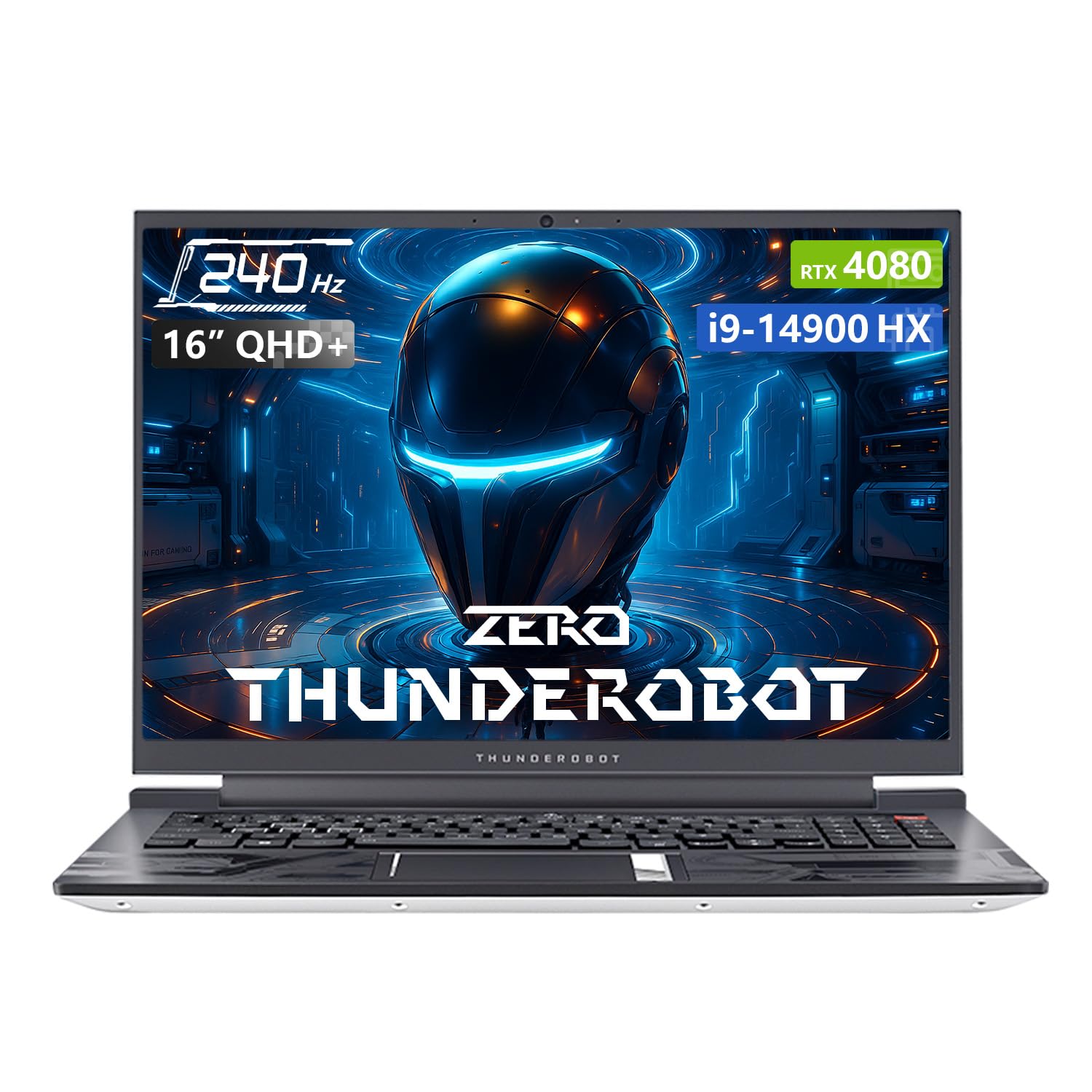
Image: The Thunderobot Zero 16 Gaming Laptop, showcasing sy slanke ontwerp en skerm.
2. Opstelling
2.1 Uitpak en Aanvanklike Inspeksie
Carefully remove the laptop and all accessories from the packaging. Verify that all components are present and undamaged. The box should contain:
- Thunderobot Zero 16 Laptop
- Kragadapter en kabel
- Gebruikershandleiding (hierdie dokument)
2.2 Aansluitkrag
- Koppel die kragadapter aan die skootrekenaar se kragtoevoerpoort.
- Steek die kragkabel in 'n muuraansluiting.
- The laptop is designed to operate on AC power and will charge the battery automatically.
2.3 Eerste opstart en opstelling van die bedryfstelsel
Upon first startup, the Windows 11 Home operating system will guide you through the initial setup process. Follow the on-screen instructions to configure language, region, network settings, and user accounts.
3. Bediening van jou skootrekenaar
3.1 Vertoonkenmerke
Your laptop features a 16-inch QHD+ (2560x1600) display with a 240Hz refresh rate, offering crisp visuals and smooth motion. It supports a 16:10 aspect ratio and high color accuracy.

Image: Close-up of the laptop display highlighting QHD+ resolution, 240Hz refresh rate, and color accuracy.
3.2 Sleutelbord en raakvlak
The laptop is equipped with an RGB backlit keyboard featuring an independent numeric keypad. The keys have a 1.8mm travel distance for comfortable typing and gaming. The touchpad provides precise cursor control.

Prent: View of the laptop's RGB backlit keyboard and touchpad, showing the numeric keypad and key travel.
3.3 Control Center Software
The Thunderobot Control Center software allows you to customize performance modes, fan speeds, and RGB lighting. It offers three main performance modes:
- Berserk Mode: Full performance release for demanding tasks.
- Spelmodus: Optimized for smooth gaming experiences.
- Audio and Office Mode: Balances performance with power efficiency for everyday use and extended battery life.
Note: System mode switching in Control Center requires the device to be connected to a power source.
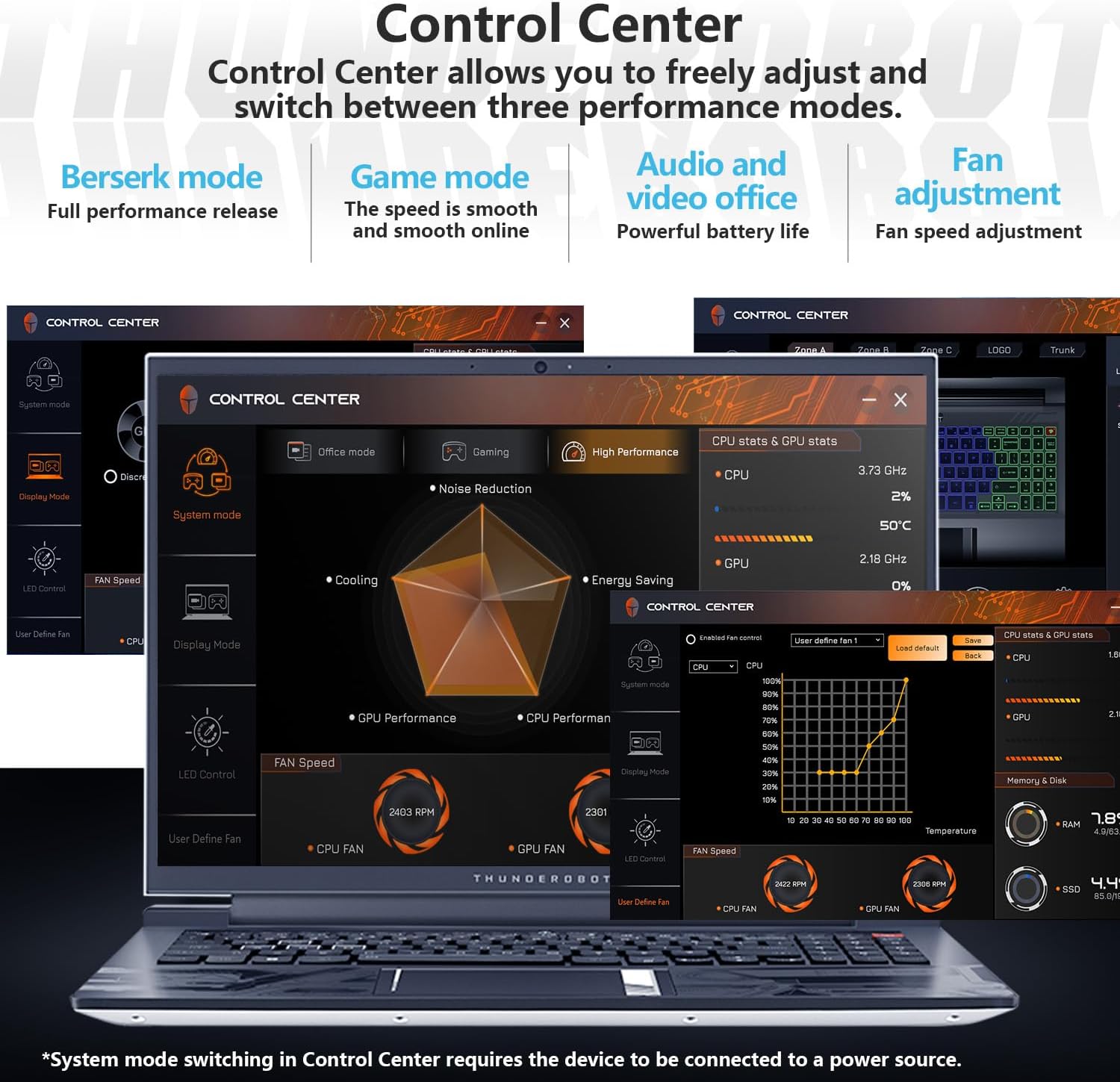
Image: Screenshots of the Thunderobot Control Center interface, showing options for performance modes, fan control, and system monitoring.
3.4 Konnektiwiteit en Poorten
The laptop provides extensive connectivity options:
- 3 x USB 3.0 Tipe-A-poorte
- 1 x USB Tipe C-poort
- 1 x HDMI 2.1-poort
- 1 x RJ45 Ethernet port
- 1 x Headphone/Microphone combo jack
- 1 x Mini DP 1.4 port
- Integrated Wi-Fi 6 for fast wireless networking
- Bluetooth for connecting wireless peripherals

Image: Diagram illustrating the various ports available on the Thunderobot Zero 16 laptop, including USB, HDMI, RJ45, and Mini DP.
3.5 Oudiostelsel
Equipped with Nahimic sound effects, the audio system delivers immersive sound quality with 3D surround, treble stabilization, and noise reduction features for an enhanced listening experience.

Image: Visual representation of the laptop's audio capabilities, highlighting Nahimic sound features like 3D surround and noise reduction.
4. Onderhoud
4.1 Verkoelingstelsel
The Thunderobot Zero 16 features an advanced direct-flow cooling technology with a wind tunnel structure, dual fans, four air outlets, and six air channels. This system includes 5*3D composite heat pipes and ultra-thin heat sink fins for efficient heat dissipation. Regular cleaning of air vents is recommended to maintain optimal cooling performance.

Image: Diagram illustrating the laptop's omnidirectional four air outlets and internal cooling components like heat pipes and dual turbo fans.
4.2 Algemene sorg
- Hou die skootrekenaar in 'n skoon, droë omgewing.
- Vermy om die skootrekenaar aan uiterste temperature of direkte sonlig bloot te stel.
- Clean the screen with a soft, lint-free cloth and a screen-safe cleaning solution.
- Use compressed air to clear dust from keyboard and ventilation openings.
- Vermy die plasing van swaar voorwerpe op die skootrekenaar.
5. Probleemoplossing
| Probleem | Moontlike oorsaak | Oplossing |
|---|---|---|
| Skootrekenaar skakel nie aan nie. | Geen krag, ontlaaide battery, foutiewe kragadapter. | Ensure power adapter is securely connected and plugged into a working outlet. Check battery charge level. |
| Die vertoning is leeg. | Laptop in sleep mode, external display connected, display driver issue. | Press any key or move the mouse to wake. Disconnect external displays. Restart the laptop. |
| Poor performance or overheating. | Dust in vents, background applications, incorrect power mode. | Clean air vents. Close unnecessary applications. Switch to a higher performance mode in Control Center (ensure power adapter is connected). |
| Wi-Fi-verbindingsprobleme. | Wi-Fi gedeaktiveer, drywerprobleem, routerprobleem. | Ensure Wi-Fi is enabled. Restart router. Update Wi-Fi drivers. |
6. Spesifikasies
| Kenmerk | Detail |
|---|---|
| Handelsmerk | Thunderobot |
| Model Naam | Nul 16 |
| Verwerker | Intel Core i9-14900HX (24 Cores, 32 Threads, up to 5.8 GHz) |
| Grafiese kaart | NVIDIA GeForce RTX 4080 Skootrekenaar GPU (12 GB GDDR6) |
| RAM | 64 GB DDR5 SDRAM (4800 MHz) |
| Berging | 2 TB PCIe M.2 SSD |
| Vertoon | 16-inch QHD+ (2560x1600) LCD, 240 Hz Refresh Rate |
| Bedryfstelsel | Windows 11 Tuis |
| Konnektiwiteit | Wi-Fi 6 (802.11ax), Bluetooth, Ethernet |
| Hawens | 3x USB 3.0 Type-A, 1x USB Type-C, 1x HDMI 2.1, 1x RJ45, 1x Headphone/Mic Combo, 1x Mini DP 1.4 |
| Sleutelbord | RGB Backlit, Numeric Keypad |
| Webnok | Ja |
| Afmetings (L x B x D) | 14.09" x 10" x 0.82" |
| Kleur | Wit |
7. Waarborg en Ondersteuning
Every Thunderobot laptop includes a 12 maande waarborg. This warranty provides expert support, thorough diagnostics, and genuine parts if a repair is needed. Additionally, a 90-dae waarborg is provided on all warranty replacement parts, ensuring hassle-free repairs.
For technical assistance or warranty claims, please contact Thunderobot customer support through their official channels. Refer to the product packaging or the Thunderobot webwebwerf vir kontakinligting.

Image: Information regarding Thunderobot's warranty and support services.
Ask a question about this manual
Ask about setup, troubleshooting, compatibility, parts, safety, or missing instructions. Manuals+ will review the question and use this page’s manual context to help answer it.