
1. Inleiding
The Chameye CB101 is an all-in-one 4K video conference camera system designed for small to medium conference rooms. This system integrates a 4K PTZ camera with 10x optical zoom and AI auto-tracking, along with a professional Bluetooth speakerphone featuring 360° voice pickup and AI noise cancellation. This manual provides detailed instructions for setting up, operating, and maintaining your CB101 system to ensure optimal performance for your video conferencing needs.
2. Pakketinhoud
Verifieer asseblief dat al die items wat hieronder gelys word in u pakket ingesluit is. Indien enige items ontbreek of beskadig is, kontak asseblief kliëntediens.
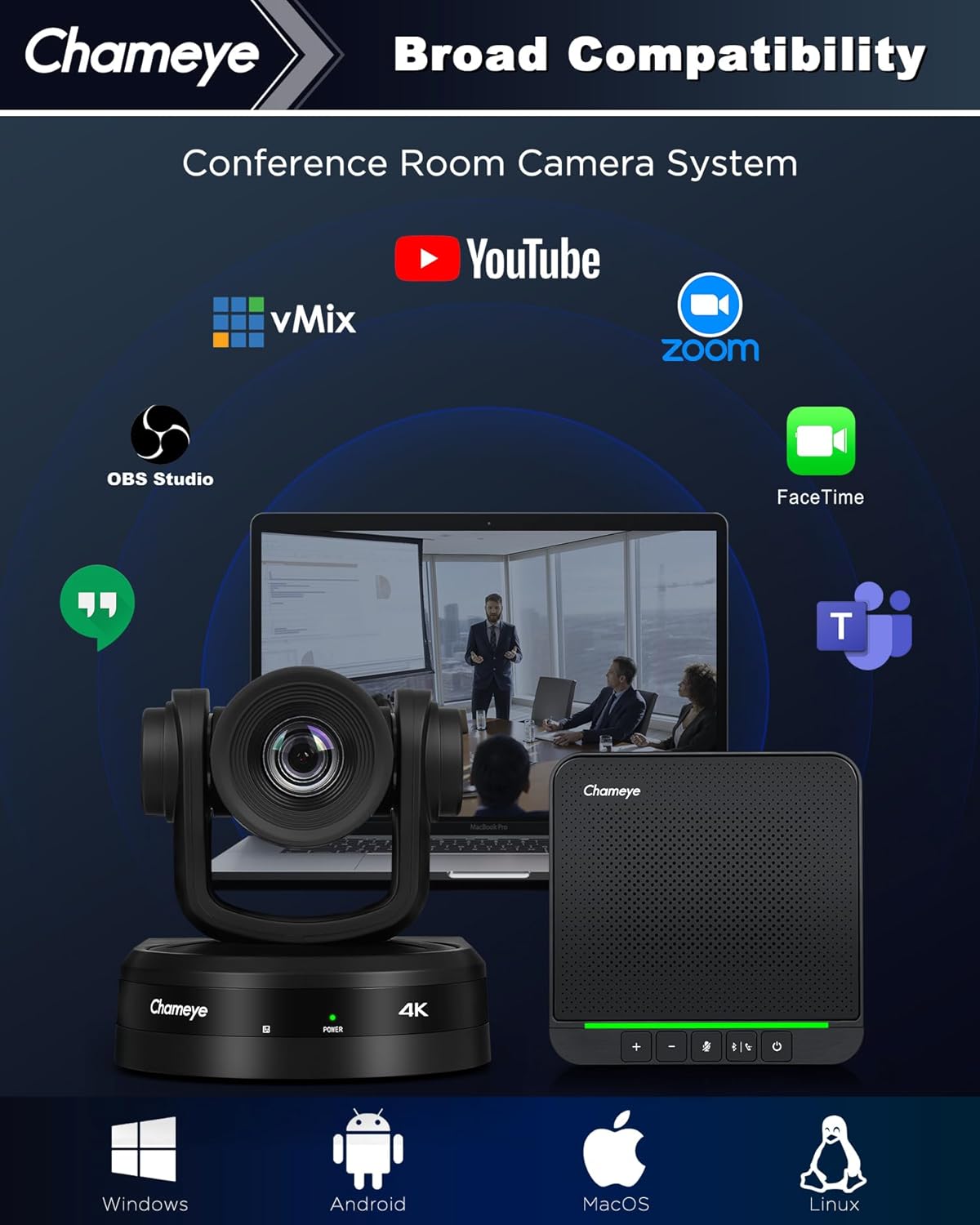
Image: The Chameye CB101 package contents, including the 4K PTZ camera, S4 speakerphone, remote control, various cables (USB3.0, LAN, Power), power adapter, wireless dongle, wall-mount bracket, ceiling bracket, and user manual. Also shown are different installation methods: tripod, ceiling, wall, and desktop mount.
- 4K PTZ-kamera
- S4 luidspreker
- Afstandbeheer
- USB3.0 kabel
- LAN-kabel
- Kragkabel
- Kragadapter
- Draadlose dongel
- Muurmonteerbeugel
- Plafonbeugel
- Gebruikershandleiding
3. Produk verbyview
The Chameye CB101 system integrates advanced video and audio technologies to provide a seamless conferencing experience.
3.1 Sleutelkenmerke
- 4K UHD PTZ Camera: Equipped with a 1/2.5-inch CMOS sensor, delivering 4K (3840x2160) resolution at 30fps.
- 10x optiese zoom: Allows for clear close-ups of participants even in larger rooms.
- AI Auto-Tracking: Automatically frames the active speaker, ensuring they remain the focus of the meeting.
- Multi-Interface Connectivity: Supports HDMI, USB 3.0, and LAN connections for video output.
- Professional Speakerphone: Features four built-in microphones with 360° voice pickup, covering an area of up to 5 meters (16 feet).
- KI-geraaskansellasie: Effectively reduces background noises like keyboard clicks and air conditioning for clear audio.
- Breë versoenbaarheid: Plug-and-play with popular platforms such as Zoom, Microsoft Teams, Webex, OBS Studio, and more.

Image: An infographic detailing the Chameye CB101 system's features, including AI Tracking, 10x Optical Zoom, Multi-Interface (HDMI, USB3.0, LAN, TF Record, MIC IN), 4K UHD video, 16ft 360° Voice Pick-up, AI Noise Reduction, and Broad Compatibility with various conferencing platforms.

Image: A conference room setting demonstrating the AI auto-tracking feature of the Chameye 4K AI Tracking Conference Camera, highlighting how it keeps the active speaker in frame.
4. Opstelling
Follow these steps to set up your Chameye CB101 system.
4.1 Fisiese installasie
The camera can be installed in various ways:
- Desktop Mount: Place the camera on a flat surface near your display.
- Driepoot Mount: Attach the camera to a standard tripod using the tripod screw hole.
- Muur berg: Use the provided wall-mount bracket to secure the camera to a wall.
- Plafonmontering: Use the provided ceiling bracket to mount the camera to the ceiling.
Position the speakerphone centrally on the conference table for optimal voice pickup.
4.2 Die stelsel koppel
The CB101 offers multiple connection options for both the camera and the speakerphone.

Image: Diagram illustrating the three connection options for the Chameye speakerphone: Bluetooth 5.0, Wireless Dongle, and USB cable. A close-up of the speakerphone's USB-C port is also shown.
Kameraverbindings:
- HDMI: Connect the camera to a display or capture card using an HDMI cable for video output.
- USB 3.0: Connect the camera to your computer using the USB 3.0 cable for video and control. This is typically used for direct connection to a conferencing PC.
- LAN (Ethernet): Connect the camera to your network for IP streaming and control. Power over Ethernet (PoE) is supported.
- Krag: Connect the power adapter to the camera and a power outlet.
Speakerphone Connections:
- USB-kabel: Connect the speakerphone directly to your computer using the provided USB cable.
- Draadlose dongle: Plug the wireless dongle into your computer's USB port. The speakerphone will automatically pair.
- Bluetooth 5.0: Pair the speakerphone with your device via Bluetooth. Refer to your device's Bluetooth settings for pairing instructions.
Once connected, ensure your operating system recognizes both the camera and speakerphone as audio and video devices.
5. Bedryfsinstruksies
This section details how to operate your Chameye CB101 system during a conference.
5.1 Kamerawerking
- Krag aan/af: Press the power button on the camera or use the remote control.
- PTZ-beheer: Use the remote control to pan, tilt, and zoom the camera manually.
- 10x optiese zoom: Adjust the zoom level using the remote control's zoom buttons.
- AI Auto-Tracking: Activate or deactivate AI auto-tracking via the remote control. When active, the camera will automatically follow the speaker.
- Vooraf ingestelde posisies: Save and recall specific camera positions using the preset buttons on the remote control.
5.2 Speakerphone Operation
- Krag aan/af: Press and hold the power button on the speakerphone.
- Volumebeheer: Use the '+' and '-' buttons on the speakerphone to adjust the volume.
- Demp/Ontdemp: Press the microphone mute button to mute or unmute the microphones. The LED indicator will change color to show mute status.
- Oproepbeheer: Use the call answer/end button for managing calls on compatible platforms.
- Bluetooth-paring: If connecting via Bluetooth, press and hold the Bluetooth button to enter pairing mode.
5.3 Sagteware-integrasie
The Chameye CB101 is plug-and-play compatible with most video conferencing software. After connecting, select the Chameye camera as your video input and the Chameye speakerphone as your audio input/output within your chosen application's settings (e.g., Zoom, Microsoft Teams, Webbv.).

Image: An illustration showing the broad compatibility of the Chameye CB101 system with various operating systems (Windows, Android, MacOS, Linux) and conferencing platforms (YouTube, vMix, Zoom, OBS Studio, FaceTime, GoToMeeting, Microsoft Teams, Voov Meeting, Google Meet).
6. Onderhoud
Proper maintenance ensures the longevity and optimal performance of your Chameye CB101 system.
- Skoonmaak: Gebruik 'n sagte, droë lap om die kameralens en luidsprekerfoonoppervlakke skoon te maak. Vermy skuurmiddels of oplosmiddels.
- Berging: When not in use for extended periods, store the system in a cool, dry place away from direct sunlight.
- Kabelbestuur: Maak seker dat alle kabels netjies georganiseer is en nie onder spanning is om skade te voorkom.
- Firmware -opdaterings: Periodically check the Chameye official webwebwerf vir enige beskikbare firmware-opdaterings om werkverrigting te verbeter en nuwe funksies by te voeg.
7. Probleemoplossing
If you encounter issues with your Chameye CB101 system, refer to the following common problems and solutions.
| Probleem | Moontlike oorsaak | Oplossing |
|---|---|---|
| No video output from camera | Loose cable connection, incorrect input selection on display, camera not powered on, driver issue. | Check HDMI/USB 3.0/LAN cable connections. Ensure camera is powered on. Select correct input source on your display. Verify camera is selected as video source in conferencing software. Reinstall camera drivers if necessary. |
| No audio from speakerphone | Speakerphone not powered on, volume too low, muted, incorrect audio output selected. | Ensure speakerphone is powered on and not muted. Increase volume. Select Chameye speakerphone as audio output device in your computer's sound settings and conferencing software. |
| Microphones not picking up sound | Microphones muted, incorrect audio input selected, speakerphone too far from speaker. | Ensure microphones are not muted. Select Chameye speakerphone as audio input device in your computer's sound settings and conferencing software. Ensure speakerphone is within 5 meters (16 feet) of participants. |
| AI Auto-Tracking not working | Feature not activated, poor lighting conditions, subject too far or obscured. | Activate AI auto-tracking via the remote control. Ensure adequate lighting. Position subjects clearly within the camera's field of view. |
| Afstandbeheer reageer nie | Dead batteries, line of sight blocked. | Replace batteries in the remote control. Ensure there is a clear line of sight between the remote and the camera's IR receiver. |
If the problem persists, please contact Chameye customer support.
8. Spesifikasies
| Kenmerk | Detail |
|---|---|
| Modelnommer | CB101 |
| Vervaardiger | Chameye |
| Video-opname-resolusie | 4K (3840x2160) @ 30fps |
| Fotosensortegnologie | CMOS (1/2.5-inch, 8.51 megapixels) |
| Optiese zoom | 10x |
| Maksimum brandpuntsafstand | 57 millimeter |
| Maksimum diafragma | 1.6 f |
| Verbindingstegnologie | Ethernet, HDMI, USB (USB 3.0) |
| Speakerphone Microphones | 4 built-in, 360° voice pickup (up to 5m/16ft) |
| Spesiale kenmerke | 10x optical zoom, 4K, Professional Conference Speakerphone, USB3.0/HDMI/LAN, Wireless Conference Speaker, AI Auto-Tracking, AI Noise Cancellation |
| Produk afmetings | 18.1 x 18.1 x 17.6 cm; 3.8 kg |
| Kleur | Swart |
9. Waarborginligting
Chameye products are covered by a limited warranty from the date of purchase. This warranty covers defects in materials and workmanship under normal use. It does not cover damage caused by misuse, accidents, unauthorized modifications, or external causes. Please retain your proof of purchase for warranty claims. For specific warranty terms and conditions, refer to the warranty card included in your package or visit the official Chameye webwebwerf.
10. Kliëntediens
If you require further assistance or have questions not covered in this manual, please contact Chameye customer support. Our team is available to help you with technical issues, product inquiries, and warranty services.
Please visit the official Chameye webwebwerf vir kontakinligting, algemene vrae en bykomende hulpbronne.