
1. Inleiding
Dankie vir die aankoopasing the Vandlion 64GB Compact Voice Recorder. This manual provides detailed instructions for the safe and efficient use of your device. Please read this manual thoroughly before operation and retain it for future reference.
2. Produk verbyview
The Vandlion-15 is a compact and lightweight digital voice recorder designed for various recording needs, including meetings, interviews, and personal notes. It features a durable metal casing and a user-friendly interface.
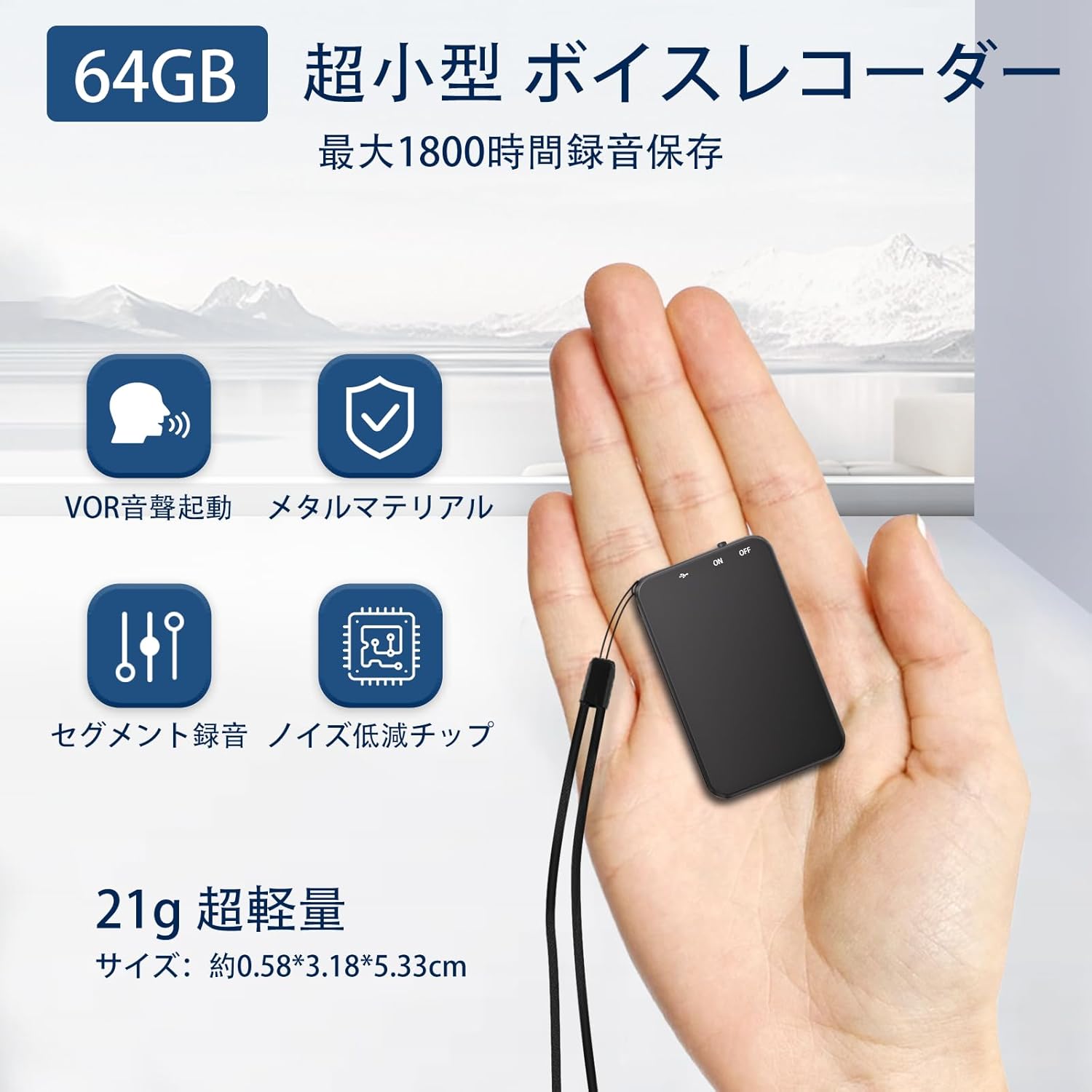
Image: The Vandlion 64GB Compact Voice Recorder, showcasing its sleek design and small form factor.
Sleutel kenmerke:
- 64GB interne geheue: Stores up to 1800 hours of audio at 160kbps.
- Kompak en liggewig: Measures approximately 0.6 x 3.2 x 5.4 cm and weighs 21g.
- Lang batterylewe: Up to 35 hours of continuous recording on a full charge.
- Een-knoppie werking: Simple slide switch for quick recording and saving.
- VOR (Voice Operated Recording): Automatically starts recording when sound is detected and pauses during silence.
- Geraasonderdrukking: Equipped with a 2159 chip for clearer audio.
- Automatic Save: Recordings are automatically saved when the battery is low or the device is powered off.
- Type-C Connectivity: Vir laai en data-oordrag.

Beeld: Oorview of the recorder's features, including 64GB storage, VOR activation, metal material, segment recording, and noise reduction chip.

Image: The compact voice recorder easily fits into a shirt pocket, demonstrating its portability.

Image: Diagram illustrating the internal 2159 chip, which enhances recording quality and noise reduction.
3. Opstelling
3.1 Laai die toestel
Connect the recorder to a computer or a USB power adapter using the provided Type-C cable. The indicator light will show charging status. A full charge takes approximately 2 hours and provides up to 35 hours of continuous recording.
3.2 Tydsinchronisasie
Om akkurate tydsberekening te versekeramps on your recordings, synchronize the device's time with your computer. Connect the recorder to your PC/Mac. The device will appear as a removable drive. Locate the time synchronization utility (usually a file named 'SetTime.exe' or similar) and run it. Follow the on-screen instructions to set the correct date and time.

Image: Illustration of the time synchronization function, showing the recorder connected to a laptop displaying recording files with date and time stamps.
4. Bedryfsinstruksies
4.1 Krag aan/af
- Krag aan: Slide the 'ON/OFF' switch to the 'ON' position. The indicator light will briefly illuminate.
- Skakel af: Slide the 'ON/OFF' switch to the 'OFF' position. The device will save any active recording and then power down.
4.2 Opname
- Een-knoppie opname: To start recording, slide the 'ON/OFF' switch to the 'ON' position. A red indicator light will flash and then turn off, indicating that recording has begun. To stop recording and save the file, slide the switch to the 'OFF' position.
- Automatic Save: If the battery level becomes critically low during recording, the device will automatically save the current recording file before powering off to prevent data loss.

Image: Diagram showing the one-button recording operation with the ON/OFF switch and indicator light.
4.3 VOR (Voice Operated Recording)
The VOR function allows the recorder to automatically start recording when sound is detected and pause when there is no sound, optimizing storage space by eliminating silent periods.
- Activating VOR: By default, the VOR function is off. To enable and adjust VOR sensitivity, connect the recorder to a computer. Access the device's settings file (often a 'config.txt' or similar) and modify the VOR level according to your preference.
- Operation in VOR Mode: Once VOR is enabled, simply slide the 'ON/OFF' switch to 'ON'. The device will enter standby mode and begin recording only when sound is present.

Image: Visual representation of VOR mode, showing how recording starts with sound, pauses during silence, and resumes with sound, saving memory.
4.4 Afspeel
The Vandlion-15 does not have a built-in speaker. Playback is possible via the included earphones or by connecting to a computer or smartphone.
- Gebruik oorfone: Connect the included earphones to the recorder's 3.5mm jack. Use the inline remote control on the earphones to adjust volume, skip tracks, fast forward, rewind, and play/pause recordings.
- Connecting to PC/Mac: Connect the recorder to your computer using the Type-C cable. The device will appear as a removable drive. Navigate to the 'RECORD' folder to find your audio files (WAV format). You can play them using your computer's media player.
- Connecting to Android/iPhone: For Android devices, use an OTG adapter (included) to connect the recorder. For iPhones, a compatible adapter may be required (not included). Once connected, you can access and play the audio files directly from your phone.
Video: Demonstrates the physical features of the Vandlion voice recorder, including the ON/OFF switch, Type-C port, and headphone jack. It shows how to connect the included earphones for playback and how to connect the device to a computer for data transfer.
4.5 Data Management (PC/Mac/Smartphone)
Once connected to a computer or compatible smartphone, you can easily manage your recorded files:
- oordra: Kopieer oudio files from the recorder to your computer or smartphone.
- Ondersteuning: Create backup copies of important recordings.
- Vee uit: Verwyder ongewenste files from the device to free up space.
5. Onderhoud
- Hou die toestel droog en weg van uiterste temperature.
- Maak die toestel skoon met 'n sagte, droë lap. Moenie vloeibare skoonmaakmiddels gebruik nie.
- Vermy om die toestel te laat val of om dit aan sterk impakte te onderwerp.
- Berg die toestel op 'n veilige plek wanneer dit nie gebruik word nie.
6. Probleemoplossing
| Probleem | Moontlike oorsaak | Oplossing |
|---|---|---|
| Toestel kan nie aangeskakel word nie. | Battery is leeg. | Laai die toestel vir ten minste 2 uur. |
| Kan nie opneem nie. | Insufficient storage space; Device is off. | Vee ou uit files to free up space; Ensure the switch is in the 'ON' position. |
| Swak opnamekwaliteit. | Microphone obstructed; Recording environment too noisy. | Ensure microphone is clear; Record in a quieter environment. |
| Cannot play back audio. | Earphones not connected; Incorrect file formaat. | Connect earphones securely; Ensure files are in WAV format for direct playback or use a compatible media player on PC/phone. |
| Reported storage capacity is less than 64GB. | Stelsel files occupy some space; Discrepancy in measurement units (GB vs GiB). | This is normal for storage devices. The usable capacity will be slightly less than the advertised capacity due to system software and formatting. |
7. Spesifikasies

Image: Detailed specifications for the Vandlion V15 voice recorder and a list of included accessories.
| Kenmerk | Detail |
|---|---|
| Model | Vandlion-15 |
| Afmetings (D x B x H) | 0.6 x 5.3 x 3.2 cm |
| Gewig | 21 gram |
| Geheue berging kapasiteit | 64 GB |
| Battery Tipe | 1 Litium-ioonbattery (ingesluit) |
| Batterylewe (gemiddeld) | 35 ure |
| Digitale opname tyd | 35 ure |
| Opname-formaat | WAV (32kbps-1536kbps) |
| Terugspeelformaat | MP3 / WAV |
| Hardeware-koppelvlak | USB-C |
| Koptelefoonaansluiting | 3.5 mm |
| Mikrofoonvormfaktor | Ingeboude |
| Versoenbare toestelle | PC (Windows/Mac), Android, iPhone |
Pakketinhoud:
- 1 x 64GB Voice Recorder
- 1 x Wired Earphones with Remote Control
- 1 x Tipe-C USB-kabel
- 1 x OTG-adapter
- 1 x Gebruikershandleiding
8. Waarborg en Ondersteuning
The Vandlion 64GB Compact Voice Recorder comes with a 12-month manufacturer's warranty from the date of purchase. This warranty covers manufacturing defects and malfunctions under normal use.
For technical support, warranty claims, or any questions regarding your device, please contact Vandlion customer service through the retailer where you purchased the product. Please have your purchase receipt and product model number ready when contacting support.