
Inleiding
Thank you for choosing the Altec Lansing Comfort Pro Over Ear Bluetooth Headphones. These headphones are designed to provide a high-quality audio experience with advanced features such as Active Noise Cancellation (ANC), Environmental Noise Cancellation (ENC), Spatial Audio, and a long-lasting battery. This manual will guide you through the setup, operation, and maintenance of your new headphones.
Wat is in die boks
- Altec Lansing Comfort Pro Wireless Headphones
- USB-C Charging Cable (not explicitly listed but implied for charging)
- Audio Cable (not explicitly listed but common for wired use)
- Carrying Case (implied by images)
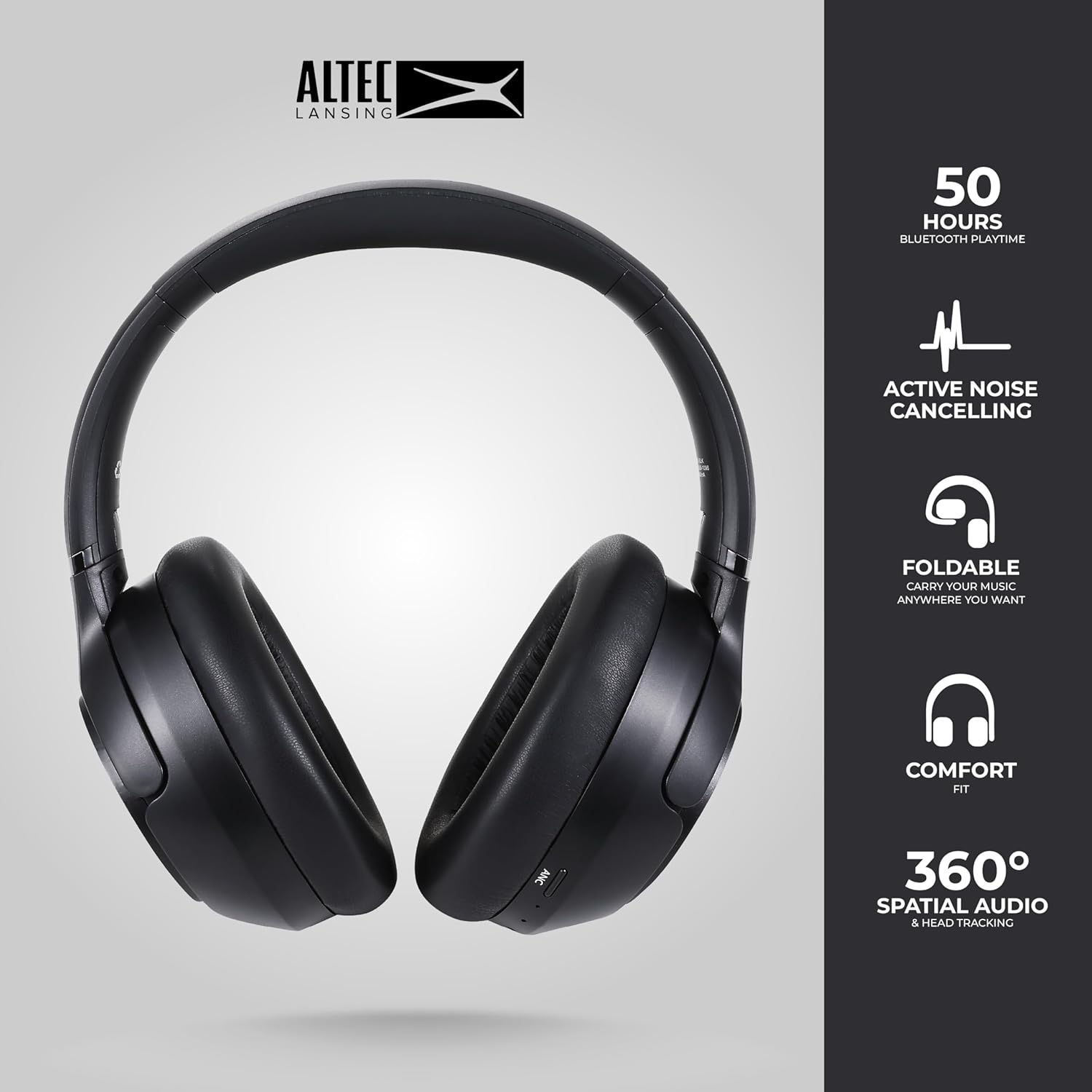
Image: The Altec Lansing Comfort Pro headphones, showcasing their sleek design and key features like 50 hours Bluetooth playtime, Active Noise Cancelling, foldable design, comfort fit, and 360° Spatial Audio & Head Tracking.
Opstelling
1. Laai die oorfone
Before first use, fully charge your headphones. Connect the provided USB-C charging cable to the charging port on the headphones and the other end to a USB power source. The LED indicator will show charging status and turn off or change color when fully charged. A full charge typically takes approximately two hours.
2. Skakel aan/af
- Om aan te skakel: Druk en hou die aan/af-knoppie vir ongeveer 3 sekondes in totdat die LED-aanwyser aanskakel.
- Om af te skakel: Druk en hou die aan/af-knoppie vir ongeveer 3 sekondes totdat die LED-aanwyser afskakel.
3. Bluetooth-koppeling
The headphones support Bluetooth 5.4 for stable connectivity and multipoint pairing for connecting to two devices simultaneously.
- Maak seker dat die oorfone afgeskakel is.
- Press and hold the Power button for approximately 5-7 seconds until the LED indicator flashes rapidly (usually blue and red), indicating pairing mode.
- On your device (smartphone, laptop, tablet), go to Bluetooth settings and enable Bluetooth.
- Soek vir available devices and select "Altec Lansing Comfort Pro" from the list.
- Sodra dit gekoppel is, sal die LED-aanwyser ophou flikker en solied blou bly.
- For multipoint pairing, connect to the first device, then put the headphones back into pairing mode and connect to the second device. The headphones will intelligently switch between the two connected devices.

Beeld: 'n Gedetailleerde view of the Altec Lansing Comfort Pro headphones highlighting the adjustable headband and the soft, lightweight ear cushions designed for comfort during extended use.
Bedryf
Koptelefoonkontroles
The headphones feature intuitive controls located on the earcups. Refer to the image below for button identification.

Beeld: 'n Nabyskoot view of the right earcup of the Altec Lansing Comfort Pro headphones, showing the power button, volume controls, and other function buttons.
- Kragknoppie: Press and hold to power on/off. Short press for play/pause, answer/end calls.
- Volume op (+): Druk kort om die volume te verhoog. Druk lank vir die volgende snit.
- Volume af (-): Druk kort om die volume te verlaag. Druk lank vir die vorige snit.
- ANC-knoppie: Press to cycle through Active Noise Cancellation modes (ANC On, Ambient Mode, ANC Off).
- Multifunksieknoppie (MFB): Double press to activate Voice Assistant (Siri/Google Voice). Triple press to activate Low Latency Mode.
Active Noise Cancellation (ANC) & Environmental Noise Cancellation (ENC)
The Comfort Pro headphones feature powerful ANC to block out external noise and ENC for clear calls. Press the dedicated ANC button to toggle between ANC On, Ambient Mode (allowing some environmental sounds for awareness), and ANC Off. ENC is automatically active during calls to ensure your voice is clear.
Ruimtelike oudio
Experience immersive sound with Spatial Audio. This feature creates a 3D soundstage, making audio feel more lifelike. Spatial Audio is automatically enabled when supported by your device and content.
Lae vertragingsmodus
For gaming or video playback where audio-visual synchronization is critical, activate Low Latency Mode by triple-pressing the MFB. This reduces audio delay for a more synchronized experience.
Stemassistent
Access your device's voice assistant (Siri or Google Voice) by double-pressing the MFB. You can then issue commands through the headphone's microphone.
Belbestuur
- Beantwoord/beëindig oproep: Druk kort op die Power-knoppie.
- Verwerp oproep: Druk en hou die Power-knoppie vir 2 sekondes.
Onderhoud
Skoonmaak
Om die werkverrigting en voorkoms van jou oorfone te behou:
- Vee die oorskelpe en kopband af met 'n sagte, droë, pluisvrye lap.
- Vir hardnekkige vuilheid, liggies dampMaak die lap met water skoon. Vermy die gebruik van harde chemikalieë, oplosmiddels of skuurmiddels.
- Moenie toelaat dat vog enige openinge binnedring nie.
Berging
When not in use, store your headphones in the provided carrying case to protect them from dust, scratches, and impacts. The foldable design allows for compact storage.

Image: The Altec Lansing Comfort Pro headphones neatly folded and stored inside their protective carrying case, emphasizing portability and protection.
Battery sorg
- Vermy om die battery gereeld heeltemal te ontlaai.
- Store the headphones with a partial charge if not used for extended periods.
- Vermy uiterste temperature, wat die batterylewe kan verminder.
Probleemoplossing
If you encounter any issues with your Altec Lansing Comfort Pro headphones, refer to the following common solutions:
- Oorfone skakel nie aan nie: Maak seker dat die oorfone volledig gelaai is. Koppel dit aan 'n kragbron en probeer weer na 'n paar minute.
- Kan nie met toestel koppel nie:
- Ensure the headphones are in pairing mode (LED flashing rapidly).
- Skakel Bluetooth op jou toestel af en aan.
- Delete "Altec Lansing Comfort Pro" from your device's Bluetooth list and attempt to pair again.
- Probeer om dit met 'n ander toestel te koppel om toestelspesifieke probleme uit te sluit.
- Geen geluid of lae volume:
- Kontroleer die volumevlakke op beide die oorfone en jou gekoppelde toestel.
- Maak seker dat die oorfone behoorlik via Bluetooth gekoppel is.
- If using a wired connection, ensure the audio cable is fully inserted into both the headphones and the audio source.
- ANC werk nie effektief nie:
- Ensure ANC is activated by pressing the ANC button.
- Pas die pasvorm van die oorfone aan om 'n goeie seël om jou ore te verseker.
- ANC is most effective against low-frequency, constant noise. It may not completely block out voices or sudden, high-frequency sounds.
- Stemassistent reageer nie: Ensure your device's voice assistant is enabled and that the headphones are properly connected. Double-press the MFB firmly.
Spesifikasies
| Model Naam | MX3050 (MZX3050-BLK-STK-6) |
| Verbindingstegnologie | Draadloos (Bluetooth) |
| Bluetooth weergawe | 5.4 |
| Batterylewe | Up to 60 Hours (40 Hours with ANC activated) |
| Geraasbeheerfunksies | Active Noise Cancellation (ANC), Environmental Noise Cancellation (ENC) |
| Oorstukvorm | Oor-oor |
| Beheer metode | App, Voice, On-headphone buttons |
| Versoenbare toestelle | Slimfone, skootrekenaars, tablette |
| Materiaal | Fabric/Silicone and Plastic/Metal (Combination) |
| Item gewig | 1 pond |
| Waterweerstandvlak | Waterdig |
Waarborg en Ondersteuning
For warranty information and customer support, please refer to the documentation included with your purchase or visit the official Altec Lansing website. You can typically find detailed warranty terms, FAQs, and contact information for technical assistance there.
Aanlyn hulpbronne: www.alteclansing.com