
1. Inleiding
This manual provides essential information for setting up, operating, maintaining, and troubleshooting your Thunderobot Storm 15 4050 Gaming Laptop. Please read it thoroughly to ensure optimal performance and longevity of your device.
Sleutel kenmerke:
- Verwerker: Intel Core i7-13620H (10 kerns, tot 4.9 GHz)
- Grafika: NVIDIA GeForce RTX 4050 skootrekenaar GPU
- Geheue: 32GB DDR4 RAM (3200 MHz)
- Berging: 1TB PCIe M.2 SSD
- Vertoon: 15.6-inch Full HD (1920x1080) 165Hz, 100% sRGB, DC Dimming
- Bedryfstelsel: Windows 11 Tuis
- Verkoeling: Advanced Frost Cooling System with multi-heat-pipe design and high-pressure turbine fan
- Sleutelbord: Full-size backlit keyboard with numeric keypad
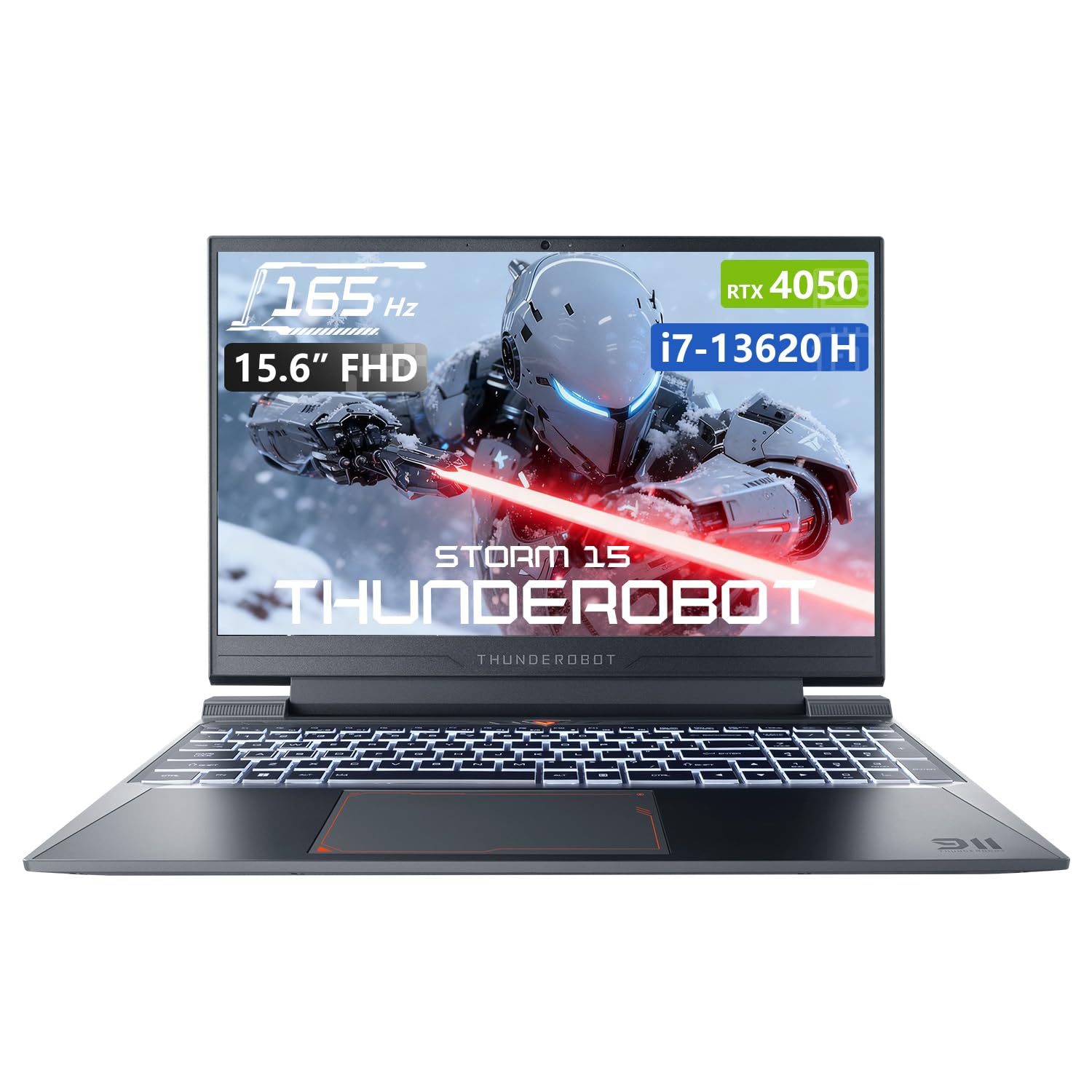
Image: The Thunderobot Storm 15 4050 Gaming Laptop, showcasing its sleek design and backlit keyboard.
2. Opstelling
2.1 Aanvanklike aanskakeling
- Pak uit: Verwyder die skootrekenaar en alle bykomstighede versigtig uit die verpakking.
- Koppel krag: Steek die wisselstroomadapter in die skootrekenaar se kragpoort en dan in 'n muuraansluiting.
- Krag aan: Maak die skootrekenaar se deksel oop en druk die aan/af-knoppie, wat gewoonlik bo die sleutelbord of aan die kant geleë is.
- Aanvanklike opstelling: Volg die instruksies op die skerm om die Windows 11 Home-opstelling te voltooi, insluitend taal, streek, netwerkverbinding en die skep van gebruikersrekeninge.
2.2 Aansluiting van randapparatuur
Jou skootrekenaar is toegerus met verskeie poorte vir die koppeling van eksterne toestelle.

Image: Diagram illustrating the various ports and slots available on the Thunderobot Storm 15 laptop.
- USB-toestelle: Connect USB mice, keyboards, external drives, or other peripherals to the USB 3.1 Type-A ports or the USB 3.1 Gen 2 Type-C port.
- Eksterne vertoning: Use the HDMI port to connect an external monitor or TV.
- Netwerk: Vir 'n stabiele bedrade internetverbinding, koppel 'n Ethernet-kabel in die RJ-45-poort.
- Oudio: Connect headphones or external speakers to the 3.5mm Combo Jack.
3. Bediening van jou skootrekenaar
3.1 Vertoonkenmerke
The 15.6-inch Full HD display offers a 165Hz refresh rate for smooth visuals and 100% sRGB color gamut for accurate color reproduction. DC dimming technology helps reduce screen flickering.
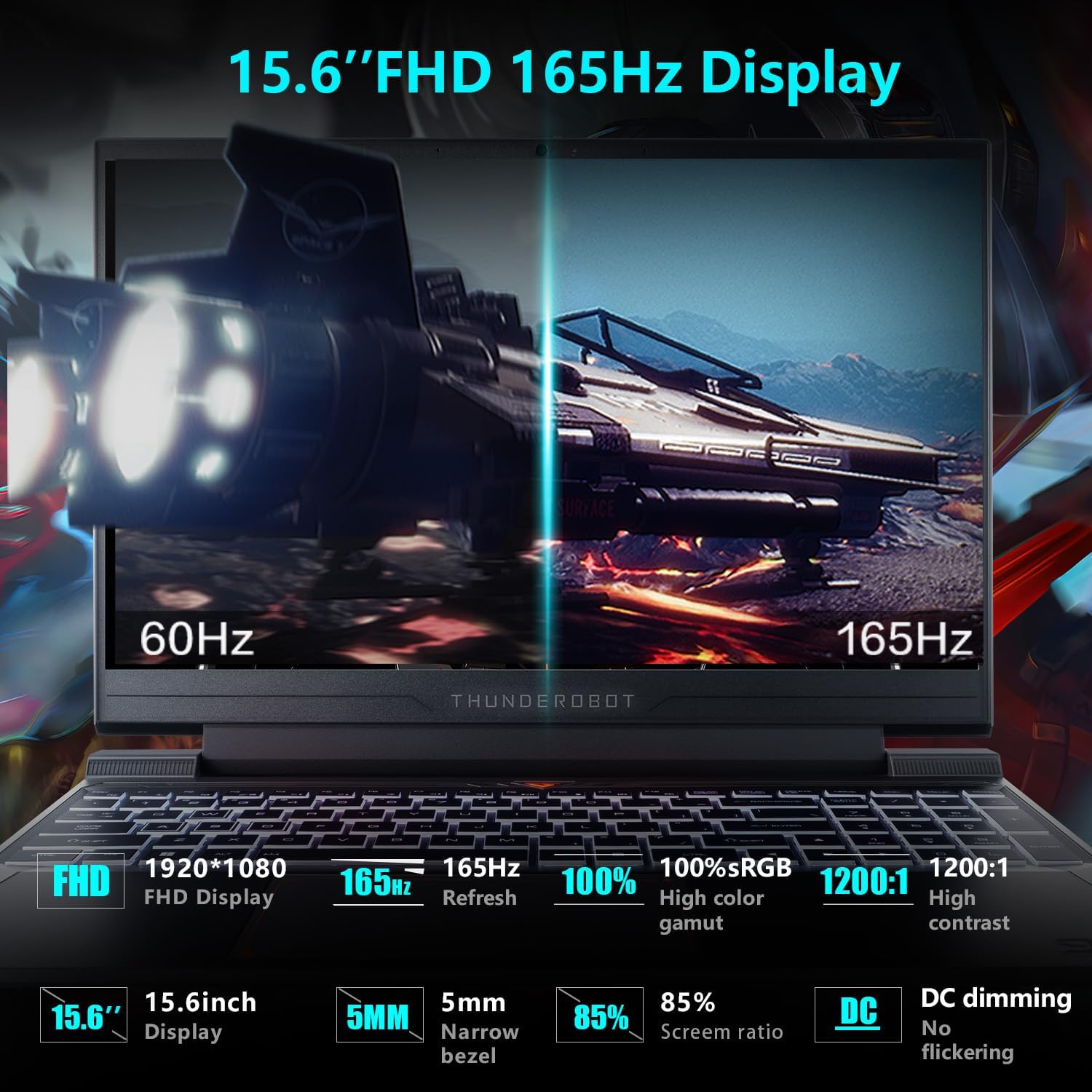
Image: Close-up of the 15.6-inch Full HD 165Hz display, highlighting its smooth motion capabilities.
3.2 Sleutelbord en raakvlak
The full-size backlit keyboard includes a numeric keypad for enhanced productivity and gaming. The anti-fingerprint surface helps maintain a clean appearance.
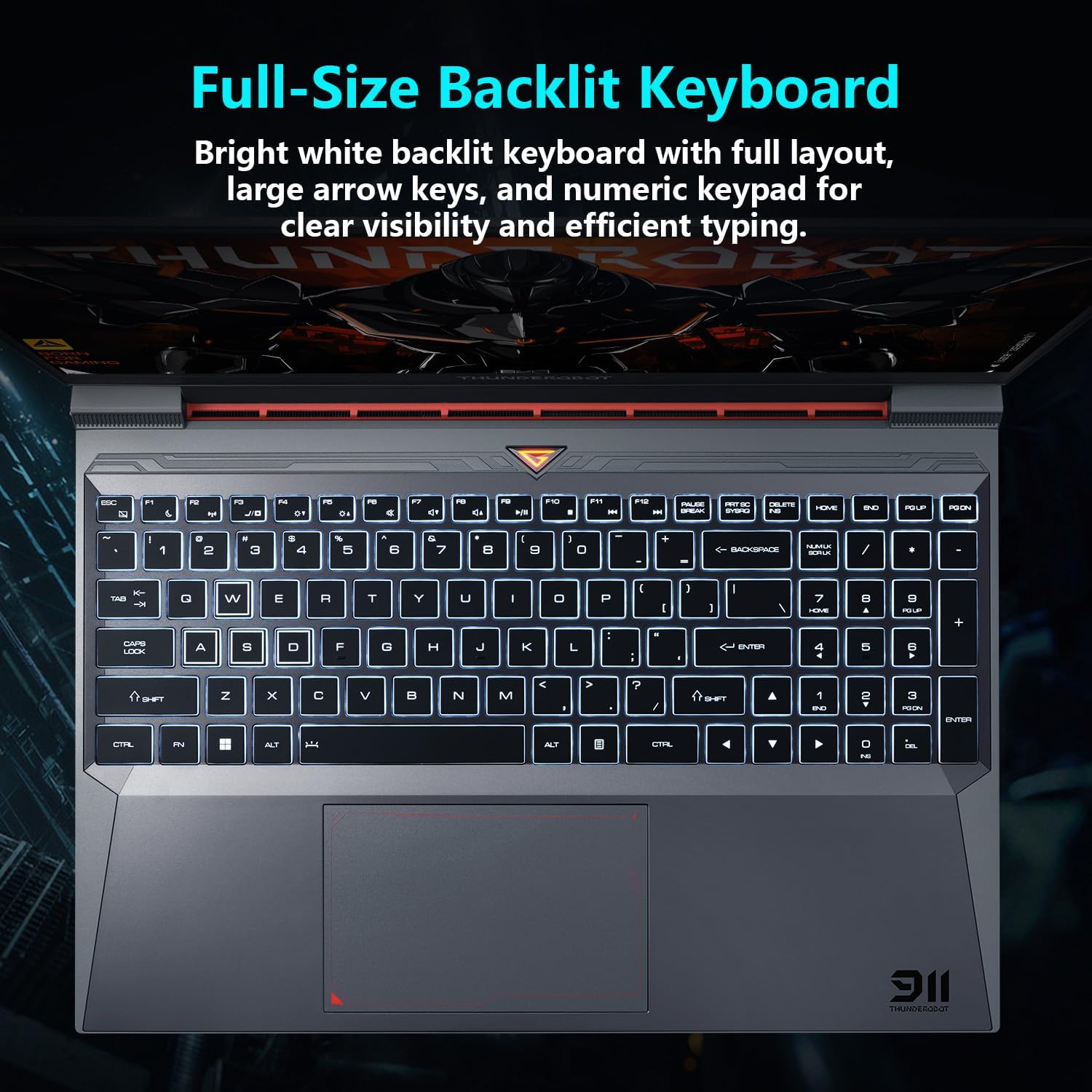
Prent: View of the full-size backlit keyboard with its bright white backlighting and numeric keypad.
3.3 Oudiostelsel
Experience immersive sound with the laptop's professional sound certification and high-specification speaker design.
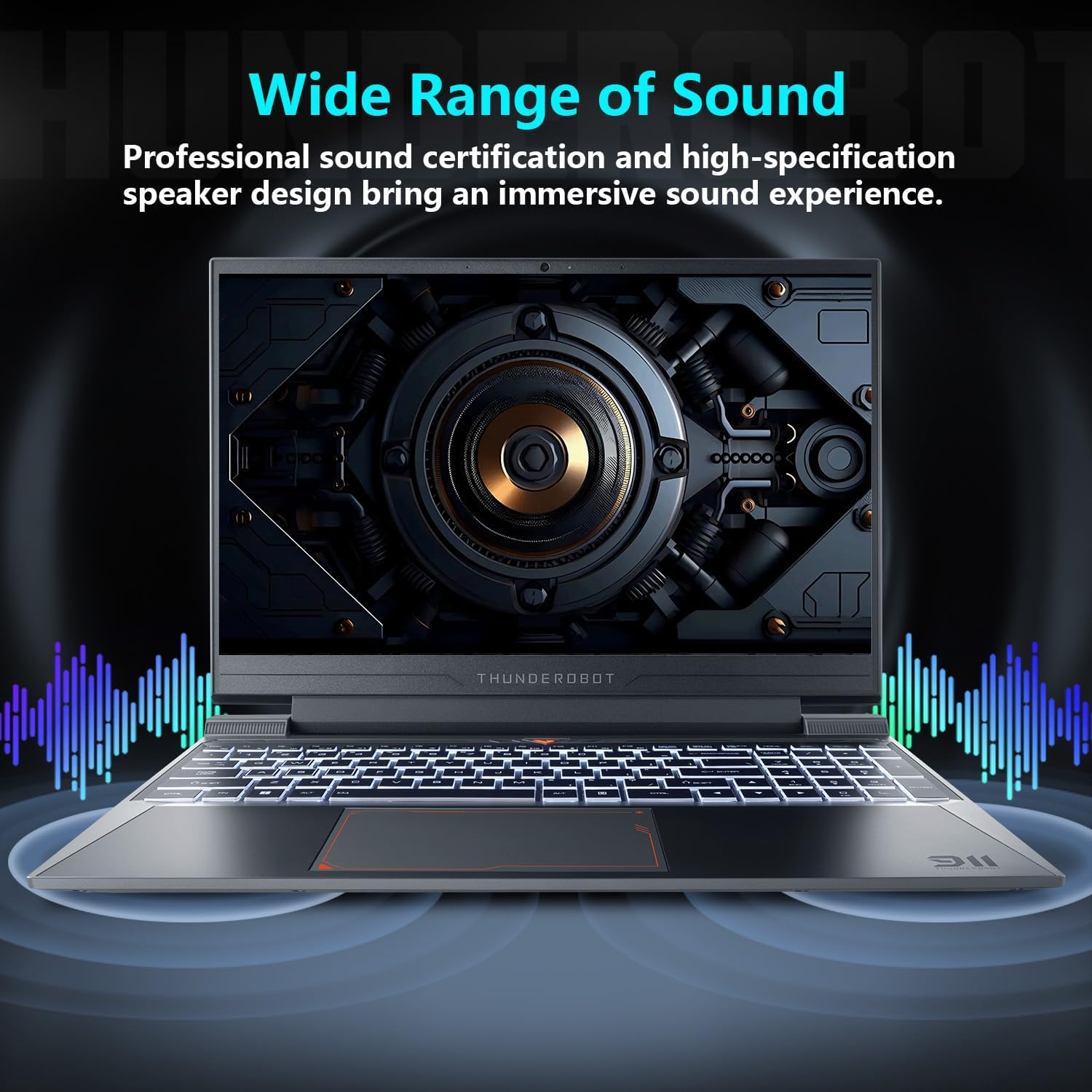
Image: Laptop displaying sound waves, illustrating its wide range of sound capabilities.
3.4 Verkoelingstelsel
The Advanced Frost Cooling System features multi-heat-pipe design (10mm/8mm composite pipes), a high-pressure turbine fan with 80 ultra-thin LCP blades, and 126 dense copper fins (28,000mm²) to ensure efficient heat dissipation. This design keeps critical components cool during intensive use.
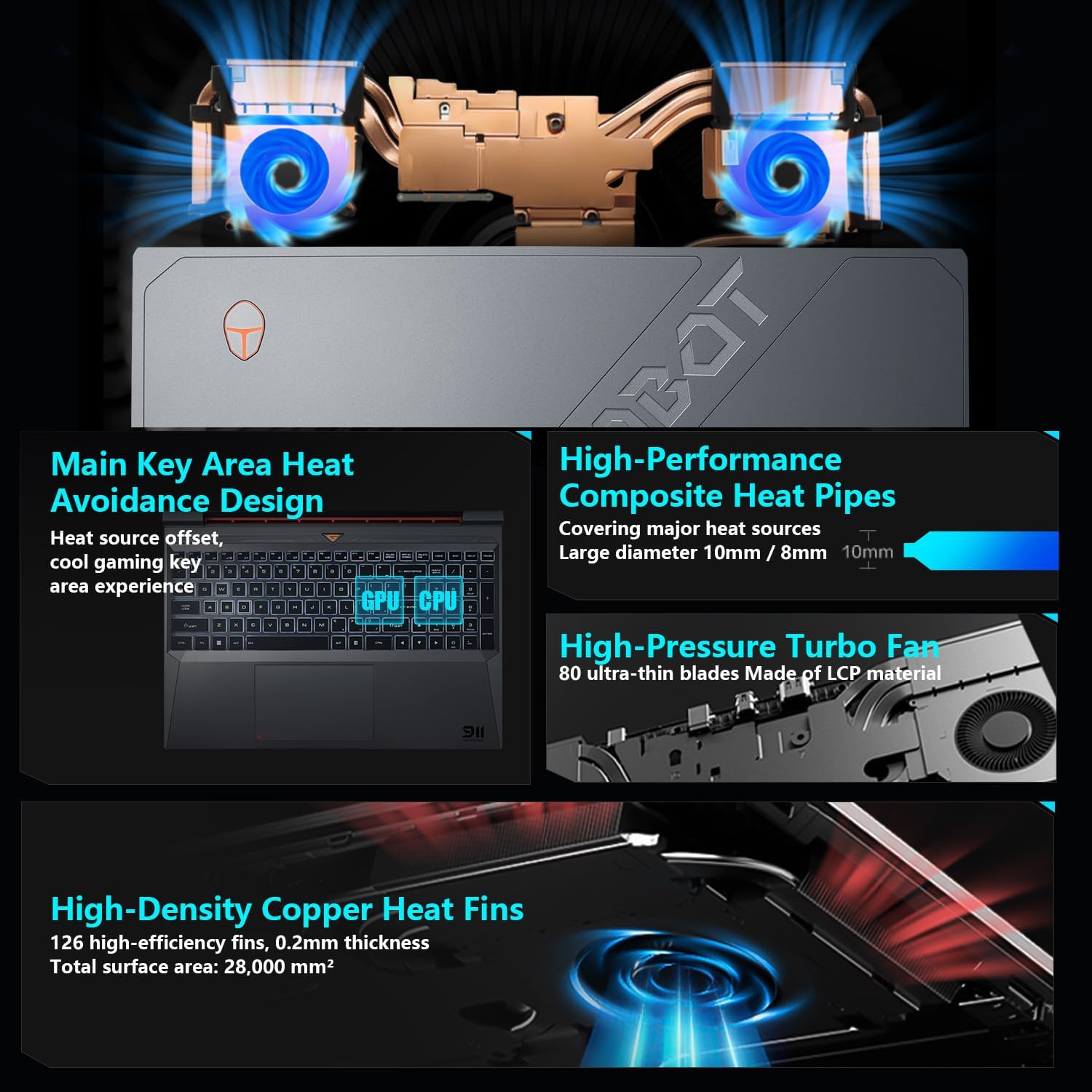
Image: Diagram showing the internal cooling system with heat pipes, fans, and copper fins.
3.5 Control Center Software
The Control Center software allows you to adjust and switch between various performance modes (e.g., Berserk mode, Game mode, Audio and Video Office mode) and customize fan speed and lighting settings. Access it by typing "Control Center" in the Windows search bar or using designated function keys.

Image: Screenshots of the Control Center software interface, showing options for performance modes, fan adjustment, and lighting controls.
4. Onderhoud
4.1 Skoonmaak
- Skerm: Gebruik 'n sagte, pluisvrye lap dampmet water of 'n skermreiniger afgespoel. Vermy harde chemikalieë.
- Sleutelbord en Onderstel: Use a soft cloth to wipe surfaces. Compressed air can be used to clear dust from between keys and vents.
- Ventilasies: Regularly check and clean the cooling vents to prevent dust buildup, which can hinder airflow and performance.
4.2 Sagteware-opdaterings
Keep your operating system and drivers updated to ensure optimal performance and security. Windows Update will handle OS updates, and you can check the Thunderobot support website for the latest driver versions for your specific model.
5. Probleemoplossing
5.1 Algemene kwessies
- Skootrekenaar skakel nie aan nie: Ensure the AC adapter is securely connected to both the laptop and a working power outlet. Check if the power button is functioning correctly.
- Oorverhitting: Ensure cooling vents are not blocked. Use the Control Center to adjust fan speeds. Consider using the laptop on a hard, flat surface to improve airflow.
- Vertoonprobleme: If the screen is blank, try connecting an external monitor to check if the issue is with the laptop's display or the graphics output. Update graphics drivers.
- Stadige werkverrigting: Check for background applications consuming resources. Ensure sufficient free storage space. Run a malware scan.
- Peripheral not detected: Ensure the peripheral is correctly plugged into the appropriate port. Try a different port or restart the laptop. Update relevant drivers.
5.2 Kontak Ondersteuning
If you encounter issues that cannot be resolved using this guide, please refer to the Thunderobot official support channels for assistance.
6. Spesifikasies
| Kenmerk | Detail |
|---|---|
| Vertoongrootte van die staande skerm | 15.6 duim |
| Skermresolusie | 1920 x 1080 piksels |
| Maksimum skermresolusie | 1920x1080 piksels |
| Verwerker | Intel Core i7-13620H (4.9 GHz max turbo) |
| RAM | 32 GB DDR4 (3200 MHz) |
| Hardeskyf | 1 TB SSD (PCIE x 4) |
| Grafiese medeverwerker | NVIDIA GeForce RTX 4050 skootrekenaar GPU |
| Draadlose tipe | 802.11ax, Bluetooth |
| Aantal USB 3.0-poorte | 3 |
| Bedryfstelsel | Windows 11 Tuis |
| Item gewig | 12 pond |
| Produk afmetings | 14.12 x 10.14 x 0.94 duim |
| Kleur | Swart |
| Spesiale kenmerk | Agtergrondbeligte sleutelbord, numeriese sleutelbord |

Image: Performance benchmarks comparing the RTX 4050 and Intel Core i7-13620H against previous generations.
7. Waarborg en Ondersteuning
Every Thunderobot laptop includes a 12 maande waarborg, offering expert support, thorough diagnostics, and genuine parts if a repair is needed. Additionally, a 90-dae waarborg is provided on all warranty replacement parts, ensuring hassle-free repairs. Your complete satisfaction is our commitment.
For further support, please visit the official Thunderobot webwebwerf of kontak hul kliëntediens.
Video: 'n Oorview of the Thunderobot Storm 15 Laptop, showcasing die kenmerke en ontwerp daarvan.