
Qubo T-106
Qubo T-106 Tablet User Manual
Model: T-106
1. Inleiding
Thank you for choosing the Qubo T-106 Tablet. This manual provides essential information for setting up, operating, maintaining, and troubleshooting your device. Please read it carefully before using your tablet to ensure optimal performance and safety.
The Qubo T-106 is a versatile 10.1-inch tablet featuring an Octacore processor, Android 12 operating system, 6GB RAM, and 128GB internal storage. It supports 4G connectivity, Wi-Fi, and Bluetooth 5, making it suitable for various tasks from entertainment to productivity.
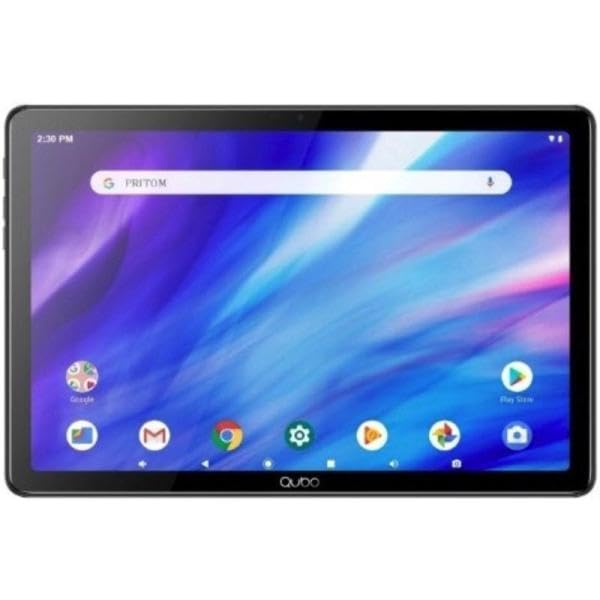
Beeld 1.1: Voorkant view of the Qubo T-106 Tablet, showcasing sy 10.1-duim-skerm.
2. Veiligheidsinligting
To prevent damage to your device or injury to yourself and others, please observe the following safety precautions:
- Moenie die tablet blootstel aan uiterste temperature, direkte sonlig of hoë humiditeit nie.
- Vermy om die tablet te laat val of aan harde impakte bloot te stel.
- Use only Qubo-approved chargers and accessories.
- Do not attempt to disassemble or repair the tablet yourself. Refer to qualified service personnel.
- Hou die tablet weg van water en ander vloeistowwe.
- Gooi die tablet en sy battery verantwoordelik weg volgens plaaslike regulasies.
3. Wat is in die boks
Upon unpacking your Qubo T-106 Tablet, please ensure all items are present:
- Qubo T-106 Tablet
- Instructiehandleiding (hierdie dokument)
- USB-C Cable or Connector
If any items are missing or damaged, please contact your retailer or Qubo customer support.
4. Opstelling
4.1 Laai die tablet
Before first use, fully charge your tablet. Connect the provided USB-C cable to the tablet's USB-C port and the other end to a compatible power adapter (not always included) or a computer's USB port.
- Die laai-aanwyser sal verlig.
- 'n Volle laai neem gewoonlik 3-4 uur.
4.2 Aan-/afskakel
- Om aan te skakel: Press and hold the Power button (usually located on the side or top edge) until the Qubo logo appears on the screen.
- Om af te skakel: Druk en hou die aan/af-knoppie in totdat die kragopsies-kieslys verskyn. Kies "Skakel af" en bevestig.
- Om weer te begin: Kies "Herbegin" in die kragopsies-kieslys en bevestig.
4.3 Aanvanklike Opstellingsassistent
The first time you power on your tablet, an on-screen setup wizard will guide you through:
- Taalkeuse
- Wi-Fi-netwerkverbinding
- Google account sign-in or creation
- Datum en tyd instellings
- Security settings (PIN, pattern, password)
4.4 Inserting SIM/MicroSD Card (Optional)
If your model supports 4G connectivity or expandable storage, locate the SIM/MicroSD card tray on the side of the tablet. Use the provided ejector tool to open the tray. Insert the Nano-SIM card and/or MicroSD card (up to 128GB, check specifications for exact maximum) into the designated slots with the gold contacts facing down. Gently push the tray back into the tablet.
5. Bediening van u tablet
5.1 Basiese navigasie
- Raak: Tik op 'n ikoon om 'n toepassing oop te maak of 'n item te kies.
- Raak en hou: Druk en hou 'n item in om toegang tot kontekstuele spyskaarte te verkry of ikone te skuif.
- Swiep: Sleep jou vinger oor die skerm om deur bladsye of lyste te blaai.
- Knyp: Gebruik twee vingers om in of uit te zoem op beelde en web bladsye.
5.2 Koppel aan Wi-Fi
- Gaan na Instellings > Netwerk en internet > Wi-Fi.
- Wi-Fi wissel On.
- Kies jou verlangde netwerk uit die lys.
- Voer die wagwoord in indien gevra en tik Koppel.
5.3 Using 4G Data (if applicable)
Maak seker dat 'n geldige SIM-kaart ingesit is. Gaan na Instellings > Netwerk en internet > Mobiele netwerkAktiveer Mobiele data. You may need to configure APN settings provided by your mobile carrier.
5.4 Kamerawerking
Maak die Kamera-app oop vanaf die tuisskerm of applaai.
- Tik die sluiterknoppie om 'n foto te neem.
- Tap the video icon to switch to video recording.
- Use the switch icon to toggle between the front (5MP) and rear (8MP) cameras.
6. Onderhoud
6.1 Skoonmaak van die tablet
Use a soft, lint-free cloth to clean the screen and body of the tablet. Do not use liquid cleaners, aerosols, or abrasive materials, as these can damage the screen or finish.
6.2 Sagteware-opdaterings
Kontroleer gereeld vir sagteware-opdaterings om te verseker dat jou tablet die nuutste kenmerke en sekuriteitsopdaterings het. Gaan na Instellings > Stelsel > Stelselopdatering.
6.3 Batterysorg
- Vermy om die battery gereeld heeltemal te ontlaai.
- Do not leave the tablet charging for extended periods after it's fully charged.
- Store the tablet in a cool, dry place if not used for a long time, with the battery charged to about 50%.
7. Probleemoplossing
| Probleem | Moontlike Oplossing |
|---|---|
| Tablet skakel nie aan nie. | Ensure the battery is charged. Connect the charger and wait a few minutes before attempting to power on again. If unresponsive, perform a force restart by holding the power button for 10-15 seconds. |
| Kan nie aan Wi-Fi koppel nie. | Check if Wi-Fi is enabled in settings. Ensure you have the correct password. Restart your Wi-Fi router and the tablet. Try connecting to a different Wi-Fi network to isolate the issue. |
| Programme stort vas of vries. | Close and reopen the app. Clear the app's cache and data in Instellings > Toepassings. Update the app to the latest version. If the problem persists, uninstall and reinstall the app. |
| Stadige werkverrigting. | Maak ongebruikte programme toe. Maak kasgeheue en tydelike programme skoon. files. Free up storage space by deleting unnecessary files or apps. Restart the tablet. Consider a factory reset as a last resort (back up your data first). |
| Battery raak vinnig leeg. | Reduce screen brightness. Disable Wi-Fi, Bluetooth, GPS, and 4G when not in use. Close background apps. Check battery usage in Instellings > Battery om kraghongerige toepassings te identifiseer. |
8. Spesifikasies
| Kenmerk | Detail |
|---|---|
| Model | Qubo T-106 (T106 128GB) |
| Vertoon | 10.1 inches IPS, 1280x800 resolution |
| Verwerker | MT8788 Octacore, 3.4 GHz (max speed) |
| Bedryfstelsel | Android 12 |
| RAM | 6 GB |
| Interne berging | 128 GB |
| Uitbreidbare berging | MicroSD (capacity not specified, typically up to 128GB or 256GB) |
| Agterste kamera | 8 Megapixels (Autofocus) |
| Voorste kamera | 5 Megapixels (Fixed Focus) |
| Konnektiwiteit | 4G (B1/B3/B7/B8/B20), Wi-Fi 802.11n (2.4G/5G), Bluetooth 5, FM, GPS, GLONASS, A-GPS |
| Battery | 6000 mAh Lithium-ion, 12 hours average battery life |
| Laaipoort | USB-C |
| Afmetings | 15 x 15 x 20 cm |
| Gewig | 1.1 kg |
9. Waarborg en Ondersteuning
9.1 Waarborginligting
The Qubo T-106 Tablet comes with a three-year warranty against manufacturing defects vanaf die aankoopdatum. Hierdie waarborg dek defekte in materiale en vakmanskap onder normale gebruik. Dit dek nie skade wat veroorsaak word deur misbruik, ongelukke, ongemagtigde wysigings of normale slytasie nie.
Behou asseblief jou aankoopbewys vir waarborgeise.
9.2 Kliëntediens
For technical assistance, warranty claims, or further inquiries, please contact Qubo customer support through your retailer or visit the official Qubo webwebwerf vir kontakbesonderhede.
Note: Contact information may vary by region. Please refer to your product packaging or the Qubo official webwebwerf vir die mees onlangse ondersteuningsbesonderhede.
Verwante Dokumente - T-106
 |
ACEMAGIC Notebook User Manual This user manual provides comprehensive information on the ACEMAGIC Notebook, covering its specifications, package contents, safety guidelines, appearance details, and touchpad usage instructions. |
 |
Android TV Box Gebruikershandleiding - Opstelling, kenmerke en spesifikasies Omvattende gebruikershandleiding vir die Android TV-boks, wat die opstelling, basiese bedrywighede, Wi-Fi/Ethernet-konnektiwiteit, toepassingbestuur, skermaflewering, fabrieksherstel en tegniese spesifikasies dek. |
 |
FOSSiBOT S1 Slimfoon Gebruikershandleiding - Spesifikasies, Kenmerke en Veiligheidsgids Omvattende gebruikershandleiding vir die FOSSiBOT S1-slimfoon, met besonderhede oor spesifikasies, kenmerke, veiligheidsmaatreëls, versorgingsinstruksies en waarborginligting. Leer meer oor die toestel se kamera, battery, konnektiwiteit en meer. |
 |
DAMASCO T11620-6 Tablet User Manual User manual for the DAMASCO T11620-6 10.95 inch tablet, covering product features, setup, settings, specifications, packing list, guarantee, and FCC compliance information. |
 |
10.1 Tablet OC106 User Guide - Shenzhen Ployer Electronics User guide for the 10.1-inch OC106 tablet by Shenzhen Ployer Electronics. This manual provides detailed information on setup, function overview, specifications, troubleshooting common issues, and regulatory compliance (FCC, IC, CE). |
 |
MESWAO MES-B3 User Manual User manual for the MESWAO MES-B3 tablet, covering introduction, specifications, getting started, user interface, basic operations, apps and features, connectivity, settings, safety, warranty, and disclaimer. |
Ask a question about this manual
Ask about setup, troubleshooting, compatibility, parts, safety, or missing instructions. Manuals+ will review the question and use this page’s manual context to help answer it.