
Inleiding
Thank you for choosing the ProCase Tempered Glass Screen Protector. This manual provides detailed instructions for the proper installation, use, and care of your screen protector. Designed exclusively for the Lenovo Idea Tab Plus 12.1" (2025), this product offers superior protection against scratches, impacts, and daily wear while maintaining optimal screen clarity and touch sensitivity. Please read these instructions carefully before installation to ensure a bubble-free application and long-lasting performance.
Produk verbyview en kenmerke
The ProCase Tempered Glass Screen Protector is engineered to provide robust protection for your device's screen. Key features include:
- Eksklusiewe verenigbaarheid: Specifically designed for the Lenovo Idea Tab Plus 12.1" (2025).
- 9H Hardness Surface: Provides exceptional resistance against scratches and impacts.
- Super HD Transparency: Ensures crystal-clear viewing and maintains original screen brightness.
- True Touch Sensitivity: Ultra-thin (0.33mm thickness) design preserves the original touch experience.
- Borrelvrye installasie: Advanced silicone adhesive allows for quick and easy, bubble-free application.
- Oleofobiese laag: Resists fingerprints and smudges, making the screen easy to clean.
- Shatter-Proof Quality: High-temperature treatment enhances durability and safety.

Beeld 1: Verenigbaarheid oorview, highlighting the Lenovo Idea Tab Plus 12.1" (2025) as the compatible device.
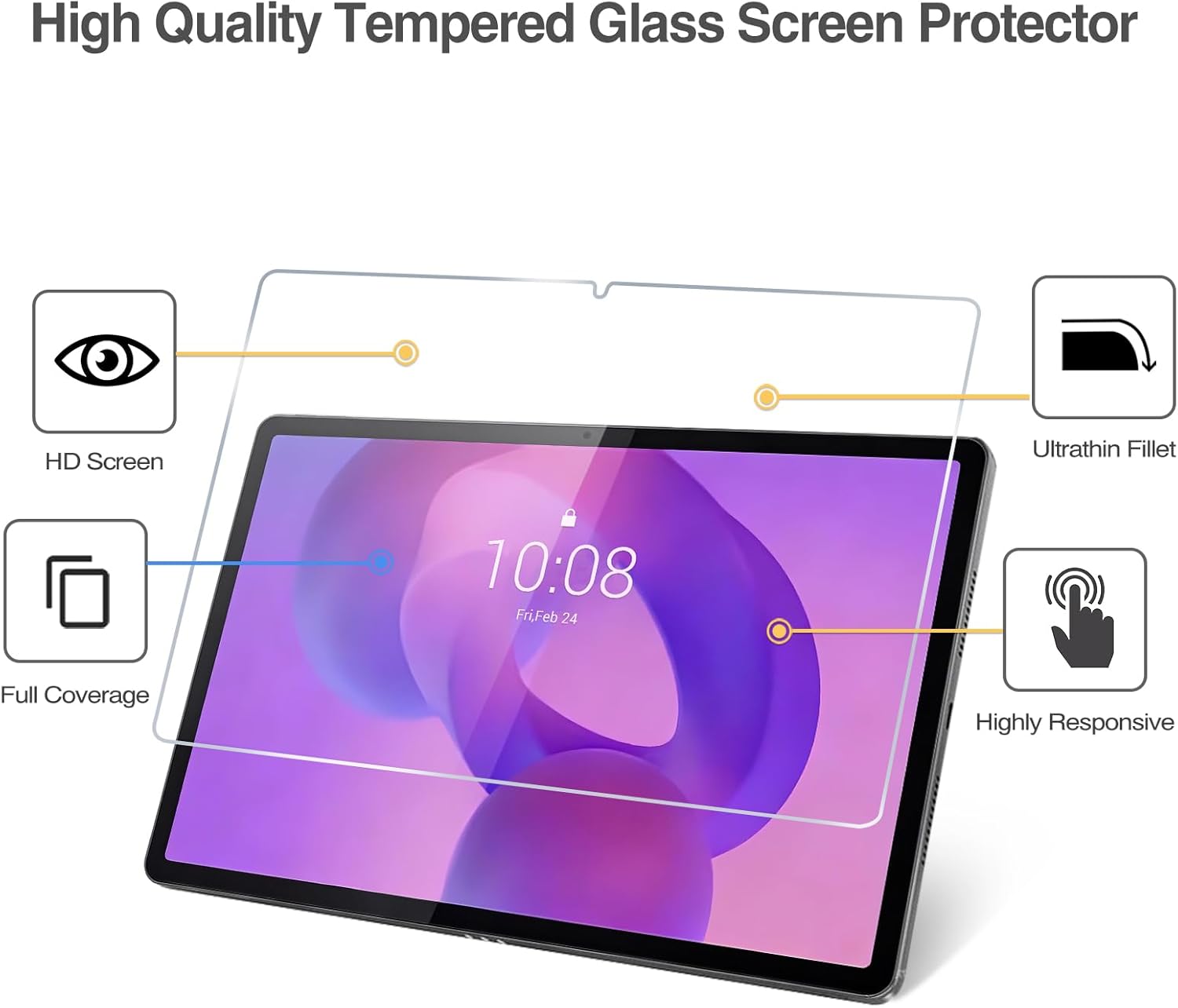
Image 2: Visual representation of the screen protector's high-quality features, including HD clarity, full coverage, high responsiveness, and an ultrathin design.
Opstelling en installasie
Volg hierdie stappe noukeurig vir 'n suksesvolle, borrelvrye installasie:
- Berei jou werkspasie voor: Choose a clean, dust-free environment. Wash your hands thoroughly to avoid transferring oils or dirt to the screen.
- Clean the Tablet Screen: Use the provided alcohol wipe to thoroughly clean the tablet screen. Ensure all smudges, fingerprints, and dirt are removed.
- Droog die skerm: Use the microfiber cloth to dry the screen completely. Ensure no lint or dust particles remain. Use the dust-absorber sticker to pick up any remaining dust.
- Rig die skermbeskermer in lyn: Carefully peel off the protective film from the adhesive side of the tempered glass (usually marked '1' or 'Back'). Hold the screen protector by its edges and align it precisely with your tablet's screen, paying attention to cutouts for the camera and sensors.
- Dien die Beskermer toe: Once aligned, gently lower the screen protector onto the tablet screen. The adhesive will begin to spread automatically.
- Verwyder borrels: If small bubbles appear, gently push them towards the edges of the screen using the microfiber cloth or a squeegee card. Most bubbles will disappear within 24-48 hours as the adhesive fully settles.

Image 3: Demonstrates the ultra-thin profile, bubble-free installation process, and overall ease of application for the screen protector.
Bedryf
Once installed, the ProCase Tempered Glass Screen Protector operates seamlessly with your Lenovo Idea Tab Plus 12.1" (2025). Its design ensures that the original touch sensitivity of your tablet is fully preserved, allowing for smooth navigation, typing, and interaction without any lag or reduction in responsiveness. The high-definition clarity ensures that your viewing experience remains vibrant and true to color, as if no protector is present.

Image 4: Illustrates the high-definition clarity of the screen protector, preserving the original viewing quality and experience.
Onderhoud
Om die lang lewensduur en optimale werkverrigting van jou skermbeskermer te verseker, volg hierdie onderhoudsriglyne:
- Skoonmaak: Use a soft, lint-free microfiber cloth to gently wipe the screen protector. For stubborn smudges or fingerprints, slightly dampMaak die lap skoon met water of 'n skermreiniger wat spesifiek vir elektronika ontwerp is. Vermy harde chemikalieë of skuurmiddels.
- Beskerming: While the screen protector is highly resistant to scratches and shocks, avoid placing your tablet face down on rough surfaces or exposing it to sharp objects that could potentially damage the protector or the underlying screen.
- Hantering: When handling your tablet, try to avoid excessive pressure on the screen protector, especially near the edges, to prevent lifting.

Image 5: Demonstrates the screen protector's robust properties, including shock resistance, liquid resistance, and scratch resistance.
Probleemoplossing
Hier is oplossings vir algemene probleme wat jy mag teëkom:
- Borrels na installasie: Small bubbles often disappear within 24-48 hours as the adhesive cures. For larger bubbles, gently lift the nearest edge of the screen protector with a thin card (like a credit card) and slowly reapply, pushing the bubble out towards the edge with the microfiber cloth.
- Stof onder die beskermer: If dust particles are trapped, carefully lift the screen protector from the nearest corner. Use a dust-absorber sticker to gently dab the dust off both the screen and the adhesive side of the protector. Realign and reapply.
- Edges Not Sticking: Ensure the screen was thoroughly cleaned and free of dust or oils before installation. If edges are lifting, gently press them down with a microfiber cloth for a few seconds. Extreme cases might require reapplication after cleaning the edge area.
- Verminderde aanrakingsgevoeligheid: This is rare with tempered glass protectors. Ensure the protector is correctly aligned and fully adhered. If the issue persists, verify that your tablet's touch settings are optimized.
Spesifikasies
| Handelsmerk | ProCase |
| Modelnommer | PC-08366820 |
| Versoenbare toestelle | Lenovo Idea Tab Plus 12.1" (2025) |
| Materiaal | Gehard glas |
| Item Hardheid | 9H |
| Produk Afmetings (L x B) | 27.3L x 17.5W sentimeter |
| Skerm grootte | 12.1 duim |
| Spesiale kenmerk | Raak sensitief |
| Voltooi Tipe | Glans |
| Duidelikheid | 100% |
| Aantal eenhede | 2.0 Totaal |
Waarborg en Ondersteuning
For warranty information and customer support, please refer to the product packaging or visit the official ProCase website. Keep your purchase receipt as proof of purchase for any warranty claims. If you encounter any issues not covered in this manual, please contact ProCase customer service for assistance.