
1. Inleiding
This manual provides detailed instructions for the installation, operation, and maintenance of your VSTARCAM CS995 Pan/Tilt Smart Security Camera. This indoor camera is designed to provide comprehensive surveillance with features such as 2K QHD resolution, full-color night vision, motion detection, and two-way audio. Please read this manual thoroughly before using the product to ensure proper setup and functionality.
2. Pakketinhoud
Verifieer dat al die items wat hieronder gelys word in u pakket ingesluit is. Indien enige items ontbreek of beskadig is, kontak asseblief kliëntediens.
- VSTARCAM CS995 Pan/Tilt Smart Security Camera
- Kragadapter
- Laai kabel
- Montageskroefstel
- Staan
- Instructiehandleiding (hierdie dokument)
3. Produk verbyview
The VSTARCAM CS995 camera offers advanced features for indoor monitoring.
3.1 Sleutelkenmerke
- 360° PTZ-dekking: Pan 310° horizontally and tilt 115° vertically for complete room coverage.
- 2K QHD-resolusie: Captures clear, detailed video footage.
- Volkleur Nagvisie: Provides clear, colored images up to 15ft in low-light conditions using dual light sources.
- Motion & Human Detection: AI-powered detection sends real-time alerts to your mobile phone upon detecting motion or human figures.
- Tweerigting-klank: Built-in microphone and speaker allow for clear communication with family or pets.
- Buigsame berging: Supports local storage via Micro SD card (up to 256GB, not included) and cloud storage (7-day trial available).
- 2.4GHz Wi-Fi-verbinding: Connects to your home network for remote access and control.
3.2 Kamerakomponente
Familiarize yourself with the physical components of your camera.

Image: VSTARCAM CS995 camera illustrating its 310° pan and 115° tilt capabilities. The image shows the camera in a living room setting, monitoring a child playing.
- Lens: Main camera lens for video capture.
- Infrared LEDs/Spotlights: Vir nagsig en beligting.
- Mikrofoon: Vir klankinvoer tydens tweerigtingkommunikasie.
- Spreker: For audio output during two-way communication and alerts.
- Micro SD -kaartgleuf: For local video storage.
- Kragpoort: Om die kragadapter aan te sluit.
- Herstel-knoppie: Used for factory reset (usually a small pinhole).
4. Opstelgids
4.1 Die kamera aanskakel
- Connect the charging cable to the camera's power port.
- Steek die kragadapter in 'n standaard elektriese aansluiting.
- The camera will power on and initiate its self-test, indicated by a rotating motion and status light.
4.2 Installing the O-KAM Pro App
- Download the "O-KAM Pro" app from your smartphone's app store (App Store for iOS, Google Play Store for Android).
- Registreer vir 'n nuwe rekening of meld aan as jy reeds een het.
4.3 Koppel die kamera aan Wi-Fi
Maak seker dat jou slimfoon aan 'n 2.4GHz Wi-Fi-netwerk gekoppel is. Die kamera ondersteun nie 5GHz Wi-Fi nie.
- Open the O-KAM Pro app and tap the "+" icon to add a new device.
- Follow the on-screen instructions to select your camera model and begin the pairing process.
- You may be prompted to scan a QR code displayed on your phone with the camera, or to enter your Wi-Fi credentials.
- Wait for the camera to connect to your Wi-Fi network. A voice prompt or status light change will indicate a successful connection.
4.4 Installing a Micro SD Card (Optional)
For local storage, insert a Micro SD card (up to 256GB, not included) into the designated slot on the camera. Ensure the camera is powered off before inserting or removing the card.
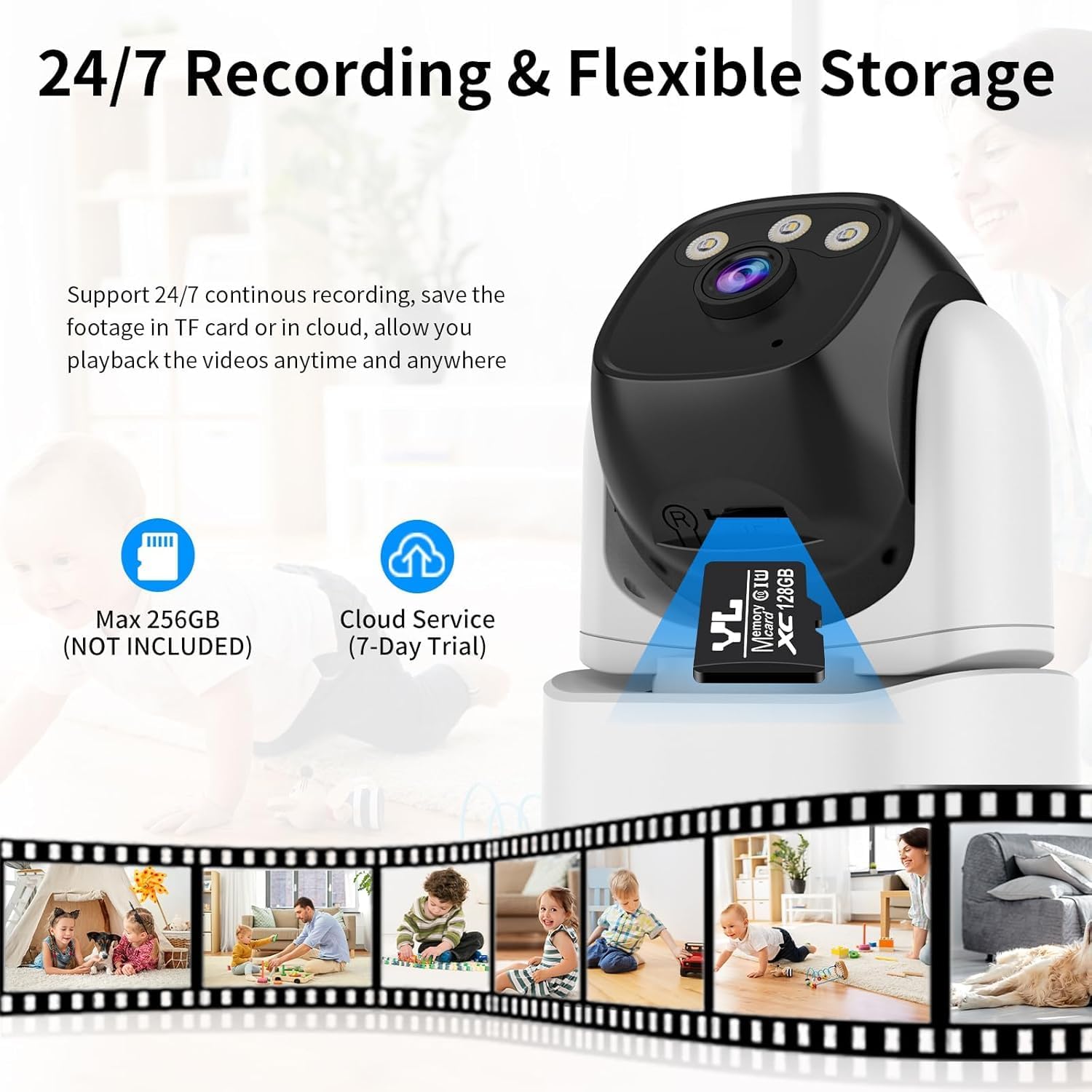
Image: VSTARCAM CS995 camera highlighting the Micro SD card slot and indicating support for both local (SD card) and cloud storage options.
5. Bedryfsinstruksies
5.1 Lewendig View en PTZ-beheer
Once connected, open the O-KAM Pro app to view the live feed from your camera.
- Pan/kantel: Drag your finger across the live view screen to remotely adjust the camera's horizontal (pan) and vertical (tilt) angles.
- Zoem: Use pinch-to-zoom gestures on the live view to digitally zoom in or out.
Image: VSTARCAM CS995 camera illustrating its 310° pan and 115° tilt capabilities. The image shows the camera in a living room setting, monitoring a child playing.
5.2 Tweerigting-klank
The camera supports two-way communication.

Image: VSTARCAM CS995 camera demonstrating its two-way audio function, showing a child communicating with an adult via the camera.
- Tik die mikrofoonikoon in die toepassing se regstreekse view om deur die kamera se luidspreker te praat.
- Tap the speaker icon to listen to audio from the camera's environment.
5.3 Motion and Human Detection
The camera can detect motion and human figures, sending alerts to your phone.

Image: VSTARCAM CS995 camera demonstrating AI-powered motion and human detection, showing the camera tracking a person in a living room.
- Aktiveer waarskuwings: In the app settings, navigate to "Detection Settings" to enable motion and human detection.
- Pasmaak sones: Definieer spesifieke areas binne die kamera se view vir bewegingsopsporing.
- Sensitiwiteit: Adjust the detection sensitivity to minimize false alarms.

Image: VSTARCAM CS995 camera illustrating real-time alert notifications, including spotlight activation, alarm alerts, and push notifications to a smartphone when motion is detected.
5.4 Nagsigmodusse
The camera offers multiple night vision options:

Image: VSTARCAM CS995 camera demonstrating its three night vision modes: Infrared (black and white), Full Color (using ambient light or spotlights), and Smart Light (activates spotlights upon detection for color vision).
- Infrarooi modus: Standard black and white night vision.
- Volkleurmodus: Utilizes built-in spotlights to provide color images in the dark.
- Smart Light Mode: The camera remains in infrared mode and switches to full color with spotlights upon detecting motion.
You can switch between these modes in the O-KAM Pro app settings.
5.5 Opname en afspeel
The camera supports 24/7 continuous recording to a Micro SD card or cloud storage.
- SD-kaartopname: Ensure a Micro SD card is inserted and formatted via the app. Recordings will be saved locally.
- Wolkberging: Activate the cloud storage service (7-day trial available) through the app for remote backup.
- Terugspeel: Toegang opgeneem footage through the "Playback" section in the O-KAM Pro app.
5.6 Multi-gebruiker deling
You can share live views of your camera with other users through the O-KAM Pro app.
- In the app, go to the camera settings and find the "Share Device" option.
- Invite other users by entering their O-KAM Pro account details.
- Shared users will receive an invitation and can view the live feed and access certain features based on permissions granted.
6. Onderhoud
- Skoonmaak: Gebruik 'n sagte, droë lap om die kameralens en -behuizing skoon te maak. Vermy skuurmiddels of oplosmiddels.
- Firmware -opdaterings: Regularly check the O-KAM Pro app for available firmware updates to ensure optimal performance and security.
- Plasing: Ensure the camera is placed in a stable, dry indoor environment, away from direct sunlight or extreme temperatures.
7. Probleemoplossing
7.1 Kamera koppel nie aan Wi-Fi nie
- Maak seker dat jou Wi-Fi-netwerk 2.4GHz is. Die kamera ondersteun nie 5GHz-netwerke nie.
- Verifieer dat die Wi-Fi-wagwoord wat in die toepassing ingevoer is, korrek is.
- Place the camera closer to your Wi-Fi router during setup.
- Herbegin jou router en die kamera, en probeer dan weer die verbindingsproses.
- Perform a factory reset on the camera by pressing and holding the reset button for several seconds until a voice prompt confirms.
7.2 No Motion Detection Alerts
- Check if motion detection is enabled in the O-KAM Pro app settings.
- Adjust the detection sensitivity. Higher sensitivity may be needed for subtle movements.
- Ensure notification permissions are enabled for the O-KAM Pro app on your smartphone.
- Verify that the camera has a stable internet connection.
7.3 Issues with Two-Way Audio
- Ensure your phone's microphone and speaker are not muted or blocked.
- Check the volume settings within the O-KAM Pro app.
- Verify the camera's internet connection stability.
7.4 Unable to Share Camera with Family Members
- Ensure the family member has downloaded the O-KAM Pro app and created their own account.
- Double-check the account details (email/username) entered when sending the share invitation.
- The invited user must accept the sharing invitation within the app.
- Verify that both your device and the invited user's device have a stable internet connection.
8. Spesifikasies
| Kenmerk | Detail |
|---|---|
| Model Naam | CS995 |
| Binne/buiteluggebruik | Binneshuise |
| Video-opname-resolusie | 1440p (2K QHD) |
| Verbindingstegnologie | Bedraad (Krag), Wi-Fi (Data) |
| Draadlose kommunikasietegnologie | Wi-Fi (slegs 2.4GHz) |
| Kragbron | Elektries met koord |
| Nagsigreeks | 15 meter (ongeveer 49 voet) |
| Raamtempo | 20 rame per sekonde |
| Bergingsopsies | Micro SD Card (max 256GB), Cloud Storage |
| Beheer metode | Toepassing (O-KAM Pro) |
| Pan/kantel-reeks | Pan 310°, kantel 115° |
| Itemafmetings (L x B x H) | 5 x 3 x 3 duim |
| Item gewig | 11.2 onse |
| Materiaal | Plastiek |
9. Waarborg en Ondersteuning
VSTARCAM provides professional customer service. If you encounter any issues or have questions regarding your CS995 camera, please contact our support team.
- Kontakinligting: Refer to the contact details provided on the product packaging or the official VSTARCAM webwebwerf.
- Waarborg: Information regarding product warranty can be found on the official VSTARCAM webwebwerf of deur kliëntediens te kontak.