
1. Inleiding
Thank you for choosing the suevery All-in-One PC. This manual provides essential information for setting up, operating, and maintaining your new computer. The suevery All-in-One PC is designed for productivity, entertainment, and various applications, featuring a 21.5-inch Full HD display, Intel Core i5 processor, 16GB RAM, and a 256GB SSD. It comes equipped with a built-in HD webcam, Wi-Fi 6, and includes a keyboard and mouse for a complete out-of-the-box experience.
2. Wat is in die boks
Kontroleer asseblief die inhoud van u pakket. Indien enige items ontbreek of beskadig is, kontak kliëntediens.
- suevery 21.5-inch All-in-One PC
- Kragadapter
- Sleutelbord
- Muis
- Gebruikershandleiding (hierdie dokument)
3. Produk verbyview
3.1 Voorkant View en Vertoon
The All-in-One PC features a 21.5-inch Full HD (1920x1080) IPS Anti-glare display, providing clear and vibrant visuals. The display is tiltable for ergonomic adjustment.

Figuur 3.1: Voorkant view of the suevery All-in-One PC, showcasing sy 21.5-duim-skerm.
3.2 Built-in Audio-Video Components
The PC integrates a high-definition camera, microphone, and speakers, eliminating the need for external peripherals for video communication.

Figure 3.2: Illustration of the integrated speaker, camera, and microphone for video communication.
3.3 Poorts en Koppelvlakke
The device provides various ports for connectivity. Refer to the diagram below for port locations and types.
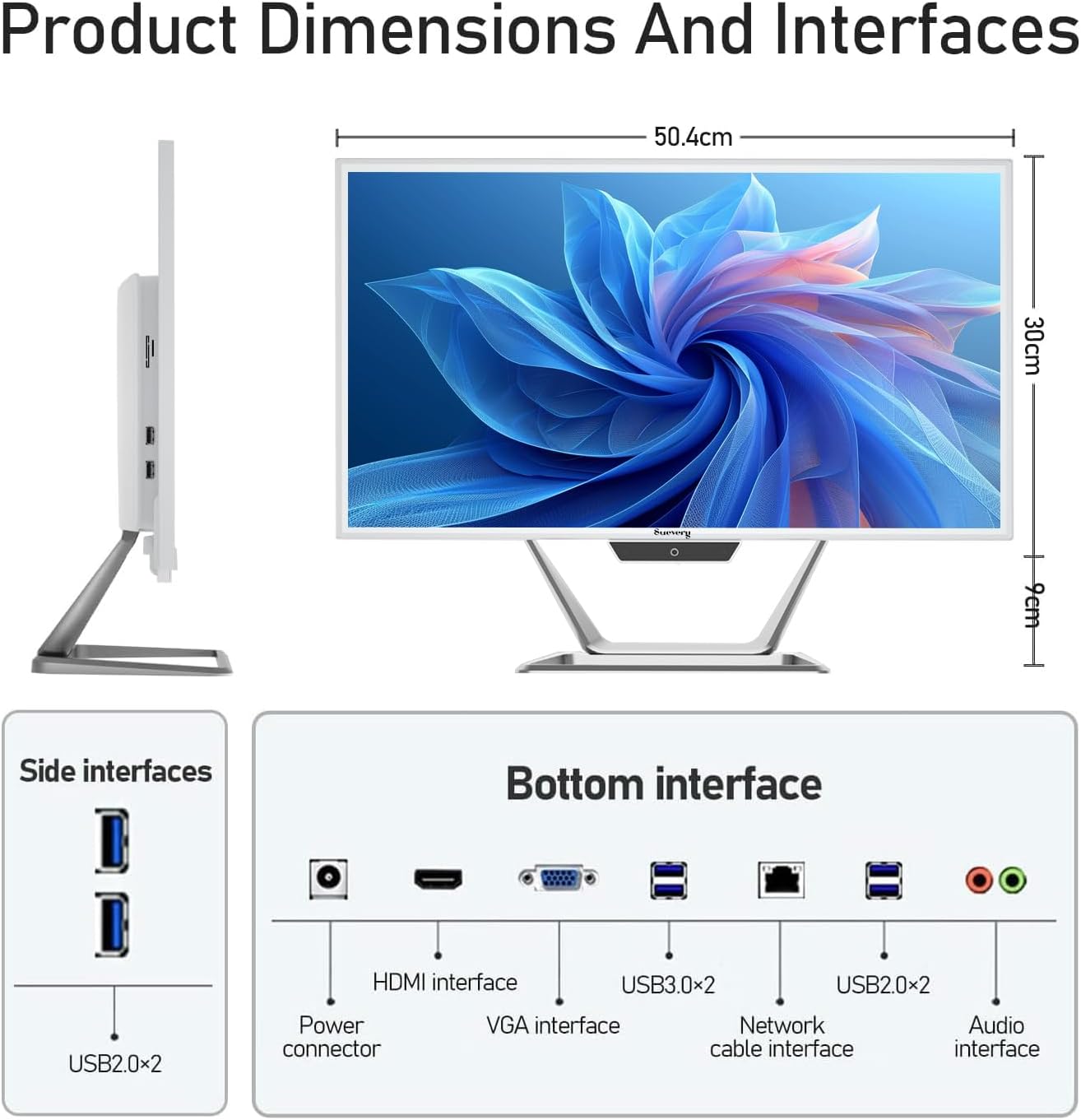
Figure 3.3: Product dimensions and interface layout. Includes USB 2.0, USB 3.0, HDMI, VGA, Network, Audio, and Power ports.
- Power Connector: Om die kragadapter aan te sluit.
- HDMI-koppelvlak: Vir die koppeling aan eksterne skerms.
- VGA Interface: Vir die koppeling aan ouer eksterne skerms.
- USB 3.0 x 2: Hoëspoed-data-oordragpoorte.
- USB 2.0 x 4: Standard data transfer ports (2 on side, 2 on bottom).
- Netwerkkabel-koppelvlak: For wired Ethernet connection.
- Oudio-koppelvlak: Vir die koppeling van eksterne oorfone of luidsprekers.
4. Opstelgids
Follow these steps to set up your suevery All-in-One PC.
- Pak die rekenaar uit: Carefully remove the All-in-One PC and all accessories from the packaging. Place the PC on a stable, flat surface.
- Koppel sleutelbord en muis: Connect the included keyboard and mouse to the available USB ports on the back or side of the PC.
- Koppel krag: Connect the power adapter to the power connector on the PC, then plug the power cord into a wall outlet.
- Krag aan: Press the power button, usually located on the bottom bezel or side of the display. The PC will boot up.
- Initial Operating System Setup: Your PC comes with DOS pre-installed. You will need to install your preferred operating system (e.g., Windows, Linux) following its specific installation instructions. This typically involves booting from a USB drive or DVD.
- Koppel aan netwerk: Once the OS is installed, connect to your network via Wi-Fi 6 or an Ethernet cable.
5. Bedryfsinstruksies
5.1 Basiese werking
- Krag aan/af: Press the power button to turn the PC on. To turn off, use the operating system's shutdown function. A short press on the power button can put the PC to sleep.
- Vertoonverstelling: The display can be tilted from -5 to 25 degrees to achieve an optimal viewing angle. Gently adjust the top or bottom edge of the screen to tilt it.

Figure 5.1: The display supports tilt angle adjustment for ergonomic viewing.
5.2 Using Integrated Peripherals
- Webkamera: The built-in 5MP HD webcam is ready for video calls and conferences. Ensure your operating system and applications have permission to access the camera.
- Mikrofoon: The integrated microphone captures audio for calls and voice commands. Adjust microphone levels in your operating system's sound settings.
- Luidsprekers: The built-in speakers provide audio output. Adjust volume using your operating system's sound controls or external keyboard media keys.
5.3 Konnektiwiteit
- Wi-Fi 6: Connect to wireless networks for internet access. Configure Wi-Fi settings through your operating system.
- Ethernet: For a stable wired connection, plug an Ethernet cable into the network port.
- USB-poorte: Use the USB 2.0 and USB 3.0 ports to connect external devices such as USB drives, printers, or additional peripherals.
- HDMI/VGA: Connect an external monitor or projector using the HDMI or VGA port for extended display options.
6. Onderhoud
Proper maintenance ensures the longevity and optimal performance of your PC.
- Skoonmaak van die skerm: Gebruik 'n sagte, pluisvrye lap effens dampmet water of 'n skermskoonmaker wat spesifiek vir elektronika ontwerp is, afgespoel. Moenie die skoonmaker direk op die skerm spuit nie.
- Skoonmaak van die onderstel: Vee die buite-oppervlaktes af met 'n sagte, droë lap. Vermy skuurmiddels of oplosmiddels.
- Ventilasie: Ensure the ventilation openings on the back and sides of the PC are not blocked to prevent overheating.
- Sagteware-opdaterings: Dateer jou bedryfstelsel en drywers gereeld op om sekuriteit en werkverrigting te verseker.
- Data-rugsteun: Rugsteun gereeld belangrike data na 'n eksterne skyf of wolkberging.
7. Probleemoplossing
Indien u probleme ondervind, verwys na die volgende algemene probleme en oplossings.
| Probleem | Moontlike Oplossing |
|---|---|
| Rekenaar skakel nie aan nie. | Check if the power adapter is securely connected to both the PC and the wall outlet. Ensure the power outlet is functional. |
| Geen vertoon op die skerm nie. | Ensure the PC is powered on. If an external monitor is connected, check its power and cable connection. Try restarting the PC. |
| Sleutelbord of muis reageer nie. | Check USB connections. Try plugging them into different USB ports. If wireless, ensure batteries are charged and dongle is connected. |
| No internet connection (Wi-Fi/Ethernet). | For Wi-Fi, check if Wi-Fi is enabled in your OS settings and if you're connected to the correct network. For Ethernet, ensure the cable is properly connected to both the PC and the router/modem. Restart your router/modem. |
| Webcam or microphone not working. | Check privacy settings in your operating system to ensure applications have permission to access the camera and microphone. Ensure drivers are up to date. |
8. Spesifikasies
Detailed technical specifications for the suevery All-in-One PC (Model: I22X W1-99).
| Kenmerk | Detail |
|---|---|
| Handelsmerk | suiwerheid |
| Modelnommer | I22X W1-99 |
| Bedryfstelsel | DOS (User-installable OS) |
| SVE Model | Intel Core i5 7300U |
| SVE-spoed | 2.6 GHz (tot 3.5 GHz Turbo) |
| RAM-geheue geïnstalleer | 16 GB DDR3 |
| RAM Geheue Maksimum Grootte | 32 GB |
| Geheue berging kapasiteit | 256 GB SSD (PCIE x 2) |
| Grafiese medeverwerker | Intel HD Graphics 620 (Geïntegreerd) |
| Skerm grootte | 21.5 duim |
| Maksimum vertoonresolusie | 1920x1080 Pixels (Full HD) |
| Tipe vertoon | LED IPS Anti-glare |
| Verbindingstegnologie | Ethernet, Wi-Fi 6 |
| Video-uitset-koppelvlak | HDMI, VGA |
| Totale USB-poorte | 6 (2x USB 3.0, 4x USB 2.0) |
| Ingeboude media | Webcam (5MP), Speakers, Microphone |
| Kragverbruik | 90 Watt |
| Kleur | Wit |
9. Waarborginligting
The suevery All-in-One PC comes with a 1-jaar beperkte waarborg from the date of purchase. This warranty covers manufacturing defects and workmanship under normal use. It does not cover damage caused by misuse, accidents, unauthorized modifications, or external factors. Please retain your proof of purchase for warranty claims.
10. Kliëntediens
For technical assistance, troubleshooting beyond this manual, or warranty inquiries, please contact suevery customer support through the retailer where you purchased the product or refer to the official suevery webwebwerf vir kontakinligting.
Please have your product model number (I22X W1-99) and proof of purchase ready when contacting support.