
1. Inleiding
Welcome to the user manual for your SGIN Android Tablet 10.1 Inch, Model GE8300. This manual provides essential information for setting up, operating, maintaining, and troubleshooting your new tablet. Designed with children in mind, this tablet features a durable case, parental controls, and pre-installed educational content through Kidoz software. Please read this manual thoroughly to ensure proper use and to maximize your tablet's potential.
2. Produk verbyview
The SGIN Android Tablet 10.1 Inch is equipped with a 10.1-inch HD IPS display, a quad-core processor, 4GB RAM, and 64GB of internal storage. It runs on Android 13 and includes a protective case with an adjustable bracket.
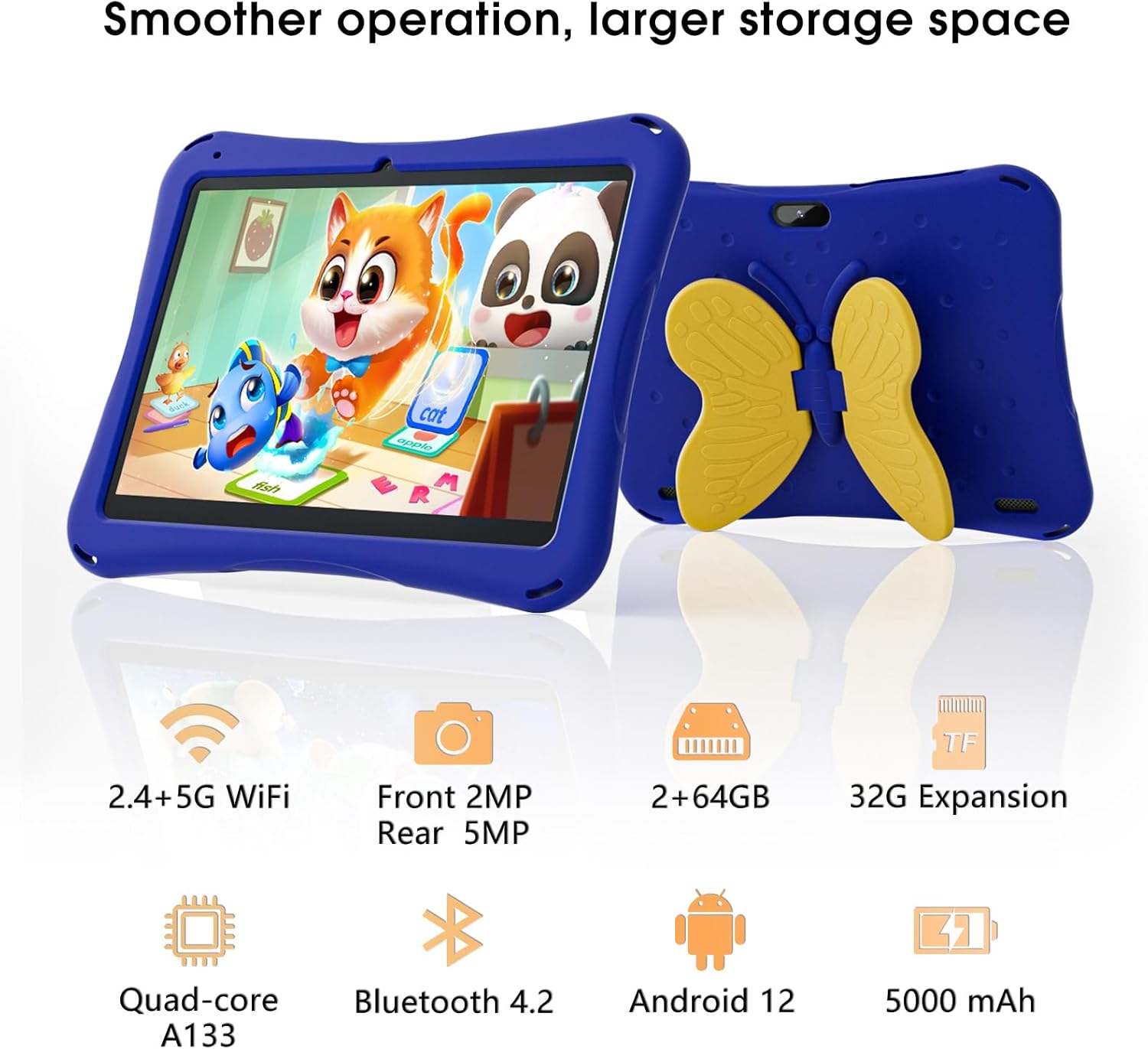
Image: SGIN Android Tablet 10.1 Inch with its protective blue case and yellow butterfly stand.
Tablet komponente

Image: Detailed diagram illustrating the various components and ports of the SGIN Android Tablet.
- Voorste kamera: Vir video-oproepe en selfies.
- Agterste kamera: Vir die neem van foto's en video's.
- Luidsprekers: Vir oudio-uitvoer.
- Tipe C-poort: Vir laai en data-oordrag.
- TF-kaartgleuf: Vir uitbreibare berging.
- Koptelefoonaansluiting: Vir die koppeling van bedrade oorfone.
- Verhoog volume: Button to raise the audio level.
- Verminder volume: Button to lower the audio level.
- Hakie: Adjustable stand integrated into the protective case.
3. Opstelling
3.1 Laai die tablet
Before first use, fully charge the tablet using the provided Type-C cable and power adapter. The 5000mAh battery provides approximately 6-8 hours of usage on a full charge. A charging indicator will typically appear on the screen.
3.2 Aan-/afskakel
- Om aan te skakel: Press and hold the power button (usually located on the side) until the SGIN logo appears.
- Om af te skakel: Press and hold the power button, then select 'Power Off' from the options on the screen.
- Om weer te begin: Druk en hou die aan/af-knoppie in, en kies dan 'Herbegin' uit die opsies.
3.3 Aanvanklike opstelling en Wi-Fi-verbinding
Upon first power-on, follow the on-screen prompts to complete the initial Android 13 setup. This includes selecting your language, region, and connecting to a Wi-Fi network. The tablet supports both 2.4G and 5G Wi-Fi for stable internet connectivity.
- Gaan na Instellings > Netwerk en internet > Wi-Fi.
- Wi-Fi wissel On.
- Kies jou verlangde netwerk uit die lys.
- Voer die wagwoord in indien gevra, en tik dan Koppel.
4. Bedryfsinstruksies
4.1 Basiese navigasie
The tablet uses a touch-sensitive screen for navigation. Common gestures include tapping to select, swiping to scroll, pinching to zoom, and long-pressing for additional options.
4.2 Kameragebruik
The tablet features a 2MP front-facing camera and a 5MP rear camera. To use the camera:
- Maak die oop Kamera aansoek.
- Select between front and rear cameras using the switch icon.
- Tik die sluiterknoppie om 'n foto te neem of video-opname te begin/stop.
4.3 Bergingbestuur
The tablet comes with 64GB of internal storage. If more space is needed, you can expand it by inserting a TF (microSD) card into the TF card slot. The tablet supports expansion up to 34GB.
4.4 Bluetooth-konnektiwiteit
The tablet supports Bluetooth 4.2 for connecting to wireless accessories such as headphones or speakers.
- Gaan na Instellings > Gekoppelde toestelle > Verbindingsvoorkeure > Bluetooth.
- Wissel Bluetooth On.
- Kies jou toestel uit die lys van beskikbare toestelle om te koppel.
5. Parental Control Features
The SGIN tablet includes a built-in parental control security system to manage your child's usage and content access.
- Stel wagwoorde: Create a password to secure parental control settings.
- Screen Time Limits: Define daily usage limits for the tablet.
- Inhoudfiltrering: Eliminate unwanted ads and create specific media files or approved websites for your children.
- Multiple Accounts: Set up individual accounts for each child, allowing personalized settings and content access.
6. Kidoz Kids Software
The tablet comes with the Kidoz Kid's software pre-installed, offering a safe and engaging environment for children.
- Accessing Kidoz: Launch the Kidoz app from the home screen.
- Kids Store: Explore thousands of free games and educational apps available for download within the Kidoz environment.
- Opvoedkundige inhoud: Kidoz provides content that supports learning in subjects like math, language, music, and painting.
7. Onderhoud
7.1 Skoonmaak
Use a soft, lint-free cloth to clean the screen and the tablet's body. For stubborn smudges, slightly dampMaak die lap met water skoon. Vermy harde chemikalieë of skuurmiddels.
7.2 Batterysorg
To prolong battery life, avoid exposing the tablet to extreme temperatures. Charge the tablet regularly and avoid letting the battery completely drain frequently.
7.3 Sagteware-opdaterings
Periodically check for system updates to ensure optimal performance and security. Go to Instellings > Stelsel > Stelselopdatering.
7.4 Beskermende saak
The included kid-proof case is designed to protect the tablet from dust, bumps, and drops. It also features a hollow design for heat dissipation. Ensure the tablet is properly seated within the case for maximum protection.

Image: The durable anti-drop protective case with its adjustable bracket.
8. Probleemoplossing
If you encounter issues with your SGIN tablet, refer to the following common solutions:
- Tablet word nie aangeskakel nie: Maak seker dat die tablet gelaai is. Koppel dit aan die laaier en wag 'n paar minute voordat jy dit weer probeer aanskakel.
- Reagerende skerm: If the screen becomes unresponsive, try restarting the tablet by holding down the power button for approximately 10-15 seconds until it powers off, then power it on normally.
- Wi-Fi-verbindingskwessies: Check if other devices can connect to the Wi-Fi network. Restart your Wi-Fi router. On the tablet, forget the network and reconnect.
- Stadige prestasie: Close unused applications running in the background. Clear cache data for apps. Consider performing a factory reset if performance issues persist (back up important data first).
- Programme wat vasval: Ensure apps are updated to their latest versions. Clear the app's cache and data via Instellings > Toepassings > [Programnaam] > Berging en kasgeheue.
Vir probleme wat nie deur hierdie stappe opgelos word nie, kontak asseblief kliëntediens.
9. Spesifikasies
Key technical specifications for the SGIN Android Tablet 10.1 Inch Model GE8300:
| Kenmerk | Spesifikasie |
|---|---|
| Modelnommer | GE8300 |
| Skerm grootte | 10.1 duim |
| Vertoon resolusie | 1280 x 800 pixels (HD IPS) |
| Verwerker | 1.6 GHz Quad-core (Allwinner A133) |
| RAM | 4GB (2GB fisiese + 2GB uitbreidbaar) |
| Interne berging | 64GB ROM |
| Uitbreidbare berging | Up to 34GB via TF Card |
| Bedryfstelsel | Android 13 |
| Battery kapasiteit | 5000mAh |
| Voorste kamera | 2MP |
| Agterste kamera | 5MP |
| Draadlose konneksie | 2.4G/5G WiFi, Bluetooth 4.2 |
| Kleur | Diep Blou |
| Pakkie Dimensies | 32.2 x 20.4 x 4.7 cm; 1.04 kg |
10. Waarborg en Ondersteuning
10.1 Produkwaarborg
The SGIN Android Tablet 10.1 Inch Model GE8300 comes with a 1 jaar waarborg vanaf die aankoopdatum. Hierdie waarborg dek vervaardigingsdefekte onder normale gebruik. Bewaar asseblief u bewys van aankoop vir waarborgeise.
10.2 Kliëntediens
If you require further assistance or have questions not covered in this manual, please contact SGIN customer support. Refer to the product packaging or the official SGIN webwebwerf vir die mees onlangse kontakinligting.