
Inleiding
This manual provides essential information for the NIMO 15.6-inch Light Gaming Laptop N15A. It covers setup, operation, maintenance, troubleshooting, and product specifications. Please read this manual thoroughly before using your new laptop to ensure proper function and longevity.

Image: NIMO 15.6-inch Light Gaming Laptop N15A, showcasing sy volle skerm en sleutelbord.
Pakketinhoud
Verify that all items listed below are present in your product packaging. If any items are missing or damaged, please contact NIMO customer support.
- 1 x NIMO N15A Laptop
- 1 x Type-C 100W PD Fast Charger
- 1 x Gebruikershandleiding
- Windows 11 Home Operating System (pre-installed)
Produk verbyview
The NIMO N15A laptop is designed for balanced performance, featuring an AMD Ryzen 7 Pro 6850U processor, 32GB LPDDR5 RAM, and a 1TB PCIe 4.0 SSD. It includes a 15.6-inch Full HD IPS display, a backlit keyboard, and an integrated fingerprint reader for secure access.
Sleutel kenmerke:
- Verwerker: AMD Ryzen 7 Pro 6850U with 8 Cores and 16 Threads, up to 4.7GHz.
- Grafika: Integrated AMD Radeon 680M GPU.
- Geheue: 32GB LPDDR5 RAM for efficient multitasking.
- Berging: 1TB PCIe 4.0 SSD for fast boot times and data access.
- Vertoon: 15.6-inch Full HD (1920x1080) IPS Anti-Glare Display.
- Laai: 100W USB-C Power Delivery fast charging.
- Sekuriteit: Integrated fingerprint reader for secure login.
- Sleutelbord: Backlit keyboard for use in various lighting conditions.
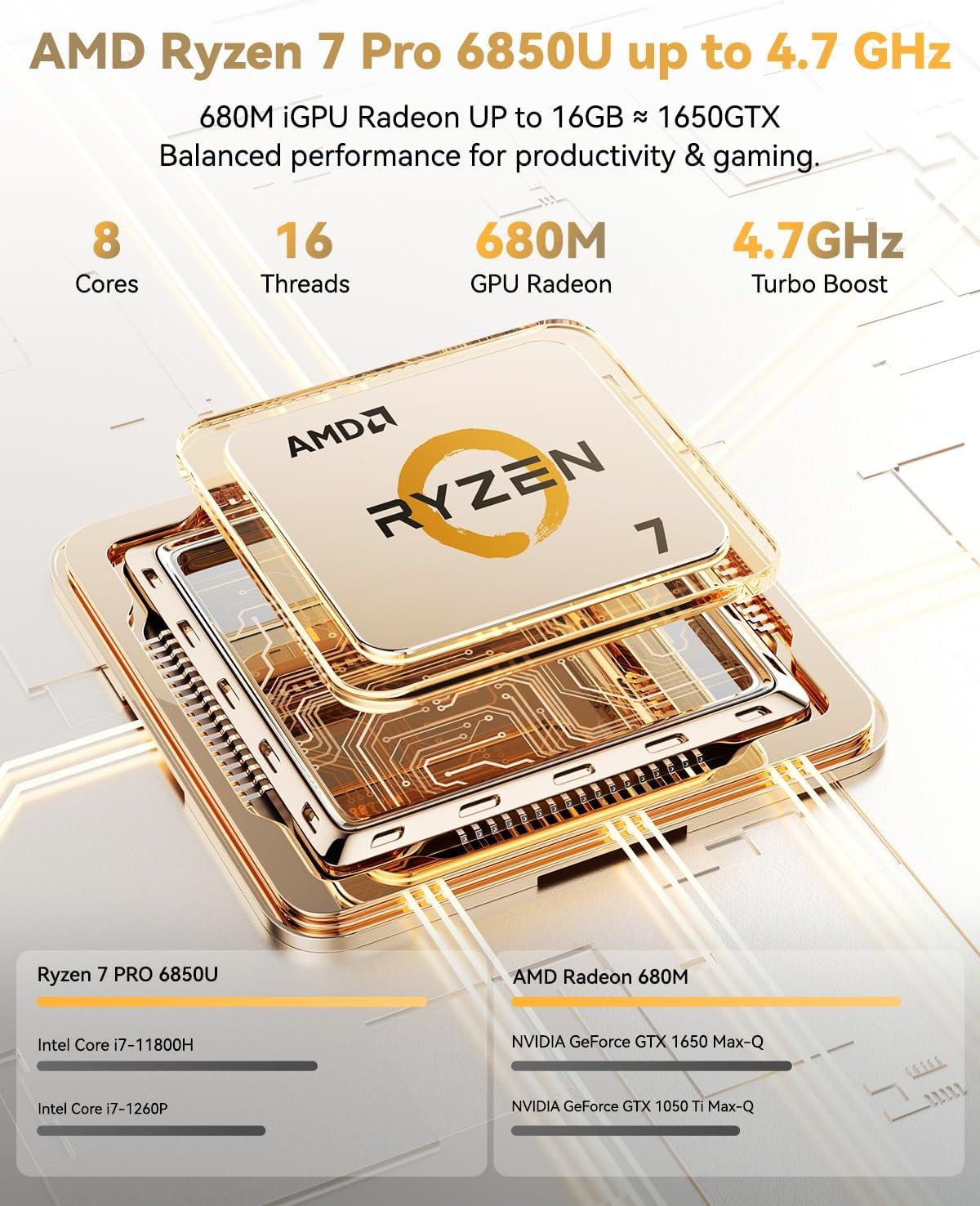
Image: Visual representation of the AMD Ryzen 7 Pro 6850U processor's core and thread count, and turbo boost speed.
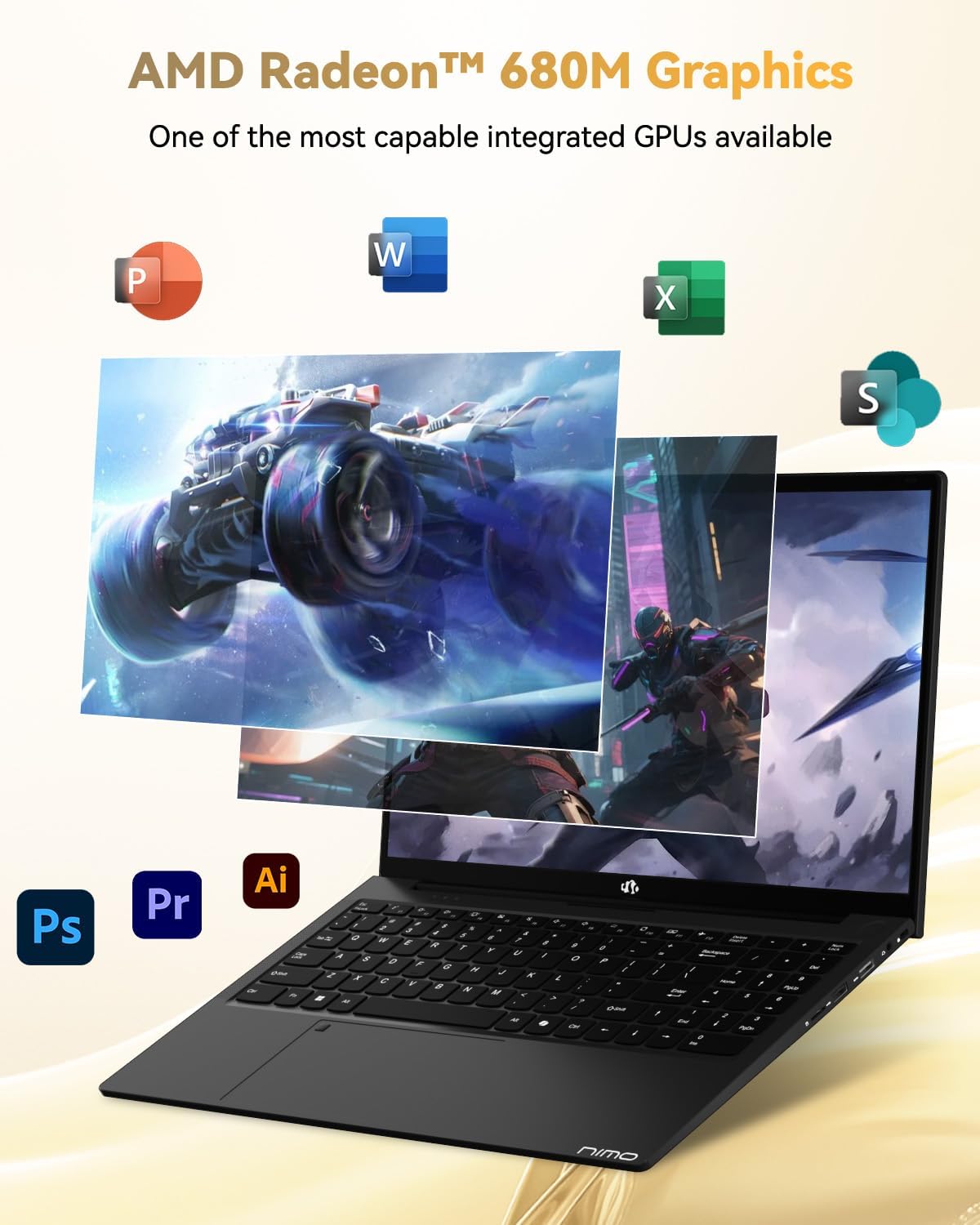
Image: Illustration highlighting the capabilities of the AMD Radeon 680M integrated graphics for various applications.

Image: Diagram showing the 32GB LPDDR5 RAM and 1TB PCIe 4.0 SSD for seamless multitasking and ample berging.
Image: The NIMO N15A laptop displaying a vibrant image on its 15.6-inch Full HD IPS screen.
Poorte en konnektiwiteit:

Image: Diagram illustrating the various ports on the NIMO N15A laptop, including USB, HDMI, and Type-C.
- Mikro SD-leser
- USB 2.0-poort
- USB 3.2 Ports (multiple)
- Koptelefoonaansluiting
- Kensington Lock Slot
- Type-C (Multifunction) Ports (supporting charging and data transfer)
- HDMI-poort
Opstelling
1. Initial Charging and Power On:
- Connect the provided 100W Type-C PD Fast Charger to the laptop's Type-C charging port and a power outlet.
- Allow the laptop to charge for at least 30 minutes before initial use, or until the charging indicator shows sufficient battery.
- Druk die aan/af-knoppie op die sleutelbord om die skootrekenaar aan te skakel.

Image: Illustration of the NIMO N15A laptop being charged with the 100W Type-C PD Fast Charger.
2. Windows 11 Initial Setup:
Follow the on-screen prompts to complete the Windows 11 setup process. This typically includes:
- Kies jou streek en sleutelborduitleg.
- Koppel aan 'n Wi-Fi-netwerk.
- Signing in with a Microsoft account or creating a local account.
- Die opstel van 'n PIN of wagwoord.
- Configuring privacy settings.
Bedryfsinstruksies
Kragbestuur:
- Krag aan: Druk die kragknoppie.
- Slaap stelling: Maak die deksel toe of druk die aan/uit-knoppie kortliks.
- Sluit af: Klik die Start-knoppie, dan Aan/Aan en dan Skakel af.
- Herbegin: Klik die Start-knoppie, dan die Aan/Aan-knoppie en dan die Herbegin-knoppie.
Sleutelbord en raakblad:

Beeld: Nabyskoot view of the NIMO N15A laptop's backlit keyboard and the integrated fingerprint reader on the touchpad.
- Verligte sleutelbord: Use the dedicated function key (usually Fn + Fx) to toggle the keyboard backlight on/off and adjust brightness levels.
- Vingerafdrukleser: The fingerprint reader is integrated into the touchpad. During Windows setup, you can configure your fingerprint for secure, quick login.
- Precision Touchpad: Ondersteun multi-aanraking gebare vir navigasie. Verwys na Windows-instellings vir aanpassing.
Verbind randapparatuur:
Utilize the various ports to connect external devices such as monitors, printers, external storage, and audio devices.
- USB-toestelle: Plug USB devices into the available USB 2.0 or USB 3.2 ports.
- Eksterne vertoning: Connect an external monitor or TV using the HDMI port or a compatible Type-C adapter.
- Oudio: Use the 3.5mm headphone jack for headphones or external speakers.
Kameraprivaatheid:
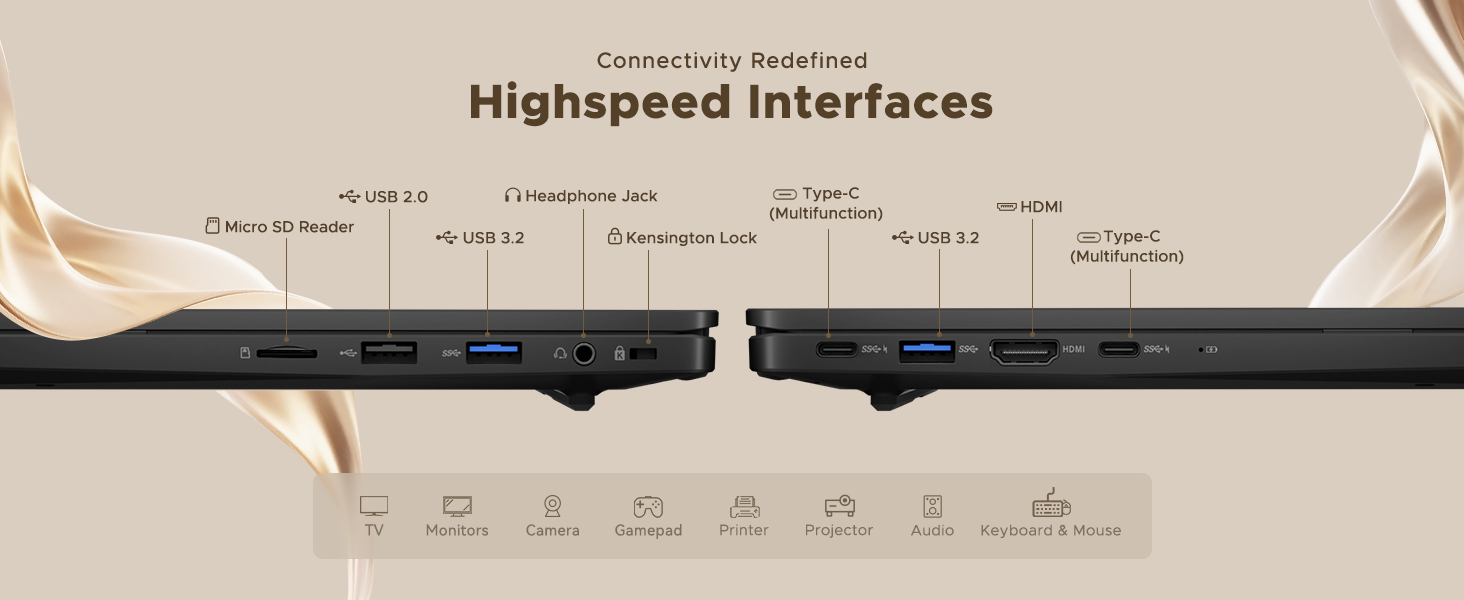
Image: Illustration of the NIMO N15A laptop's built-in privacy camera switch, allowing users to easily disable the webkam.
The NIMO N15A laptop features a built-in privacy camera switch. This allows you to physically disable the 2.0MP webcam when not in use, ensuring your privacy.
Onderhoud
Skoonmaak van die skootrekenaar:
- Skakel die skootrekenaar af en ontkoppel die laaier voordat u dit skoonmaak.
- Gebruik 'n sagte, pluisvrye lap effens dampmet water of 'n skermreiniger vir die skerm afgespoel.
- Vir die sleutelbord en onderstel, gebruik 'n sagte lap. Vermy harde chemikalieë of skuurmiddels.
- Use compressed air to clear dust from keyboard keys and vents.
Batterysorg:
- Vermy om die battery gereeld heeltemal te ontlaai.
- Store the laptop in a cool, dry place if not used for extended periods, with the battery charged to around 50-70%.
- Use only the original NIMO 100W Type-C PD Fast Charger.
Sagteware-opdaterings:
- Kontroleer gereeld vir en installeer Windows-opdaterings om stelselstabiliteit en -sekuriteit te verseker.
- Keep device drivers updated, especially for graphics and chipset, by checking the NIMO support webwebwerf of Windows Update.
Probleemoplossing
| Probleem | Moontlike Oplossing |
|---|---|
| Skootrekenaar skakel nie aan nie. | Ensure the charger is properly connected and the power outlet is functional. Allow the battery to charge for at least 30 minutes. If the issue persists, contact support. |
| Die skerm is leeg of flikker. | Try connecting an external monitor to check if the issue is with the laptop's display. Adjust display brightness. Restart the laptop. |
| Stadige werkverrigting. | Close unnecessary applications. Check for background processes consuming high resources. Ensure sufficient free storage space. Run a system scan for malware. |
| Sleutelbord se agterlig werk nie | Press the dedicated function key combination (e.g., Fn + Fx) to toggle or adjust the backlight. Check keyboard settings in Windows. |
| Fingerprint reader not responding. | Ensure your finger is clean and dry. Re-register your fingerprint in Windows settings. Restart the laptop. |
For issues not listed here or if solutions do not resolve the problem, please refer to the Warranty and Support section for assistance.
Spesifikasies
| Kenmerk | Detail |
|---|---|
| Handelsmerk | NIMO |
| Model Naam | NIMO N15AL (N15A) |
| Skerm grootte | 15.6 duim |
| Skermresolusie | 1920 x 1080 piksels (Vol HD) |
| Verwerker | AMD Ryzen 7 Pro 6850U (8 Cores, up to 4.7 GHz) |
| RAM | 32 GB LPDDR5 (6400 MHz) |
| Hardeskyf | 1024 GB SSD (PCIe 4.0, Solid State) |
| Grafiese medeverwerker | AMD Radeon 680M (Geïntegreerd) |
| Bedryfstelsel | Windows 11 |
| Draadlose tipe | 802.11a/b/g/n/ac |
| USB 2.0-poorte | 1 |
| USB 3.0/3.2-poorte | 4 |
| Gemiddelde batterylewe | 9 ure |
| Item gewig | 3.75 pond |
| Produk afmetings | 14.07 x 8.98 x 0.76 duim |
| Kleur | Swart |
| Agter Webcam resolusie | 2 MP |
| Spesiale kenmerke | Backlit Keyboard, Fingerprint Reader, HD Audio, Numeric Keypad |
Waarborg en Ondersteuning
NIMO provides comprehensive support for your laptop.
- Waarborg: Your NIMO N15A laptop comes with a 2-year manufacturer's warranty.
- Retourbeleid: A 90-day hassle-free return policy is offered from the date of purchase.
- Kliëntediens: For technical assistance, warranty claims, or product-related inquiries, please contact NIMO customer support.
Contact information for support is typically available on the official NIMO website or through the product's packaging.
Veiligheidsinligting
Belangrik: Read and follow these safety guidelines to prevent damage to your device or personal injury.
- Use only original chargers and regularly inspect cables for damage.
- Handle the laptop by its base and consider using a protective case. Avoid placing heavy objects on it.
- Place the laptop on a hard, flat surface to ensure proper ventilation and prevent overheating. Keep it away from extreme temperatures and moisture.
- Do not overcharge the battery. Discontinue use if the battery shows signs of swelling or damage.
- Set strong passwords, keep software updated, use antivirus software, and regularly back up your data.
- In case of liquid spills, immediately unplug the laptop and allow it to dry completely before attempting to power it on.
- For any issues, consult qualified professionals. Do not attempt to disassemble or repair the device yourself.
Regsvrywaring
This NIMO laptop is provided "as is," without express or implied warranties, except for any applicable manufacturer's limited warranty. Implied warranties of merchantability or fitness for a specific purpose are disclaimed. NIMO is not liable for damages resulting from misuse (e.g., non-approved chargers, unauthorized repairs), physical damage, or failure to adhere to safety guidelines, including data loss or business interruption. Users are responsible for regularly backing up their data. This disclaimer does not exclude liability for manufacturing defects or violations of mandatory local laws. By using this laptop, you accept these terms, which are governed by the laws of the applicable jurisdiction.