
1. Inleiding
The QCOQ Tracker Tag is a smart item finder designed to help you locate your important belongings using the Apple Find My network. This device connects seamlessly with your iOS device, allowing you to track items such as keys, wallets, luggage, and backpacks. It operates without requiring a separate application download, integrating directly with the native Find My app on your iPhone, iPad, or Mac.
Die Tracker Tag features a loud 100dB sound alert, left-behind reminders, and a Lost Mode to enhance recovery chances. Its compact and lightweight design, along with a replaceable CR2032 battery, makes it a convenient and reliable anti-loss assistant for daily use and travel.
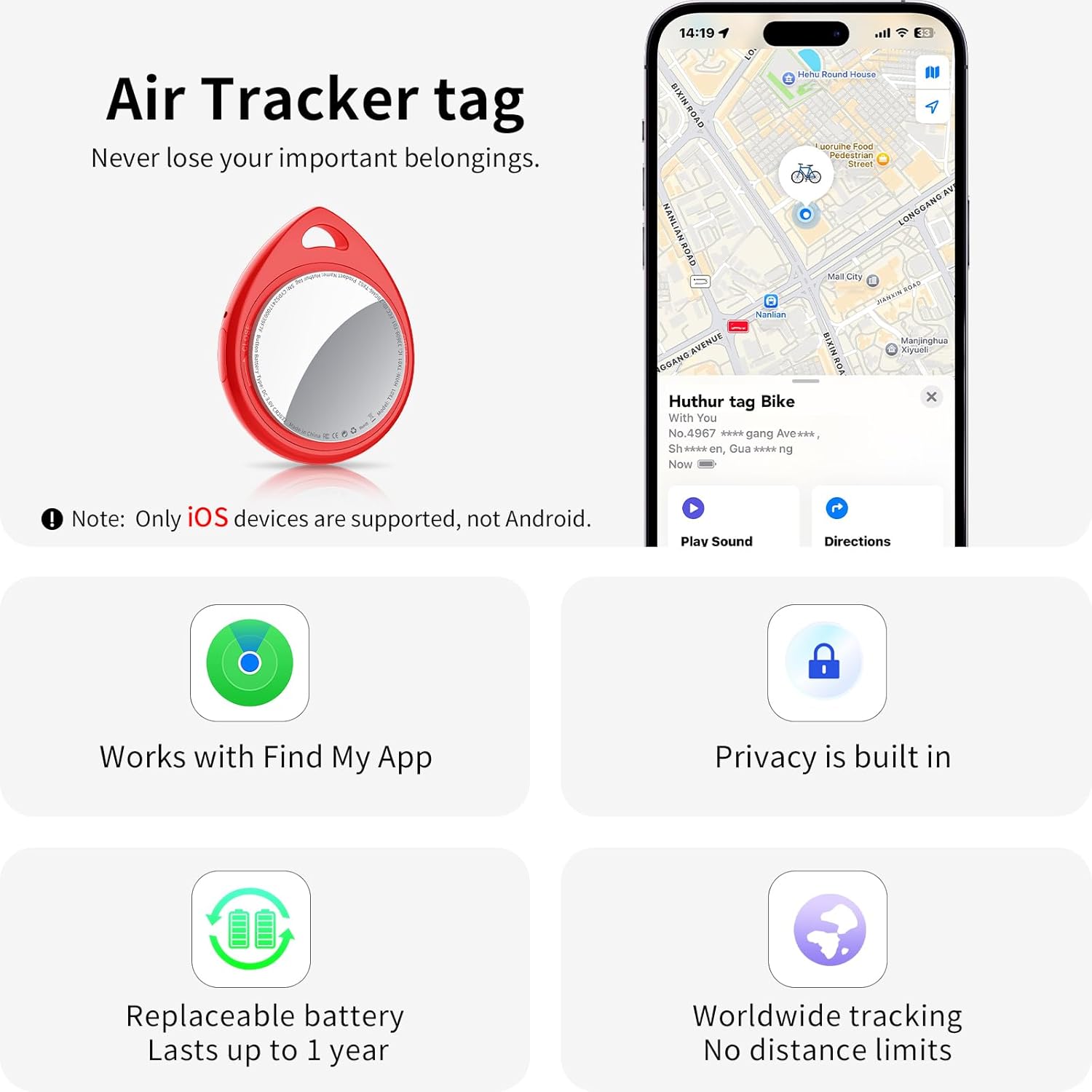
Image: QCOQ Tracker Tag highlighting key features including Find My app integration, privacy, replaceable battery, and worldwide tracking capabilities.
2. Wat is ingesluit
Your QCOQ Tracker Tags pakket sluit die volgende items in:
- QCOQ Tracker Tag (6 eenhede)
- Lanyard (6 units)
- Key Ring (6 units)
- Gebruikershandleiding (1 eenheid)
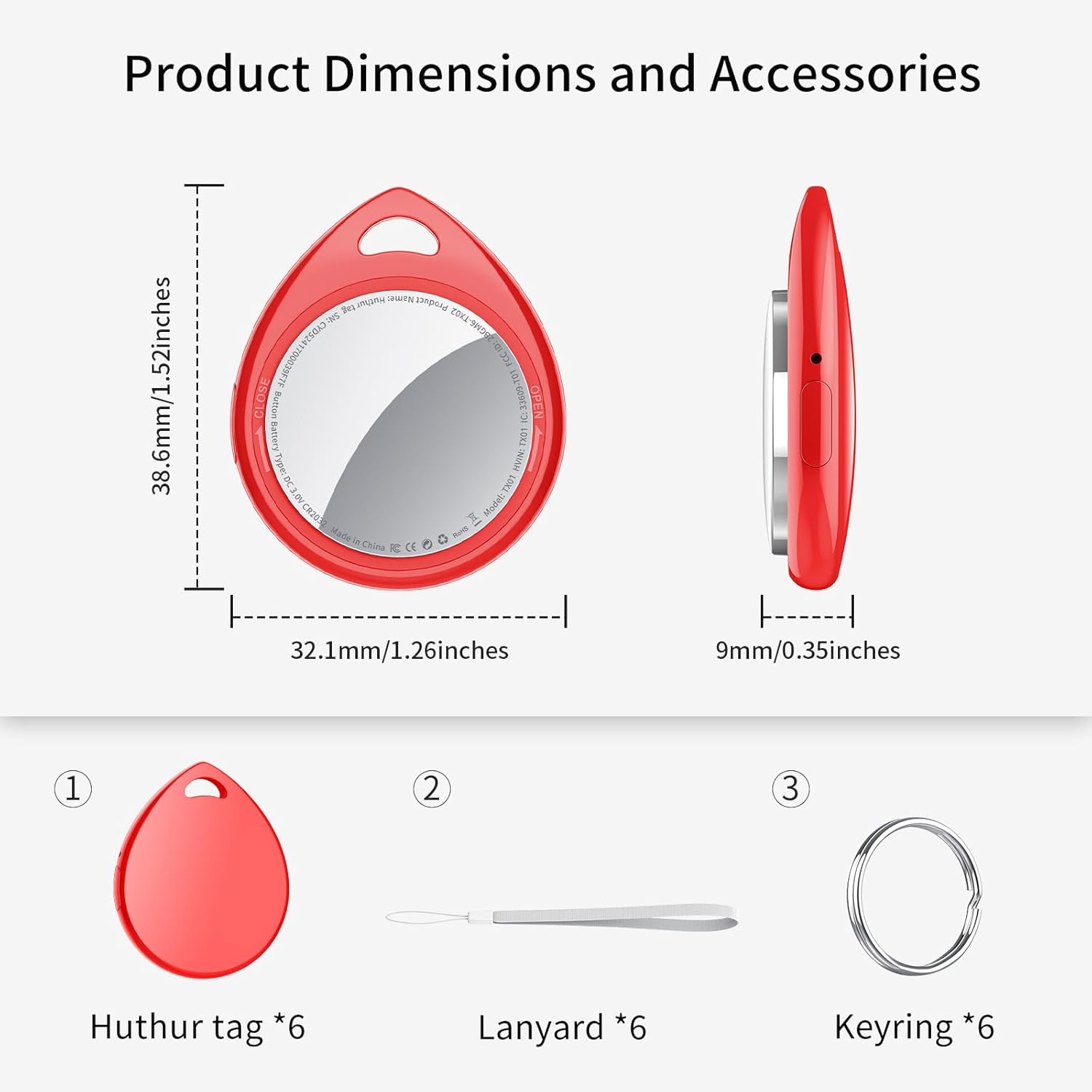
Image: Product dimensions and accessories included in the package.
3. Spesifikasies
| Kenmerk | Detail |
|---|---|
| Handelsmerk | QCOQ |
| Model | Tracker Tags |
| Versoenbare toestelle | iOS devices only |
| Verbindingstegnologie | Bluetooth 5.3 |
| Geraasvlak | 100 Desibel |
| Battery Tipe | CR2032 (vervangbaar) |
| Batterylewe | Up to 1 year (365 days) |
| Materiaal | Plastiek |
| Produk afmetings | 3.21 x 3.86 x 0.9 cm (1.26 x 1.52 x 0.35 duim) |
| Item gewig | 46.8 gram |
4. Opstelling
Follow these steps to set up your QCOQ Tracker Tag with your iOS device:
- Berei jou toestel voor: Ensure that Bluetooth, network (Wi-Fi or mobile data), and Location Sharing are enabled on your iOS device. To enable Location Sharing, go to Settings > Privacy & Security > Location Services > Share My Location.
- Maak Soek My-toepassing oop: Launch the native Apple Find My application on your iOS device.
- Voeg nuwe item by: In the Find My app, navigate to the "Items" tab. Tap the "+" icon, then select "Other Item".
- Power On Tracker Tag: Press and hold the power key on your QCOQ Tracker Tag for approximately 2 seconds. You will hear a "Beep" sound, confirming that the device has started up.
- Saambinding: Hold the Tracker Tag near your iPhone. The Find My app will begin searching for nearby items. Once detected, the Tracker Tag will emit two short "Beep Beep" tones, indicating successful connection.
- Customize Name: You will be prompted to name your Tracker Tag (e.g., "My Keys", "Luggage"). You can also choose an emoji to represent it.
- Voltooi opstelling: Follow any remaining on-screen prompts to finalize the connection.
Video: Step-by-step guide on how to connect the QCOQ Tracker Tag to your iPhone using the Find My app.
5. Bedryfsinstruksies
5.1 Vind items in die omgewing (Speel klank)
When your Tracker Tag is within Bluetooth range (approximately 200 feet or 60 meters in open areas, 30 meters when obstructed), you can make it play a sound to help you locate it. Open the Find My app, select your Tracker Tag from the "Items" tab, and tap "Play Sound". The tag will emit a loud 100dB alert tone.

Image: Using the 'Play Sound' feature in the Find My app to locate a nearby Tracker Tag.
5.2 Finding Far Away Items (Map View)
If your Tracker Tag is out of Bluetooth range, the Apple Find My network can still help you locate it. The network, composed of billions of Apple devices worldwide, anonymously detects your tag's location and uploads it to iCloud. You can then view its last known location on a map within the Find My app. This feature allows you to track your items globally.

Image: Tracking a far-away item using the map view in the Apple Find My app.
5.3 Agtergelaat-herinneringe
To prevent losing important items, enable the "Notify When Left Behind" feature. When your Tracker Tag moves beyond a set distance or time from your iPhone, the Find My app will automatically trigger an alert. If the tag remains disconnected after a timeout, a final "Lost Reminder" will be sent with its last known location to assist in recovery.
Om hierdie kenmerk te aktiveer:
- In the Find My app, select your Tracker Tag.
- Scroll down to "Notifications".
- Turn on "Notify When Left Behind".
You can also set "Do Not Disturb" zones and adjust their size to avoid unnecessary alerts in familiar locations.
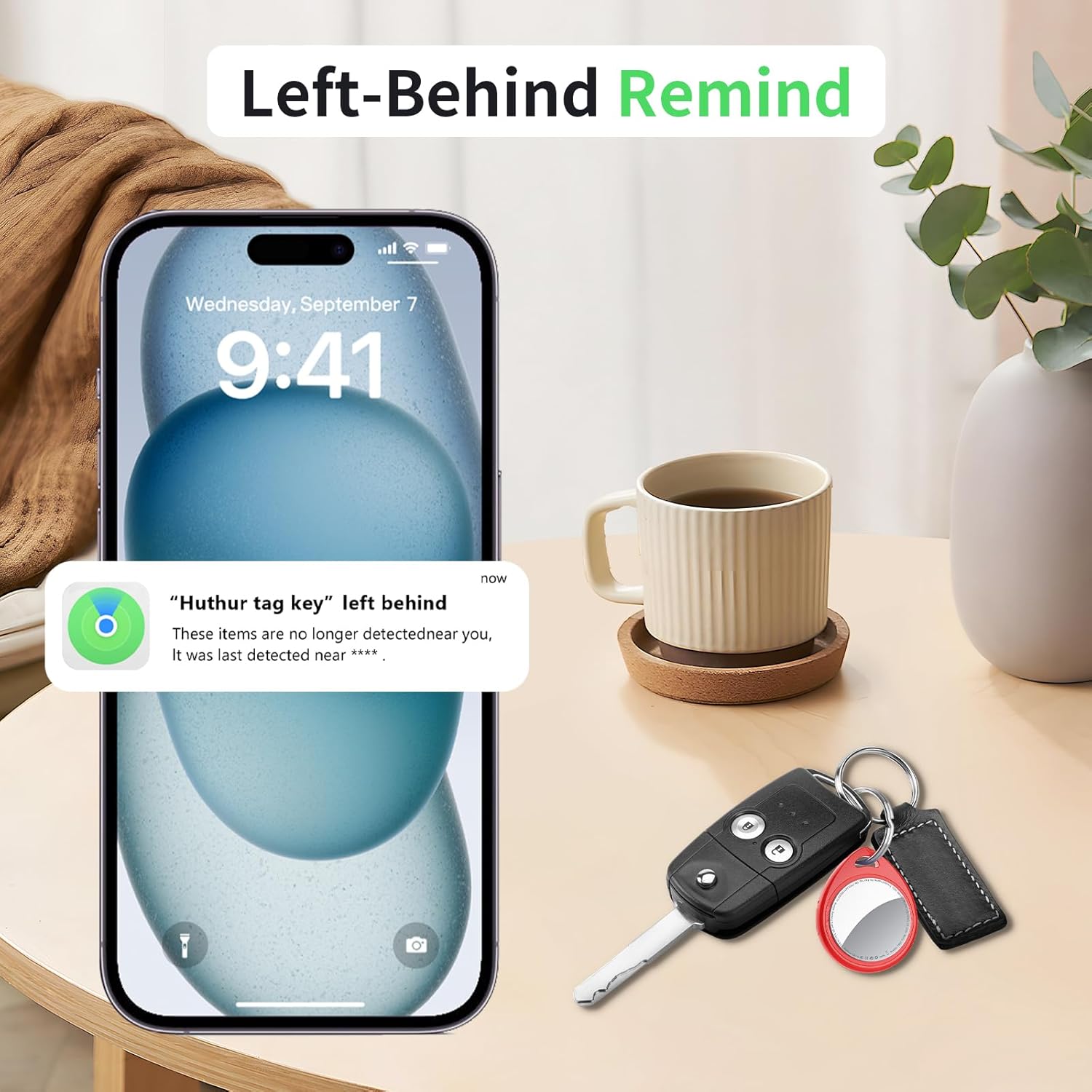
Image: An iPhone displaying a 'Left Behind' notification for a Tracker Tag.
5.4 Verlore Modus
If you have lost your Tracker Tag, you can activate "Lost Mode" in the Find My app. This feature allows you to leave contact information (a message and phone number) that can be accessed by anyone who finds your tag using their Apple device. This significantly increases the chances of your item being returned to you anonymously and securely.
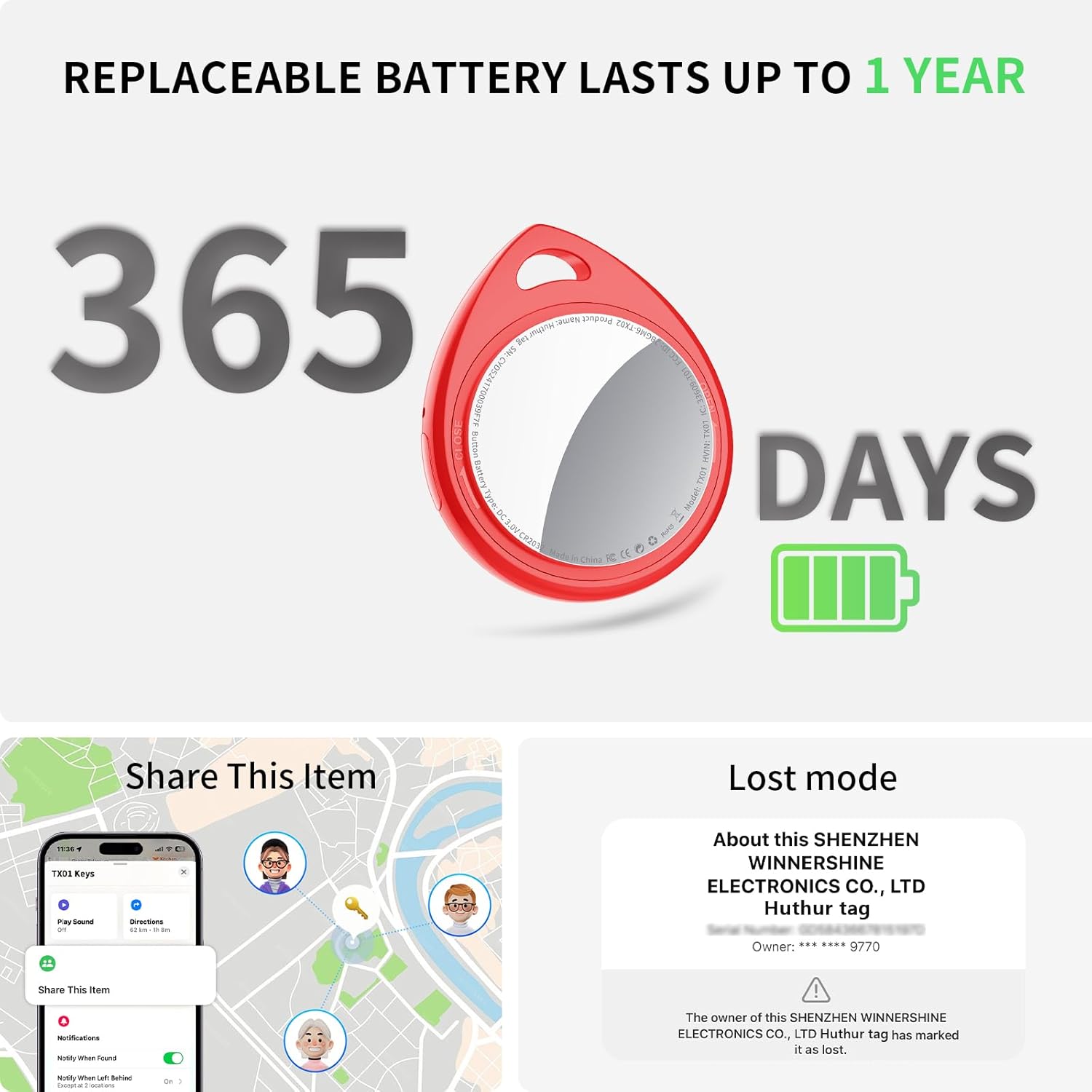
Image: Activating Lost Mode and sharing contact information through the Find My app.
5.5 Ligging deel
The QCOQ Tracker Tag supports sharing its location with up to 5 contacts. This feature requires iOS 17 or later. You can manage sharing options within the Find My app for each individual Tracker Tag.
6. Battery vervanging
The QCOQ Tracker Tag uses a replaceable CR2032 coin cell battery, which typically lasts up to 1 year. The device will proactively alert you when the battery level is low, prompting a timely replacement. The unique snap design helps prevent accidental opening by children.
Volg hierdie stappe om die battery te vervang:
- Maak batterydeksel oop: Gently rotate the stainless steel battery cover counter-clockwise to open it.
- Verwyder ou battery: Carefully pry out the old CR2032 battery using your fingers or a thin, non-metallic tool.
- Plaas nuwe battery in: Place a new CR2032 battery into the compartment with the positive (+) side facing up. Press firmly to ensure it is fully seated.
- Vervang batterydeksel: Align the shallow groove on the battery cover with the corresponding 9 o'clock position on the tracker. Press down gently.
- Lock Battery Cover: Draai die batterydeksel kloksgewys totdat dit stewig op sy plek gesluit is.
Video: Detailed instructions on how to replace the CR2032 battery in your QCOQ Tracker Tag.
7. Privaatheid en Sekuriteit
QCOQ Tracker Tags are designed with your privacy and security in mind:
- Geënkripteerde Kommunikasie: All communications are encrypted and anonymous.
- No Data Storage: Location data is never stored on the Tracker Tag itself, ensuring that even the manufacturer cannot access it.
- Confidential Tracking: Your tracking records for all items remain fully confidential.
- Anti-Tracking Feature: The built-in anti-tracking feature will warn you if someone attempts to track you with a QCOQ Tracker Tag sonder u medewete.
8. Probleemoplossing
If you encounter issues with your QCOQ Tracker Tag, oorweeg die volgende:
- Verbindingskwessies: Ensure Bluetooth is enabled on your iOS device. Verify that your device has an active internet connection (Wi-Fi or mobile data) and that Location Services and Share My Location are turned on in your device settings.
- Sound Not Playing: Check if the Tracker Tag is within Bluetooth range of your iOS device. The 100dB sound feature works best when the tag is relatively close.
- Onakkurate Ligging: The actual effective range for Bluetooth tracking varies with environmental factors (e.g., ~60m in open areas, ~30m when obstructed). Location updates depend on the number of nearby Apple devices with Bluetooth enabled and active. Apple's Find My network inherently has some latency, so real-time updates are not always instantaneous; it records the last updated location, which is not GPS positioning.
- Battery Low/Dead: As die tag is not responding, the battery might be low or depleted. Refer to the "Battery Replacement" section to install a new CR2032 battery.
- Koppelprobleme: As die tag does not pair, ensure you are holding the power button for 2 seconds until you hear a beep, and that your iPhone is searching for "Other Items" in the Find My app.
9. Waarborg en Ondersteuning
QCOQ Tracker Tags kom met 'n 2 jaar waarborg. For warranty claims, technical support, or further assistance, please refer to the contact information provided at your point of purchase or visit the official QCOQ webwebwerf.
Always ensure you are using the product as intended and following the instructions in this manual to maintain warranty validity.