
Inleiding
Welcome to the user manual for your new DOOGEE Tab A9 Wi-Fi Tablet. This guide provides essential information to help you set up, operate, maintain, and troubleshoot your device. Please read this manual thoroughly to ensure optimal performance and longevity of your tablet.
Pakketinhoud
Verifieer dat alle items in jou pakket teenwoordig is:
- DOOGEE Tab A9 Tablet
- USB Type-C kabel
- Lader
- Gebruikershandleiding
- (Optional accessories, depending on package edition: Stylus Pen, Reinforced Case, Bluetooth Mouse, Leather Protective Cover, Bluetooth Keyboard)
Opstelling
1. Aanvanklike laai
Before first use, fully charge your tablet. Connect the USB Type-C cable to the tablet's charging port and the other end to the provided charger. Plug the charger into a power outlet. The charging indicator will show the charging status.
2. Skakel aan/af
- Om aan te skakel: Press and hold the Power button until the DOOGEE logo appears on the screen.
- Om af te skakel: Druk en hou die aan/af-knoppie in totdat 'n afskakelkieslys verskyn. Kies "Skakel af" om die toestel af te skakel.
- Om weer te begin: Kies "Herbegin" in die afskakelkieslys om die toestel te herbegin.
3. Aanvanklike Opstelling Wizard
Wanneer die tablet vir die eerste keer aangeskakel word, sal dit jou deur 'n aanvanklike opstellingsproses lei. Volg die aanwysings op die skerm om:
- Kies jou taal.
- Koppel aan 'n Wi-Fi-netwerk.
- Aanvaar die bepalings en voorwaardes.
- Meld aan met jou Google-rekening of skep 'n nuwe een.
- Stel skermslot op (PIN, patroon, wagwoord).

Beeld: Voor en agter view of the DOOGEE Tab A9 tablet, illustrating its design and camera placement.
Bedryfsinstruksies
1. Basiese navigasie
- Raak: Tik op 'n ikoon of opsie om dit te kies.
- Swiep: Sleep jou vinger oor die skerm om deur bladsye of inhoud te blaai.
- Knyp-om-te-Zoem: Plaas twee vingers op die skerm en sprei hulle uitmekaar om in te zoem, of knyp hulle saam om uit te zoem.
- Tuisskerm: Tap the Home button (usually a circle or house icon) to return to the main screen.
- Agter: Tap the Back button (usually a left arrow) to return to the previous screen.
- Onlangse toepassings: Tap the Recent Apps button (usually a square or three vertical lines) to view en wissel tussen onlangs gebruikte toepassings.
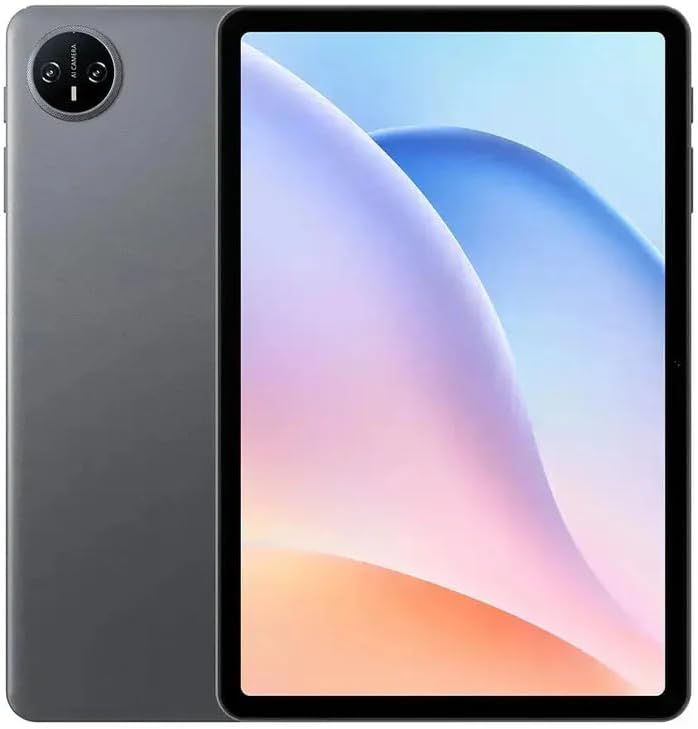
Beeld: Voorkant view of the DOOGEE Tab A9 tablet with its display active, showing the user interface.
2. Wi-Fi-konneksie
Om aan 'n Wi-Fi-netwerk te koppel:
- Gaan na Instellings > Netwerk en internet > Wi-Fi.
- Wi-Fi wissel On.
- Kies jou verlangde netwerk uit die lys.
- Voer die wagwoord in indien gevra en tik Koppel.
3. Bluetooth-koppeling
Om met 'n Bluetooth-toestel te koppel:
- Gaan na Instellings > Gekoppelde toestelle > Bluetooth.
- Wissel Bluetooth On.
- Ensure the other Bluetooth device is in pairing mode.
- Select the device from the list of available devices and follow any on-screen prompts to complete pairing.
4. Kameragebruik
Die tablet het 'n 5MP-voorkamera en 'n 8MP-agterkamera.
- Maak die oop Kamera aansoek.
- Tik die sluiterknoppie om 'n foto te neem.
- Wissel tussen voor- en agterkameras deur die kameraskakelaar-ikoon te gebruik.
- Kies videomodus om video's op te neem.
5. Vertoonkenmerke

Image: Visual representation of the DOOGEE Tab A9's 10.1-inch IPS HD display, highlighting its 1280x800 resolution, 80.2% screen-to-body ratio, and 16.7 million screen colors.
The DOOGEE Tab A9 features a 10.1-inch IPS HD display with a resolution of 1280x800 pixels, offering a wide field of view and vibrant colors. The screen-to-body ratio is approximately 80.2%, providing an immersive viewondervinding.
6. Batterybestuur

Image: Infographic detailing the DOOGEE Tab A9's 6580mAh battery capacity and its estimated usage times for Wi-Fi standby, music playback, video watching, and web blaai.
Die tablet is toegerus met 'n 6580mAh-battery. Om die batteryleeftyd te optimaliseer:
- Pas die helderheid van die skerm aan.
- Maak ongebruikte toepassings toe.
- Skakel Wi-Fi of Bluetooth af wanneer dit nie gebruik word nie.
- Use power-saving modes available in Android settings.
Onderhoud
1. Skoonmaak
- Gebruik 'n sagte, pluisvrye lap om die skerm en liggaam van die tablet skoon te maak.
- Vermy die gebruik van harde chemikalieë, skuurmiddels of aërosolspuitmiddels.
- Vir hardnekkige vlekke, effens dampMaak die lap skoon met water of 'n skermspesifieke skoonmaakoplossing.
2. Berging
- Bêre die tablet op 'n koel, droë plek weg van direkte sonlig en uiterste temperature.
- Indien dit vir 'n lang tydperk gestoor word, maak seker dat die battery tot ongeveer 50% gelaai is om diep ontlading te voorkom.
3. Sagteware-opdaterings
Kontroleer gereeld vir sagteware-opdaterings en installeer dit om te verseker dat jou tablet die nuutste kenmerke, sekuriteitsopdaterings en werkverrigtingverbeterings het. Gaan na Instellings > Stelsel > Stelselopdatering.
Probleemoplossing
| Kwessie | Moontlike Oplossing |
|---|---|
| Tablet skakel nie aan nie | Maak seker dat die battery gelaai is. Koppel die laaier en probeer weer. Indien nie reageer nie, druk en hou die aan/af-knoppie vir 10-15 sekondes in om 'n herbegin te forseer. |
| Kan nie aan Wi-Fi koppel nie | Check if Wi-Fi is enabled in settings. Restart your router and tablet. Verify the Wi-Fi password. |
| Applications are crashing or freezing | Close and reopen the application. Clear the app's cache (Settings > Apps > [App Name] > Storage & cache). Restart the tablet. |
| Stadige prestasie | Maak ongebruikte programme toe. Maak kasgeheue en tydelike programme skoon. files. Check for system updates. Consider a factory reset if issues persist (backup data first). |
| Raakskerm reageer nie | Restart the tablet. Ensure the screen is clean and free of debris. If a screen protector is installed, ensure it is properly applied. |
Spesifikasies
| Kenmerk | Detail |
|---|---|
| Model Naam | DOOGEE Tab A9 |
| Bedryfstelsel | Android 15 |
| Verwerker | Unisoc T310 Octa-Core (1x Cortex-A75 @2.0GHz, 3x Cortex-A55 @1.8GHz) |
| GPU | Arm Mali G52 |
| RAM | 3 GB LPDDR3 |
| Interne berging (ROM) | 64 GB eMMC |
| Uitbreidbare berging | Ondersteun TF-kaart tot 2 TB |
| Vertoon grootte | 10.1 duim |
| Tipe vertoon | IPS HD LCD |
| Vertoon resolusie | 1280 x 800 piksels |
| Skerm-tot-liggaam-verhouding | 80.2% |
| Voorste kamera | 5MP |
| Agterste kamera | 8MP met flits |
| Video-opname | FHD 1080p @ 30fps |
| Wi-Fi | 802.11 a / b / g / n / ac (2.4 GHz / 5 GHz) |
| Bluetooth | Bluetooth 5.0 |
| Sellulêre netwerk | Not supported (Wi-Fi only model) |
| Battery kapasiteit | 6580 mAh (38.38 Wh) |
| Laai | 10W Max Charging Current, USB Type-C |
| Klankaansluiting | 3.5 mm koptelefoonaansluiting |
| Sensors | Versnellingsmeter |
| Afmetings | 242.5 × 160.9 × 9.7 mm (approx. 25L x 18W x 1.5T cm) |
| Gewig | 512 grams (approx. 500 grams) |
| Kleur | Grys |
Waarborg en Ondersteuning
Waarborg inligting
Your DOOGEE Tab A9 tablet comes with a limited one-year manufacturer's warranty from the date of purchase. This warranty covers defects in materials and workmanship under normal use. It does not cover damage caused by accidents, misuse, unauthorized repairs, or normal wear and tear. Please retain your proof of purchase for warranty claims.
Kliënte ondersteuning
For technical assistance, warranty claims, or further inquiries, please contact DOOGEE customer support through their official website or the retailer where you purchased the device. Have your model number (Tab A9) and proof of purchase ready when contacting support.