
1. Inleiding
Welcome to the COLORROOM Kids Tablet A30L1 EVA user manual. This guide provides essential information to help you set up, operate, and maintain your new tablet. Designed for children aged 3-12, this tablet offers a safe and engaging digital environment for learning and entertainment, featuring robust parental controls and a durable design.
2. Veiligheidsinligting
- Toesig: Always supervise children during tablet use.
- Laai: Use only the provided charger and cable. Do not use the tablet while charging.
- Waterblootstelling: Keep the tablet away from water and moisture.
- Temperatuur: Vermy uiterste temperature.
- Skoonmaak: Clean the tablet with a soft, dry cloth. Do not use liquid cleaners.
- Skermtyd: Utilize parental controls to manage screen time and prevent excessive use.
3. Pakketinhoud
Verifieer dat alle items in jou pakket teenwoordig is:
- COLORROOM Kids Tablet A30L1 EVA (with EVA Protective Case)
- USB-C-kabel
- Kragadapter
- Gebruikershandleiding (hierdie dokument)
Videobeskrywing: This video demonstrates the unboxing process of the COLORROOM Kids Tablet, showcasing the tablet, its protective EVA case, and included accessories like the charging cable and adapter.
4. Opstelling
4.1 Aanvanklike aanskakeling
- Press and hold the power button (located on the side) until the screen lights up.
- Volg die aanwysings op die skerm om jou taal en streek te kies.
4.2 Koppel aan Wi-Fi
- Tik op die 'Instellings'-ikoon vanaf die tuisskerm.
- Select 'Network & internet' then 'Wi-Fi'.
- Kies jou Wi-Fi-netwerk uit die lys en voer die wagwoord in.
- Tap 'Connect'.
4.3 Setting up Google Kids Space and Parental Controls
The tablet comes with Google Kids Space pre-installed, offering a curated selection of apps, books, and videos for children. Parental controls are managed through Google Family Link.
- Open the 'Google Kids Space' app.
- Follow the instructions to set up a child profile and link it to your Google Family Link account on your smartphone.
- On your smartphone, download and install the Google Family Link app.
- Use the Family Link app to manage your child's device, including app usage, screen time limits, and content restrictions.

Prentbeskrywing: A close-up of the COLORROOM Kids Tablet screen displaying the Google Kids Space interface with various child-friendly app icons for playing, reading, watching, and creating.
Videobeskrywing: This video demonstrates how to use Google Family Link on a parent's smartphone to manage app restrictions and usage time for the child's tablet, ensuring a safe digital experience.
5. Bediening van die tablet
5.1 Basiese navigasie
- Raakskerm: Tik om te kies, swiep om te blaai, knyp om te zoem.
- Tuisskerm: Access all installed apps and widgets.
- Kennisgewings: Swiep af vanaf die bokant van die skerm na view kennisgewings en vinnige instellings.
5.2 Using Educational Apps and Content
The tablet provides access to thousands of high-quality educational content, including picture books, educational comics, children's books, early learning apps for alphabet and numbers, programming tools, and interactive games.

Prentbeskrywing: The COLORROOM Kids Tablet in its purple EVA case, displaying a vibrant home screen with various educational and entertainment app icons, including STEM, ABC, and drawing applications.
Videobeskrywing: This video highlights the diverse range of educational apps available on the tablet, covering subjects like English, Kanji, and arithmetic, along with learning manga, children's books, games, and videos.
5.3 Accessing YouTube Kids
YouTube Kids is designed for children, offering a safe and easy way to enjoy videos. Filters can be flexibly adjusted according to your child's growth.
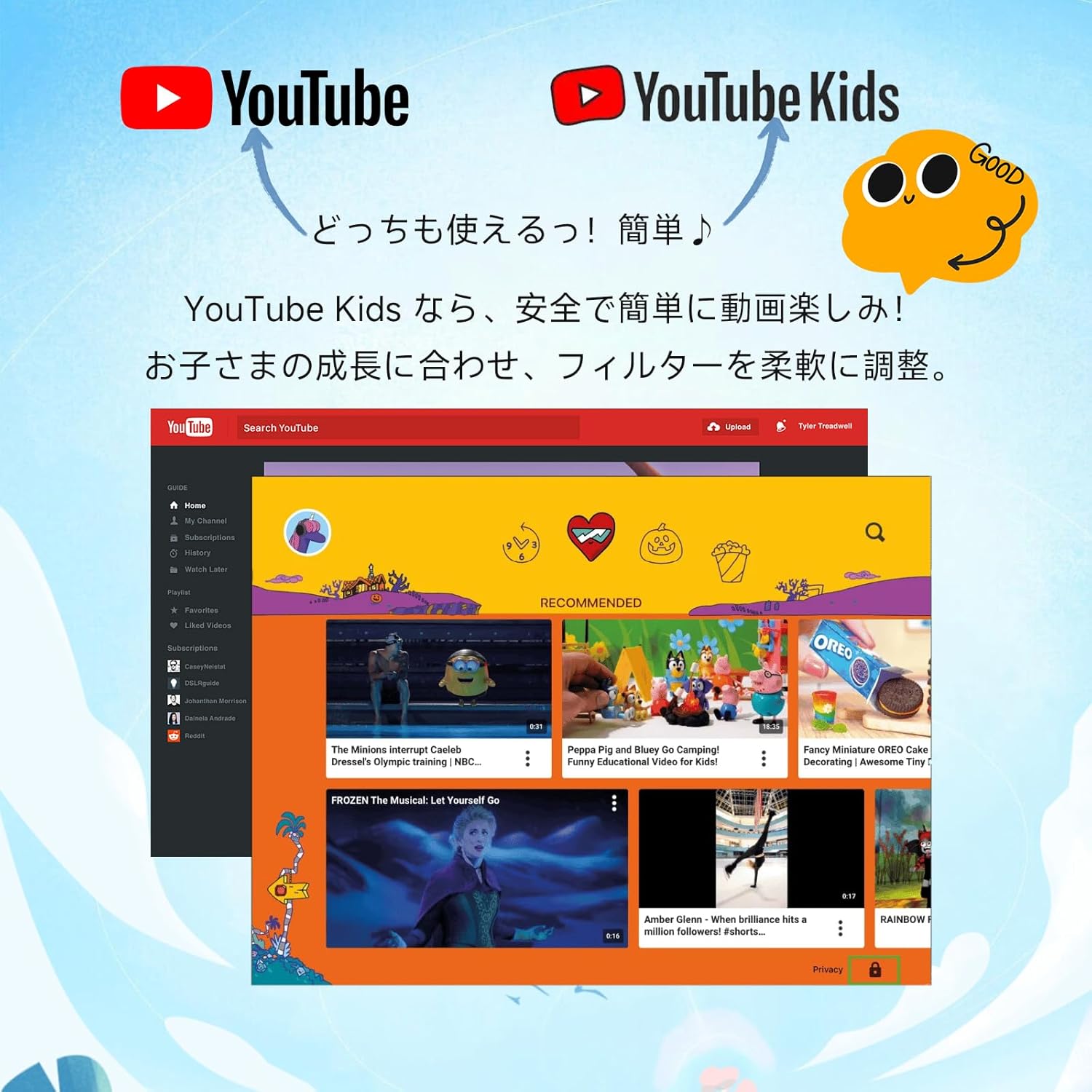
Prentbeskrywing: An image comparing the interfaces of standard YouTube and YouTube Kids, emphasizing the child-friendly design and content filtering of YouTube Kids.
5.4 Gebruik van die kamera
The tablet features a 5MP front camera and an 8MP rear camera for capturing photos and videos.

Prentbeskrywing: An illustration highlighting the 5MP front camera and 8MP rear camera of the COLORROOM Kids Tablet, with example photos of children.
5.5 AR Zoo Application
Explore augmented reality with the pre-installed AR Zoo app. Scan animal pictures to bring them to life on your tablet screen.
Videobeskrywing: This video demonstrates the AR Zoo game, where users can scan animal cards with the tablet's camera to see 3D augmented reality animals appear on the screen.
6. Ouerkontroles
The tablet is equipped with comprehensive parental controls to ensure a safe and educational experience for your child. These features are primarily managed through the Google Family Link app on your smartphone.
- Custom Child Profiles: Skep individuele profiles for each child.
- Tydsbeperkings: Set precise daily usage limits in 15-minute increments to prevent overuse.
- App Approval: Individually approve safe apps and webwerwe.
- Content Monitoring: Easily check your child's device usage and content viewed.
- Leerdoelwitte: Set learning objectives, and restrict entertainment content until goals are met.
- GPS-funksionaliteit: Monitor the tablet's location through the Family Link app.

Prentbeskrywing: A visual representation of the parental control dashboard, showing options for setting shutdown times, app restrictions, and educational goals for child profiles.
7. Kenmerke verbyview
7.1 Vertoon
- Grootte: 10.1 duim
- Resolusie: 1280x800 HD IPS
- Widevine L1 Support: Ensures high-quality streaming for services like Netflix and YouTube.

Prentbeskrywing: The tablet screen showing a comparison between L1 (1080P) and L3 (720P) Widevine levels, indicating support for high-definition content streaming.
Videobeskrywing: This video showcases the 10.1-inch large screen of the tablet, highlighting its visual quality for children's content.
7.2 Prestasie
- Bedryfstelsel: Android 16 (personalized, secure, user-friendly)
- SVE: 2.0GHz Octa-Core
- RAM: 24GB (4GB fisiese + 20GB virtuele uitbreiding)
- Interne berging: 64GB ROM
- Uitbreidbare berging: Supports microSD cards up to 1TB

Prentbeskrywing: The tablet screen displaying the Android 16 operating system, emphasizing enhanced privacy, improved operability, and AI features for a smart daily experience.
7.3 Battery
- Kapasiteit: 6000mAh
- Batterylewe: Tot 8 uur se deurlopende gebruik
- Supports fast charging and features low power consumption.

Prentbeskrywing: The tablet screen showing a charging battery icon, alongside images of children using the tablet for studying, playing games, and watching videos, illustrating its long battery life.
7.4 Beskerming
- EVA Protective Case: Lightweight and shock-absorbing, providing excellent protection against drops.
- 360-degree Rotating Handle/Stand: Allows for vertical or horizontal viewing and easy portability.
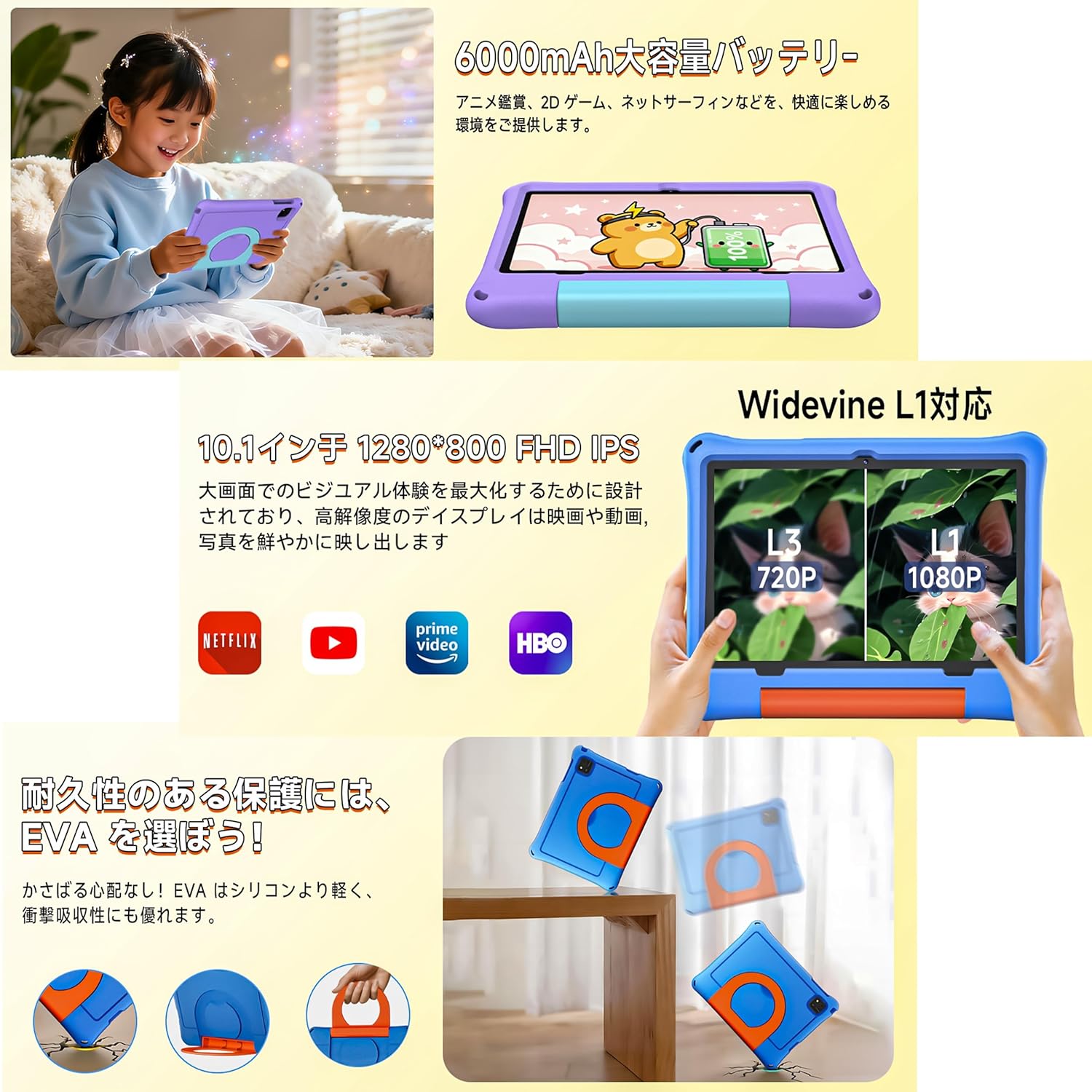
Prentbeskrywing: The tablet in its EVA case, highlighting its shock-absorbing properties with illustrations of drops and the versatile 360-degree rotating handle that doubles as a stand.
Videobeskrywing: This video demonstrates the 360-degree rotating handle/stand and the durable, shock-resistant case of a 7-inch kids tablet. Note: This product is a 10.1-inch tablet, but features similar case design.
8. Onderhoud
8.1 Skoonmaak van die tablet
Om die tabletskerm en -liggaam skoon te maak, gebruik 'n sagte, pluisvrye lap. Vir hardnekkige vlekke, vee dit effens af.ampMaak die lap met water skoon. Vermy die gebruik van harde chemikalieë of skuurmiddels.
8.2 Batterysorg
- Vermy om die battery gereeld heeltemal te ontlaai.
- Do not leave the tablet connected to the charger for extended periods after it's fully charged.
- Store the tablet in a cool, dry place when not in use for long periods.
8.3 Sagteware-opdaterings
Periodically check for system updates to ensure optimal performance and security. Go to 'Settings' > 'System' > 'System update' to check for and install available updates.
9. Probleemoplossing
- Tablet skakel nie aan nie: Maak seker dat die battery gelaai is. Koppel die laaier en probeer weer.
- Skerm gevries: Druk en hou die aan/af-knoppie vir ongeveer 10 sekondes in om 'n herbegin te forseer.
- Wi-Fi-verbindingskwessies: Check if your Wi-Fi router is working correctly. Restart the tablet and try reconnecting.
- Programme wat vasval: Clear the app's cache in 'Settings' > 'Apps' > [App Name] > 'Storage' > 'Clear cache'. If the issue persists, reinstall the app.
- Stadige werkverrigting: Maak onnodige agtergrondprogramme toe. Maak kasgeheue en tydelike programme skoon. files. Consider a factory reset if problems continue (back up data first).
10. Spesifikasies
| Kenmerk | Spesifikasie |
|---|---|
| Handelsmerk | KLEURKAMER |
| Model Naam | A30L1 EVA |
| Bedryfstelsel | Android 16 |
| SVE | 2.0 GHz Octa-Core (Unisoc) |
| RAM | 24 GB (4 GB + 20 GB virtueel) |
| Berging | 64 GB (uitbreidbaar tot 1 TB via microSD) |
| Skerm grootte | 10.1 duim |
| Vertoon resolusie | 1280x800 pixels HD IPS |
| Voorste kamera | 5 MP |
| Agterste kamera | 8 MP |
| Battery kapasiteit | 6000 mAh |
| Batterylewe | Tot 8 ure |
| Konnektiwiteit | Wi-Fi (802.11ac), Bluetooth |
| Afmetings | 32 x 22.4 x 3.6 cm |
| Gewig | 500 g |
11. Waarborg en Ondersteuning
The COLORROOM Kids Tablet A30L1 EVA comes with a 1-jaar gehalteversekeringsdiens. If you encounter any issues with the product, please contact our specialized after-sales service team promptly. We are committed to providing efficient support to resolve your concerns and exceed your expectations.
For support, please refer to the contact information provided with your purchase or visit the COLORROOM brand store on Amazon.