
1. Produk verbyview
The Keychron M6 Silent Wireless Gaming Mouse is designed for optimal comfort and performance across various tasks, from gaming to productivity. It features a lightweight, ergonomic design, versatile connectivity options, and a high-precision optical sensor. This manual provides detailed instructions for setup, operation, and maintenance.

Image: Keychron M6 Silent Wireless Gaming Mouse, showcasing its ergonomic shape and main buttons.
2. Sleutel kenmerke
- Ultra-Ergonomic & Lightweight Design: The M6 mouse combines a compact, ergonomic shape with a lightweight 86g body for extended comfort. It includes over ten customizable buttons and an infinite metal scroll wheel.
- Stable Wireless with Ultra-Low Latency: Experience reliable 2.4GHz wireless performance with a 1000Hz polling rate. The M6 also supports Bluetooth 5.3 for multi-device use and flexible switching.
- Hoë-presisie PixArt 3395-sensor: Equipped with the advanced PixArt 3395 optical sensor, the M6 provides up to 26,000 DPI, 650 IPS tracking speed, and pinpoint accuracy.
- Infinite Scroll & Premium Metal Wheel: Features dual scrolling modes: smooth, infinite scroll for fast navigation and tactile mode for precision. The solid metal wheel offers a quiet, premium feel.
- Fully Programmable via Keychron Engine Software: Customize every button with Keychron Engine software on macOS and Windows. Create shortcuts, set macros, adjust DPI, polling rate, and LOD.
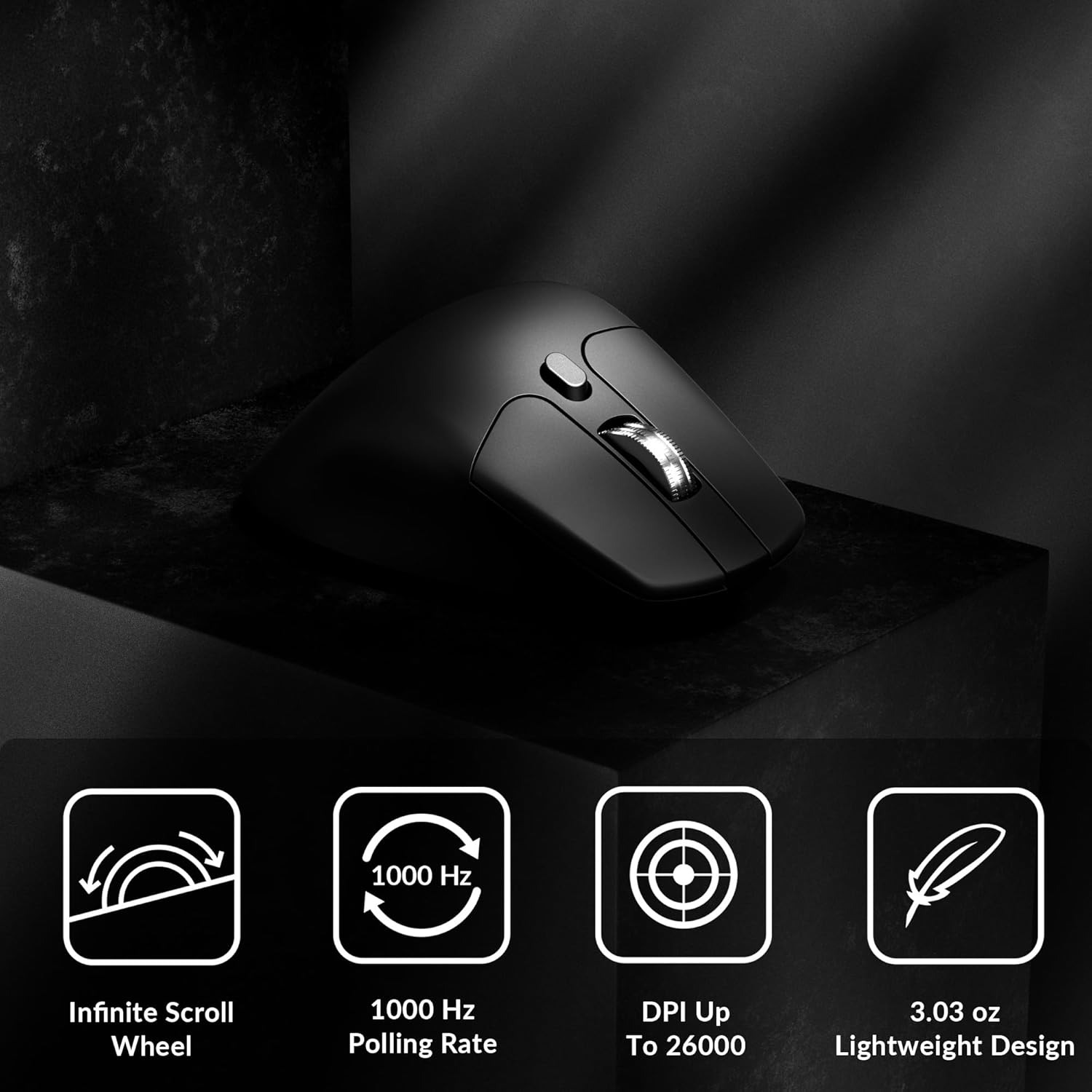
Image: Icons illustrating key features: Infinite Scroll Wheel, 1000 Hz Polling Rate, DPI Up To 26000, and Lightweight Design.
3. Opstelling
3.1 Pakketinhoud
Verifieer dat alle items in die pakket teenwoordig is:
- 1x Keychron M6 Muis
- 1x Tipe-C na Tipe-C kabel
- 1x Tipe-A na Tipe-C-adapter
- 1x Uitbreidingsadapter Vir Ontvanger
- 1x Tipe-C 2.4 GHz Ontvanger
- 1x Tipe-A 2.4 GHz-ontvanger
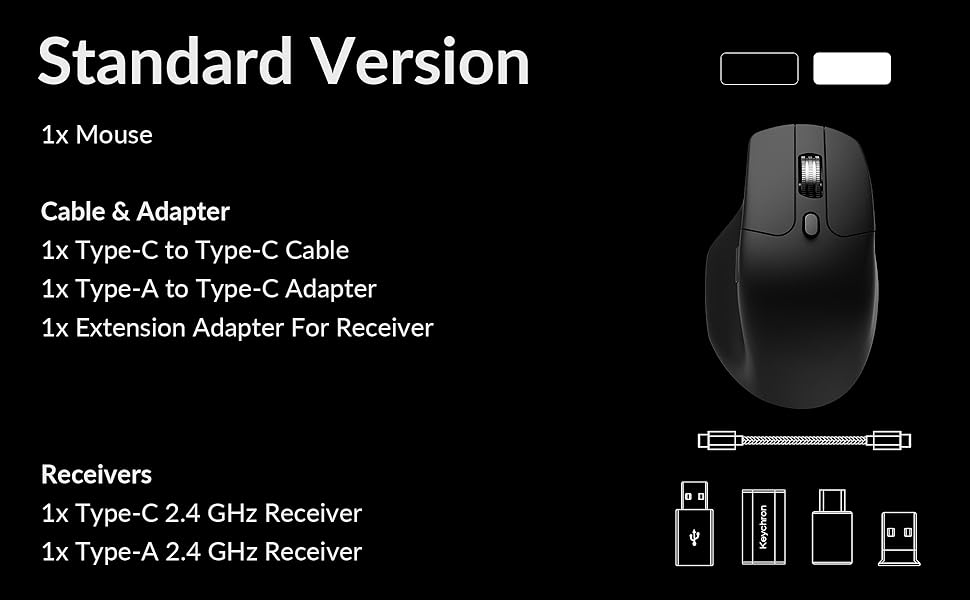
Image: Diagram showing the contents of the Keychron M6 mouse package.
3.2 Aanvanklike laai
Before first use, it is recommended to fully charge the mouse. Connect the mouse to your computer using the provided Type-C cable. The LED indicator will show charging status.
3.3 Die muis koppel
The Keychron M6 supports three connection modes: 2.4GHz wireless, Bluetooth 5.3, and wired.
- 2.4GHz Draadloos: Insert the 2.4GHz receiver (Type-A or Type-C) into your computer's USB port. Switch the mode switch on the bottom of the mouse to 'G' (Gaming) mode. The mouse should connect automatically.
- Bluetooth 5.3: Switch the mode switch on the bottom of the mouse to 'B' (Bluetooth) mode. On your computer, search for Bluetooth devices and select 'Keychron M6' to pair.
- bedraad: Connect the mouse directly to your computer using the provided Type-C cable. The mouse will function in wired mode and charge simultaneously.

Image: Keychron M6 mouse connected to a laptop via 2.4GHz receiver, with Bluetooth 5.3 icon.
4. Bedryfsinstruksies
4.1 Basiese Funksies
- Links/Regs Klik: Standaard muisknoppiefunksies.
- Rolwiel: Used for vertical scrolling.
- Syknoppies: Default to Forward/Backward navigation. Customizable via software.
- Duimwiel: Located on the side, used for horizontal scrolling.
4.2 DPI-aanpassing
The DPI (Dots Per Inch) button on the bottom of the mouse allows you to cycle through preset sensitivity levels. Each level is indicated by a specific LED color. You can customize these DPI levels using the Keychron Engine software.
4.3 Aanpassing van die Stemmingstempo
The polling rate button on the bottom of the mouse allows you to switch between different polling rates (125Hz, 500Hz, 1000Hz). A higher polling rate provides more responsive tracking, ideal for gaming. The LED indicator will change color to reflect the current polling rate.

Image: Close-up of the polling rate switch and indicator light on the mouse's underside.
4.4 Infinite Scroll Mode
The M6 features a button near the main scroll wheel to toggle between infinite scroll mode and tactile (notched) scroll mode. Infinite scroll allows for rapid navigation through long documents or web bladsye.

Image: Diagram showing the infinite scroll button and the horizontal scrolling function of the thumb wheel.
5. Customization with Keychron Engine Software
The Keychron Engine software allows for comprehensive customization of your M6 mouse. It is compatible with macOS and Windows and can be accessed online, eliminating the need for a download.
- Knoppie toewysing: Remap any of the mouse buttons to perform different functions, including keyboard shortcuts, multimedia keys, or macros.
- Makro-skepping: Neem komplekse reekse opdragte op en ken dit toe aan 'n enkele knoppie.
- DPI/Polling Rate/LOD Adjustment: Fine-tune sensor settings to match your preferences.
Besoek die amptelike Keychron website to access the Keychron Engine software.

Image: Screenshot of the Keychron Engine software interface, showing button customization options for the M6 mouse.
6. Konnektiwiteitsmodusse
The M6 mouse offers flexible connectivity to suit various setups:
- 2.4GHz Draadloos: Provides a stable, low-latency connection with a 1000Hz polling rate, ideal for gaming and demanding tasks. Uses a dedicated USB receiver.
- Bluetooth 5.3: Offers seamless connection to multiple devices, allowing for quick switching between systems. Suitable for general use and productivity.
- Bedraad (USB-C): Connects directly via the USB-C cable, providing a reliable connection and simultaneously charging the mouse.
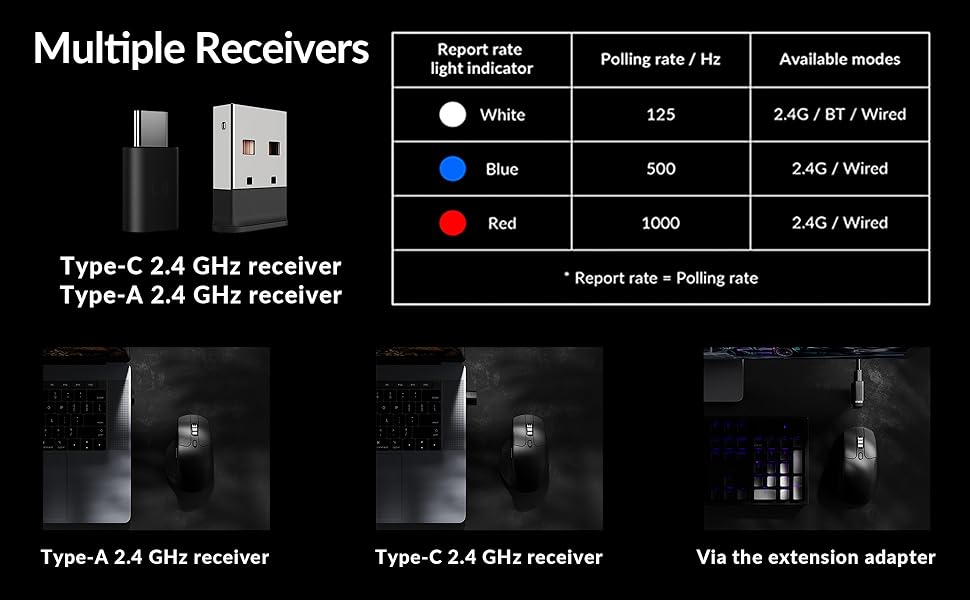
Image: Illustration of the Type-C and Type-A 2.4 GHz receivers, along with a table detailing polling rates and available modes.
7. Spesifikasies
| Modelnommer | M6S |
| Sensor | PixArt 3395 optiese sensor |
| DPI | Tot 26,000 |
| IPS Tracking Speed | 650 |
| Stemmingskoers | 1000Hz (2.4GHz/Wired), 125Hz (Bluetooth) |
| Konnektiwiteit | 2.4GHz Draadloos, Bluetooth 5.3, USB-C Bedraad |
| Gewig | 86 g (3.03 onse) |
| Battery | 800 mAh (Up to 80 hours) |
| Skakelaars | Huano 20M Silent Micro Switch |
| Verenigbaarheid | Windows, macOS, Linux |
| Afmetings | 4.82 x 2.97 x 1.97 duim (122.5 x 75.4 x 50 mm) |
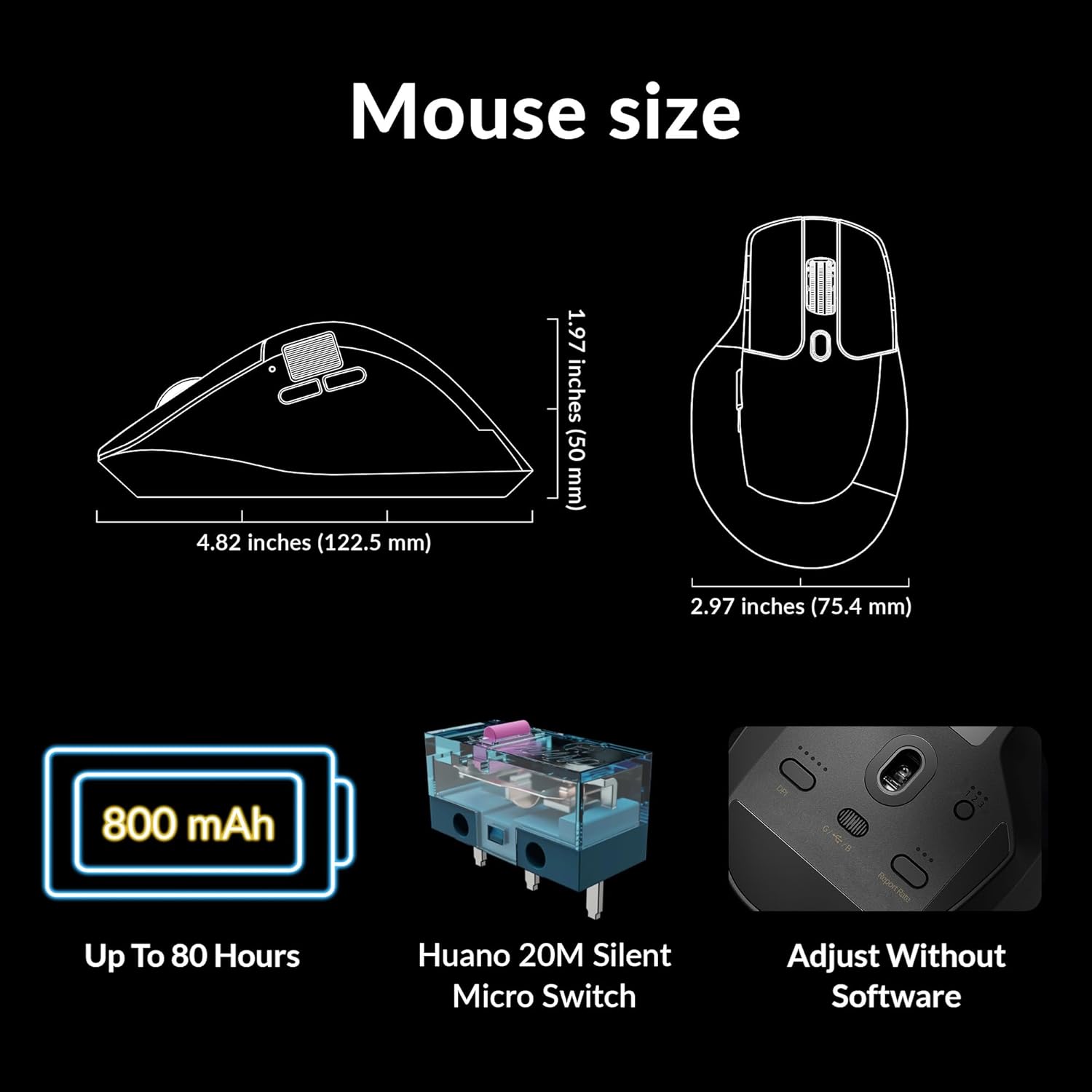
Image: Diagram showing the dimensions of the Keychron M6 mouse, its 800 mAh battery, and Huano 20M Silent Micro Switches.
8. Onderhoud
To ensure the longevity and optimal performance of your Keychron M6 mouse, follow these maintenance guidelines:
- Skoonmaak: Gebruik 'n sagte, droë lap om die muisoppervlak af te vee. Vir hardnekkige vuiligheid, liggies droog.ampMaak die lap skoon met water of 'n sagte skoonmaakoplossing. Vermy harde chemikalieë.
- Sensor sorg: Hou die optiese sensor aan die onderkant van die muis skoon en vry van stof of puin om akkurate dophou te verseker.
- Batterysorg: Avoid fully discharging the battery frequently. For long-term storage, charge the mouse to about 50% and store it in a cool, dry place.
- Berging: When not in use, store the mouse in a safe place to prevent physical damage.
9. Probleemoplossing
Indien u probleme met u Keychron M6-muis ondervind, raadpleeg die volgende algemene oplossings:
- Muis reageer nie:
- Maak seker dat die muis gelaai is.
- Check the connection mode switch (2.4GHz, Bluetooth, Wired) is set correctly.
- For 2.4GHz, ensure the receiver is properly inserted and try a different USB port.
- For Bluetooth, re-pair the device in your computer's Bluetooth settings.
- Probeer om via 'n USB-C-kabel te koppel om draadlose probleme uit te sluit.
- Inkonsekwente dophou:
- Maak die optiese sensor aan die onderkant van die muis skoon.
- Maak seker dat jy die muis op 'n geskikte oppervlak gebruik (bv. 'n muismat).
- Adjust the DPI settings to a comfortable level.
- Knoppies werk nie:
- Check Keychron Engine software for custom button assignments that might be interfering.
- Ensure the mouse firmware is up to date.
- Scroll Wheel Issues:
- Toggle the infinite scroll button to ensure it's in the desired mode.
- Clean any debris around the scroll wheel.
10. Amptelike Produkvideo
Video: 'n Amptelike oorwinningview of the Keychron M6 Silent Wireless Optical Gaming Mouse, highlighting its features and design.
11. Waarborg en Ondersteuning
Keychron products come with a limited warranty. For detailed warranty information, technical support, and frequently asked questions, please visit the official Keychron webwebwerf of kontak hul kliëntediens. Bewaar u bewys van aankoop vir waarborgeise.