
1. Inleiding
This manual provides essential information for the setup, operation, maintenance, and troubleshooting of your NIMO N159 15.6-inch IPS FHD Gaming Laptop. This device is equipped with an AMD Ryzen 7 7735HS processor, 32GB DDR5 RAM, and a 1TB PCIe SSD, designed for balanced performance in productivity and light gaming tasks. Please read this manual thoroughly to ensure proper usage and to maximize the lifespan of your laptop.
2. Wat is in die boks
Verifieer dat alle items in die verpakking teenwoordig is:
- 1 x NIMO N159 Laptop
- 1 x Type-C 100W PD Fast Charger
- 1 x Gebruikershandleiding (hierdie dokument)
- Windows 11 Home (pre-installed)
3. Produk verbyview
Familiarize yourself with the components and features of your NIMO N159 laptop.

Figuur 3.1: Voorkant view of the NIMO N159 laptop, showcasing its 15.6-inch display and overall design.
3.1 Sleutelkenmerke
- Verwerker: AMD Ryzen 7 7735HS with 8 Cores and 16 Threads, up to 4.75GHz.
- Grafika: Integrated AMD Radeon 680M GPU.
- Geheue: 32 GB DDR5 RAM vir doeltreffende multitaakverrigting.
- Berging: 1TB PCIe 4.0 SSD for fast boot times and data access.
- Vertoon: 15.6-inch Full HD (1920x1080) IPS Anti-Glare Display.
- Laai: 100W Type-C PD Fast Charger.
- Sekuriteit: Fingerprint Unlock integrated into the touchpad.
- Invoer: Backlit Keyboard with Numeric Keypad.

Figuur 3.2: oorview of the AMD Ryzen 7 7735HS processor and its integrated Radeon 680M graphics.
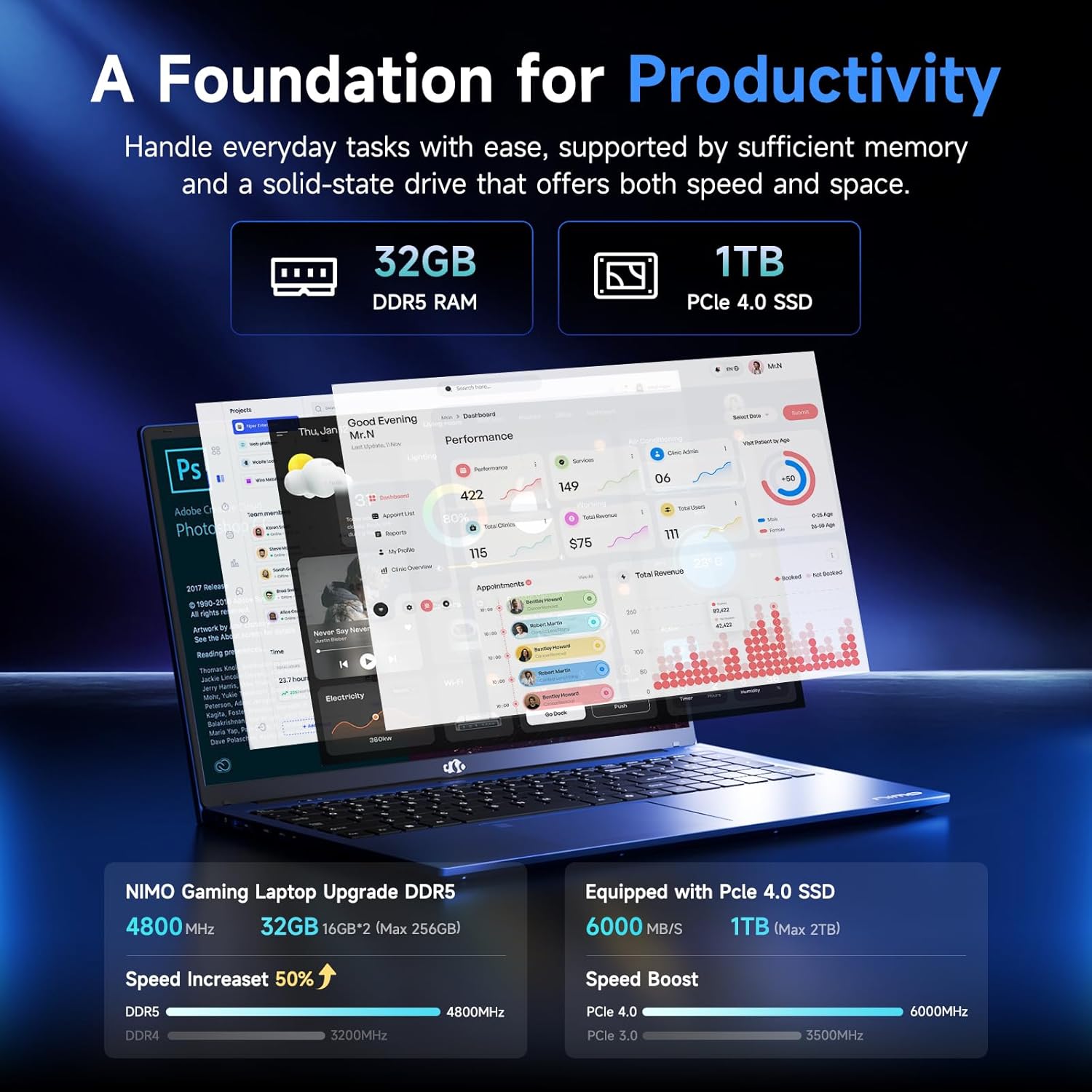
Figure 3.3: Illustration of the 32GB DDR5 RAM and 1TB PCIe 4.0 SSD, highlighting their speed and capacity.
3.2 Poorte en verbindings
The NIMO N159 laptop provides a variety of ports for connectivity:

Figuur 3.4: Gedetailleerd view of the laptop's ports and their functions.
- Linkerkant: Kensington Lock, Audio Jack, USB 3.2 Gen 1, USB 2.0, Micro SD Reader.
- Regterkant: Type-C Gen2 (Multifunction), USB 3.2 Gen 1, HDMI 2.0, Type-C Gen2 (Multifunction).
3.3 Krag en battery

Figure 3.5: Battery and charging capabilities of the NIMO N159 laptop.
The laptop is equipped with a 54Wh smart battery. It supports fast charging via the included 100W Type-C PD charger, providing approximately 5 hours of usage from a 1-hour charge.
3.4 Keyboard and Fingerprint Unlock
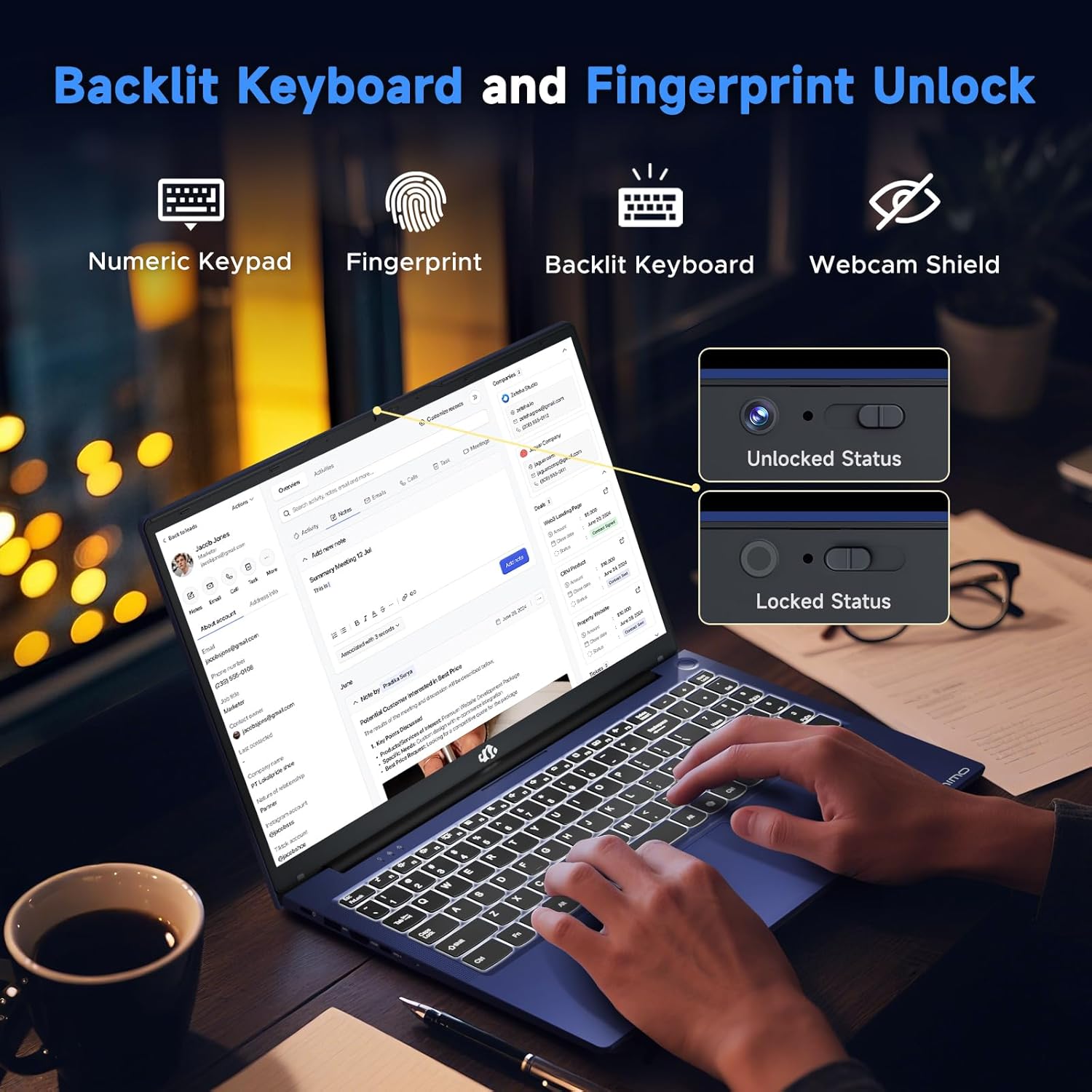
Figure 3.6: Features of the backlit keyboard, numeric keypad, fingerprint unlock, and webcam shield.
The keyboard features backlighting for use in low-light conditions and includes a numeric keypad. The fingerprint reader is integrated into the touchpad for secure and quick access.
3.5 Vertoon
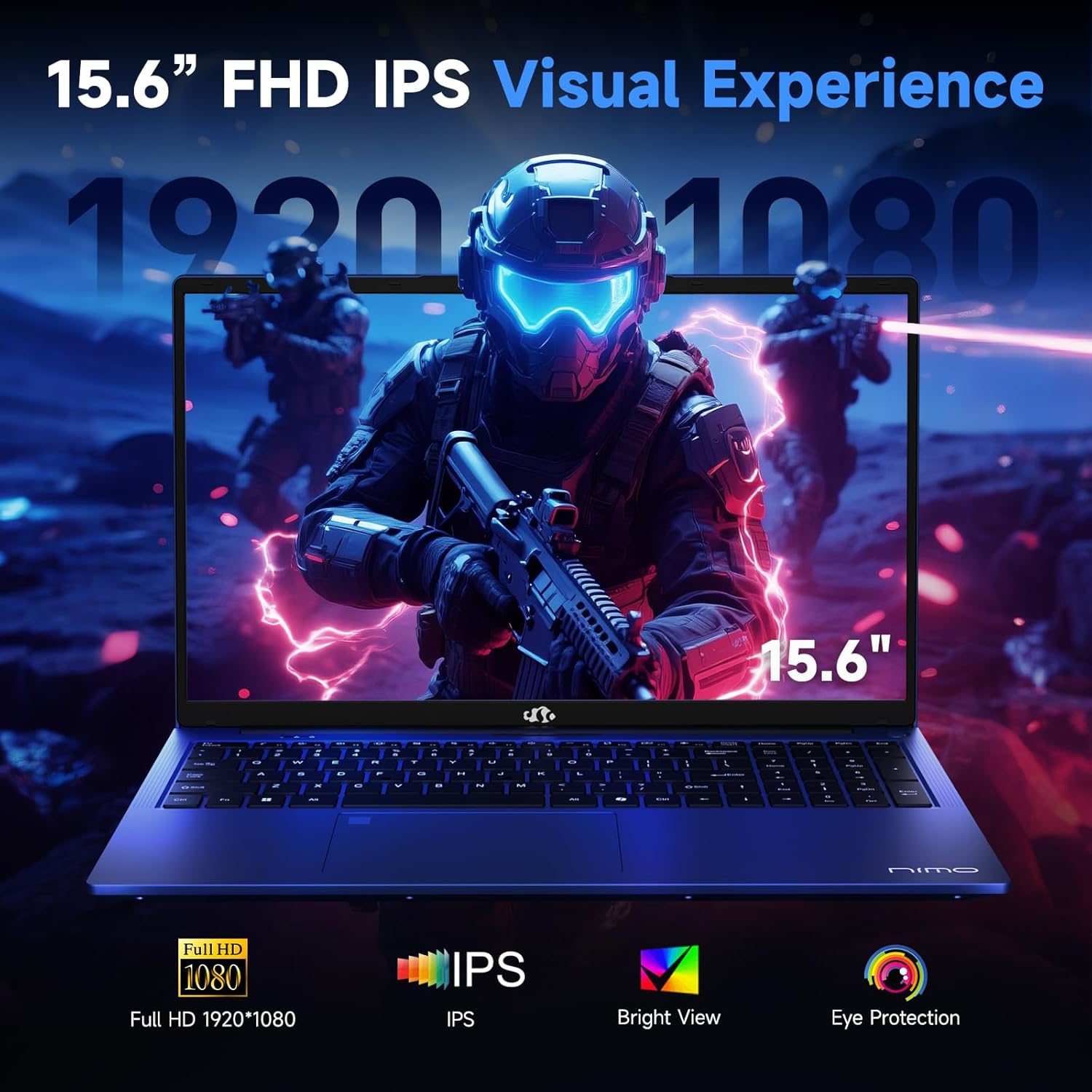
Figure 3.7: Visual representation of the 15.6-inch FHD IPS display quality.
The 15.6-inch Full HD (1920x1080) IPS Anti-Glare Display offers vibrant visuals and a wide viewing angle, suitable for various tasks from work to entertainment.
4. Opstelling
4.1 Aanvanklike aanskakeling
- Pak uit: Verwyder die skootrekenaar en alle bykomstighede versigtig uit die verpakking.
- Koppel krag: Plug the Type-C 100W PD Fast Charger into a power outlet and connect the Type-C connector to one of the multifunction Type-C ports on the laptop.
- Eerste selflaai: Maak die skootrekenaar se deksel oop en druk die aan/af-knoppie, wat gewoonlik regs bo op die sleutelbord of aan die kant geleë is.
- Windows-opstelling: Volg die instruksies op die skerm om die Windows 11 Home-opstelling te voltooi, insluitend taal, streek, netwerkverbinding en die skep van gebruikersrekeninge.
4.2 Koppel aan 'n netwerk
- Wi-Fi: During Windows setup or later, select your Wi-Fi network from the available list and enter the password.
- Wired (Optional): If an Ethernet adapter (not included) is used with a USB port, connect an Ethernet cable to the adapter and then to your router/modem.
5. Bedryfsinstruksies
5.1 Krag aan/af
- Krag aan: Druk die kragknoppie.
- Sluit af: Click the Start button in Windows, then Power > Shut down.
- Slaap: Maak die deksel toe of klik die Start-knoppie, dan Aan/Uit > Slaap.
5.2 Die gebruik van die sleutelbord
- Agterligbeheer: Press the designated function key (e.g., F9) to cycle through backlight brightness levels (off, low, medium, high).
- Funksie sleutels: Use the Fn key in combination with F1-F12 for various shortcuts (e.g., volume, brightness, Wi-Fi toggle).
5.3 Using the Touchpad and Fingerprint Sensor
- Raakblad: Ondersteun multi-aanraking gebare vir navigasie. Verwys na Windows-instellings vir aanpassing.
- Vingerafdruk ontsluit: Enroll your fingerprint through Windows Hello settings for secure login. Place your registered finger on the sensor located on the touchpad to unlock the device.
5.4 Eksterne Toestelle Koppel
Use the available USB-A, USB-C, and HDMI ports to connect peripherals such as external monitors, USB drives, mice, and keyboards. The Type-C Gen2 ports support multifunctionality, including data transfer and video output.
6. Onderhoud
6.1 Skoonmaak
- Skerm: Gebruik 'n sagte, pluisvrye lap liggies dampmet water of 'n skermreiniger afgespoel. Moenie vloeistof direk op die skerm spuit nie.
- Sleutelbord en Onderstel: Gebruik 'n sagte, droë lap. Vir hardnekkige vuiligheid, 'n effens droë lap.amp 'n Lap kan gebruik word, en verseker dat geen vloeistof in die openinge binnedring nie.
- Poorte: Gebruik saamgeperste lug om stof versigtig uit poorte te verwyder.
6.2 Batterysorg
- Vermy om die battery gereeld heeltemal te ontlaai.
- Store the laptop in a cool, dry place if not used for extended periods, with the battery charged to around 50-60%.
- Use only the provided NIMO charger or a compatible 100W Type-C PD charger.
6.3 Sagteware-opdaterings
Regularly check for and install Windows updates and driver updates to ensure optimal performance and security. These can typically be found in Windows Settings > Windows Update.
7. Probleemoplossing
This section addresses common issues you might encounter with your NIMO N159 laptop.
| Probleem | Moontlike oorsaak | Oplossing |
|---|---|---|
| Skootrekenaar skakel nie aan nie. | Low battery, power adapter issue, or hardware fault. | Ensure the charger is properly connected and the outlet is working. Try charging for at least 30 minutes. If the issue persists, contact support. |
| Die skerm is leeg of swart. | Display settings, external monitor conflict, or driver issue. | Press Fn + F7 (or relevant display toggle key) to cycle display modes. Disconnect any external monitors. Restart the laptop. |
| Wi-Fi-verbindingsprobleme. | Incorrect password, router issue, or Wi-Fi adapter disabled. | Verify Wi-Fi password. Restart your router. Check Windows settings to ensure Wi-Fi is enabled. |
| Die skootrekenaar loop stadig. | Too many applications open, low storage, or outdated drivers. | Close unnecessary applications. Check available storage. Update Windows and drivers. Run a malware scan. |
| Vingerafdruksensor werk nie. | Finger not clean, sensor dirty, or software issue. | Ensure your finger and the sensor are clean and dry. Re-enroll your fingerprint in Windows Hello settings. |
8. Spesifikasies
Detailed technical specifications for the NIMO N159 laptop:
| Kenmerk | Detail |
|---|---|
| Handelsmerk | NIMO |
| Model Naam | NIMO N159B |
| Skerm grootte | 15.6 duim |
| Skermresolusie | 1920 x 1080 piksels (FHD IPS) |
| Verwerker | AMD Ryzen 7 7735HS (8 kerns, tot 4.75 GHz) |
| RAM | 32 GB DDR5 (4800 MHz) |
| Hardeskyf | 1024 GB SSD (PCIe 4.0) |
| Grafiese medeverwerker | AMD Radeon 680M (Geïntegreerd) |
| Bedryfstelsel | Windows 11 Tuis |
| Draadlose tipe | 802.11a/b/g/n/ac |
| USB 2.0-poorte | 1 |
| USB 3.0-poorte | 4 |
| Tipe C-poorte | 2 (Gen2, Multifunction) |
| HDMI-poort | 1 2.0 (HDMI XNUMX) |
| Gemiddelde batterylewe | 5 Ure (54Wh) |
| Item gewig | 3.8 pond |
| Produk afmetings | 14.07 x 8.98 x 0.76 duim |
| Kleur | Blou |
| Spesiale kenmerke | Backlit Keyboard, Fingerprint Reader, HD Audio, Numeric Keypad |
9. Waarborg en Ondersteuning
NIMO is committed to providing quality products and customer satisfaction.
- Vervaardiger se waarborg: Your NIMO N159 laptop is covered by a 2-Year Manufacturer's Warranty from Nimo Direct Inc. This warranty covers defects in materials and workmanship under normal use.
- Retourbeleid: A 90-Day Hassle-Free Return Policy is offered by Nimo Direct Inc. from the date of purchase.
9.1 Kontak Ondersteuning
For technical assistance, warranty claims, or product-related inquiries, please contact NIMO customer support:
- E-pos: service@nimopc.com
- Aanlyn: Visit the official NIMO website for further support options and FAQs.
Our dedicated support team is available to assist you with any issues or replacements.