
Inleiding
Thank you for choosing the Doohoeek Bluetooth Keyboard Case. This manual provides essential information for setting up, operating, and maintaining your keyboard case. Please read it carefully before use.
Verenigbaarheid
This keyboard case is specifically designed for the Samsung Galaxy Tab S11 11-inch 2025 (model numbers: SM-X730/SM-X736B). To verify your tablet model, navigate to "Settings" > "About Tablet" on your device.

Image: The keyboard case shown with a Samsung Galaxy Tab S11, illustrating compatibility.
Pakketinhoud
- Keyboard Case x1
- USB-C kabel x1
- Gebruikershandleiding x1
Opstelling
Laai die sleutelbord
Before initial use, fully charge the keyboard. Connect the provided USB-C cable to the keyboard's charging port and a power source. The keyboard has a 650mAh battery capacity, requiring approximately 2-3 hours for a full charge. A full charge provides up to 300 hours of standby time without lighting.

Image: The keyboard case connected via USB-C cable for charging, highlighting battery life features.
Attaching Your Tablet
Carefully place your Samsung Galaxy Tab S11 11-inch 2025 into the case. Ensure all cutouts align with the tablet's ports, buttons, and camera. The case provides secure, full-body protection.

Beeld: Gedetailleerd view of the case's precise cutouts for ports and a dedicated pen slot, along with an illustration of scissor-switch keys.
Bluetooth-koppeling
- Maak seker dat die sleutelbord gelaai en aangeskakel is.
- On your Samsung Galaxy Tab S11, go to "Settings" > "Connected devices" > "Bluetooth" and turn Bluetooth on.
- Op die sleutelbord, druk en hou die "Fn" sleutel en die "C" key simultaneously for 3 seconds. The Bluetooth indicator light on the keyboard will begin to flash, indicating it is in pairing mode.
- On your tablet, select the keyboard (e.g., "Bluetooth Keyboard") from the list of available devices.
- Follow any on-screen prompts to complete the pairing process. The indicator light on the keyboard will stop flashing once successfully paired.
Bedryfsinstruksies
Gebruik die agtergrondverligte sleutelbord
The keyboard features 7 customizable backlight colors and 3 brightness levels for comfortable typing in various lighting conditions.
- To change backlight color: Press the "RGB" key (often combined with a function key).
- To adjust brightness: Press the "Fn" sleutel en die "Light Bulb" key (usually located on the top row) repeatedly to cycle through brightness levels or turn off the backlight.

Image: The keyboard illuminated with various backlight colors, demonstrating the 7-color lighting and 3 brightness levels.
Gebruik van die Multi-Touch-trackpad
The responsive trackpad supports multi-finger gestures for precise cursor control and enhanced productivity.
- Basiese gebare: Refer to your tablet's operating system for specific multi-touch gesture functions.
- Palm Verwerping: To prevent accidental touches while typing, you can lock the trackpad. Press and hold the "Fn" sleutel en druk dan die "Space Bar" to toggle the trackpad lock on or off.
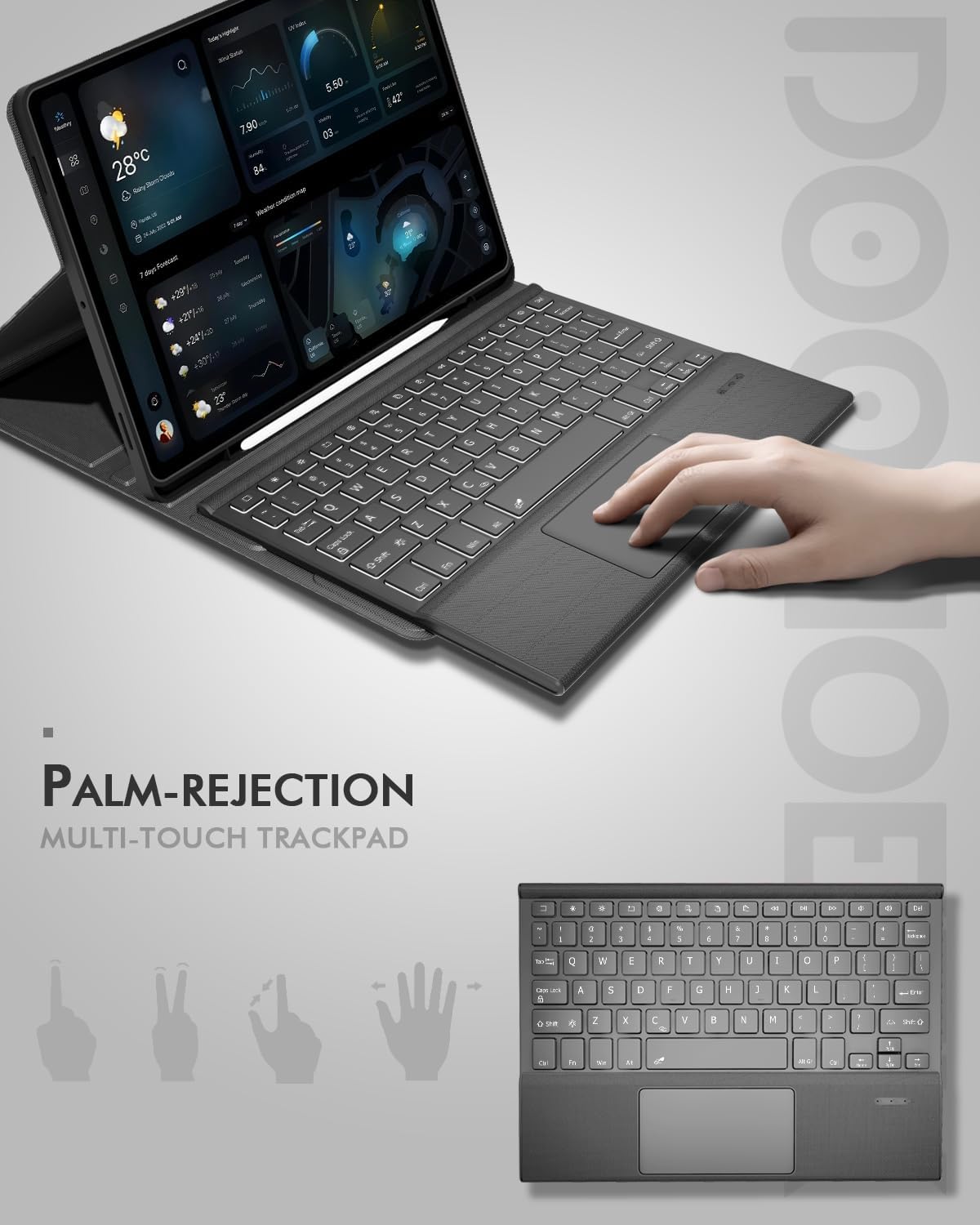
Image: A hand demonstrating use of the multi-touch trackpad, highlighting the palm-rejection feature.
Adjusting the Kickstand and Removing the Keyboard
The case features a 3-angle kickstand for comfortable viewing and typing. The keyboard is magnetically attached and can be easily removed for reading, sketching, or media consumption.
- Kickstand Adjustment: Fold the back cover to create a stable stand. Adjust the angle by positioning the tablet in one of the three grooves.
- Keyboard Removal: Gently detach the keyboard from its magnetic connection to the case.

Beeld: 'n Syprofile of the keyboard case illustrating the three adjustable viewing angles of the kickstand.
Onderhoud
Skoonmaak
- Wipe the case exterior with a soft, damp lap. Vermy harde chemikalieë of skuurmiddels.
- For the keyboard, use a soft, dry cloth. A can of compressed air can be used to remove debris from between keys.
Battery sorg
- Vermy om die battery gereeld heeltemal te ontlaai.
- As jy die sleutelbord vir 'n lang tydperk bêre, laai dit tot ongeveer 50% en bêre dit op 'n koel, droë plek.
Probleemoplossing
Keyboard Not Connecting/Responding
- Maak seker dat die sleutelbord aangeskakel en volledig gelaai is.
- Verify Bluetooth is enabled on your tablet and the keyboard is in pairing mode (flashing indicator).
- Probeer om die sleutelbord te ontkoppel en weer te koppel vanaf jou tablet se Bluetooth-instellings.
- Sleutelbordterugstelling: If issues persist, you can reset the keyboard by pressing down the first and last key at the top row of the keyboard simultaneously until all indicators flash. Then attempt to re-pair.
Agterlig werk nie
- Maak seker dat die sleutelbord voldoende batterylading het.
- Druk die "Fn" + "Light Bulb" keys to cycle through brightness levels.
Trackpad Not Responding
- Check if the trackpad is locked. Press "Fn" + "Space Bar" to toggle the lock.
- Maak seker dat die sleutelbord behoorlik via Bluetooth gekoppel is.
Spesifikasies
| Handelsmerk | Doohoeek |
| Versoenbare toestelle | Samsung Galaxy Tab S11 11 inch 2025 (SM-X730/SM-X736B) |
| Verbindingstegnologie | Bluetooth |
| Sleutelborduitleg | QWERTY |
| Spesiale kenmerke | Backlit, Integrated Stand, Rechargeable |
| Materiaal | Fabric (Twill) |
| Kragbron | Battery-aangedrewe (1 9V battery ingesluit) |
| Battery kapasiteit | 650mAh |
| Laai tyd | 2-3 uur |
| Bystandtyd | 300 hours (without lighting) |
| Item gewig | 1.74 pond |
| Pakket afmetings | 11.26 x 8.15 x 1.34 duim |
Waarborg en Ondersteuning
For warranty information or technical support, please refer to the documentation included with your purchase or contact Doohoeek customer service directly. Contact details can typically be found on the product packaging or the official Doohoeek webwebwerf.