
1. Inleiding
The HAMCUBE Mini CW Trainer is a portable device designed for learning and practicing Morse code (CW). It features a compact design, a built-in speaker for standalone practice, and various interfaces for external connections. This manual provides essential information for setting up, operating, and maintaining your CW trainer.

Image 1.1: The HAMCUBE Mini CW Trainer, a portable Morse code training device.
2. Pakketinhoud
Kontroleer asseblief die inhoud van die pakket na uitpak om seker te maak dat alle items teenwoordig is:
- 1 x HAMCUBE Mini CW Trainer Unit
- 1 x USB Cable (for charging and data transfer)
3. Produk verbyview
Familiarize yourself with the various ports and controls of the HAMCUBE Mini CW Trainer.

Beeld 3.1: Bo view of the HAMCUBE Mini CW Trainer with labeled ports.
- Charging / Data Interface: USB-C port for charging the internal battery and connecting to a computer for data transfer.
- Key / Keyboard Interface: Connect an external CW key or keyboard for input.
- Earphone / External Speaker Port: Connect headphones or an external speaker for audio output.
- FUNC Interface: A multi-function interface for advanced features or external device control.
- Multifunction Selector Switch: Located on the side, used for power on/off and navigation.
- Herstel-knoppie: A small recessed button for resetting the device.
4. Opstelling
4.1 Laai die toestel
Before first use, fully charge the HAMCUBE Mini CW Trainer. Connect the provided USB cable to the Charging / Data Interface on the device and to a standard USB power adapter (not included) or a computer USB port. The charging indicator will show the charging status.
4.2 Aan-/afskakel
To power on the device, locate the multifunction selector switch on the side. Press down and hold the switch for 3-5 seconds. A short press will not turn on the unit. To power off, repeat the same action.
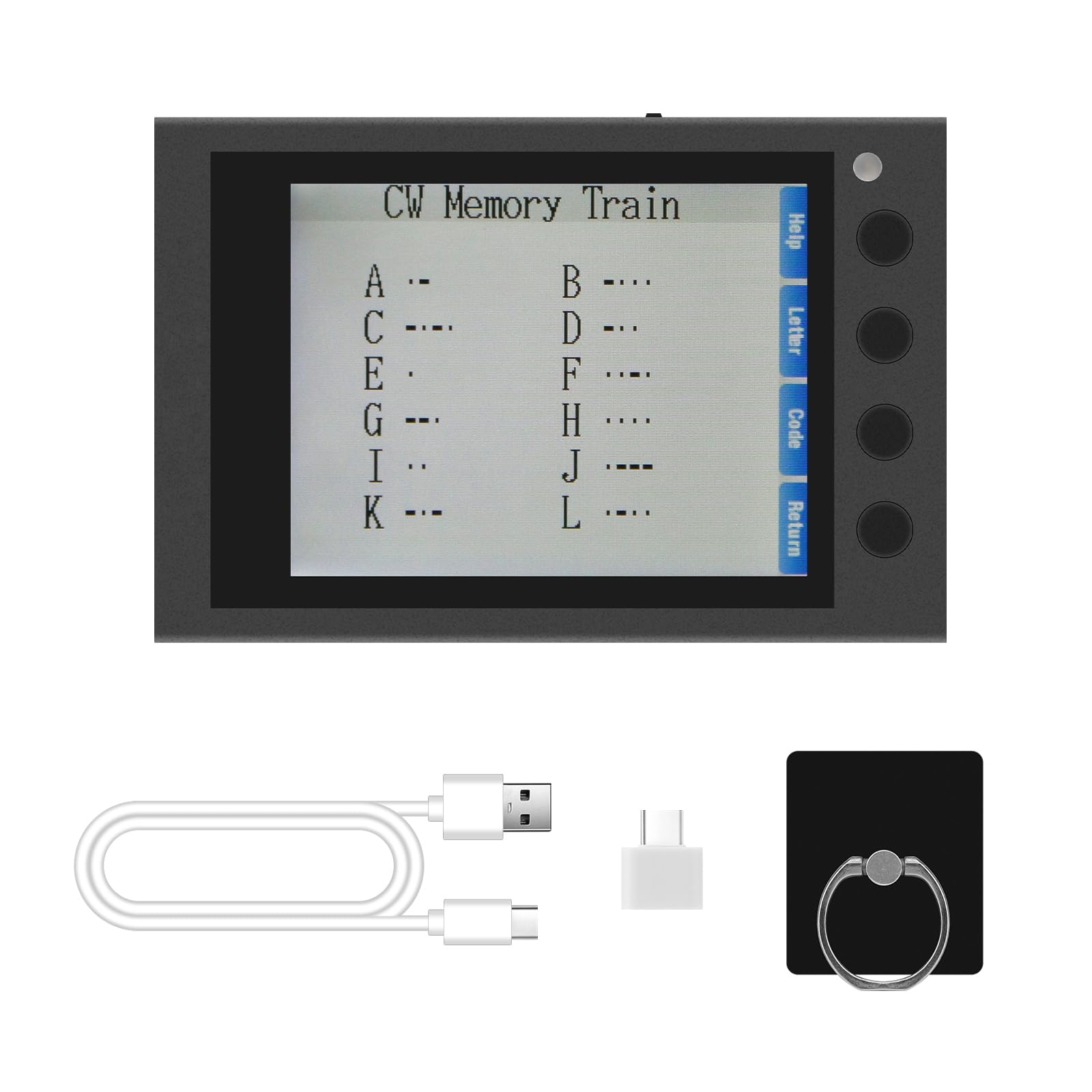
Image 4.1: Instructions for powering on the device.
4.3 Aansluiting van bykomstighede
- CW-sleutel: Connect your external CW key to the 'KEY' interface.
- Headphones/Speaker: For private practice or louder audio, connect headphones or an external speaker to the 'PHONE' interface.
5. Bedryfsinstruksies
5.1 Navigasie en Kieslys
The device features a clear screen and side buttons for navigation. Use the buttons adjacent to the screen to select options such as 'Help', 'Letter', 'Code', and 'Return' as displayed on the interface.

Image 5.1: Device screen showing the main menu and Morse code characters.
5.2 CW Training Modes
The HAMCUBE Mini CW Trainer offers various modes to assist in learning and practicing Morse code:
- Character Learning Mode: Displays Morse code for individual letters and numbers.
- Speed Training Mode: Practice receiving Morse code at different speeds (adjustable from 10 to 50 WPM).
- Sending Practice Mode: Connect an external key to practice sending Morse code.
- Listening Recognition Mode: Improves your ability to recognize Morse code by ear.
5.3 Custom Character Storage and One-Key Transmitting
The device includes 8 groups of custom character storage units. Each unit can store up to 60 English characters. This feature allows for one-key transmitting of frequently used phrases or call signs. Refer to the on-screen 'Help' or specific menu options for instructions on programming and recalling these stored messages.
5.4 PC & Mobile Connection
The USB-C port can be used to connect the trainer to a computer or mobile device. This enables potential data transfer, firmware updates, or integration with external software for enhanced training experiences. Specific software or drivers may be required, which can typically be found on the manufacturer's support webwebwerf.

Image 5.2: The trainer can connect to PCs and mobile devices.
6. Onderhoud
- Skoonmaak: Gebruik 'n sagte, droë lap om die toestel skoon te maak. Vermy die gebruik van vloeibare skoonmaakmiddels of skuurmiddels.
- Berging: Store the trainer in a cool, dry place away from direct sunlight and extreme temperatures.
- Batterysorg: Om die batterylewe te verleng, vermy om die toestel gereeld heeltemal te ontlaai. Laai dit gereeld, selfs al word dit nie vir lang tye gebruik nie.
- Waterweerstand: The device is not water-resistant. Avoid exposure to moisture or liquids.
7. Probleemoplossing
- Toestel skakel nie aan nie:
- Ensure the device is sufficiently charged. Connect it to a power source using the provided USB cable.
- Confirm you are pressing and holding the multifunction selector switch for 3-5 seconds. A short press will not activate the unit.
- If the issue persists, try performing a reset by gently pressing the recessed reset button with a thin object (e.g., a paperclip).
- Geen oudio-uitvoer nie:
- Check if headphones or an external speaker are properly connected to the 'PHONE' port.
- Adjust the volume settings on the device.
- Difficulty understanding instructions:
- The device interface is primarily in English. If you encounter difficulties, refer to the 'Help' section on the device screen or consult online resources.
8. Spesifikasies
| Kenmerk | Detail |
|---|---|
| Handelsmerk | hamgeek |
| Model | Mini CW Trainer |
| Kleur | Swart |
| Spesiale kenmerke | CW Full-Process Assisted Learning, Custom Character Storage, One-Key Transmitting |
| Verbindingsprotokol | Morsekode |
| Battery | Ingeboude 2500mAh herlaaibare battery |
| Ingesluit komponente | 1 x USB-kabel |
| Afmetings (ongeveer) | 8.8 cm (L) x 5.8 cm (B) x 1.7 cm (H) / 3.46 duim (L) x 2.28 duim (B) x 0.66 duim (H) |
| Waterweerstandvlak | Nie waterbestand nie |

Image 8.1: Approximate dimensions of the device.
9. Waarborg en Ondersteuning
For warranty information and technical support, please refer to the official hamgeek webwebwerf of kontak u kleinhandelaar. Bewaar u aankoopbewys as bewys van aankoop vir enige waarborgeise.


