
1. Inleiding
The PEICHENG Q2SPRO is a 7-inch tablet designed for a smooth and responsive user experience, powered by the Android 15.0 operating system. It features an IPS display, ample memory and storage, and dual cameras, making it suitable for various daily tasks from browsing to media consumption. This manual provides essential information for setting up, operating, maintaining, and troubleshooting your device.
2. Pakketinhoud
Kontroleer asseblief die inhoud van die pakket na uitpak. Indien enige items ontbreek of beskadig is, kontak kliëntediens.
- PEICHENG Q2SPRO 7-inch Android 15.0 Tablet
- Protective Case with Foldable Stand
- USB-C-laaikabel
- Kragadapter (kan per streek verskil)
- Gebruikershandleiding (hierdie dokument)
3. Toesteluitleg
Familiarize yourself with the physical components of your PEICHENG Q2SPRO tablet.
This image shows the PEICHENG Q2SPRO tablet from both the front, displaying its screen, and the rear, highlighting the camera and overall design.

'n Kant view of the PEICHENG Q2SPRO tablet, illustrating the placement of its various ports and buttons, such as the USB-C port, power button, and volume controls.
- Voorste kamera: Located above the screen.
- Agterste kamera: Geleë op die agterpaneel.
- Kragknoppie: Typically on the side, used to turn the device on/off or wake/sleep.
- Volume knoppies: Pas klankvlakke aan.
- USB-C-poort: Vir laai en data-oordrag.
- Spreker: Vir oudio-uitvoer.
- MicroSD -kaartgleuf: Vir uitbreibare berging.
4. Opstelling
4.1 Aanvanklike laai
Before first use, fully charge your tablet. Connect the USB-C cable to the tablet's charging port and the other end to the power adapter. Plug the adapter into a wall outlet. The charging indicator will show the charging status.
4.2 Krag aan/af
- Om aan te skakel: Press and hold the Power button until the PEICHENG logo appears on the screen.
- Om af te skakel: Press and hold the Power button until the power options appear, then select "Power Off."
- Om te slaap/wakker te word: Druk kortliks die Power-knoppie.
4.3 Aanvanklike Opstellingsassistent
Wanneer jy dit vir die eerste keer aanskakel, sal die Android 15.0-opstellingsassistent jou deur die noodsaaklike konfigurasies lei:
- Taalkeuse: Kies die taal wat u verkies.
- Wi-Fi-verbinding: Connect to a wireless network to access the internet. The tablet supports WiFi6 (2.4G+5G).
- Google-rekening: Sign in with your Google account or create a new one to access Google services like the Play Store, Gmail, and Google Drive.
- Datum en tyd: Stel die korrekte datum en tyd in.
- Sekuriteit: Set up a screen lock (PIN, pattern, or password) for device security.

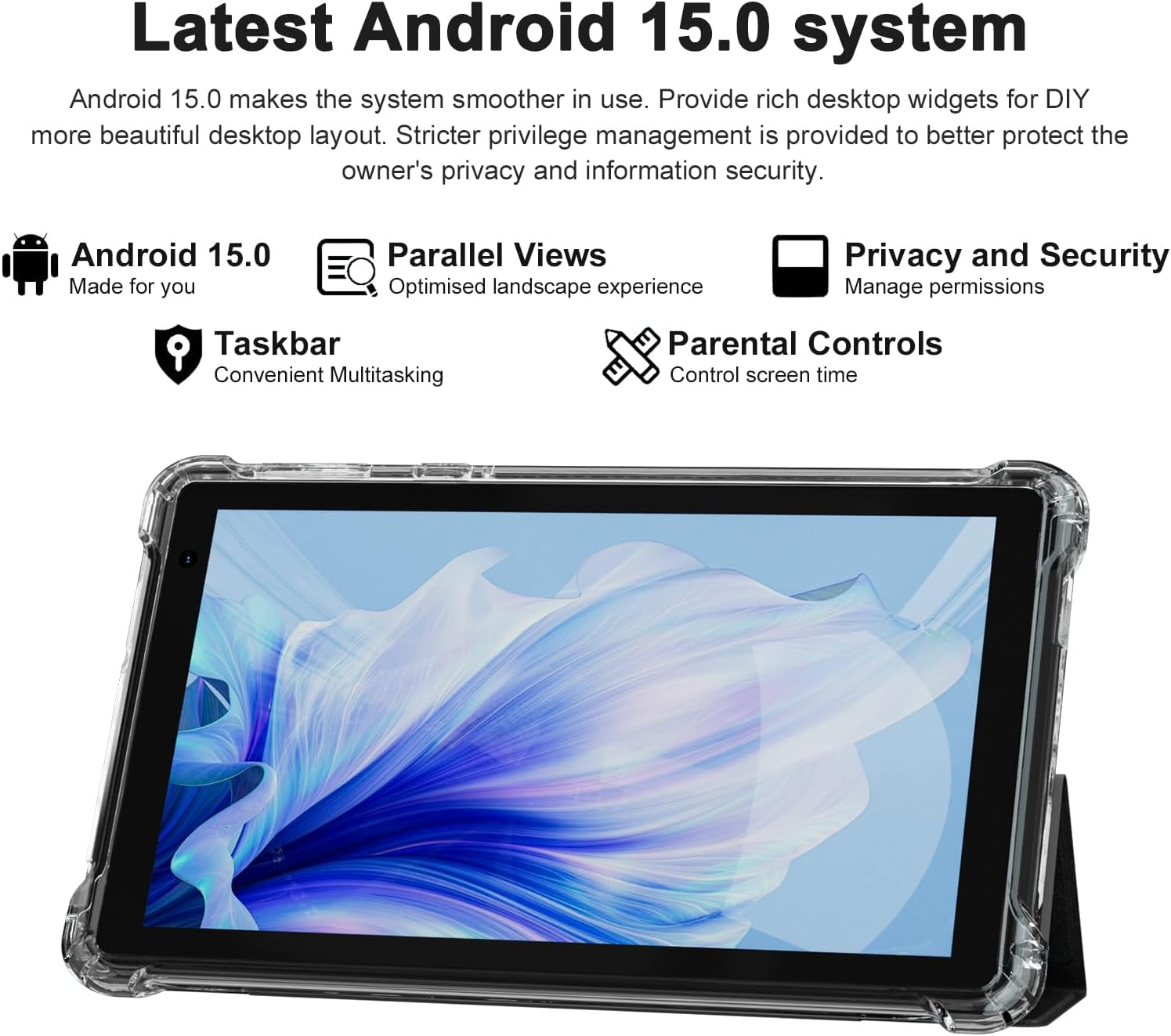
The PEICHENG Q2SPRO tablet screen displaying the Android 15.0 operating system interface, highlighting features like desktop widgets and privacy controls.
5. Bedryfsinstruksies
5.1 Basiese navigasie
- Raakskerm: Tap, swipe, pinch-to-zoom for interaction.
- Tuisskerm: Access apps, widgets, and notifications. Android 15.0 offers rich desktop widgets for customization.
- Kennisgewingspaneel: Swiep af vanaf die bokant van die skerm na view kennisgewings en vinnige instellings.
- Taakbalk: Android 15.0 includes a taskbar for convenient multitasking and optimized landscape mode.
5.2 Wi-Fi-verbinding
- Gaan na Instellings > Netwerk en internet > Internet.
- Skakel Wi-Fi aan.
- Kies jou verlangde Wi-Fi-netwerk uit die lys.
- Voer die wagwoord in indien gevra, en tik dan Koppel.
5.3 Bluetooth -koppeling
- Gaan na Instellings > Gekoppelde toestelle > Verbindingsvoorkeure > Bluetooth.
- Skakel Bluetooth aan.
- Ensure the device you want to pair is in pairing mode.
- Select the device from the list of available devices and follow on-screen instructions to complete pairing.
5.4 Kameragebruik
The tablet features a 2.0MP front camera and a 5.0MP rear camera.
- Maak die oop Kamera aansoek.
- Tik die kamera-ikoon om tussen die voorste en agterste kameras te wissel.
- Tik die sluiterknoppie om 'n foto te neem of video-opname te begin/stop.

This image illustrates the 5MP rear camera and 2MP front camera specifications of the PEICHENG Q2SPRO tablet, alongside example photos taken with the device.
5.5 App-installasie
Kry toegang tot miljoene toepassings deur die Google Play Winkel.
- Maak die oop Play Winkel app.
- Soek vir the desired app.
- Tik Installeer en volg die instruksies op die skerm.
5.6 Protective Case and Stand
The included transparent, shock-absorbing protective case helps protect your tablet. It features a built-in foldable stand, allowing you to prop the tablet at a comfortable viewing angle for hands-free use.

The PEICHENG Q2SPRO tablet enclosed in its transparent protective case, demonstrating the integrated foldable stand propping the device at a comfortable viewing hoek.
6. Onderhoud
6.1 Skoonmaak van die tablet
- Gebruik 'n sagte, pluisvrye lap om die skerm en liggaam skoon te maak.
- Do not use liquid cleaners or aerosols directly on the tablet.
- Vir hardnekkige merke, effens dampMaak die lap skoon met water of 'n skermveilige skoonmaakmiddel.
6.2 Sagteware-opdaterings
Kontroleer gereeld vir sagteware-opdaterings en installeer dit om optimale werkverrigting, sekuriteit en toegang tot nuwe funksies te verseker. Gaan na Instellings > Stelsel > Stelselopdatering.
6.3 Batterysorg
- Vermy uiterste temperature, wat die batterylewe kan verminder.
- Moenie die battery gereeld heeltemal laat leegloop nie.
- Use the provided charger for optimal charging.
- The tablet emphasizes low power consumption for better battery efficiency.
7. Probleemoplossing
Hierdie afdeling bespreek algemene probleme wat jy met jou tablet mag teëkom.
| Probleem | Moontlike oorsaak/oplossing |
|---|---|
| Tablet skakel nie aan nie | Maak seker dat die battery gelaai is. Koppel aan die laaier en wag 'n paar minute voordat jy weer probeer aanskakel. |
| Tablet freezes or is unresponsive | Press and hold the Power button for about 10-15 seconds to force a restart. Close unnecessary background applications. |
| Wi-Fi-verbindingskwessies | Ensure Wi-Fi is enabled. Restart your router and the tablet. Check if the Wi-Fi password is correct. Try connecting to a different network if available. |
| Battery raak vinnig leeg | Reduce screen brightness. Close unused apps. Disable Wi-Fi/Bluetooth when not in use. Check for power-intensive apps in battery settings. |
| Tablet word oorverhit | Avoid using the tablet in direct sunlight or hot environments. Close demanding applications. Allow the tablet to cool down before continued use. |
| Stadige prestasie | Clear cache and data of frequently used apps. Uninstall unused apps. Ensure sufficient free storage space. Restart the tablet regularly. |
8. Spesifikasies
Technical specifications for the PEICHENG Q2SPRO tablet.
| Kenmerk | Detail |
|---|---|
| Handelsmerk | PEICHENG |
| Model Naam | Q2SPRO |
| Bedryfstelsel | Android 15.0 |
| Skerm grootte | 7 duim |
| Tipe vertoon | IPS LED Touchscreen |
| Vertoon resolusie | 1024 x 600 piksels |
| RAM geheue | 8GB (3GB installed + 5GB expandable) |
| Geheue berging kapasiteit | 32 GB (uitbreidbaar tot 1 TB via MicroSD) |
| Verwerker handelsmerk | Rotsskyfie |
| Agterste kamera | 5.0MP |
| Voorste kamera | 2.0MP |
| Video-opname-resolusie | HD 720p |
| Draadlose Tegnologie | Wi-Fi (802.11ax, 802.11g, 2.4G+5G) |
| Bluetooth | Bluetooth 5.0 |
| Verbindingstegnologie | USB 3.0 Tipe C |
| Battery sel tipe | Litium polimeer |
| Battery Energie-inhoud | 3000 miljoenampere uur (mAh) |
| Item gewig | 0.49 kilogram |
| Itemafmetings (L x B x Dikte) | 8"L x 5"B x 0.4"D |
9. Waarborginligting
The PEICHENG Q2SPRO tablet comes with a 1-jaar beperkte waarborg from the date of purchase. This warranty covers manufacturing defects and malfunctions under normal use. It does not cover damage caused by misuse, accidents, unauthorized repairs, or normal wear and tear. Please retain your proof of purchase for warranty claims.
10. Kliëntediens
For further assistance, technical support, or warranty inquiries, please refer to the contact information provided with your product packaging or visit the official PEICHENG website. When contacting support, please have your model number (Q2SPRO) and proof of purchase readily available.