
1. Inleiding
This manual provides detailed instructions for setting up, operating, maintaining, and troubleshooting your AWOW AK10 Pro Mini PC. Please read this manual thoroughly before using the device to ensure proper functionality and to maximize your user experience.
2. Wat is in die boks
Nadat u die pakkie oopgemaak het, maak seker dat al die items wat hieronder gelys word, teenwoordig en in 'n goeie toestand is:
- AWOW AK10 Pro Mini PC
- Kragadapter
- HDMI kabel
- Screws for internal drive installation
- Gebruikershandleiding (hierdie dokument)
3. Produk verbyview
The AWOW AK10 Pro is a compact and efficient mini PC designed for various applications, including home, office, and educational use. It features an Intel N100 processor, 8GB RAM, and a 256GB PCIe 3.0 SSD, supporting 4K display output and multiple connectivity options.
3.1 Sleutelkenmerke
- Verwerker: Intel N100 Quad-Core (up to 3.4GHz)
- Geheue: 8GB DDR4 RAM (3200MHz)
- Berging: 256GB PCIe 3.0 SSD (expandable up to 4TB with M.2 SSD + 2.5" SATA drive)
- Grafika: Intel UHD Graphics with 4K@60Hz dual display support (HDMI 2.0, DisplayPort 1.4)
- Verbinding: Dual-band 802.11ac WiFi (2.4GHz/5GHz), Bluetooth 5.2, Gigabit Ethernet
- Poorte: USB 3.2 x2, USB 2.0 x2, HDMI, DisplayPort, RJ45 Gigabit Ethernet, 2-in-1 Audio Jack, DC 12V Power Input, CMOS CLR button
3.2 Komponentidentifikasie
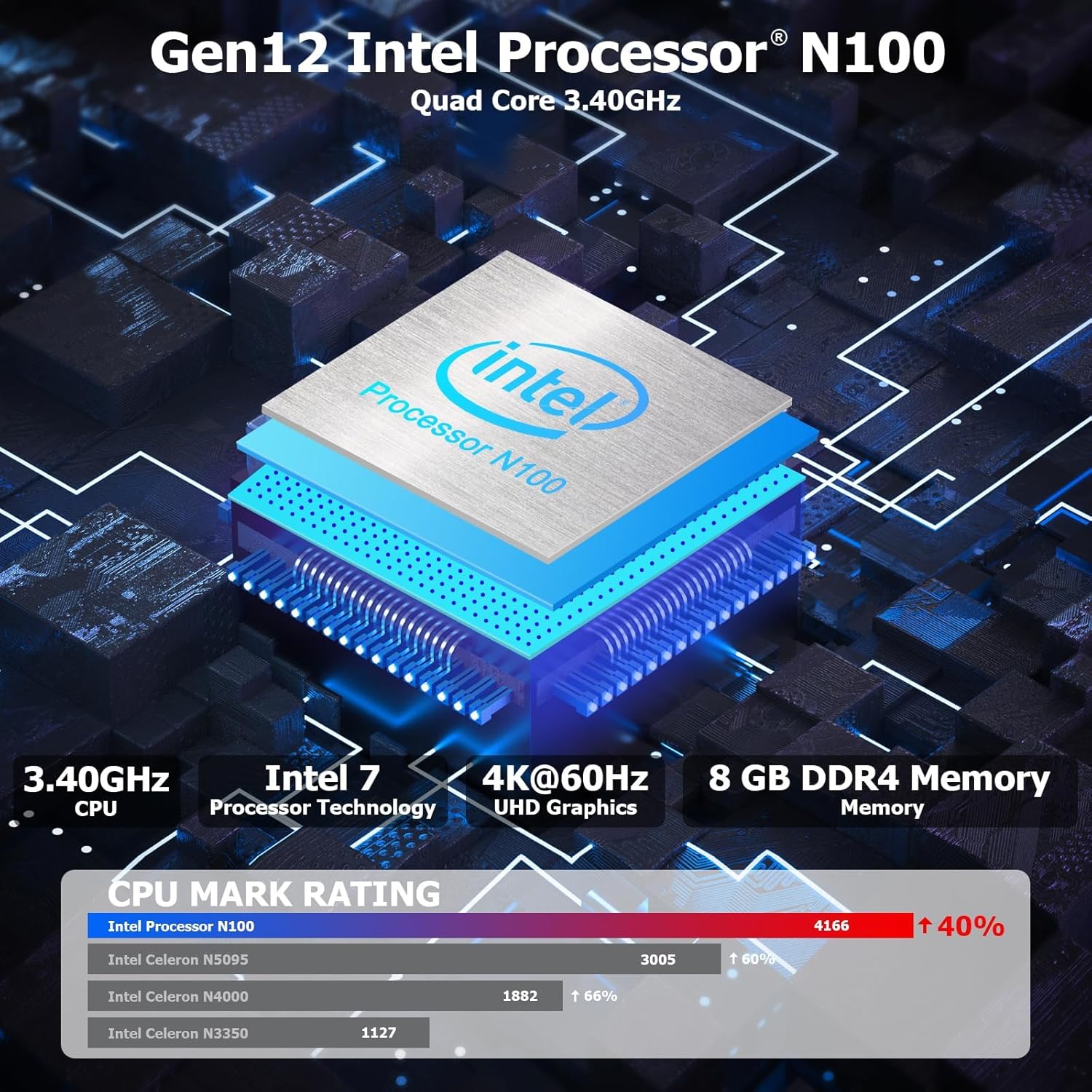
Figuur 3.1: Intern view highlighting the Intel N100 processor, 4K@60Hz capability, and 8GB DDR4 memory, along with a CPU Mark Rating comparison.
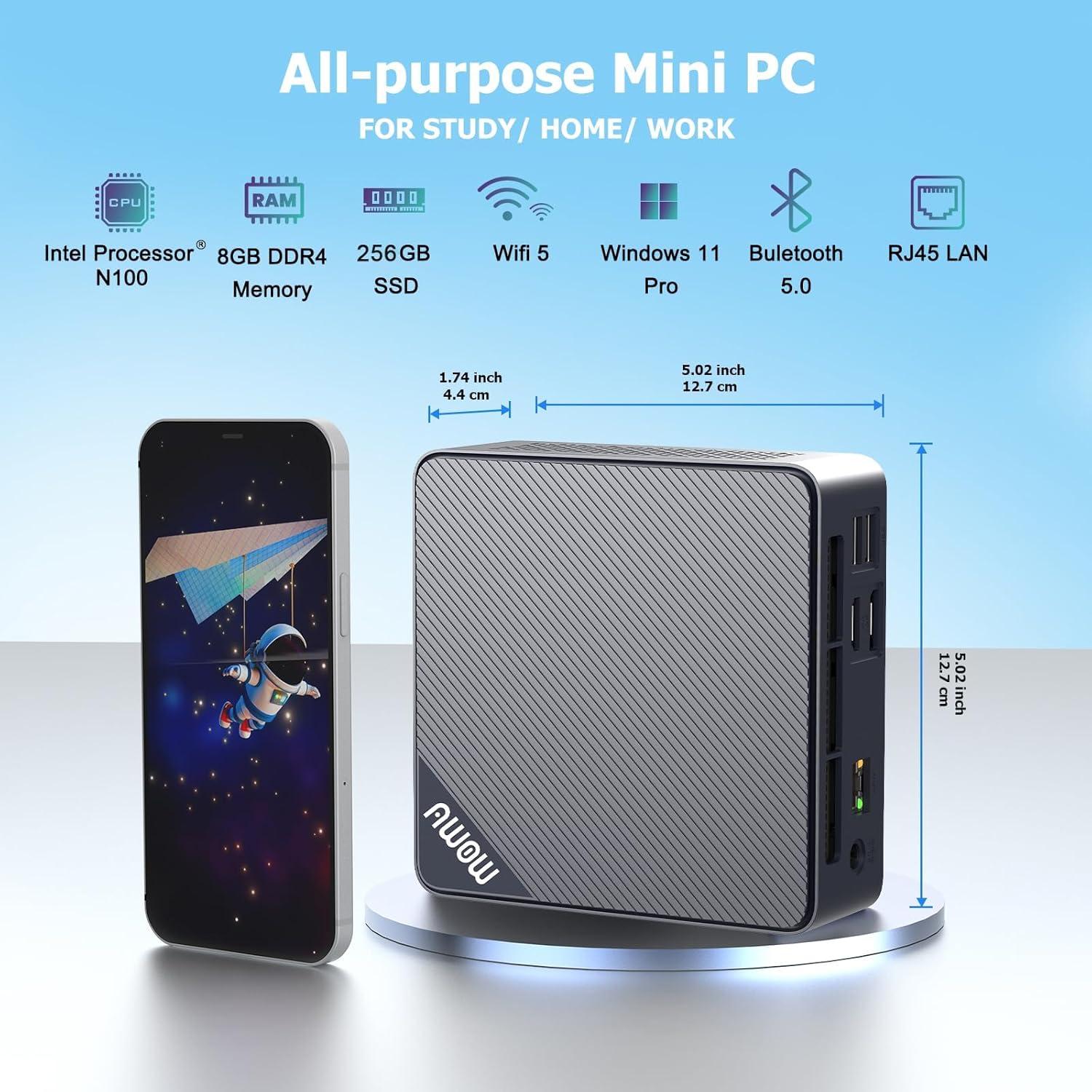
Figuur 3.2: Voor- en sykant view of the AWOW Mini PC, illustrating its compact dimensions (4.9 x 4.9 x 1.7 inches) and key features like Intel N100 CPU, 8GB DDR4, 256GB SSD, WiFi 5, and Bluetooth 5.0.

Figuur 3.3: Detailed diagram of the AWOW Mini PC's ports, including USB 3.2 x2, 2-in-1 Audio, Power Button, CMOS CLR, DC 12V, RJ45, HDMI, DisplayPort, and USB 2.0 x2.
4. Opstelinstruksies
Follow these steps to set up your AWOW AK10 Pro Mini PC:
- Koppel aan krag: Insert the DC 12V power adapter into the power input port on the mini PC, then plug the adapter into a power outlet.
- Koppel aan skerm: Connect your monitor(s) to the mini PC using either the HDMI 2.0 port or the DisplayPort 1.4. For dual display setup, use both ports.
- Koppel randapparatuur: Plug in your USB keyboard and mouse into the available USB 2.0 or USB 3.2 ports.
- Netwerkverbinding (Opsioneel): For a wired internet connection, connect an Ethernet cable from your router or modem to the RJ45 Gigabit Ethernet port. For wireless, ensure your WiFi network is available.
- Krag aan: Press the power button located on the front of the mini PC. The power indicator light will illuminate.
- Aanvanklike opstelling: Follow the on-screen instructions to complete the operating system setup (e.g., Windows 11 initial configuration).
5. Bedryfsinstruksies
5.1 Basiese werking
- Krag aan/af: Press the power button to turn on the device. To shut down, use the operating system's shutdown function. A short press on the power button can also put the PC to sleep.
- Herbegin: Gebruik die bedryfstelsel se herbeginfunksie.
- BIOS-toegang: Om die BIOS-instellings te betree, druk die DEL key repeatedly during startup. To select a boot device, press F7 tydens die aanvang.
5.2 Dubbele skermopstelling
The AWOW AK10 Pro supports dual 4K@60Hz displays via its HDMI 2.0 and DisplayPort 1.4 outputs. After connecting both monitors, you can configure display settings within your operating system (e.g., Windows Display Settings) to extend or duplicate your desktop.

Figuur 5.1: Example of a dual monitor setup, demonstrating extended desktop functionality for increased productivity.
5.3 Stooruitbreiding
The mini PC's storage can be expanded. It supports an additional 2.5-inch SATA SSD/HDD (up to 2TB) and an M.2 SSD (up to 2TB). To install an additional drive:
- Ensure the mini PC is powered off and disconnected from the power source.
- Carefully open the chassis. Refer to the product's official support resources or contact AWOW service for detailed instructions on opening the case to avoid damage.
- Install the 2.5-inch SATA drive or M.2 SSD into the designated slot. Use the provided screws for secure installation.
- Close the chassis and reconnect power. The new drive may need to be initialized and formatted within the operating system's Disk Management utility before use.
6. Onderhoud
- Skoonmaak: Regularly clean the exterior of the mini PC with a soft, dry cloth. Use compressed air to clear dust from ventilation grilles to ensure proper airflow and prevent overheating. Do not use liquid cleaners directly on the device.
- Sagteware-opdaterings: Hou jou bedryfstelsel en drywers opgedateer om optimale werkverrigting en sekuriteit te verseker.
- Bergingbestuur: Kontroleer gereeld jou stoorplekgebruik en verwyder onnodige files om stelselspoed te handhaaf.
- Omgewingstoestande: Operate the mini PC in a well-ventilated area, away from direct sunlight, heat sources, and excessive moisture.
7. Probleemoplossing
If you encounter issues with your AWOW AK10 Pro Mini PC, refer to the following common problems and solutions:
- No Power / System Does Not Boot:
- Maak seker dat die kragadapter stewig aan beide die mini-rekenaar en 'n werkende kragaansluiting gekoppel is.
- Verifieer dat die kragaansluiting funksioneel is deur 'n ander toestel in te prop.
- If the issue persists, try pressing the CMOS CLR button (if available and accessible) to reset BIOS settings.
- Geen vertoning op monitor nie:
- Check that the HDMI or DisplayPort cable is securely connected to both the mini PC and the monitor.
- Maak seker dat die monitor aangeskakel is en op die korrekte invoerbron (HDMI/DP) gestel is.
- Test with a different cable or monitor if possible.
- Noisy Fan:
- Ensure the mini PC is placed in a well-ventilated area and that the air vents are not obstructed.
- Clean any dust accumulation from the vents using compressed air.
- If the fan noise is excessive or constant, it may indicate a hardware issue. Contact AWOW support.
- External Drives Not Recognized:
- Ensure the external drive is properly connected and powered (if required).
- Check Disk Management in your operating system to see if the drive is detected but needs initialization or formatting.
- Try connecting the drive to a different USB port or another computer to rule out drive issues.
8. Spesifikasies
| Kenmerk | Detail |
|---|---|
| Model | AK10 Pro |
| Verwerker | Intel N100 (Quad-Core, up to 3.4 GHz) |
| Grafiese medeverwerker | Intel UHD-grafika |
| RAM | 8 GB LPDDR4 (3200MHz) |
| Berging | 256 GB PCIe 3.0 SSD |
| Uitbreidbare berging | Up to 2TB M.2 SSD + Up to 2TB 2.5" SATA Drive |
| Maksimum skermresolusie | 4K (3840 x 2160) |
| Video-uitset | HDMI 2.0, DisplayPort 1.4 (Dual Display Support) |
| Draadlose konneksie | 802.11ac WiFi (2.4GHz/5GHz), Bluetooth 5.2 |
| Bedrade konneksie | Gigabit Ethernet (RJ45) |
| USB-poorte | 2x USB 3.2, 2x USB 2.0 |
| Oudiopoorte | 2-in-1 Audio Jack |
| Bedryfstelsel | OS (Typically Windows 11 Pro pre-installed) |
| Afmetings (LxBxH) | 4.9 x 4.9 x 1.7 duim (12.5 x 12.5 x 4.3 cm) |
| Item gewig | 1.74 pond (0.79 kg) |
9. Waarborg en Ondersteuning
AWOW is committed to providing excellent customer service and technical support for your product.
- Na-verkope diens: AWOW offers comprehensive after-sales service.
- Tegniese ondersteuning: 24/7 technical support is available from experienced computer experts to assist with any technical issues.
- Local Customer Service: Local customer service is available during business hours (9:00 am to 5:00 pm EST).
- OEM Customization: Pre-sales services for OEM customization are also available.
- For support, please refer to the contact information provided with your purchase or visit the official AWOW webwebwerf.