
CRUA CR340AU
CRUA 34-inch Ultrawide Gaming Monitor User Manual
Model: CR340AU
1. Veiligheidsinligting
Please read all instructions carefully before using this monitor. Keep this manual for future reference.
- Moenie die monitor aan reën of vog blootstel om brand of elektriese skok te voorkom nie.
- Moenie die monitor oopmaak nie casing. Daar is geen onderdele binne wat deur die gebruiker onderhou kan word nie. Verwys alle onderhoud na gekwalifiseerde personeel.
- Plaas die monitor op 'n stabiele, plat oppervlak om te verhoed dat dit val.
- Verseker behoorlike ventilasie rondom die monitor. Moenie ventilasie-openinge blokkeer nie.
- Gebruik slegs die kragadapter wat saam met die monitor voorsien word.
- Ontkoppel die kragprop van die stopcontact as die monitor nie vir 'n lang tydperk gebruik gaan word nie.
2. Pakketinhoud
Verifieer dat alle items in jou pakket teenwoordig is:
- CRUA 34-inch Ultrawide Gaming Monitor
- Monitorstaander (basis en nek)
- Kragadapter en kabel
- HDMI kabel
- DisplayPort (DP) Kabel
- Gebruikershandleiding
- Skroewe vir Staanmontering
3. Opstelling
3.1 Montering van die Staanplek
- Verwyder die monitor versigtig uit sy verpakking en hou dit beskermd op 'n sagte oppervlak.
- Attach the stand neck to the monitor's rear panel using the provided screws.
- Connect the stand base to the stand neck and secure it with the designated screw.
- Place the assembled monitor on a stable desk.
The monitor stand allows for tilt adjustment to find your optimal viewing hoek.
3.2 Muurbevestiging (Opsioneel)
This monitor supports VESA wall mounting (75x75mm). To wall mount:
- Remove the stand from the monitor if it is already attached.
- Attach a compatible VESA 75x75mm wall mount bracket (not included) to the monitor's rear panel using appropriate screws.
- Volg die instruksies wat saam met jou muurbevestiging voorsien word vir veilige installasie.

Beeld: Agter view of the monitor highlighting the 75x75mm wall mount area and various input ports.
3.3 Koppel aan 'n Toestel
Connect your computer or gaming console to the monitor using one of the available ports:
- DisplayPort (DP 1.4): For optimal performance, especially for high refresh rates and FreeSync.
- HDMI (HDMI 1.4 x2): Compatible with most devices.
Connect the power adapter to the monitor's DC input and then plug it into a power outlet.
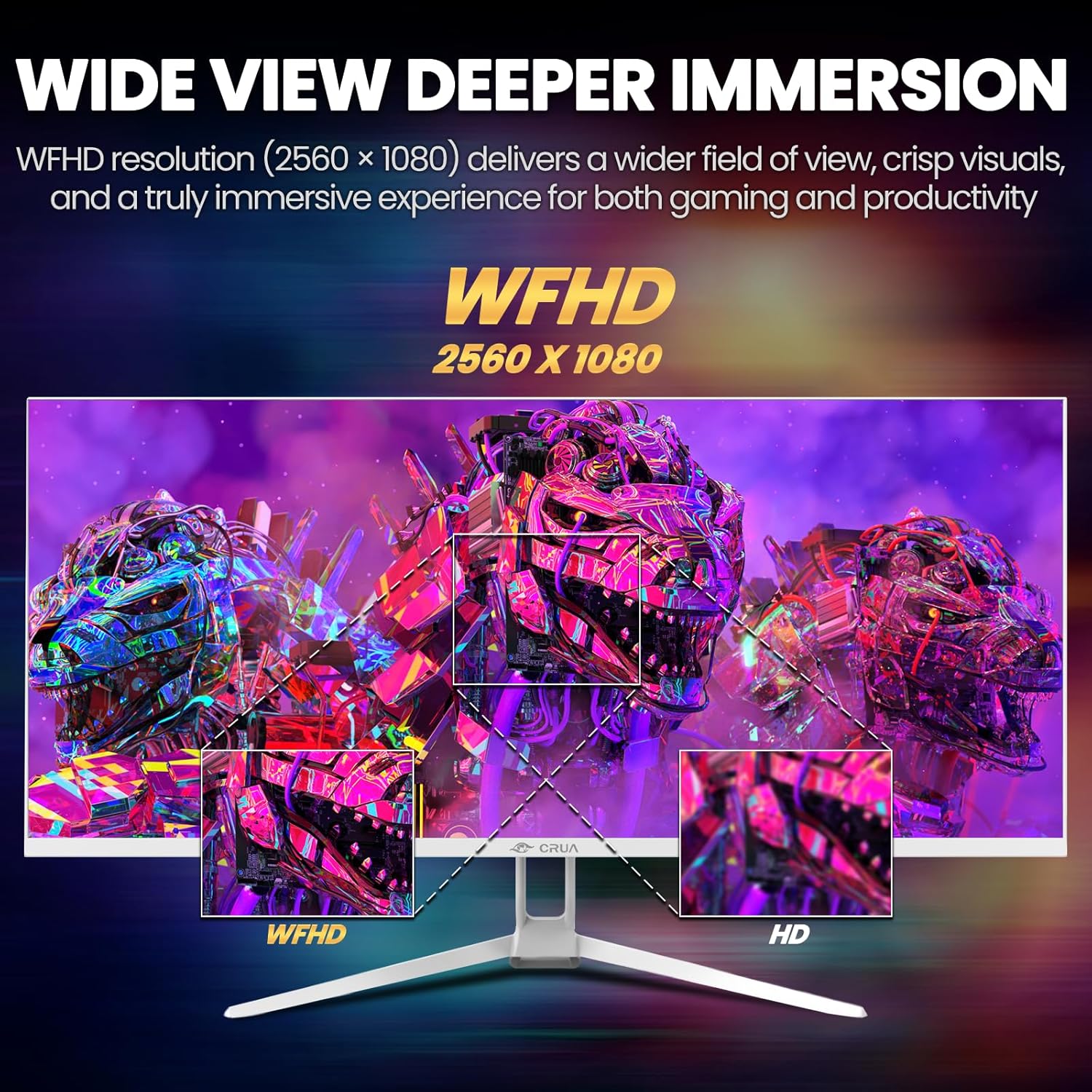
Image: A detailed diagram illustrating the monitor's connectivity options, including two HDMI 1.4 ports, one DisplayPort 1.4, an audio output, a USB charging port, and the DC power input.
4. Bedryfsinstruksies
4.1 Krag aan/af
Press the power button, typically located on the bottom or rear of the monitor, to turn it on or off. The power indicator light will illuminate when the monitor is on.
4.2 Skermvertoning (OSD) Kieslys
The OSD menu allows you to adjust various monitor settings. Access it by pressing the OSD menu button (often a joystick-like button or a set of dedicated buttons) on the monitor.
- Navigasie: Use the OSD buttons or joystick to navigate through the menu options.
- Keuse: Druk die kiesknoppie om 'n subkieslys te betree of 'n instelling te bevestig.
- Verlaat: Use the exit button to go back or close the OSD menu.
4.3 Beeldinstellings
Pas visuele parameters aan vir optimale viewing:
- Helderheid: Beheer die algehele helderheid van die skerm.
- Kontras: Pas die verskil tussen ligte en donker areas aan.
- Kleur temperatuur: Selects preset color modes (e.g., Warm, Cool, User).
- Blou lig filter: Verminder bloulig-emissie om oogspanning tydens langdurige gebruik te verminder.
- Aspekverhouding: Set to 21:9 for ultrawide content or other options as needed.

Image: The CRUA ultrawide monitor showcasing its 21:9 aspect ratio, demonstrating how it provides more horizontal screen space compared to a standard 16:9 display.
4.4 Oudio-instellings
The monitor includes built-in speakers. Adjust volume through the OSD menu or your connected device. An external audio output port is also available for headphones or external speakers.
4.5 AMD FreeSync
To enable AMD FreeSync for tear-free gaming, ensure your graphics card supports FreeSync and that it is enabled in your graphics card's control panel. Then, activate FreeSync within the monitor's OSD menu.

Image: A visual comparison demonstrating the effect of AMD FreeSync, showing a torn image when FreeSync is off and a smooth image when FreeSync is on, highlighting the 120Hz refresh rate.
5. Onderhoud
5.1 Skoonmaak van die skerm
- Skakel die monitor af en trek die kragkabel uit.
- Gebruik 'n sagte, pluisvrye lap liggies dampmet water of 'n gespesialiseerde skermreiniger afgespoel.
- Wipe the screen gently. Do not press hard or use abrasive cleaners.
5.2 Algemene sorg
- Hou die monitor weg van direkte sonlig, hittebronne en oormatige stof.
- Vermy die plasing van swaar voorwerpe op die monitor of sy kabels.
- Do not spray cleaning liquids directly onto the monitor.
6. Probleemoplossing
As jy probleme met jou monitor ondervind, raadpleeg die volgende algemene probleme en oplossings:
| Probleem | Moontlike Oplossing |
|---|---|
| Geen beeld op die skerm nie | Ensure power cable is securely connected and the monitor is turned on. Check video cable (HDMI/DP) connections to both monitor and computer. Select the correct input source via the OSD menu. |
| Beeld flikker of is onstabiel | Check video cable connections. Ensure your graphics card drivers are up to date. If using FreeSync, try disabling it temporarily to see if the issue persists. Adjust refresh rate in your computer's display settings. |
| Geen klank van ingeboude luidsprekers nie | Increase volume via the OSD menu and your computer's sound settings. Ensure the correct audio output device is selected on your computer. Check if the audio cable (if used) is properly connected. |
| Kleure lyk verkeerd | Reset picture settings to factory defaults via the OSD menu. Adjust color temperature and individual RGB values if available. |
If the problem persists after trying these solutions, please contact CRUA customer support.
7. Spesifikasies
Key technical specifications for the CRUA 34-inch Ultrawide Gaming Monitor (Model CR340AU):
| Kenmerk | Spesifikasie |
|---|---|
| Skerm grootte | 34 duim |
| Paneel tipe | IPS |
| Resolusie | 2560 x 1080 (WFHD) |
| Aspekverhouding | 21:9 |
| Herlaaitempo | 120Hz |
| Reaksie Tyd | (Not specified in provided data, typical for IPS is 1-5ms GTG) |
| Helderheid | 350 cd/m² |
| Kleur Omvang | 120% sRGB |
| Kleurdiepte | 8-bit (16.7 Million Colors) |
| Viewing Hoeke | 178° (Horisontaal/Vertikaal) |
| Aanpasbare sinkronisering | AMD FreeSync |
| Konnektiwiteit | 2x HDMI 1.4, 1x DisplayPort 1.4, Audio Out, USB Charging, DC Power Input |
| Ingeboude luidsprekers | Ja |
| Muurmontering | VESA 75x75mm |
| Produk afmetings | 9.4 x 24.13 x 17.47 duim |
| Item gewig | 14.92 pond |
8. Waarborg en Ondersteuning
CRUA provides high-quality computer monitors and customer service. For any questions or support needs regarding your CRUA 34-inch Ultrawide Gaming Monitor, please contact CRUA customer support.
Refer to your purchase documentation or the official CRUA webwebwerf vir spesifieke waarborgvoorwaardes en kontakbesonderhede.
Ask a question about this manual
Ask about setup, troubleshooting, compatibility, parts, safety, or missing instructions. Manuals+ will review the question and use this page’s manual context to help answer it.