
1. Inleiding
Dankie vir die aankoopasing the Z-Edge 27-inch 4K UHD IPS Monitor, Model S274K. This monitor is designed to provide a high-quality visual experience for both professional and gaming applications, featuring a 3840x2160 resolution, 120Hz refresh rate, and 1ms response time. This manual provides essential information for setting up, operating, and maintaining your monitor to ensure optimal performance and longevity.

Image: Visual comparison demonstrating the clarity of 4K UHD (3840x2160) resolution compared to QHD (2560x1440) and FHD (1920x1080) on the Z-Edge monitor.
2. Veiligheidsinligting
Lees asseblief alle instruksies sorgvuldig deur voordat u hierdie produk gebruik. Bewaar hierdie handleiding vir toekomstige verwysing.
- Moenie die monitor aan reën, vog of uiterste temperature blootstel nie.
- Verseker behoorlike ventilasie rondom die monitor. Moenie ventilasie-openinge blokkeer nie.
- Gebruik slegs die kragadapter wat saam met die monitor voorsien word.
- Vermy om swaar voorwerpe op die kragkabel te plaas.
- Ontkoppel die kragprop van die stopcontact as die monitor nie vir 'n lang tydperk gebruik gaan word nie.
- Moenie probeer om die monitor self te diens nie. Verwys alle diens na gekwalifiseerde personeel.
3. Pakketinhoud
Verifieer dat alle items in jou pakket teenwoordig is:
- Z-Edge 27-inch 4K UHD Monitor
- Monitorstaander (basis en nek)
- Kragadapter
- HDMI kabel
- Gebruikershandleiding (hierdie dokument)
- Skroewe vir Staanmontering
4. Monitor oorview
4.1 Voorkant View
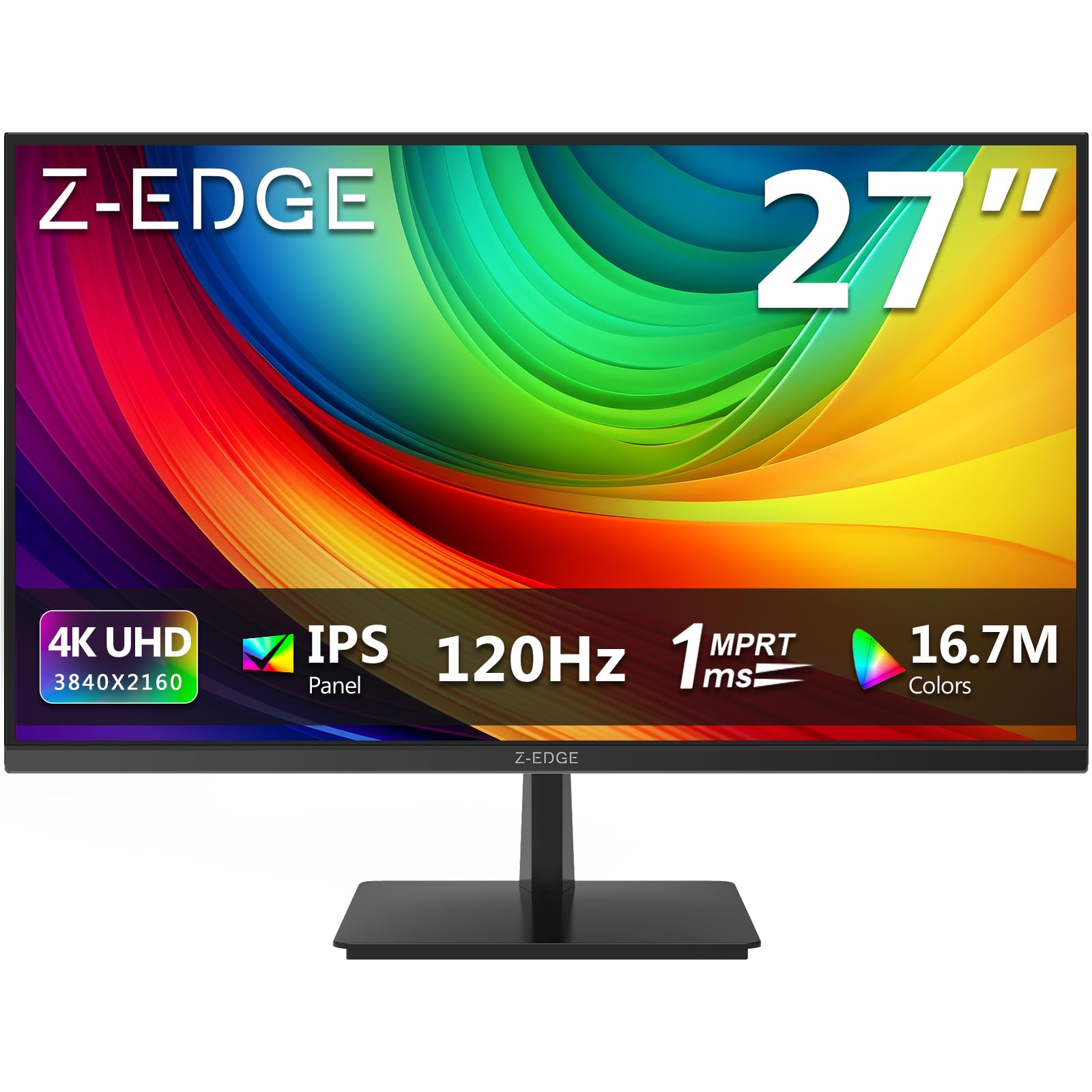
Beeld: Voorkant view of the Z-Edge 27-inch 4K UHD monitor. This image shows the monitor displaying a vibrant scene, highlighting its slim bezels and overall design.
4.2 Agter View en Hawens

Beeld: Agter view of the Z-Edge 27-inch 4K UHD monitor. This image illustrates the monitor's connectivity options, including HDMI and DisplayPort inputs, and the VESA mounting pattern.
Beskikbare hawens:
- DC 12V: Kraginvoerpoort.
- HDMI 1/2 (2.0): Two HDMI input ports for connecting various devices.
- DP 1/2 (1.4): Two DisplayPort input ports for high-resolution connections.
- Klankuitgang: 3.5mm audio jack for connecting external speakers or headphones.

Beeld: Gedetailleerd view of the monitor's input ports. This diagram clearly labels each port, including DC 12V power, two HDMI 2.0, two DisplayPort 1.4, and an audio output.
5. Opstelling
5.1 Staanmontering
- Verwyder die monitor versigtig uit sy verpakking en hou die skerm beskerm.
- Heg die staandernek aan die monitorpaneel vas met die meegeleverde skroewe.
- Connect the stand base to the stand neck, securing it with the remaining screws.
- Plaas die gemonteerde monitor op 'n stabiele, plat oppervlak.
Alternatively, the monitor supports VESA 100x100mm mounting for wall mounts or monitor arms. Ensure the VESA mount is rated for the monitor's weight.
5.2 Koppel aan 'n Toestel
Connect your computer, game console, or other compatible device to the monitor using either an HDMI or DisplayPort cable.
- For 4K resolution at 120Hz, use a DisplayPort 1.4 cable or an HDMI 2.0 cable.
- Insert one end of the cable into the corresponding port on your device and the other end into an available HDMI or DP port on the monitor.
5.3 Kragverbinding
- Connect the power adapter to the DC 12V port on the monitor.
- Steek die kragadapter in 'n kragaansluiting.
6. Bedryfsinstruksies
6.1 Aan-/afskakel
Druk die aan/af-knoppie op die monitor om dit aan of af te skakel. Die aan/af-liggie sal brand wanneer die monitor aan is.
6.2 OSD-kieslysnavigasie
The On-Screen Display (OSD) menu allows you to adjust various monitor settings. Use the control buttons (usually located on the back or bottom of the monitor) to navigate the menu.
- Press a button to open the OSD menu.
- Use the directional buttons to move between options.
- Druk die kiesknoppie om 'n keuse te bevestig of 'n subkieslys te betree.
- Press the exit button to close the OSD menu.
6.3 Beeldinstellings
Adjust display characteristics to your preference:
- Helderheid: Pas die algehele helderheid van die skerm aan.
- Kontras: Modify the difference between light and dark areas.
- Kleur temperatuur: Select from preset modes (e.g., Warm, Cool, User) or adjust RGB values manually.
- Aspekverhouding: Choose between Full, 4:3, or 16:9.
6.4 Speletjie-kenmerke

Image: Visual representation of the difference between 120Hz and 60Hz refresh rates, illustrating how 120Hz provides a smoother and more fluid visual experience, especially for fast-paced content.
- FreeSync / Adaptive Sync: Enable this feature in the OSD menu and on your graphics card settings to synchronize the monitor's refresh rate with your GPU's frame rate, reducing screen tearing and stuttering.
- Reaksietyd (MPRT): Adjust for faster pixel response, beneficial for fast-paced gaming.

Image: Visual demonstration of FreeSync technology. The left side shows screen tearing and stuttering when FreeSync is off, while the right side displays smooth, fluid motion with FreeSync enabled.
6.5 Invoerkeuse
If you have multiple devices connected, use the OSD menu or a dedicated input select button to switch between HDMI 1, HDMI 2, DP 1, and DP 2 inputs.
7. Onderhoud
7.1 Skoonmaak van die monitor
- Ontkoppel altyd die monitor van die kragtoevoer voordat u dit skoonmaak.
- Gebruik 'n sagte, pluisvrye lap effens dampmet water of 'n sagte, nie-skurende skermreiniger afgevee.
- Moenie skoonmaakmiddel direk op die skerm spuit nie.
- Vermy die gebruik van alkohol-gebaseerde skoonmaakmiddels, ammoniak of skuurmiddels.
7.2 Algemene sorg
- Hou die monitor weg van direkte sonlig en hittebronne.
- Moenie swaar voorwerpe op die monitor of sy kabels plaas nie.
- Vermy om die skerm met skerp voorwerpe aan te raak.
8. Probleemoplossing
| Probleem | Moontlike oorsaak | Oplossing |
|---|---|---|
| Geen beeld op die skerm nie |
|
|
| Beeld is vaag of verwring |
|
|
| Skerm skeur of hakkel (speletjies) |
|
|
| No audio from headphones/speakers |
|
|
9. Spesifikasies
| Kenmerk | Detail |
|---|---|
| Handelsmerk | Z-rand |
| Modelnommer | S274K |
| Skerm grootte | 27 duim |
| Paneel tipe | IPS |
| Resolusie | 4K UHD (3840 x 2160 piksels) |
| Herlaaitempo | 120 Hz |
| Reaksie Tyd | 1 ms MPRT |
| Aspekverhouding | 16:9 |
| Helderheid | 250 cd/m² |
| Kontrasverhouding | 1000:1 |
| Kleur Ondersteuning | 1.07 Billion Colors (99% sRGB) |
| Viewing Hoek | 178° (H/V) |
| Konnektiwiteit | 2x HDMI 2.0, 2x DisplayPort 1.4, Oudio-uitvoer |
| Spesiale kenmerke | Adjustable Tilt (-5°~15°), FreeSync, Flicker-Free, Ultra Slim Bezel |
| VESA-versoenbaarheid | 100x100 mm |
| Kragverbruik | 32 watt |
| Energiedoeltreffendheidklas | F (EPREL-skakel) |

Image: Key display specifications including IPS Panel technology, 250 nits brightness, support for 16.7 million colors, and a 1000:1 contrast ratio.
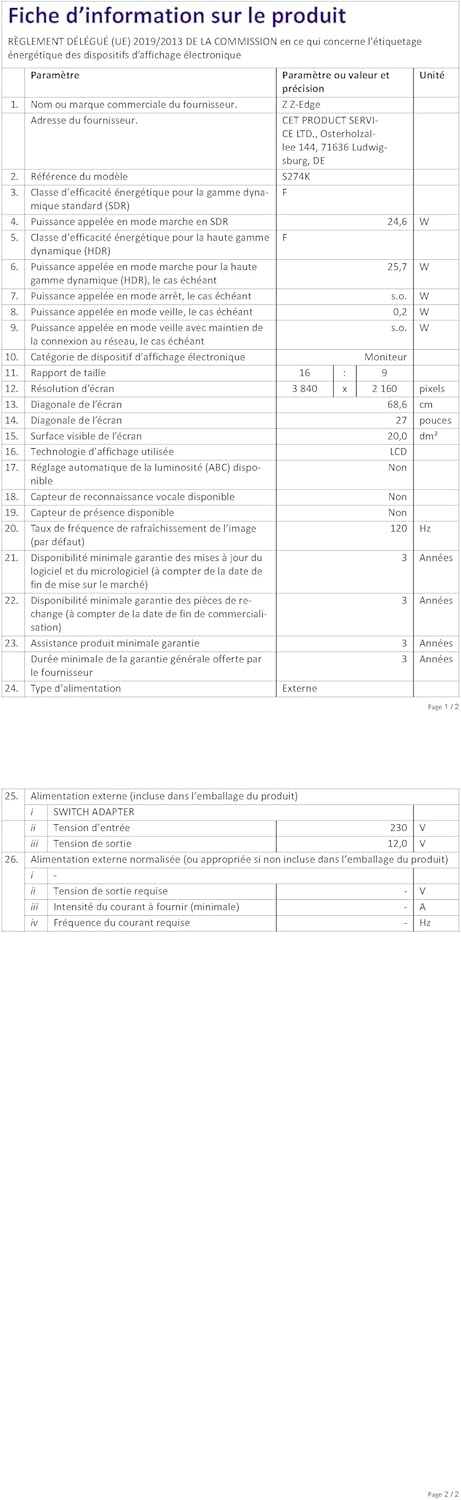
Image: EU Energy Label for the Z-Edge S274K monitor, indicating an energy efficiency class of F and energy consumption of 25 kWh per 1000 hours.
10. Waarborg en Ondersteuning
10.1 Vervaardiger se waarborg
This Z-Edge monitor comes with a 1 jaar vervaardiger se waarborg from the date of purchase. This warranty covers defects in materials and workmanship under normal use. It does not cover damage caused by misuse, accidents, unauthorized modifications, or external causes.
Vir waarborgeise, bewaar asseblief u bewys van aankoop.
10.2 Kliëntediens
If you encounter any issues not covered in the troubleshooting section or require further assistance, please contact Z-Edge customer support. Refer to the official Z-Edge webwebwerf vir die mees onlangse kontakinligting en ondersteuningsbronne.