
MUBVIEW Bell J7
MUBVIEW Bell J7 2K Wireless Video Doorbell Camera with Chime User Manual
Model: Bell J7
1. Inleiding
This manual provides detailed instructions for the installation, operation, and maintenance of your MUBVIEW Bell J7 2K Wireless Video Doorbell Camera with Chime. Please read this manual thoroughly before using the product to ensure proper function and safety. This device is designed to enhance your home security with advanced features like 2K video, motion detection, and two-way audio.
2. Wat is in die boks
Verifieer dat alle komponente teenwoordig is voordat u met die installasie voortgaan:
- Camera Doorbell x1
- Klokkie x1
- Gebruikershandleiding x1
- Laai kabel x1
- Battery x3
- Other Accessories (screws, anchors, screwdriver)

Image: Contents of the MUBVIEW Bell J7 package, including the doorbell, chime, and installation tools.
3. Produk verbyview
Familiarize yourself with the main parts of your video doorbell and chime:
Deurklokkie kamera
- 2K Camera Lens: Captures high-resolution video.
- PIR Bewegingssensor: Bespeur menslike beweging.
- Mikrofoon: Vir tweerigting-klankkommunikasie.
- Spreker: For two-way audio communication and siren.
- Deurbelknop: Aktiveer die klokkie en stuur kennisgewings.
- Micro USB-C Port: Vir die laai van die interne battery.
- Herstel-knoppie: For device reset.
- Micro SD -kaartgleuf: For local video storage (up to 128GB, card not included).
- Anti-Theft Button: Triggers an alarm if the doorbell is removed from its mount.
Draadlose klokkespel
- Spreker: Gee deurklokkieklank uit.
- Volumebeheer: Verstel die klankvolume.
- Toonkieser: Changes chime melody.
- Kragbron: Battery-aangedrewe vir buigsame plasing.

Beeld: Voorkant view of the MUBVIEW Bell J7 doorbell and chime.
4. Opstelling
Follow these steps to set up your MUBVIEW Bell J7 doorbell camera:
4.1 Laai die deurklokkie
- Before first use, fully charge the doorbell camera using the provided USB charging cable.
- The charging port is located on the side of the doorbell, protected by a rubber flap.
- A full charge can last up to 180 days, depending on usage.
4.2 App-installasie en Wi-Fi-verbinding
- Laai die af CloudEdge or MUBVIEW app from your smartphone's app store (Apple App Store or Google Play Store).
- Registreer vir 'n rekening of meld aan as jy reeds een het.
- Maak seker dat jou slimfoon gekoppel is aan 'n Wi-Fi-netwerk van 2.4 GHz. The doorbell is not compatible with 5GHz Wi-Fi.
- In the app, select "Add Device" and choose "Smart Video Doorbell".
- Follow the on-screen prompts to connect the doorbell to your Wi-Fi network. This typically involves scanning a QR code displayed on your phone with the doorbell camera.
- Once connected, you can name your device and complete the setup.
4.3 Montering van die Deurklokkie
The doorbell can be mounted using screws or strong adhesive tape (not included for all mounting types).
- Attach the mounting bracket to your desired location on the wall or door frame. Ensure it is at an appropriate height for optimal viewing.
- Secure the bracket using the provided screws and anchors.
- Slide the doorbell camera into the mounting bracket until it clicks securely into place.
- For added security, a small screw can be inserted from the bottom of the bracket into the doorbell to prevent easy removal.

Image: Installation of the MUBVIEW Bell J7 doorbell camera onto its mounting bracket.
5. Bedryfsinstruksies
5.1 Lewendig View en Tweerigting-klank
- Maak die MUB oopVIEW app to access the live video feed from your doorbell camera.
- Use the microphone icon in the app to enable two-way audio and speak with visitors at your door.
- The voice changer feature can be activated for added privacy and security.

Image: Demonstrating two-way audio and voice message functionality via the app.
5.2 Bewegingsopsporing en waarskuwings
- The doorbell features advanced PIR motion and human detection to minimize false alarms.
- Wanneer beweging bespeur word, sal jy onmiddellike stootkennisgewings op jou slimfoon ontvang.
- Adjust motion detection sensitivity and set custom motion zones within the app to suit your environment.

Image: Smartphone notification for human detection from the doorbell camera.
5.3 Nagvisie
- The doorbell camera automatically switches to IR night vision in low-light conditions.
- Enhanced night vision provides clear images up to 33 feet.
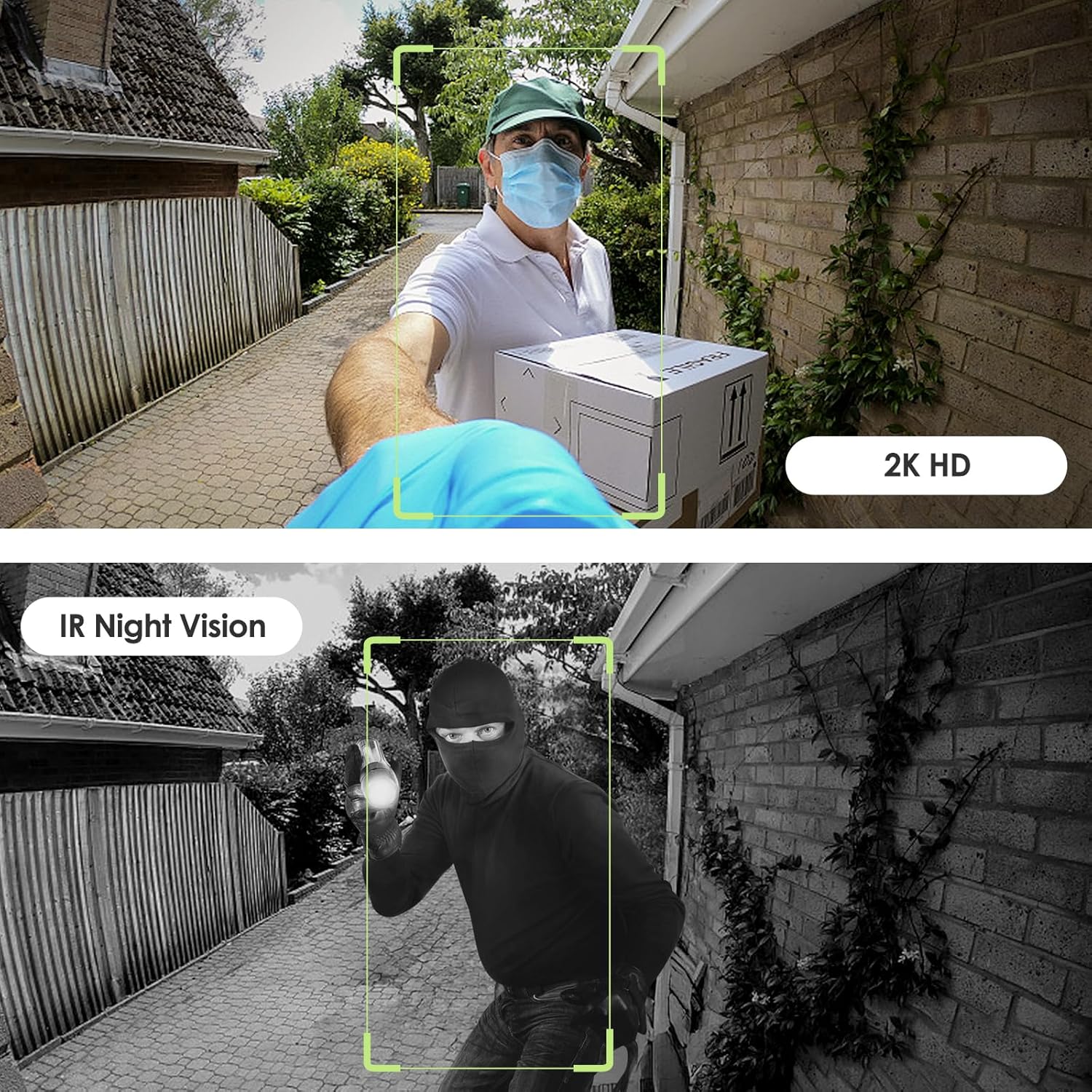
Image: Day and night vision capabilities of the MUBVIEW Bell J7 doorbell.
5.4 Video stoor
- Mikro-SD-kaart: Insert a micro SD card (up to 128GB, not included) into the designated slot for local storage of recorded footage.
- Wolkberging: Enjoy 7-day free cloud loop storage. Optional premium cloud storage plans are available for extended storage and features.

Image: Multiple storage options: local Micro SD card and cloud service.
6. Kenmerke
- 2K Volle HD-resolusie: Provides clear and detailed video.
- 145° wyehoeklens: Bied 'n breë view of your doorstep.
- Battery-aangedrewe: Ensures easy, wire-free installation.
- 2.4GHz Wi-Fi-verbinding: Stable and reliable wireless connection.
- IP65 Weerbestandheid: Built to withstand various outdoor conditions (rain, heat, hail, sun, dust).
- Anti-diefstal alarm: Siren sounds if the doorbell is tampered met.
- Stemwisselaar: Enhances privacy during two-way audio.
- Pre-Recorded Voice Messages: Respond quickly with custom messages.
- Gesinsdeling: Supports up to 15 online users and 20 user accounts.
- Verenigbaarheid: Werk saam met Alexa en Google Assistant.

Beeld: Oorview of MUBVIEW Bell J7 features.
7. Onderhoud
7.1 Battery Laai
The doorbell is powered by rechargeable batteries. Monitor the battery level through the app and recharge as needed. The battery life can extend up to 180 days on a single charge, depending on activity and settings.
7.2 Skoonmaak
Wipe the camera lens and the doorbell's exterior with a soft, damp lap om stof en puin te verwyder. Vermy die gebruik van harde chemikalieë of skuurmiddels wat die toestel kan beskadig.
7.3 Weerbestandheid
Die MUBVIEW Bell J7 is IP65 weather-resistant, designed to endure various outdoor conditions. However, extreme weather conditions may still impact performance or battery life.

Image: IP65 Weather Resistance of the MUBVIEW Bell J7 doorbell.
8. Probleemoplossing
| Kwessie | Moontlike Oplossing |
|---|---|
| Deurklokkie koppel nie aan Wi-Fi nie | Ensure your Wi-Fi is 2.4GHz. Move the doorbell closer to your router during setup. Reset the doorbell and try again. |
| Frequent false motion alarms | Adjust the motion detection sensitivity in the app. Set custom motion zones to exclude busy areas or moving foliage. |
| Swak video kwaliteit | Check your Wi-Fi signal strength in the app. Ensure the camera lens is clean and free from obstructions. |
| Kort batterylewe | Verminder bewegingsopsporingsgevoeligheid of frekwensie van regstreekse view toegang. Maak seker dat die deurklokkie volledig gelaai is. |
| Anti-theft alarm not working | Ensure the anti-theft feature is enabled in the app settings. Check if the doorbell is properly seated in its mounting bracket, activating the tamper knoppie. |
9. Spesifikasies
- Model Naam: Bell J7
- Video-opname-resolusie: 2K
- Verbindingstegnologie: Draadloos (2.4GHz Wi-Fi)
- Kragbron: Battery Powered (3 A batteries included)
- Binne/buiteluggebruik: Buitelug
- Waterweerstandvlak: IP65 Waterdig
- Spesiale kenmerke: 2-Way Audio, Built-In Light, HD Resolution, Image Sensor, Motion Sensor, Voice Changer, Anti-Theft Alarm
- Versoenbare toestelle: Smartphone (via CloudEdge/MUBVIEW app)
- Produk afmetings: 1.37 x 5.27 x 2.2 duim
- Item gewig: 15.4 onse
10. Waarborg en Ondersteuning
MUBVIEW is committed to providing quality products and customer satisfaction. For any inquiries or support needs, please refer to the following:
- Kliëntediens: Available via Call Service (9AM-5PM EST) and Online Email.
- Terugsendings: 30-day Amazon return policy applies.
- Beskermingsplanne: Optional 2-Year and 3-Year protection plans are available for purchase.
For detailed contact information, please visit the official MUBVIEW website or refer to the contact details provided in the product packaging.

Image: MUBVIEW Customer Service details.
Ask a question about this manual
Ask about setup, troubleshooting, compatibility, parts, safety, or missing instructions. Manuals+ will review the question and use this page’s manual context to help answer it.