
Oakcastle IR200
Oakcastle IR200 Internetradio Gebruikershandleiding
Model: IR200
1. Inleiding
Thank you for choosing the Oakcastle IR200 Internet Radio. This manual provides essential information for the safe and efficient operation of your device. Please read it thoroughly before use and retain it for future reference.
The Oakcastle IR200 is a versatile audio system offering multiple listening options, including Internet Radio, DAB+, FM, Bluetooth 5.3, and AUX input. It features a color display, remote control, and podcast support for a comprehensive audio experience.
2. Pakketinhoud
Pak die boks versigtig uit en maak seker dat al die items wat hieronder gelys word, teenwoordig en in 'n goeie toestand is:
- Oakcastle IR200 Internet Radio Unit
- Kragkabel
- Afstandbeheer
- Gebruikershandleiding (hierdie dokument)
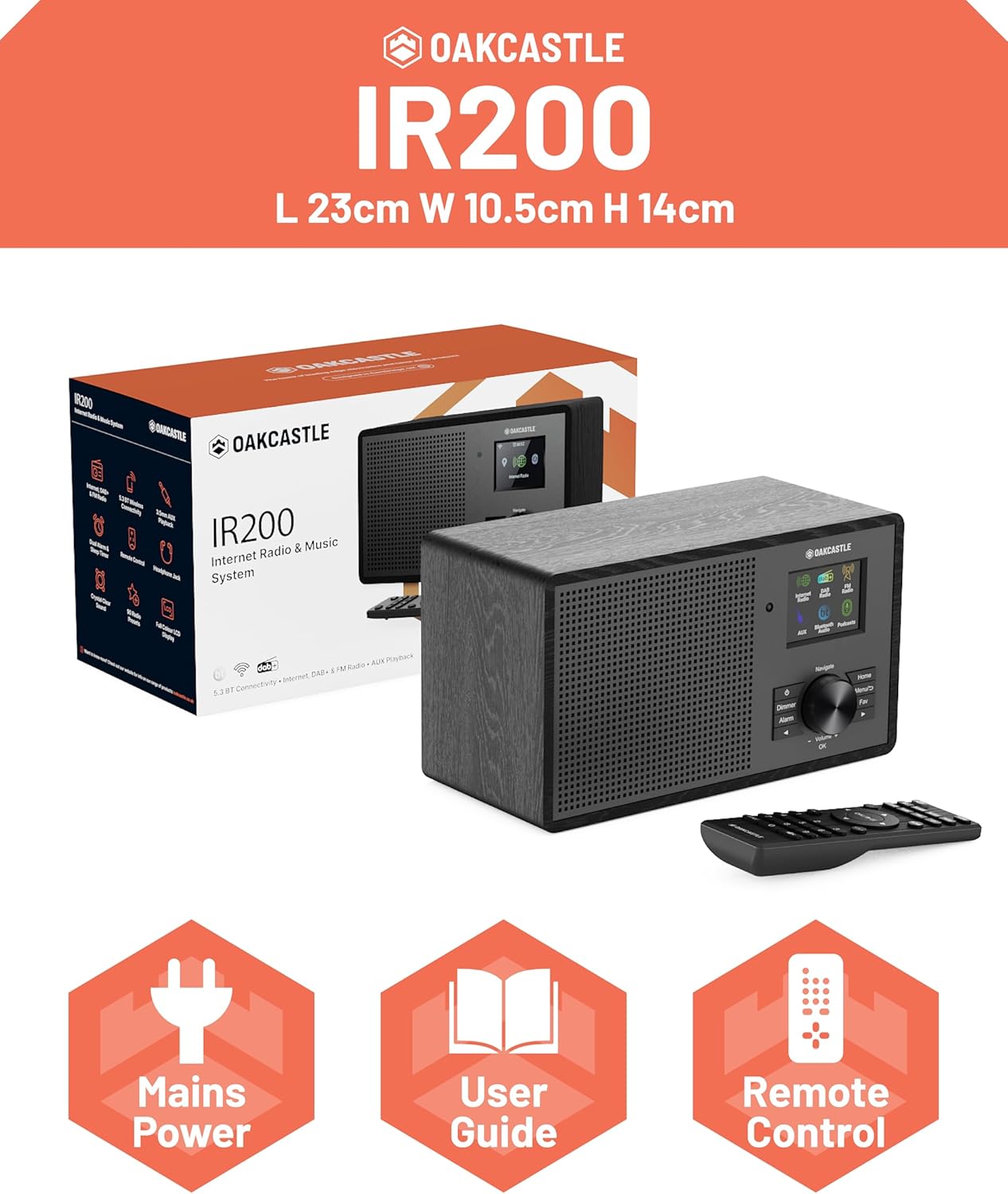
Image 2.1: Contents of the Oakcastle IR200 package, including the radio unit, its box, power cable, remote control, and user manual.
3. Produk verbyview
Familiarize yourself with the main components and controls of your Oakcastle IR200 radio.
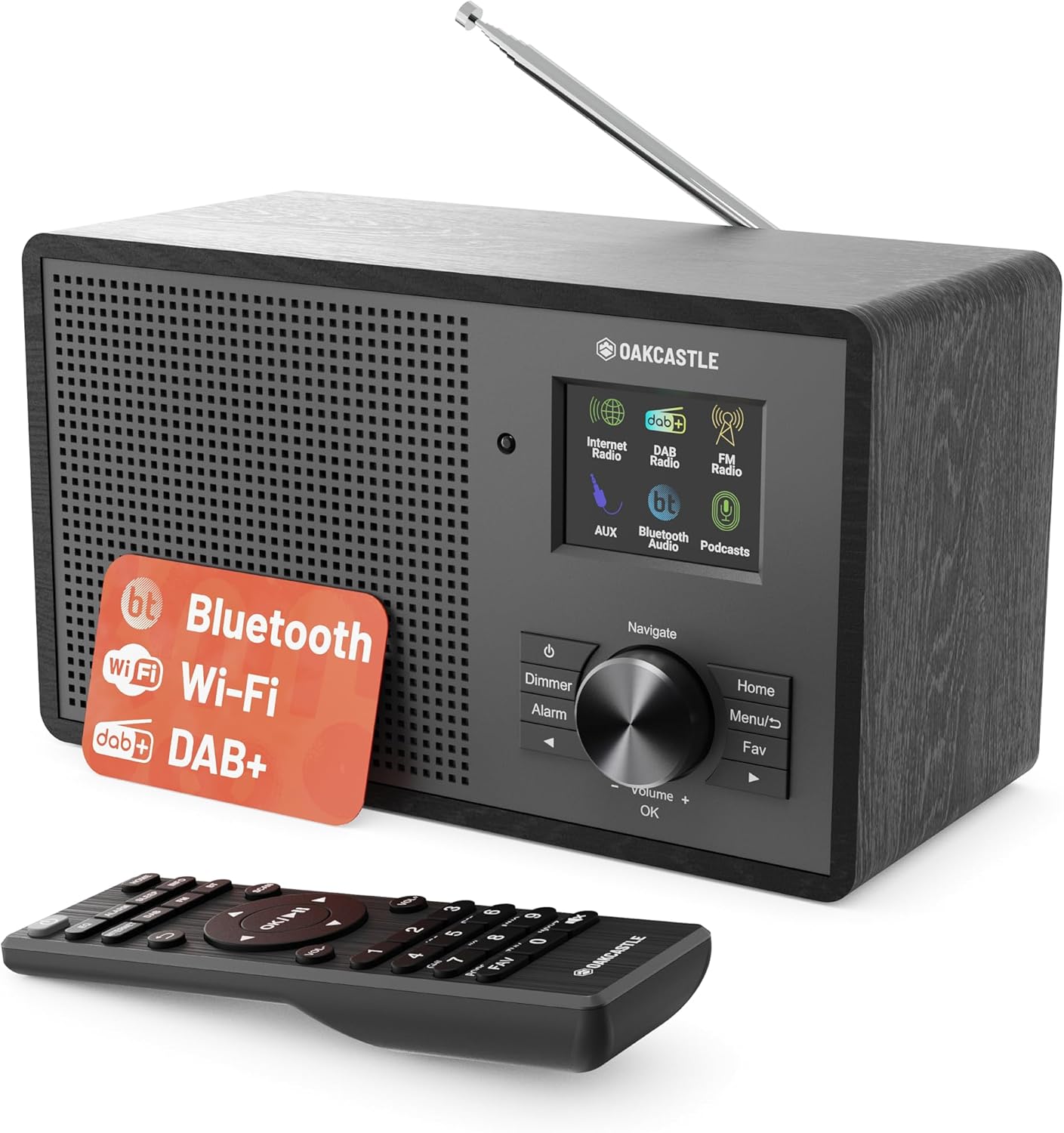
Beeld 3.1: Voorkant view of the Oakcastle IR200 radio, showcasing the display, control knob, buttons, and the included remote control.
3.1 Voorpaneelkontroles
- Vertoon skerm: Wys stasie-inligting, tyd en kieslysopsies.
- Navigate/Volume/OK Knob: Rotate to navigate menus or adjust volume; press to confirm selections.
- Kragknoppie: Skakel die eenheid aan/af of plaas dit in bystandmodus.
- Dimmer knoppie: Pas die helderheid van die skerm aan.
- Alarmknoppie: Accesses alarm settings.
- Tuisknoppie: Keer terug na die hoofkieslys.
- Kieslys-knoppie: Accesses mode-specific menus.
- Fav Button: Accesses favorite station presets.
3.2 Agterpaneelverbindings

Prent 3.2: Agter view of the Oakcastle IR200, highlighting the headphone output and AUX input ports.
- Teleskopiese antenna: For DAB+ and FM reception.
- AUX-invoer: Koppel eksterne oudiotoestelle.
- Koptelefoon uitset: Koppel koptelefoon vir privaat luister.
- DC IN: Kragadapterverbinding.
4. Aanvanklike Opstelling
4.1 Kragverbinding
- Insert the power cable into the DC IN port on the rear of the radio.
- Plug the other end of the power cable into a wall socket.
- Press the Power button on the front panel or remote control to turn on the radio.
4.2 Antenna-aanpassing
For optimal DAB+ and FM reception, fully extend the telescopic antenna located at the rear of the unit.
4.3 Network Connection (for Internet Radio)
- Upon first power-on, the radio will guide you through the network setup.
- Select "Network Wizard" or "Wi-Fi Setup" from the menu.
- Die radio sal soek vir beskikbare Wi-Fi-netwerke. Kies jou netwerk uit die lys.
- Enter your Wi-Fi password using the navigation knob and OK button.
- Sodra dit gekoppel is, sal die radio 'n bevestigingsboodskap vertoon.
5. Bedryfswyses
The Oakcastle IR200 offers several listening modes. Press the "Home" button to access the main menu and select your desired mode.
5.1 Internetradio
Access thousands of global radio stations via your Wi-Fi connection.

Image 5.1: The radio's display screen in Internet Radio mode, showing station information.
- From the main menu, select "Internet Radio".
- You can browse stations by location, genre, or search by name.
- Rotate the Navigate knob to scroll through options and press OK to select.
- To save a station as a favorite, press the "Fav" button during playback.
5.2 DAB+ Radio
Geniet hoëgehalte digitale radio-uitsendings.

Image 5.2: The radio's display screen in DAB+ Radio mode, showing the current station.
- From the main menu, select "DAB+ Radio".
- The radio will automatically scan for available DAB+ stations.
- Use the Navigate knob to select a station from the list.
- To save a station as a favorite, press the "Fav" button during playback.
5.3 FM -radio
Tune into traditional analog FM broadcasts.
- Kies "FM-radio" in die hoofkieslys.
- To auto-scan for stations, press and hold the OK button or use the scan function via the menu.
- To manually tune, rotate the Navigate knob.
- To save a station as a favorite, press the "Fav" button during playback.
5.4 Bluetooth-konnektiwiteit
Stroom klank draadloos vanaf jou Bluetooth-geaktiveerde toestelle.

Image 5.3: The radio's display screen in Bluetooth mode, indicating readiness for pairing.
- From the main menu, select "Bluetooth". The radio will enter pairing mode.
- On your external device (e.g., smartphone), enable Bluetooth and search for "Oakcastle IR200".
- Select "Oakcastle IR200" to pair. Once connected, you can stream audio.
5.5 AUX-invoer
Koppel eksterne oudiobronne met 'n 3.5 mm-oudiokabel.
- Connect one end of a 3.5mm audio cable to the AUX IN port on the rear of the radio.
- Koppel die ander kant aan die koptelefoonaansluiting of klankuitset van jou eksterne toestel.
- From the main menu, select "AUX".
- Beheer afspeel vanaf jou eksterne toestel.
5.6 Poduitsendings
Browse and listen to a wide range of podcasts.
- From the main menu, select "Podcasts".
- Browse podcasts by category or search for specific titles.
- Select a podcast to start listening.
6. Instellings en kenmerke
6.1 Stelselinstellings
Access general system settings via the main menu to configure time, language, display, and more.
- Tyd/Datum: Set time format, synchronize time.
- Taal: Select your preferred language for the menu.
- Vertoon: Adjust backlight, color scheme.
- Netwerk: Reconfigure Wi-Fi settings.
- Sagteware-opdatering: Kontroleer vir en installeer firmware-opdaterings.
6.2 Equalizer (EQ)
Customize the audio output to your preference using the equalizer settings, accessible via the remote control or system menu.
6.3 Voorinstellings
The radio supports over 90 presets for your favorite Internet, DAB+, and FM stations. To recall a preset, press the "Fav" button and select from the list.
6.4 Alarms
Set alarms to wake up to your favorite radio station or a buzzer sound. Access alarm settings via the "Alarm" button on the front panel or remote.
7. Afstandbeheer
The included remote control provides convenient access to all radio functions from a distance.
Ensure batteries are correctly inserted. Point the remote control towards the front of the radio for optimal response.
7.1 Afstandbeheerfunksies
- Krag: On/Off/Standby.
- Volume +/-: Pas die volume aan.
- Navigasieknoppies (Op/Af/Links/Regs): Navigeer deur spyskaarte.
- OK: Bevestig seleksie.
- Mode Buttons (Internet, DAB, FM, Bluetooth, AUX): Wissel tussen modusse.
- Preset Buttons (1-90+): Directly select saved favorite stations.
- EQ: Toegang tot gelykmaker-instellings.
- Spyskaart: Access mode-specific menus.
- Gunsteling: Access favorite station list.
8. Onderhoud
8.1 Skoonmaak
To clean the radio, use a soft, dry cloth. Do not use abrasive cleaners, waxes, or solvents as these may damage the finish.
8.2 Algemene sorg
- Hou die eenheid weg van direkte sonlig, hittebronne en vog.
- Vermy om die eenheid te laat val of dit aan harde impakte bloot te stel.
- Verseker behoorlike ventilasie rondom die eenheid.
9. Probleemoplossing
| Probleem | Moontlike oorsaak | Oplossing |
|---|---|---|
| Geen krag nie | Power cable not connected; wall socket not active. | Check power cable connection; try a different wall socket. |
| Geen klank nie | Volume too low; Mute activated; Incorrect source selected. | Increase volume; Check mute status; Select correct input mode. |
| Internet Radio not connecting | Incorrect Wi-Fi password; Weak Wi-Fi signal; Router issue. | Re-enter Wi-Fi password; Move radio closer to router; Restart router. |
| Swak DAB+/FM-ontvangs | Antenna not extended; Poor signal area. | Fully extend antenna; Reposition radio for better signal. |
| Bluetooth saambind nie | Radio not in pairing mode; Device too far; Device already paired. | Ensure radio is in Bluetooth mode; Move device closer; Unpair from other devices. |
10. Spesifikasies
| Kenmerk | Detail |
|---|---|
| Handelsmerk | Oakcastle |
| Model | IR200 |
| Kleur | Swart |
| Verbindingstegnologie | Wi-Fi, Bluetooth 5.3, AUX |
| Stemtegnologie | Internet Radio, DAB+, FM |
| Spesiale kenmerke | Bluetooth, EQ, Podcasts, Internet Radio, Remote Control |
| Kragbron | Electric Cable (Mains) |
| Produkafmetings (H x B x D) | 14 cm x 10.5 cm x 23 cm (ongeveer) |
| Produk Gewig | 0.94 kg |
| Versoenbare toestelle | MP3-speler, slimfoon, tablet |
11. Waarborg en Ondersteuning
11.1 Waarborginligting
The Oakcastle IR200 comes with a standard warranty. An extended 3-year warranty is available upon product registration on the manufacturer's website. Please refer to the warranty card included in your package or visit the official Oakcastle webwebwerf vir besonderhede.
11.2 Kliëntediens
For technical assistance, troubleshooting, or further inquiries, please contact Oakcastle customer support. Contact details can typically be found on the official Oakcastle webwebwerf of op die waarborgkaart.