
1. Inleiding
This manual provides detailed instructions for the setup, operation, and maintenance of your KiiBoom Phantom 81 V3 Pink Mechanical Gaming Keyboard. Please read this manual thoroughly before using the product to ensure optimal performance and longevity.
Pakketinhoud
- KiiBoom Phantom 81 V3 Pink Mechanical Gaming Keyboard
- USB Type-C Cable (1.5m)
- Sleutelkap trekker
- Skakeltrekker
- Skroewedraaier
- Onderdeleskakelaars
- Extra Nails

2. Opstelling
Aanvanklike verbinding
The KiiBoom Phantom 81 V3 supports three connectivity modes: Type-C Wired, Bluetooth 5.0, and 2.4GHz wireless. Locate the connectivity switches on the back of the keyboard.

Wired Mode (Type-C)
- Koppel die meegeleverde USB Tipe-C-kabel aan die sleutelbord se Tipe-C-poort.
- Koppel die ander kant van die kabel aan 'n beskikbare USB-poort op jou rekenaar.
- Ensure the connectivity switch on the keyboard is set to the 'USB' position.
Bluetooth modus
- Set the connectivity switch on the keyboard to the 'BT' position.
- Aktiveer Bluetooth op jou toestel (rekenaar, tablet, slimfoon) en soek vir nuwe toestelle.
- Select 'KiiBoom Phantom 81' from the list of available devices to pair.
- The keyboard supports up to three Bluetooth devices. Switch between them using Fn + 1/2/3.
2.4GHz draadlose modus
- Vind die 2.4GHz USB-ontvanger (gewoonlik in 'n kompartement op die sleutelbord gebêre).
- Koppel die USB-ontvanger in 'n beskikbare USB-poort op jou rekenaar.
- Set the connectivity switch on the keyboard to the '2.4G' position.
- Die sleutelbord moet outomaties aan die ontvanger koppel.
Bedryfstelselversoenbaarheid
The KiiBoom Phantom 81 V3 is compatible with both Windows and Mac operating systems. Use the dedicated 'Win/Mac' switch on the back of the keyboard to select your operating system for proper key mapping.

3. Bedryfsinstruksies
Basiese funksies
- Volumebeheer: Use the rotary knob on the top right of the keyboard to adjust volume. Press the knob to mute/unmute.
- NKRO (N-Sleutel Rollover): The keyboard supports N-Key Rollover, allowing all keys to register simultaneously for fast and accurate typing.

RGB-agterbeligtingsbeheer
The KiiBoom Phantom 81 V3 features 16.8 million RGB backlights with south-facing LEDs for reduced glare and enhanced illumination. Use the following key combinations to control the lighting effects:
- Fn + V: Toggle backlight effects.
- Fn + J: Toggle backlight colors.
- Fn + P: Toggle bottom light mode.
- Fn + B: Toggle bottom light colors.

Sagteware aanpassing
The keyboard supports software for advanced customization, including key remapping, light effects, macro programming, and sharing settings. Refer to the official KiiBoom website for software downloads and detailed instructions.

4. Warm-omruilbare skakelaars
The KiiBoom Phantom 81 V3 features a full-key hot-swappable PCB, allowing you to easily change mechanical switches without soldering. This keyboard is compatible with both 3-pin and 5-pin mechanical switches.
Changing Switches
- Verwyder die sleuteldop versigtig met die meegeleverde sleuteldop-trekker.
- Gebruik die skakelaartrekker om die boonste en onderste knippies van die skakelaar saggies vas te gryp.
- Trek die skakelaar reguit op om dit van die PCB te verwyder.
- Rig die penne van die nuwe skakelaar met die gate op die PCB. Maak seker dat die penne reguit is om buiging te voorkom.
- Druk die nuwe skakelaar liggies in plek totdat dit stewig klik.
- Vervang die sleuteldop.


Skakelaar spesifikasies
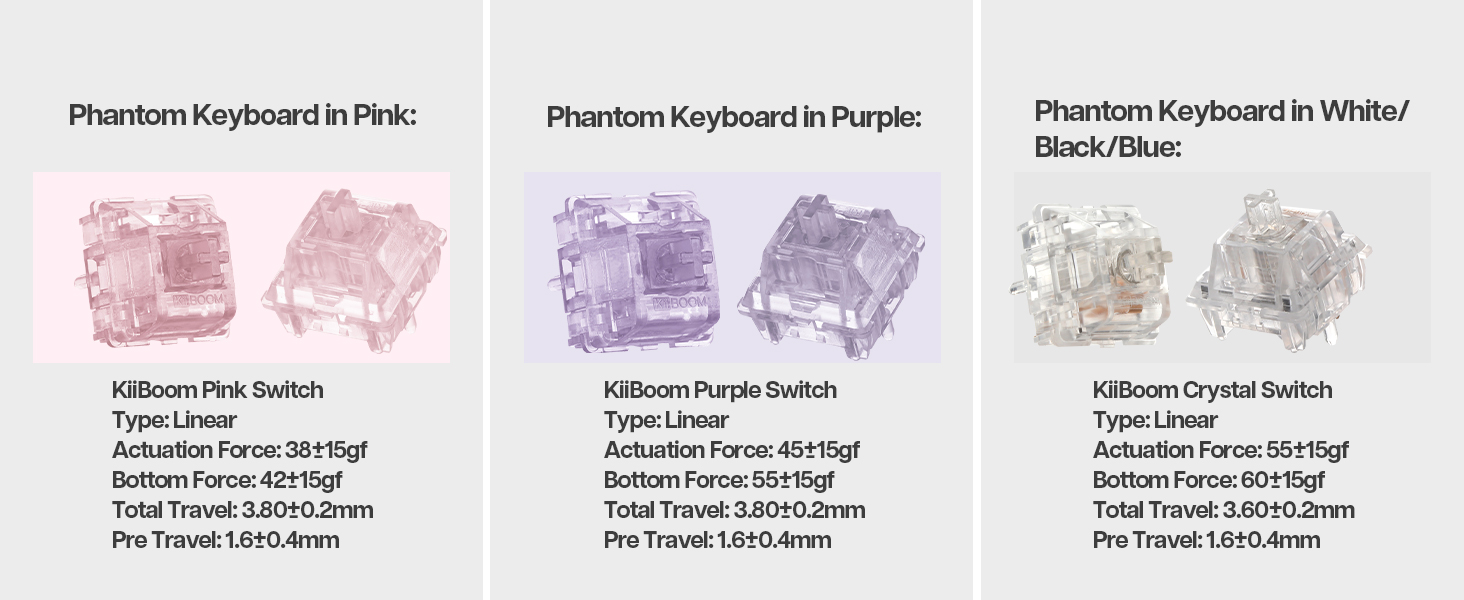
The Phantom 81 V3 Pink model typically comes with KiiBoom Pink Switches. Other KiiBoom switches are also compatible.
| Skakel Tipe | Tik | Bedryfskrag | Onderste Krag | Totale Reis | Voorreis |
|---|---|---|---|---|---|
| KiiBoom Pink Switch | Lineêr | 38±15gf | 42±15gf | 3.80±0.2 mm | 1.6±0.4 mm |
| KiiBoom Purple Switch | Lineêr | 45±15gf | 55±15gf | 3.80±0.2 mm | 1.6±0.4 mm |
| KiiBoom Crystal Switch | Lineêr | 55±15gf | 60±15gf | 3.60±0.2 mm | 1.6±0.4 mm |


5. Batterybestuur
The KiiBoom Phantom 81 V3 is equipped with an 8000mAh rechargeable battery, providing extended wireless usage.
Laai die sleutelbord
Connect the keyboard to a power source using the provided USB Type-C cable. The keyboard will indicate charging status through its RGB lighting.
Kontroleer batterykrag
Om die huidige batteryvlak na te gaan, druk Fn + Backspace. The RGB lights will display the approximate battery percentage.

6. Construction and Design
The KiiBoom Phantom 81 V3 features a unique transparent design and robust internal construction.
Acrylic Frame and Keycaps
The keyboard boasts a crystal-clear acrylic frame and transparent polycarbonate keycaps with UV printing, offering both durability and a distinctive aesthetic.


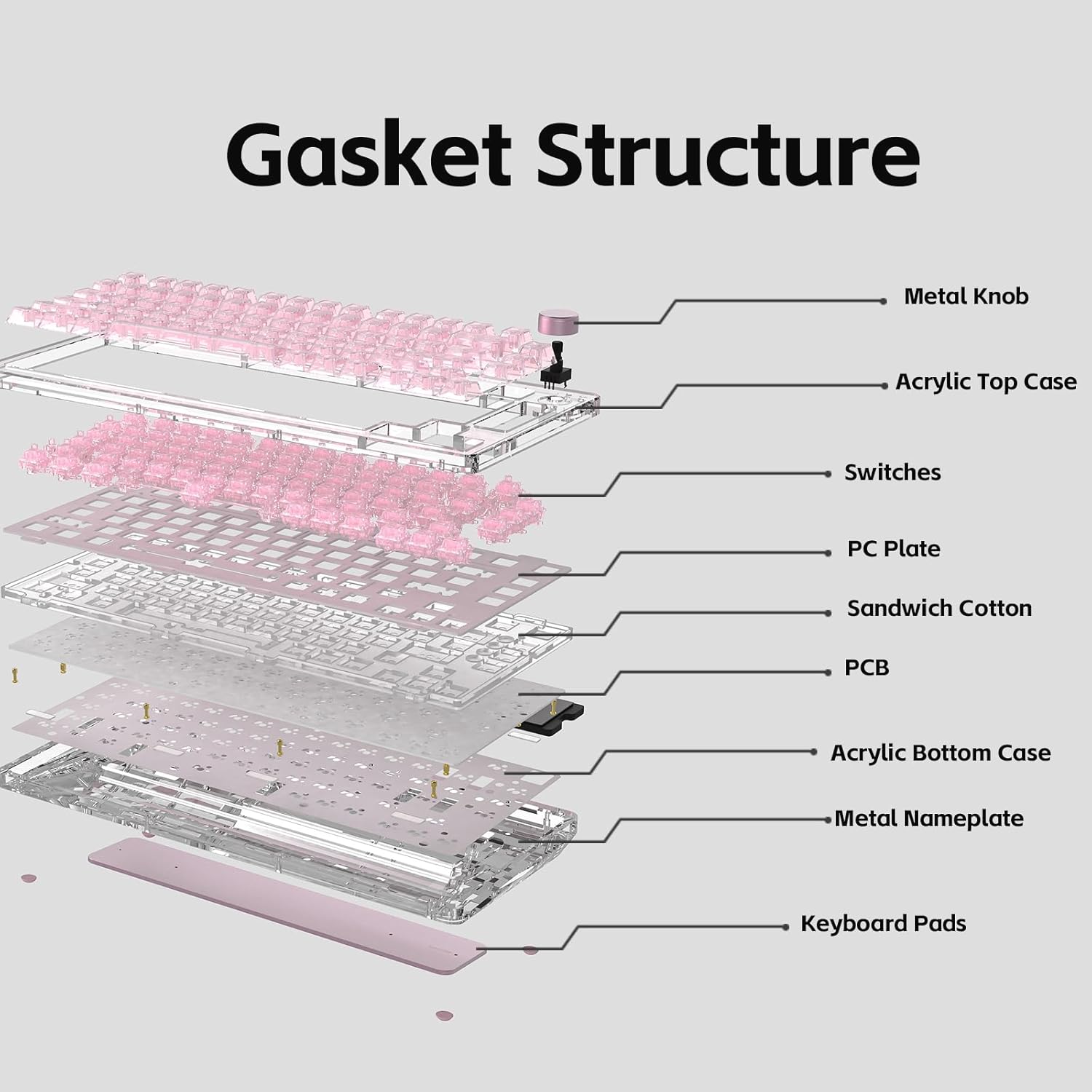
Pakkingbevestigingstruktuur
The keyboard utilizes an enhanced gasket mount system with a PC (Polycarbonate) plate. This design provides a flexible, cushioned typing feel and contributes to a pleasant acoustic profile.

7. Spesifikasies
| Kenmerk | Detail |
|---|---|
| Model | Phantom 81 V3 Pink |
| Uitleg | 75% (82 klawers + 1 knop) |
| Konnektiwiteit | Type-C Wired, Bluetooth 5.0, 2.4GHz Wireless |
| Skakelaars | Warm-uitruilbaar (3-pen/5-pen versoenbaar) |
| Agterlig | RGB, suidgerigte LED's |
| Sleutels | Transparent Polycarbonate with UV printing, ASA-Like Profile |
| Materiaal van die saak | Akriel |
| Plaatmateriaal | PC (polikarbonaat) |
| Monteer styl | Gasket Mount |
| Battery kapasiteit | 8000mAh |
| Bedryfstelsel | Windows, Mac |
| Afmetings | 332 mm x 149 mm x 47 mm (ongeveer) |
| Gewig | 1.45 kg (ongeveer) |

8. Onderhoud
Maak die sleutelbord skoon
- Ontkoppel die sleutelbord van alle kragbronne voordat u dit skoonmaak.
- Gebruik 'n sagte, pluisvrye lap dampened with a small amount of water or a mild cleaning solution to wipe down the keycaps and case.
- For deeper cleaning, remove keycaps using the provided keycap puller and use compressed air to clear debris from between switches.
- Avoid using harsh chemicals or abrasive materials, as these can damage the acrylic and keycap surfaces.
Algemene Sorg
- Vermy blootstelling van die sleutelbord aan uiterste temperature of direkte sonlig.
- Do not spill liquids on the keyboard. In case of a spill, immediately disconnect power and allow it to dry completely before reconnecting.
- Handle switches and keycaps gently during removal and installation to prevent damage.
9. Probleemoplossing
Sleutelbord reageer nie
- Ensure the keyboard is properly connected via USB, Bluetooth, or 2.4GHz.
- Check the connectivity switch on the back of the keyboard to ensure it's set to the correct mode.
- Verify the battery level. If low, connect the keyboard to a power source.
- Probeer om jou rekenaar of toestel te herbegin.
RGB Lights Not Working
- Maak seker dat die sleutelbord aangeskakel is.
- Check the RGB control key combinations (Fn + V/J/P/B) to ensure lights are not turned off or set to a very dim setting.
- If using customization software, ensure settings are correctly applied.
Sleutels registreer nie
- If a specific key is not working, try removing and re-inserting its switch to ensure it's properly seated.
- Test with a spare switch if available to rule out a faulty switch.
- Ensure no debris is obstructing the switch mechanism.
Bluetooth-verbindingskwessies
- Maak seker dat die sleutelbord in Bluetooth-paringsmodus is.
- Verwyder die sleutelbord van jou toestel se Bluetooth-lys en probeer om weer te koppel.
- Maak seker dat jou toestel se Bluetooth geaktiveer is en korrek funksioneer.
- Avoid excessive distance between the keyboard and the connected device.
10. Waarborg en Ondersteuning
KiiBoom products are manufactured to high-quality standards. For warranty information, technical support, or service inquiries, please refer to the official KiiBoom webwebwerf of kontak hul kliëntediens direk. Bewaar u aankoopbewys as bewys van aankoop vir waarborgeise.