
1. Inleiding
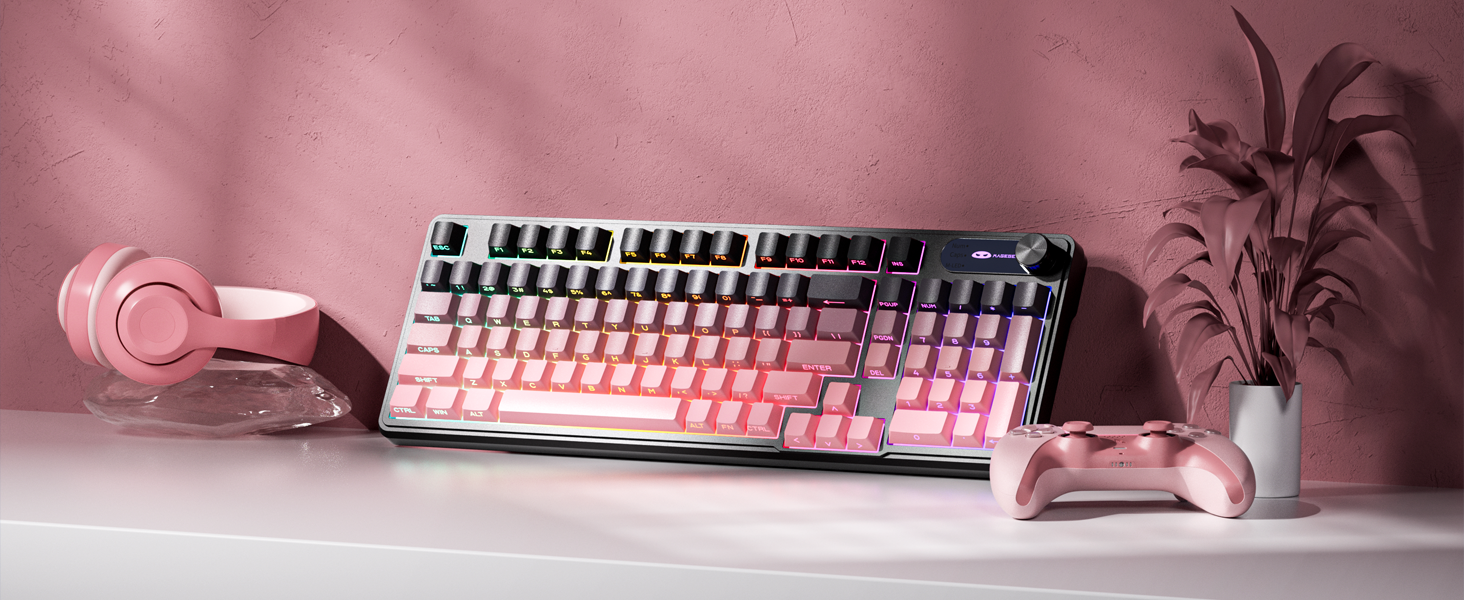
The MageGee GK960 is a versatile wireless gaming keyboard designed for optimal performance and user comfort. Featuring triple-mode connectivity (Wired USB-C, 2.4GHz Wireless, and Bluetooth), vibrant RGB backlighting, a multi-functional rotary knob, and a 98% layout with a number pad, this keyboard is suitable for various computing environments and tasks. Its ergonomic design and anti-ghosting capabilities enhance the typing and gaming experience.

Image 1.1: MageGee GK960 Wireless Gaming Keyboard highlighting key features such as Tri-Mode Connection, Side-Printed Keycaps, Knob Control, RGB Backlit, Win/Mac Support, and 19-Key Anti-Ghosting.
2. Pakketinhoud
Verifieer asseblief dat al die items wat hieronder gelys word, in u pakket ingesluit is:
- 1 x MageGee GK960 Wireless Gaming Keyboard
- 1 x Gebruikershandleiding
- 1 x USB-C laaikabel
- 1 x 2.4G USB-ontvanger
- 1 x User Guide (Quick Start)
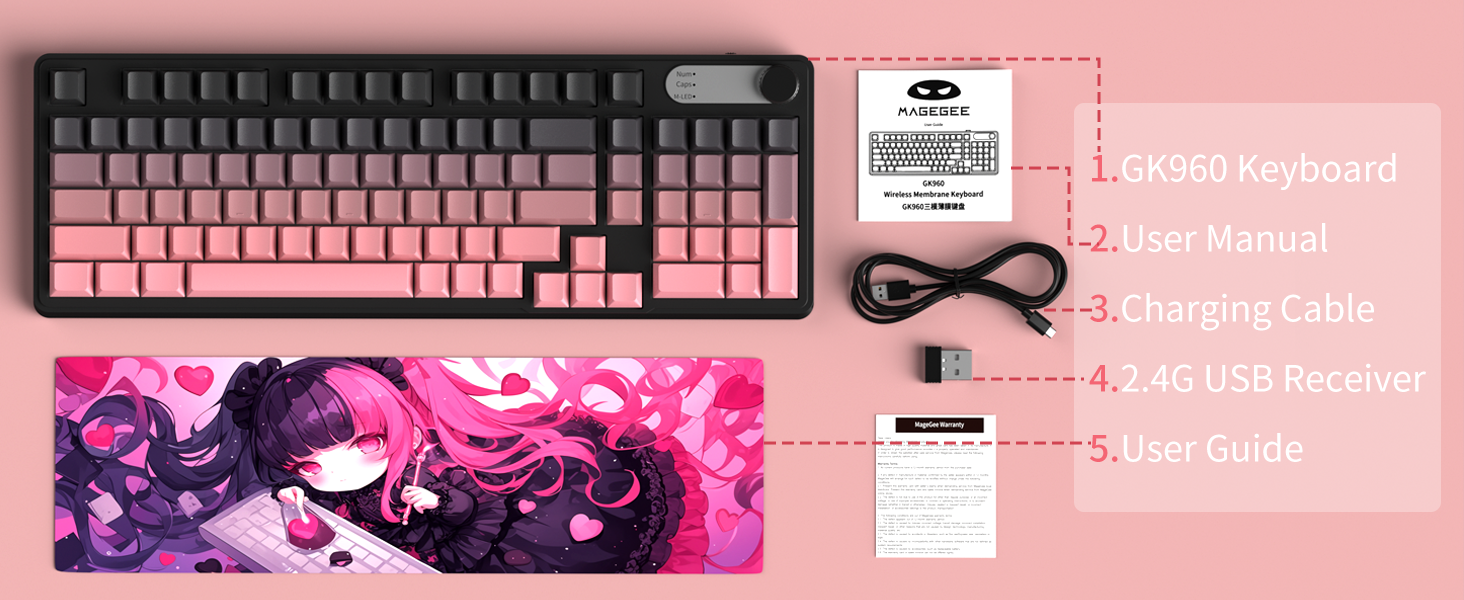
Image 2.1: Visual representation of the MageGee GK960 keyboard and its included accessories: user manual, charging cable, 2.4G USB receiver, and user guide.
3. Setup: Connectivity Modes
The GK960 keyboard offers three connectivity options: Wired USB-C, 2.4GHz Wireless, and Bluetooth. You can connect up to 5 devices simultaneously (1 wired, 1 via 2.4G, and up to 3 via Bluetooth).

Image 3.1: Diagram illustrating the three connection modes: Wired Type-C, 2.4GHz Wireless, and Bluetooth (BT FN+1/2/3).
3.1. Bedrade USB-C-verbinding
- Vind die USB-C-poort op die sleutelbord.
- Koppel die meegeleverde USB-C-kabel aan die sleutelbord en die ander kant aan 'n beskikbare USB-poort op jou rekenaar.
- Die sleutelbord sal outomaties herken word en gereed wees vir gebruik.
3.2. 2.4GHz Draadlose Verbinding
- Vind die 2.4G USB-ontvanger (dongle) in die pakket.
- Koppel die 2.4G USB-ontvanger aan 'n beskikbare USB-poort op jou rekenaar.
- Ensure the keyboard's mode switch (located on the back or side) is set to 2.4G mode.
- Die sleutelbord behoort outomaties te koppel.
3.3. Bluetooth-verbinding
The keyboard supports connecting to up to three Bluetooth devices.
- Ensure the keyboard's mode switch is set to Bluetooth mode.
- Om met 'n toestel te koppel, druk en hou FN + 1, FN + 2, of FN + 3 for 3-5 seconds until the corresponding indicator light flashes rapidly. This indicates pairing mode.
- Maak Bluetooth-instellings op jou toestel (rekenaar, tablet, slimfoon) oop en soek vir nuwe toestelle.
- Select "MageGee GK960" from the list of available devices to complete the pairing process. The indicator light will stop flashing once connected.
- Om tussen gepaarde Bluetooth-toestelle te wissel, druk eenvoudig FN + 1, FN + 2, of FN + 3 (short press).
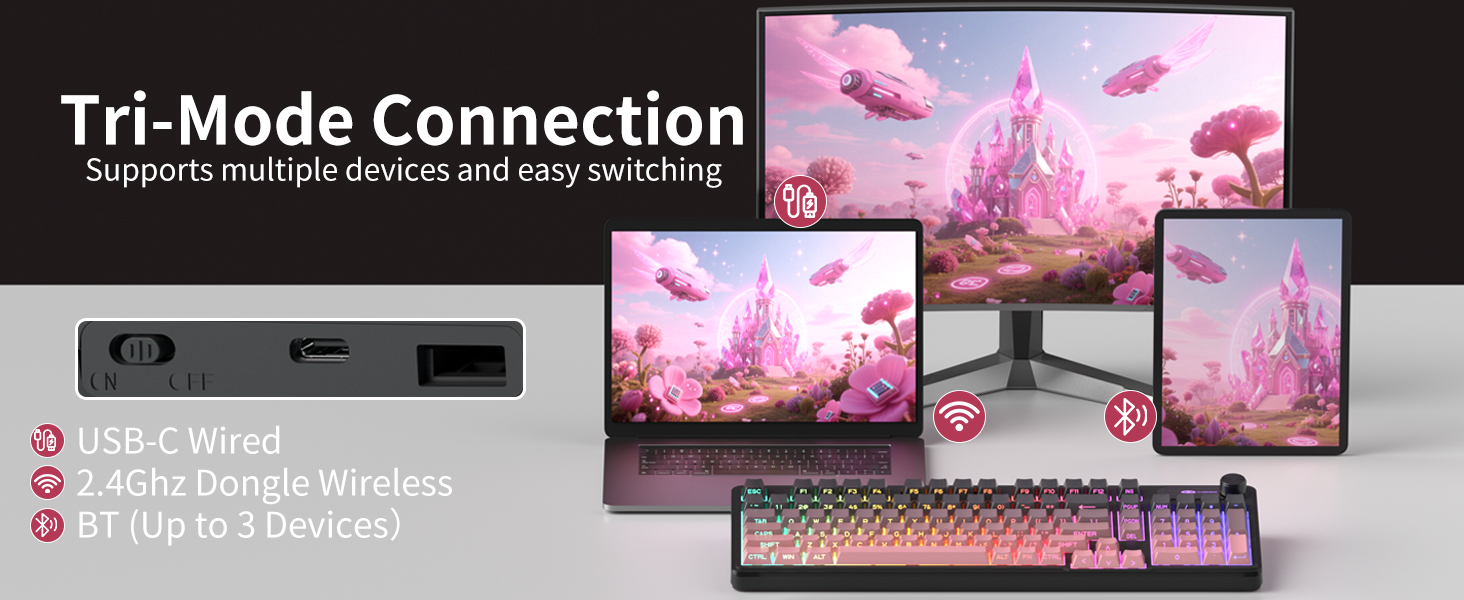
Image 3.2: The keyboard's connectivity switch, allowing selection between USB-C Wired, 2.4GHz Dongle Wireless, and Bluetooth modes.
4. Bedryfsinstruksies
4.1. Dual-Mode Rotary Knob
The multi-functional knob provides quick control over volume and lighting settings.
- Wisselmodusse: Langdruk FN + Knoppie for 5 seconds to switch between Volume Mode and Light Mode.
- Volumemodus:
- Twist the knob clockwise to increase volume.
- Twist the knob counter-clockwise to decrease volume.
- Press down on the knob to mute/unmute audio.
- Ligmodus:
- Twist the knob clockwise to increase backlight brightness.
- Twist the knob counter-clockwise to decrease backlight brightness.
- Press down on the knob to cycle through different lighting effects.
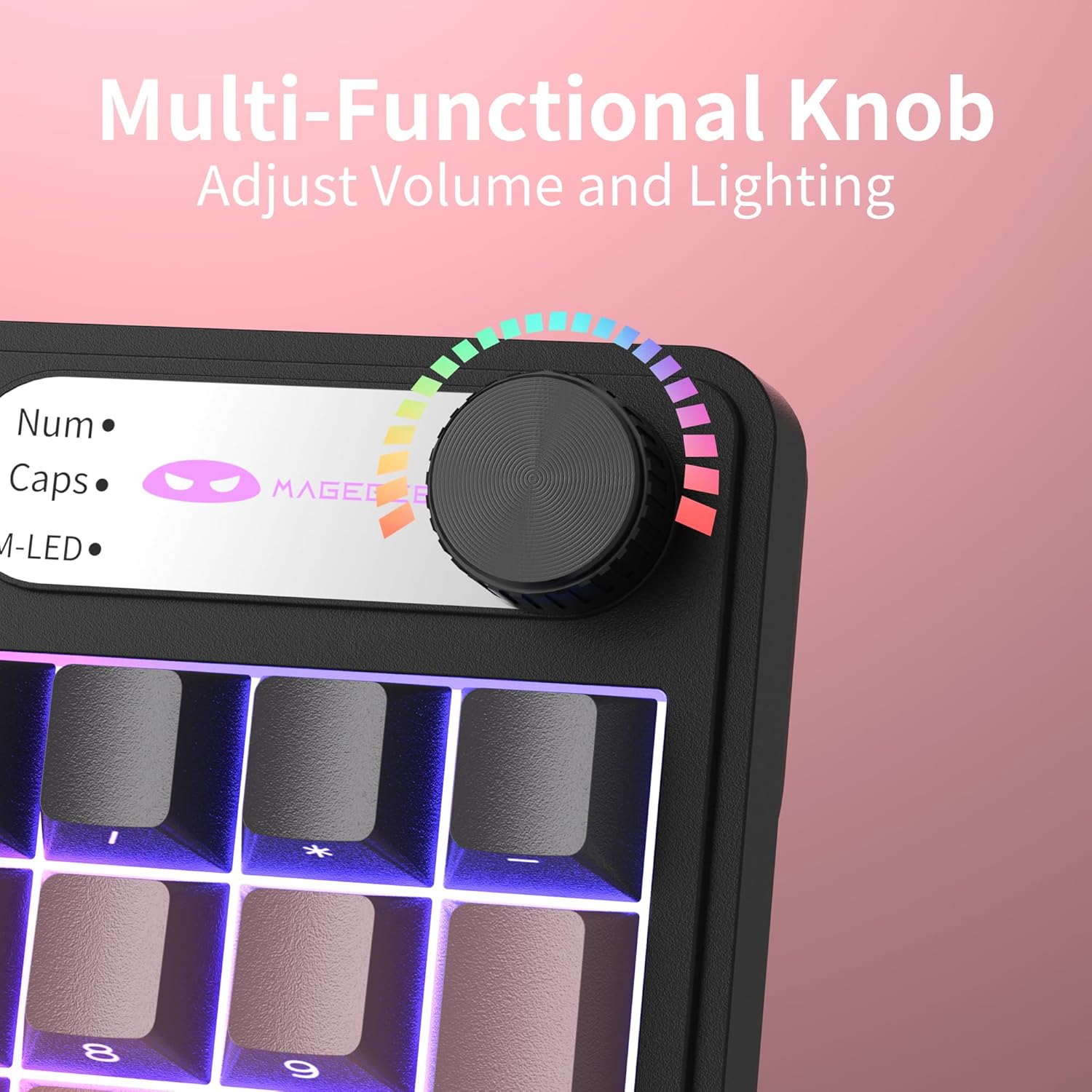
Beeld 4.1: Nabyskoot view of the multi-functional rotary knob, indicating its use for adjusting volume and lighting.
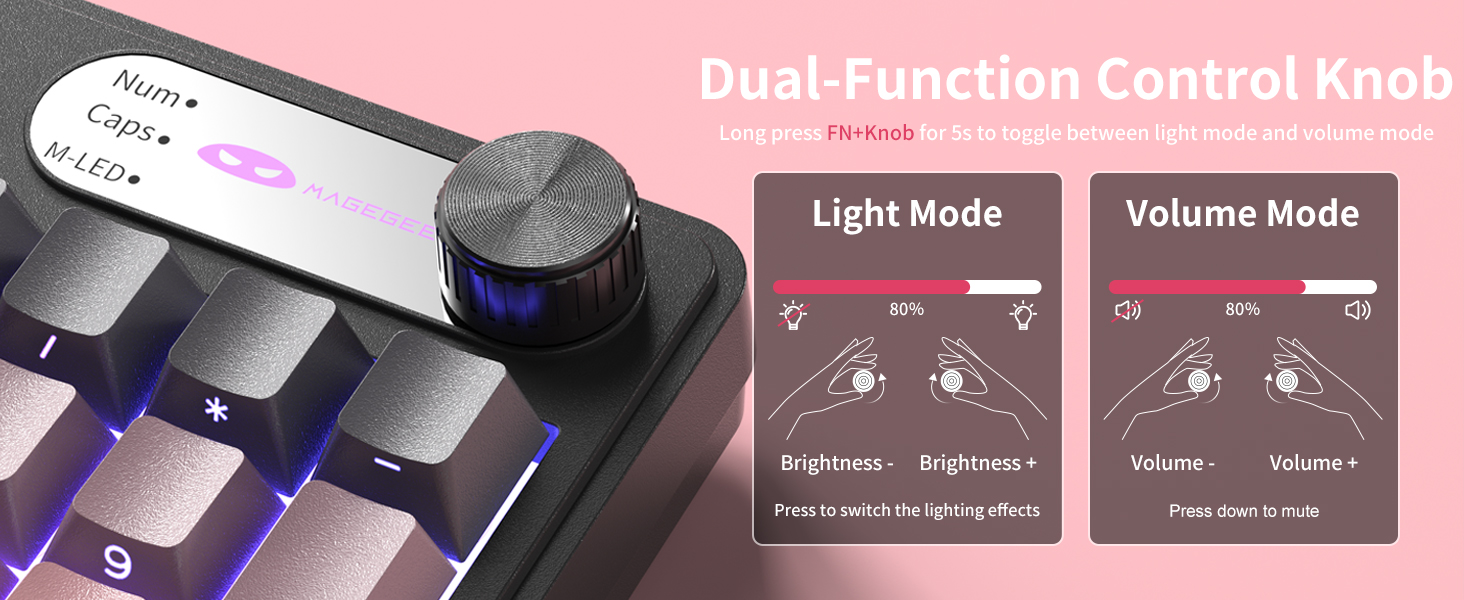
Image 4.2: Detailed illustration of the knob's functions in Light Mode (brightness adjustment, effect cycling) and Volume Mode (volume adjustment, mute).
4.2. RGB-agterbeligtingsbeheer
The GK960 features vibrant RGB backlighting with adjustable settings.
- FN + Ins: Skakel tussen verskillende ligmodusse.
- FN + Terugspasie: Skakel die agtergrond aan/af.
- FN + - / = +: Pas ligspoed aan.
- FN + PgUp / PgDn: Adjust light brightness.
- FN + P: Toggle the logo color.
Beeld 4.3: verbyview of function key combinations for controlling the vibrant RGB LED backlight, including switching modes, adjusting speed and brightness, and toggling logo color.
4.3. System Switching (Windows/Mac)
The GK960 keyboard supports both Windows and Mac operating systems. You can switch between them using a simple key combination.
- To switch to Windows mode: Press FN + W..
- To switch to Mac mode: Press FN + M.
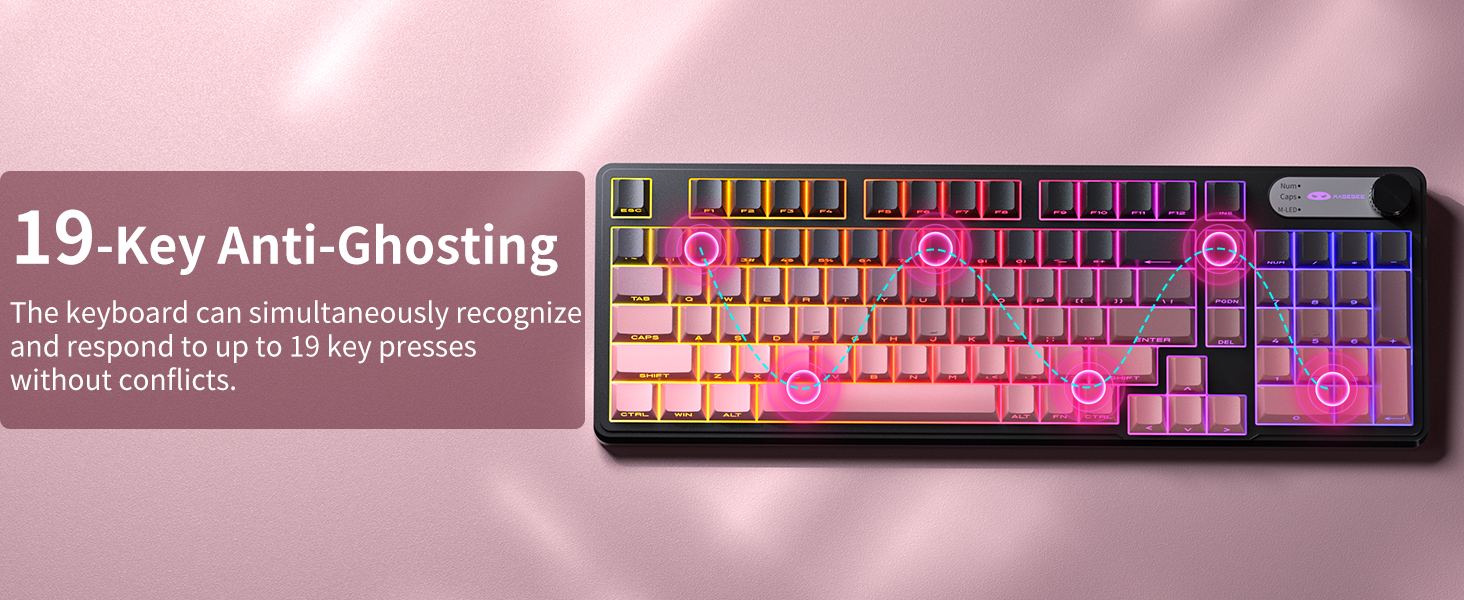
4.4. 19-Key Anti-Ghosting
The GK960 features 19-key anti-ghosting, ensuring that every keystroke is registered accurately, even during rapid, simultaneous key presses. This is particularly beneficial for gaming and fast typing, preventing missed inputs.
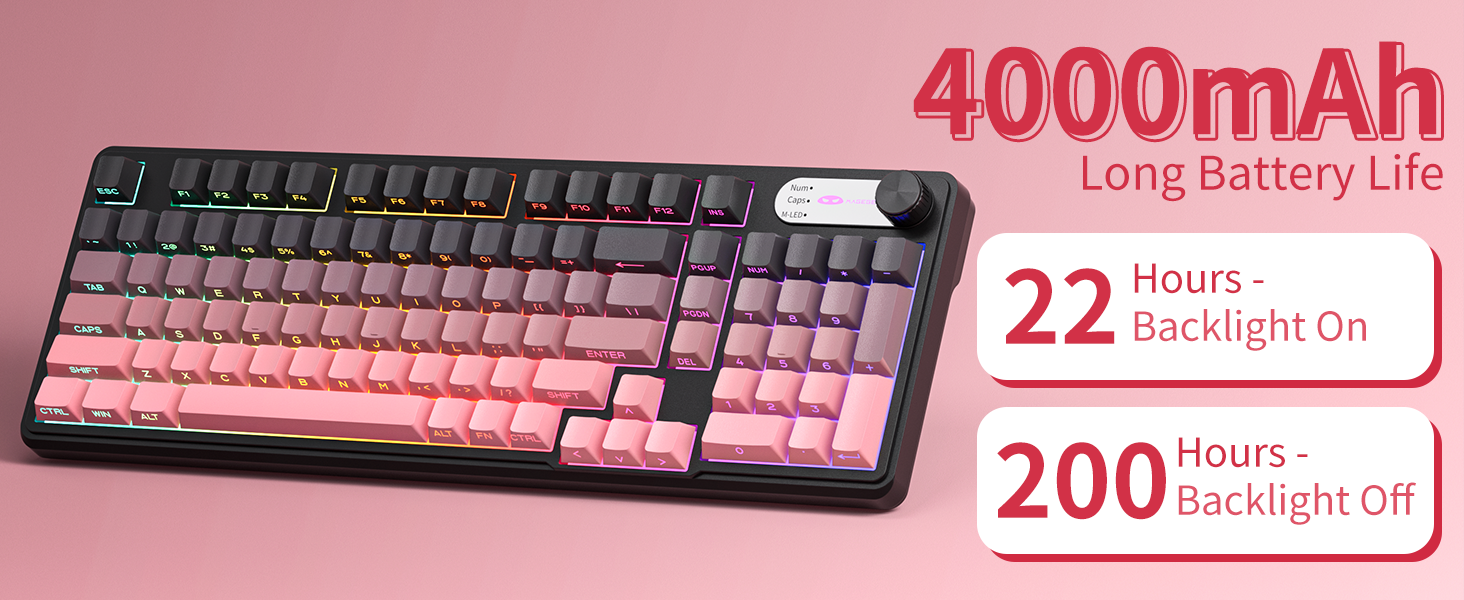
Image 4.4: Diagram illustrating the 19-key anti-ghosting feature, showing multiple simultaneous key presses being recognized.
4.5. Side-Printed Keycaps
The keycaps are crafted with double-shot injection molding, providing durability and clear legends that resist fading from prolonged use. The side-printed legends allow the backlight to shine through, enhancing visibility and aesthetics.

Beeld 4.5: Nabyskoot view of the side-printed keycaps, demonstrating how the backlight illuminates the legends.
5. Battery en Laai
The GK960 keyboard is equipped with a high-capacity 4000mAh battery, providing extended usage times.
- Batterylewe: Approximately 22 hours with backlight on, and up to 200 hours with backlight off.
- Laai: Connect the provided USB-C cable to the keyboard and a power source (e.g., computer USB port, USB wall adapter). The keyboard can be used in wired mode while charging.
- Lae battery aanwyser: An indicator light will signal when the battery is low, prompting you to recharge.
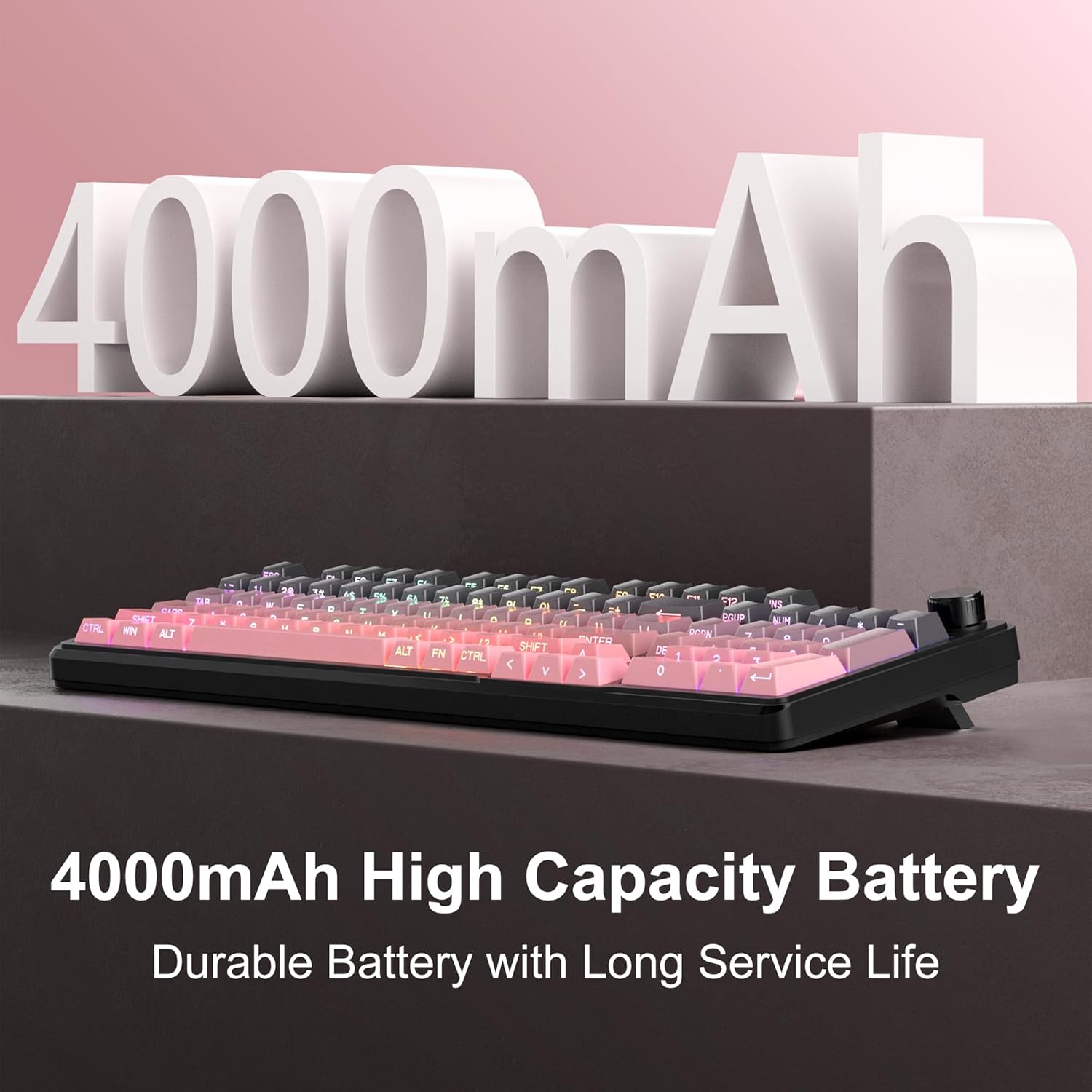
Image 5.1: Visual representation emphasizing the 4000mAh high-capacity battery for durable and long service life.
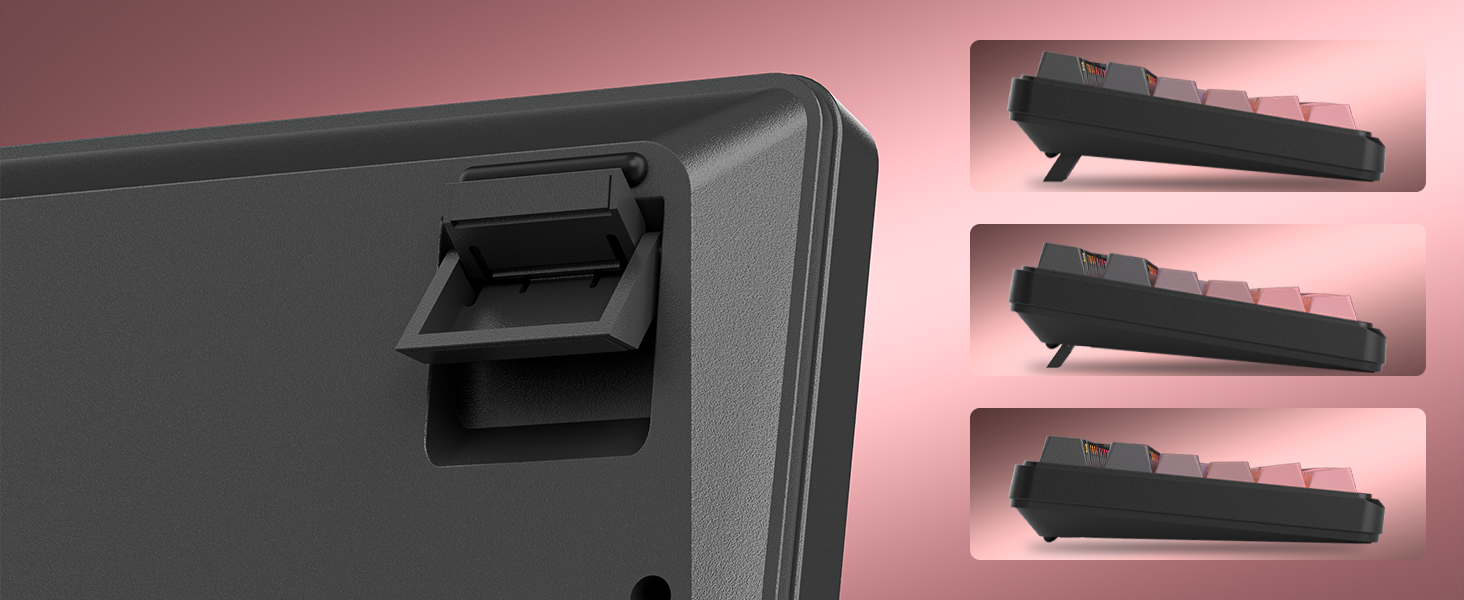
Image 5.2: Battery life estimates for the 4000mAh battery: 22 hours with backlight on and 200 hours with backlight off.
6. Onderhoud
Proper maintenance ensures the longevity and optimal performance of your MageGee GK960 keyboard.
- Skoonmaak: Use a soft, dry cloth to wipe the surface of the keyboard. For deeper cleaning, you may use a can of compressed air to remove dust and debris from between the keycaps. Avoid using harsh chemicals or abrasive materials.
- Verwydering van sleuteldop: If necessary, keycaps can be carefully removed using a keycap puller (not included) for thorough cleaning. Exercise caution to avoid damaging the switches.
- Berging: Bêre die sleutelbord op 'n koel, droë plek weg van direkte sonlig en uiterste temperature.
- Vloeistofblootstelling: Avoid spilling liquids on the keyboard. If a spill occurs, immediately disconnect the keyboard, turn it upside down to drain, and allow it to dry completely before reconnecting.
7. Probleemoplossing
If you encounter issues with your GK960 keyboard, refer to the following common troubleshooting steps:
- Sleutelbord reageer nie:
- Maak seker dat die sleutelbord gelaai is.
- Check the connectivity mode switch (Wired, 2.4G, BT) and ensure it matches your connection method.
- For 2.4G, ensure the USB receiver is securely plugged in.
- For Bluetooth, ensure the keyboard is paired correctly and selected on your device. Try re-pairing if necessary.
- Probeer om via 'n USB-C-kabel te koppel om draadlose probleme uit te sluit.
- Sleutels registreer nie of spook nie:
- Maak seker dat die sleutelbord skoon en vry van puin onder die sleutelkappe is.
- The GK960 features 19-key anti-ghosting, but excessive simultaneous presses beyond this limit may still lead to issues.
- Test the keyboard on another device to determine if the issue is with the keyboard or the computer.
- RGB-agtergrond werk nie of is verkeerd:
- Maak seker dat die agtergrondlig aangeskakel is met behulp van FN + Backspace.
- Pas helderheid aan met behulp van FN + PgUp / PgDn.
- Cycle through modes using FN + Ins.
- Check if the knob is in Light Mode and adjust brightness/effects.
- Bluetooth-verbinding onstabiel:
- Maak seker dat die sleutelbord binne die effektiewe reikwydte van jou toestel is.
- Minimaliseer interferensie van ander draadlose toestelle.
- Remove and re-pair the keyboard in your device's Bluetooth settings.
8. Tegniese spesifikasies
| Kenmerk | Spesifikasie |
|---|---|
| Model Naam | GK960 |
| Handelsmerk | MageGee |
| Verbindingstegnologie | BT/2.4G/USB-C (Tri-Mode) |
| Sleutelborduitleg | 98% Layout (with Number Pad) |
| Tipe sleutelkap | Side-Printed, Double-Shot Injection Molding |
| Anti-spookbeeld | 19 Sleutels |
| Agterlig | RGB |
| Battery kapasiteit | 4000mAh |
| Versoenbare toestelle | Skootrekenaar, rekenaar, slimfoon, tablet |
| Ondersteuning van bedryfstelsels | Windows, Mac |
| Spesiale kenmerke | Backlit, Hotkeys and Media Keys, Rechargeable, Volume Roller, Ergonomic Design |
| Item gewig | 1.88 pond |
| Pakket afmetings | 17.68 x 7.09 x 2.01 duim |

Image 8.1: Diagram showing the dimensions of the MageGee GK960 keyboard.
Beeld 8.2: Nabyskoot view of the adjustable stands on the underside of the keyboard, illustrating the different ergonomic angles.
9. Waarborg en Ondersteuning
Specific warranty details and direct support contact information are not provided in this manual. For warranty claims, technical support, or further inquiries, please refer to the official MageGee website or contact the retailer from whom you purchased the product. Please retain your proof of purchase for warranty purposes.


