
1. Inleiding
Thank you for choosing the roborock Q10 S5 Robot Vacuum and Mop Cleaner. This manual provides essential information for setting up, operating, and maintaining your device to ensure optimal performance and longevity. Please read this manual thoroughly before using the product and keep it for future reference.
2. Veiligheidsinligting
To reduce the risk of injury, electric shock, fire, or damage, please observe the following safety precautions:
- Hierdie toestel kan gebruik word deur kinders van 8 jaar en ouer en persone met verminderde fisiese, sensoriese of geestelike vermoëns of 'n gebrek aan ervaring en kennis indien hulle toesig of instruksies ontvang het oor die gebruik van die toestel op 'n veilige manier en die betrokke gevare verstaan .
- Kinders moet onder toesig wees om te verseker dat hulle nie met die toestel speel nie.
- Skoonmaak en gebruikersinstandhouding mag nie deur kinders sonder toesig gedoen word nie.
- Do not use the robot in areas with open flames or fragile objects.
- Maak seker dat die laaidok op 'n gelyk oppervlak teen 'n muur geplaas is.
- Only use the original power adapter provided with the device.
- Do not expose the robot to direct sunlight or moisture.
- Before cleaning, remove power cords, small objects, and fragile items from the floor.
3. Produk verbyview
Familiarize yourself with the components of your roborock Q10 S5 robot vacuum.
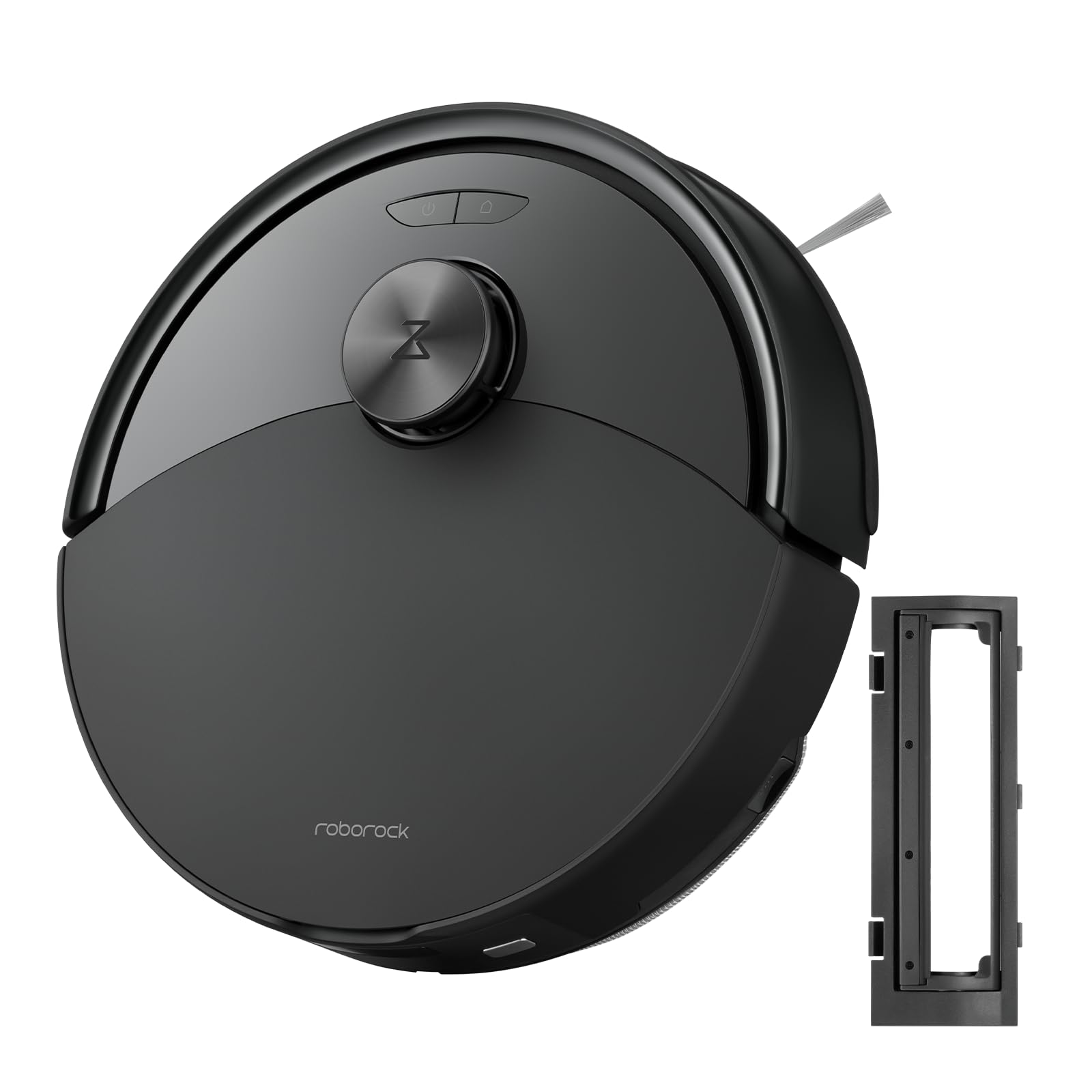
Figuur 1: The roborock Q10 S5 Robot Vacuum and Mop Cleaner. This image shows the top view of the robot, highlighting its sleek black design and main control buttons.
Robotkomponente:
- Boonste deksel: Lifts to reveal the dustbin and Wi-Fi indicator.
- Krag/skoonmaak-knoppie: Press to start/pause cleaning, hold to turn on/off.
- Dock/Spot Clean Button: Press to send the robot back to the dock, hold for spot cleaning.
- LDS-sensor: For navigation and mapping.
- Bumper: Bespeur hindernisse.
- Syborsel: Vee puin van kante en hoeke af.
- Hoofborsel: Collects dirt and debris from floors. Features a floating design for better contact.
- Omnidirektiewe Wiel: For movement.
- Laai kontakte: Verbind met die laaidok.
- Klifsensors: Prevents the robot from falling down stairs.
- Watertenk en mopblokkie: For mopping functionality.
Laaidok:
- Dock Location Beacon: Helps the robot locate the dock.
- Laai kontakte: Transfers power to the robot.
- Power Cable Port: Verbind die kragadapter.
4. Opstelling
- Pak die robot uit: Carefully remove the robot and all accessories from the packaging. Remove any protective films or shipping materials.
- Install the Side Brush: Press the side brush onto its post until it clicks into place.
- Plaas die laaidok:
- Place the charging dock on a hard, level surface against a wall.
- Ensure there is at least 0.5 meters (1.6 feet) of clear space on both sides and 1.5 meters (4.9 feet) in front of the dock.
- Koppel die kragkabel aan die laaidok en steek dit in 'n muursok.
- Aanvanklike heffing: Place the robot on the charging dock. The robot will automatically turn on and begin charging. For first-time use, fully charge the robot before operation (approximately 4-6 hours). The power indicator light will breathe white during charging and turn solid white when fully charged.
- Laai die toepassing af: Soek vir "Roborock" in the App Store or Google Play Store, or scan the QR code on the packaging to download and install the app.
- Koppel aan Wi-Fi:
- Open the Roborock app and follow the on-screen instructions to add your device.
- Maak seker dat jou foon aan 'n 2.4 GHz Wi-Fi-netwerk gekoppel is.
- Druk en hou die Dok en Krag buttons simultaneously for 3 seconds until you hear the "Resetting Wi-Fi" voice alert.
- Follow the app's instructions to complete the connection.
5. Bedryfsinstruksies
Begin van 'n Skoonmaak:
- Van Robot: Druk die Krag button once. The robot will start cleaning.
- Van die toepassing: Open the Roborock app and tap the "Clean" button.
Pausing/Resuming/Stopping:
- Pouse: Press any button on the robot or tap "Pause" in the app.
- Hervat: Druk die Krag button or tap "Resume" in the app.
- stop: To stop a cleaning cycle, press the Dok button to send the robot back to the charging dock, or tap "Stop" in the app.
Mopfunksie:
- Vul watertenk: Open the water tank cover, fill with clean water, and close securely.
- Heg mopblokkie aan: Wet the mop pad and wring it out. Slide it into the mop pad slot until it is securely attached.
- Start Mopping: The robot will automatically detect the mop module and switch to mopping mode. You can adjust water flow levels in the app.
App Kenmerke:
- Kaartbestuur: Create and save maps, set no-go zones, virtual walls, and invisible barriers.
- Selective Room Cleaning: Choose specific rooms to clean.
- Geskeduleerde skoonmaak: Stel skoonmaakskedules vir verskillende tye en dae.
- Custom Cleaning Modes: Pas suigkrag en watervloeivlakke aan.
- Afstandbeheer: Manually control the robot's movement.
6. Onderhoud
Regular maintenance ensures your roborock Q10 S5 operates efficiently. Always turn off the robot and unplug the charging dock before performing any maintenance.
Dustbin and Filter (Weekly):
- Lift the top cover of the robot.
- Verwyder die asblik.
- Open the dustbin cover and empty its contents into a trash bin.
- Remove the filter. Tap it gently to remove dust. The filter can be rinsed with water; ensure it is completely dry before reinstallation (allow 24 hours).
- Rinse the dustbin with water if necessary and allow it to dry completely.
- Reinstall the dry filter and dustbin.
Main Brush (Weekly):
- Draai die robot om.
- Press the tabs to remove the main brush cover.
- Lift out the main brush.
- Use the cleaning tool (if provided) or scissors to cut and remove any hair or debris tangled around the brush.
- Reinstall the main brush and cover, ensuring it clicks into place.
Side Brush (Monthly):
- Unscrew the side brush.
- Remove any hair or debris.
- Reattach and tighten the screw.
Sensors and Charging Contacts (Monthly):
- Wipe all sensors (cliff sensors, wall sensor, LDS sensor window) and the charging contacts on both the robot and the dock with a soft, dry cloth.
Mop Pad (After Each Use):
- Verwyder die mop pad uit die watertenk.
- Rinse thoroughly with water and allow it to air dry completely before next use.
7. Probleemoplossing
If you encounter issues with your robot, please refer to the following table before contacting support.
| Probleem | Moontlike oorsaak | Oplossing |
|---|---|---|
| Robot skakel nie aan nie. | Lae battery of nie gelaai nie. | Plaas die robot op die laaistasie en maak seker dat dit laai. |
| Robot kan nie aan Wi-Fi koppel nie. | Incorrect Wi-Fi password, 5GHz network, or poor signal. | Ensure correct 2.4GHz Wi-Fi, reset Wi-Fi on robot, move closer to router. |
| Die robot sit gereeld vas. | Obstacles, tangled cables, or dirty sensors. | Clear floor, clean sensors, use no-go zones in app. |
| Swak skoonmaakprestasie. | Full dustbin, dirty filter, tangled brushes. | Empty dustbin, clean/replace filter, clean main/side brushes. |
| Robot maak ongewone geluid. | Debris in main brush, side brush, or wheels. | Inspect and clean all brushes and wheels for obstructions. |
If the problem persists, please refer to the Roborock app for more detailed error messages or contact customer support.
8. Spesifikasies
| Kenmerk | Detail |
|---|---|
| Model | Q10 S5 |
| Afmetings | Ongeveer 353 x 350 x 96.5 mm (13.9 x 13.8 x 3.8 duim) |
| Gewig | Ongeveer. 3.7 kg (8.16 lbs) |
| Battery | Lithium-Ion (Capacity not specified, typical for robot vacuums) |
| Gegradeerde krag | Approx. 60W (Typical for robot vacuums) |
| Vullishouer kapasiteit | Approx. 470 ml (Typical for robot vacuums) |
| Watertenk kapasiteit | Approx. 300 ml (Typical for robot vacuums) |
| Suigkrag | Up to 10,000 Pa (HyperForce Suction Power from feature bullets) |
| Wi-Fi konneksie | 2.4 GHz |
Opmerking: Spesifikasies kan sonder kennisgewing verander word.
9. Waarborg en Ondersteuning
roborock products are manufactured to the highest quality standards. For detailed warranty information, please refer to the warranty card included in your product packaging or visit the official roborock website. For technical support, troubleshooting assistance, or to purchase replacement parts, please contact roborock customer service through the app or their official webwebwerf.
Amptelik Webwebwerf: www.roborock.com