
1. Inleiding
This manual provides instructions for the assembly, operation, and maintenance of the MONTECH X5M Micro ATX Gaming PC Case. The X5M is designed for high airflow and features pre-installed ARGB fans, a glass side panel, and an integrated GPU holder.
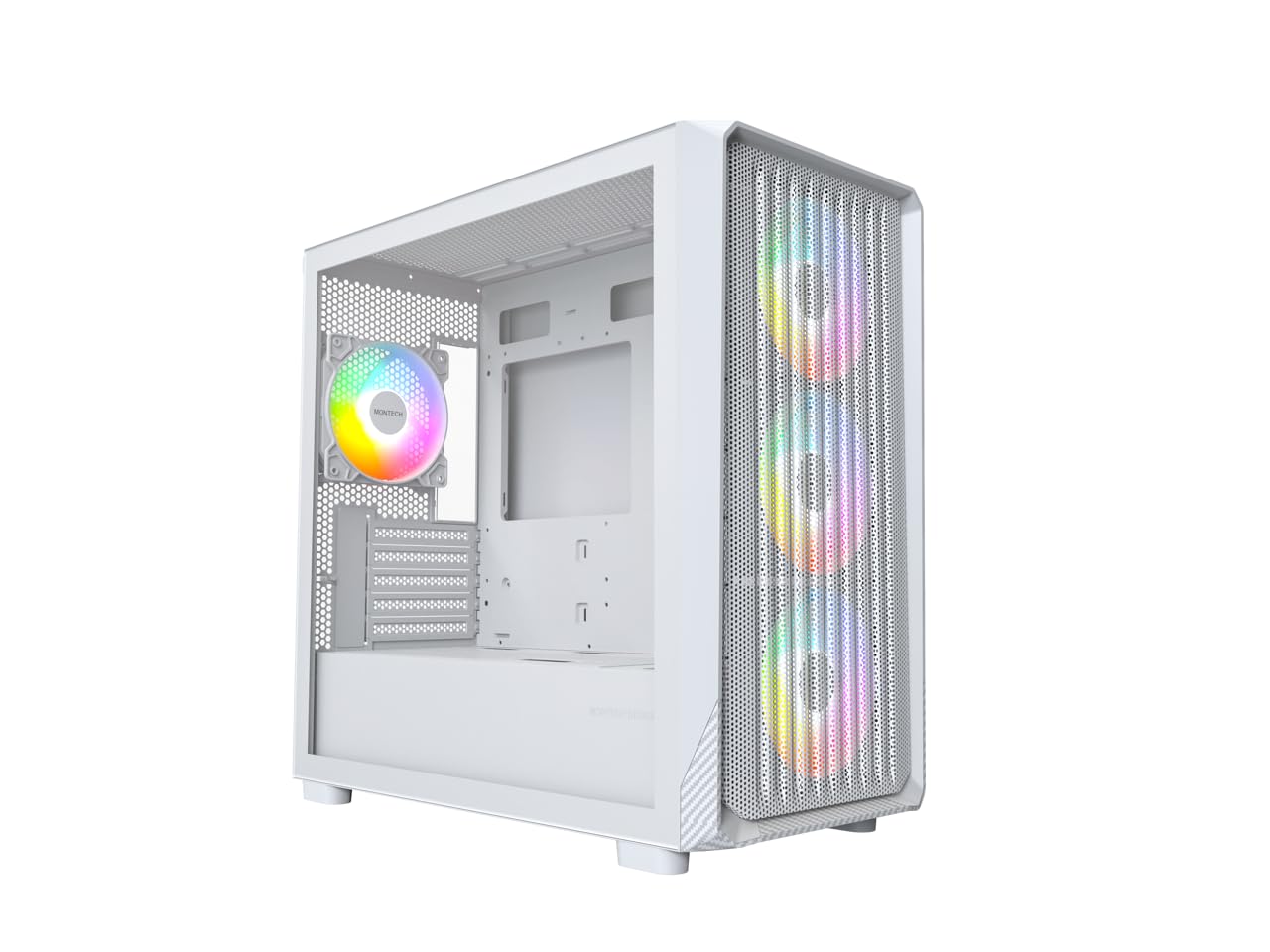
Figure 1: MONTECH X5M Micro ATX Gaming PC Case (White variant).
2. Sleutel kenmerke
- Integrated GPU Holder: An adjustable GPU support stand is included to provide physical support for graphics cards.
- High Airflow Design: Optimized structure for efficient cooling.
- Pre-installed ARGB Fans: Four 120mm ARGB fans are pre-installed for immediate cooling and customizable lighting.
- Geharde glas sypaneel: Bied 'n duidelike view van interne komponente.
- Carbon Fiber Print Accents: Aesthetic detailing on the front panel.
- Veelsydige verbindings: Front I/O panel includes USB 2.0, USB 3.0, USB Type-C, and audio ports.

Figuur 2: oorview of the MONTECH X5M case highlighting internal layout and ARGB fans.
3. Spesifikasies
| Handelsmerk | Montech |
| Model Naam | X5M |
| Soort saak | Mikro ATX Mid Tower |
| Moederbordversoenbaarheid | Mikro ATX |
| Vooraf geïnstalleerde waaiers | 4 x 120 mm ARGB-waaiers |
| GPU-lengteondersteuning | Tot 405 mm |
| CPU Cooler Height Support | Tot 165 mm |
| PSU Length Support | Tot 230 mm |
| Stoorbaaie | Up to 2 HDDs & 4 SSDs |
| Voorste I / O-poorte | 1x USB 2.0, 1x USB 3.0, 1x USB Type-C, Mic & Audio, LED Button, Power Button |
| Verkoelingsmetode | Lug |
| AIO Radiator Ondersteuning | Top: Up to 360mm; Front: Up to 360mm |
| Materiaal | Plastic with Carbon Fiber Accents, Tempered Glass |
| Item gewig | 14.3 pond (6.49 kg) |

Figure 3: Close-up of the carbon fiber print detailing on the front panel of the X5M case.
4. Opstelling en installering
Follow these steps for installing components into your MONTECH X5M PC case. Ensure your system is powered off and unplugged before beginning any installation.
4.1. Voorbereiding van die Saak
- Carefully remove the tempered glass side panel by unscrewing the thumb screws and sliding it off.
- Remove the rear side panel to access the cable management area.
4.2. Moederbord Installasie
- Installeer die I/O-skerm (indien dit nie vooraf aan jou moederbord geheg is nie) in die agterste opening van die kas.
- Align your Micro ATX motherboard with the standoffs inside the case.
- Bevestig die moederbord met die meegeleverde skroewe.
4.3. Installasie van die kragtoevoereenheid (PSU)
- Place the PSU into the dedicated compartment at the bottom rear of the case.
- Bevestig die PSU met skroewe van die agterkant van die kas.
4.4. Storage Device Installation (HDDs/SSDs)
The X5M supports up to 2 HDDs and 4 SSDs.
- 2.5" SSD's: Mount SSDs onto the designated brackets behind the motherboard tray or on the PSU shroud.
- 3.5" HDD's: Install HDDs into the drive cage located under the PSU shroud.
4.5. Grafiese kaart (GPU) Installasie
- Verwyder die nodige PCIe-gleufdeksels van die agterkant van die kas.
- Plaas die GPU in die toepaslike PCIe-gleuf op jou moederbord.
- Bevestig die GPU met skroewe.
- Adjust the integrated GPU support stand to provide stability for your graphics card.
4.6. Ventilator en verkoeler installasie
The X5M comes with four 120mm ARGB fans pre-installed. Additional fans or AIO radiators can be installed as follows:
- Top: Supports 3x 120mm or 2x 140mm fans, or AIO radiators up to 360mm.
- Voor: Supports 3x 120mm or 2x 140mm fans, or AIO radiators up to 360mm.
- Agter: Supports 1x 120mm fan.
- PSU-omhulsel: Ondersteun 2x 120mm waaiers.

Figure 4: Illustration of airflow within the MONTECH X5M case and the pre-installed ARGB fans.

Figure 5: Diagram detailing fan and radiator support locations and sizes within the X5M case.
4.7. Kabelbestuur
Gebruik die kabelgeleidingsuitsparings en vasmaakpunte agter die moederbordbak om kabels te organiseer. Dit verbeter lugvloei en estetika.
4.8. Front I/O Panel Connections
Connect the front panel cables (USB 2.0, USB 3.0, USB Type-C, HD Audio, Power Switch, Reset Switch, LED) to the corresponding headers on your motherboard. Refer to your motherboard manual for specific header locations.

Figure 6: Front I/O panel of the MONTECH X5M, showing USB 2.0, USB 3.0, USB Type-C, Mic & Audio jacks, LED button, and Power button.
5. Operasie
5.1. Aanskakel
After all components are installed and cables connected, replace the side panels. Connect your monitor, keyboard, mouse, and power cable. Press the Power Button on the front I/O panel to start your system.
5.2. ARGB Fan Control
The pre-installed ARGB fans can be controlled in two ways:
- Dedicated LED Button: Use the LED button on the front I/O panel to cycle through 25 built-in lighting modes.
- Moederbord-sinchronisasie: Connect the ARGB cables to a compatible 5V 3-pin ARGB header on your motherboard. Use your motherboard's RGB software (e.g., ASUS Aura Sync, MSI Mystic Light Sync, GIGABYTE RGB Fusion, ASRock Polychrome Sync) to synchronize and customize lighting effects.
6. Onderhoud
Gereelde onderhoud help om optimale werkverrigting en lang lewensduur van jou rekenaarkomponente te verseker.
- Skoonmaak van stoffilter: Periodically remove and clean the dust filters (located on the top, front, and bottom) to maintain optimal airflow. Use compressed air or a soft brush.
- Buitenste skoonmaak: Vee die buite-oppervlaktes af met 'n sagte, damp lap. Vermy skuur skoonmakers.
- Binne skoonmaak: With the system powered off and unplugged, use compressed air to remove dust from internal components and fans.
7. Probleemoplossing
- Stelsel skakel nie aan nie:
- Ensure the power cable is securely connected to the PSU and the wall outlet.
- Maak seker dat die PSU-skakelaar in die "AAN"-posisie is.
- Verify all front panel connectors (especially the Power Switch) are correctly attached to the motherboard.
- Confirm the 24-pin ATX and 8-pin CPU power cables are securely connected to the motherboard.
- Fans Not Spinning / RGB Not Lighting Up:
- Check that all fan power cables are securely connected to the fan hub or motherboard headers.
- Ensure ARGB cables are properly connected to the fan hub or a compatible 5V 3-pin ARGB header on the motherboard.
- If using motherboard synchronization, verify that the RGB software is installed and configured correctly.
- Try cycling through modes using the dedicated LED button on the front panel.
- Geen skermuitvoer:
- Ensure your monitor cable is connected to the graphics card (GPU) and not the motherboard's integrated graphics port (unless you are using integrated graphics).
- Plaas die grafiese kaart terug in sy PCIe-gleuf.
- Check that the GPU power cables are securely connected.
8. Waarborg en Ondersteuning
8.1. Waarborginligting
The MONTECH X5M PC Case comes with a 1 Jaar Vervaardigerswaarborg. This warranty covers defects in materials and workmanship under normal use. For specific terms and conditions, please refer to the official Montech webwebwerf of kontak kliëntediens.
8.2. Kliëntediens
For further assistance, technical support, or warranty claims, please visit the official Montech website or contact their customer service department. You can find contact information on the Montech webwebwerf: www.montechpc.com