
1. Inleiding
Welcome to the user manual for your new TABWEE K10 Kids Tablet. This guide provides essential information to help you set up, operate, and maintain your tablet, ensuring a safe and enriching experience for children. The TABWEE K10 is designed to offer both educational content and entertainment, featuring Google Kids Space, YouTube Kids compatibility, and robust parental controls.
2. Produk verbyview
2.1 Komponente
- TABWEE K10 Tablet
- Lightweight EVA Protective Case
- Aanraakpen (Stylus)
- USB Type-C kabel
- Kragadapter
- Gebruikershandleiding (Japannees)
2.2 Sleutelkenmerke
- Vertoon: 10-inch HD IPS screen (1280x800 resolution) with Widevine L1 support.
- Bedryfstelsel: Android 15 Go Edition.
- Verwerker: RK3562 Quad-Core (Cortex-A55, up to 2.0GHz) with Mali-G52 GPU.
- Geheue en berging: 12GB RAM (4GB physical + 8GB virtual) and 64GB ROM, expandable up to 2TB via microSD card.
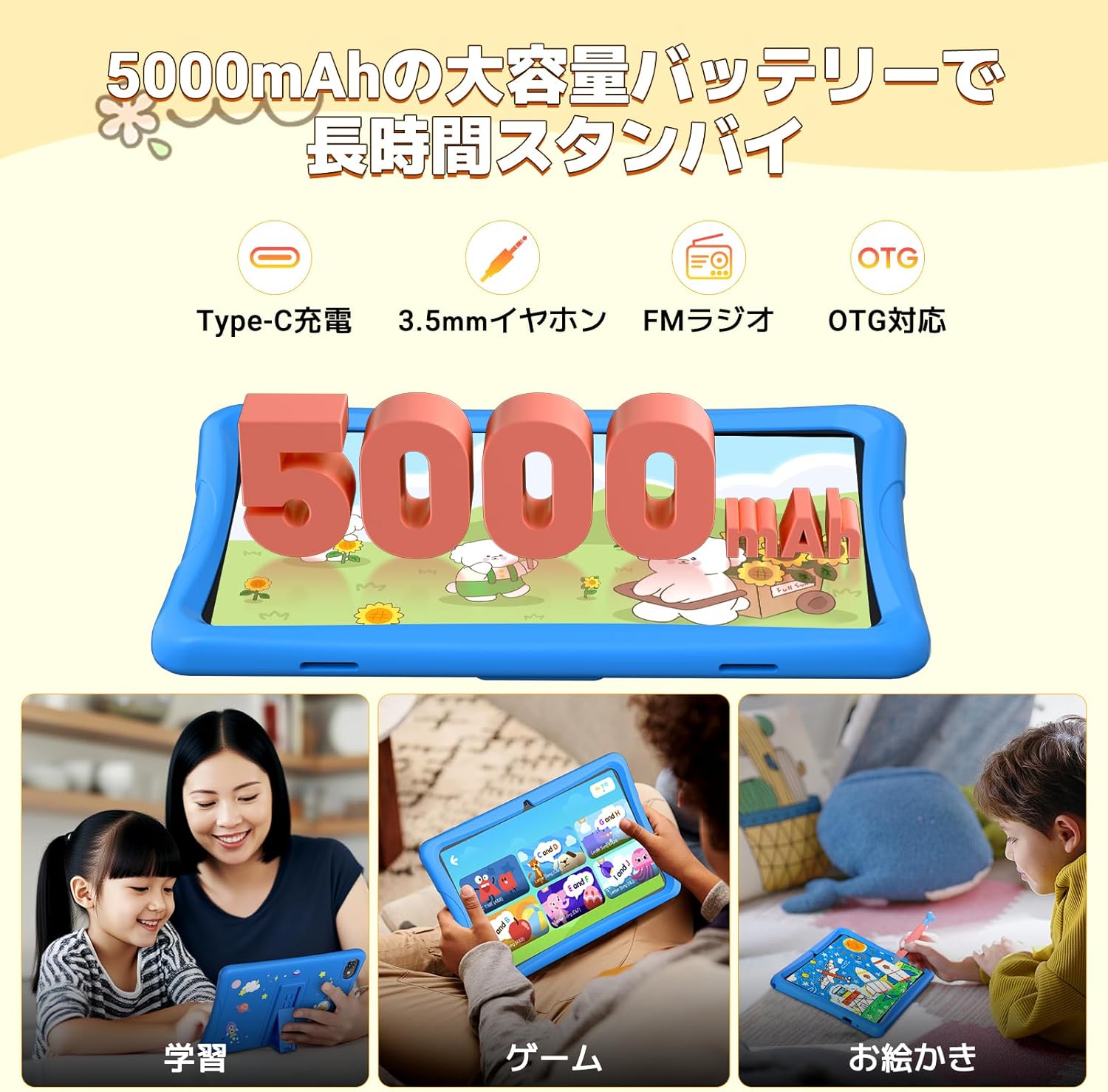
- Battery: 5000mAh for extended use.
- Verbinding: 5G Wi-Fi, Bluetooth.
- Kameras: 2MP Front Camera, 5MP Rear Camera.
- Spesiale kenmerke: Google Kids Space, YouTube Kids, Google Family Link parental controls, EVA protective case, touch pen.
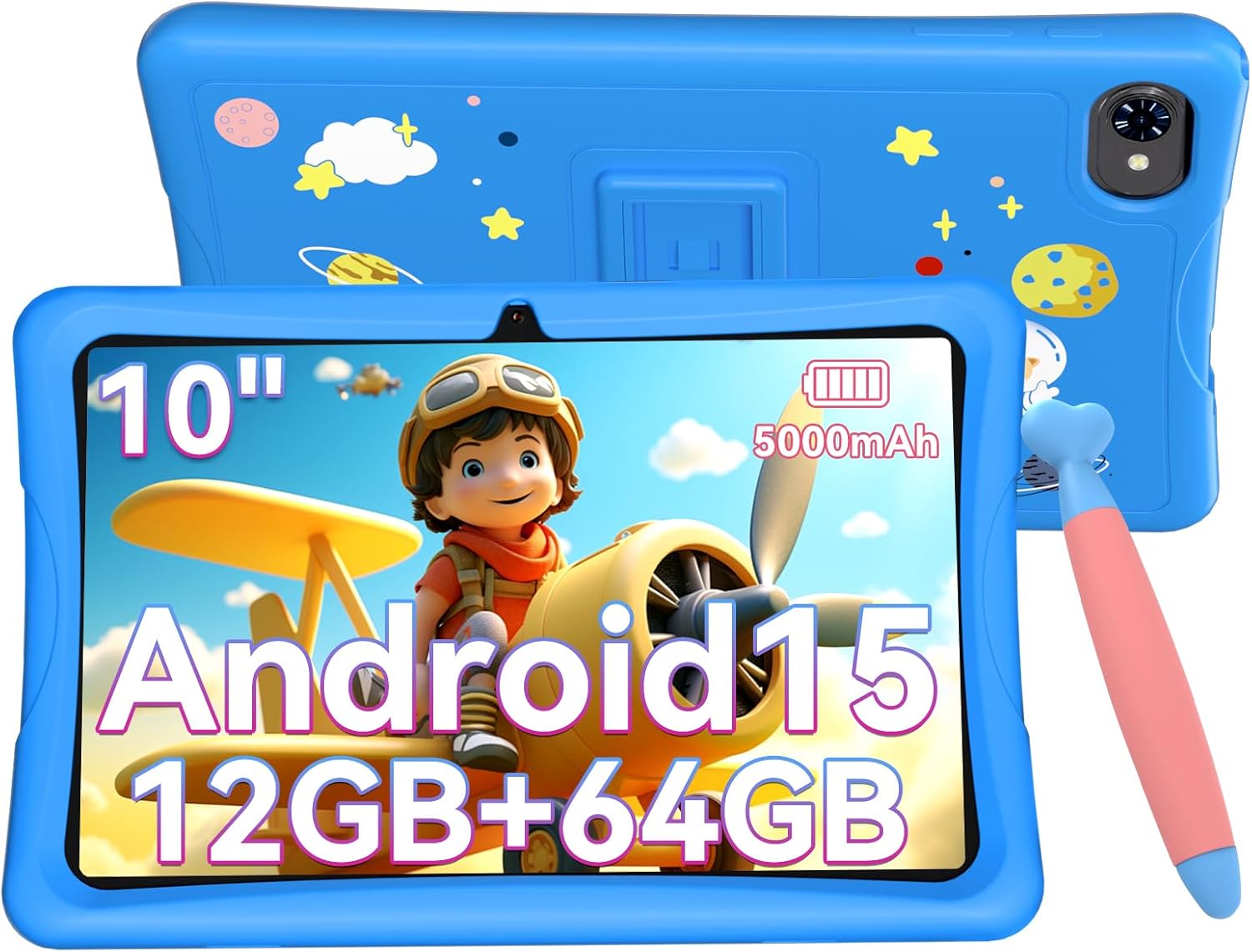
The TABWEE K10 Kids Tablet in blue, featuring a 10-inch screen, Android 15, 12GB RAM, 64GB ROM, and a 5000mAh battery, shown with its protective EVA case and a stylus.
An illustration of the TABWEE K10 tablet highlighting its physical features including the rear camera, flashlight, front camera, volume buttons, power button, 3.5mm audio jack, microphone, MicroSD slot, and Type-C port.
3. Aan die gang
3.1 Aanvanklike laai
Before first use, fully charge the tablet using the provided USB Type-C cable and power adapter. The battery indicator on the screen will show charging status.
3.2 Krag aan/af
- Om aan te skakel: Press and hold the Power button until the TABWEE logo appears.
- Om af te skakel: Druk en hou die aan/af-knoppie in, en kies dan 'Skakel af' uit die opsies op die skerm.
3.3 Taalkeuse
Upon first boot or if you need to change the language:
- Gaan na Instellings (gear icon).
- Blaai af en tik op Stelsel.
- Tik op Tale en insette.
- Tik op Tale.
- Tik Voeg 'n taal by and select your preferred language.
- Drag your preferred language to the top of the list to set it as the primary language.
This video demonstrates how to access the system settings and change the display language on the tablet.
3.4 Wi-Fi-verbinding
To connect your tablet to the internet:
- Gaan na Instellings.
- Tik op Netwerk en internet.
- Wissel Wi-Fi na Aan.
- Kies jou verlangde Wi-Fi-netwerk uit die lys.
- Voer die wagwoord in indien gevra, en tik dan Koppel.
This video illustrates the steps to connect the tablet to an available Wi-Fi network through the settings menu.
4. Bedryfsinstruksies
4.1 Basiese navigasie
- Tik: Kies 'n item of maak 'n toepassing oop.
- Swiep: Blaai deur skerms of lyste.
- Knyp: Zoem in of uit op beelde en web bladsye.
4.2 Google Kids Space
The TABWEE K10 comes pre-installed with Google Kids Space, a dedicated environment for children to learn and play. It features content categorized into 'Play', 'Read', 'Watch', and 'Make', guiding children to explore and grow independently.

A visual representation of the Google Kids Space interface, showing various educational apps and content categorized for children.
4.3 YouTube Kids
Access YouTube Kids for a safe and curated video experience for children. The app provides age-appropriate content and allows parents to manage viewing voorkeure.
This video shows how to launch the YouTube Kids application from the tablet's home screen.
4.4 Android 15-kenmerke
The tablet runs on the optimized Android 15 Go Edition, offering smoother operation, improved power efficiency, and enhanced notification management and privacy protection. It supports Kids Mode and multiple user profiles, making it easy for siblings to share or for parents to manage.

A graphic illustrating key features of Android 15, such as multitasking capabilities and enhanced notification management.
5. Parental Controls (Google Family Link)
Utilize Google Family Link to manage your child's tablet usage remotely. This feature allows you to:
- Monitor usage status and screen time.
- Set time limits in 15-minute increments.
- Approve or block apps from the Google Play Store.
- Filter content based on age.

A screenshot of the Google Family Link interface, demonstrating options for remote operation, activity reports, usage time management, and application control.
6. Skerm en klank
6.1 Screen Quality
The 10-inch HD IPS display with 1280x800 resolution provides clear and vibrant images. With Widevine L1 support, you can enjoy high-quality video streaming from platforms like YouTube, Prime Video, and HBO.
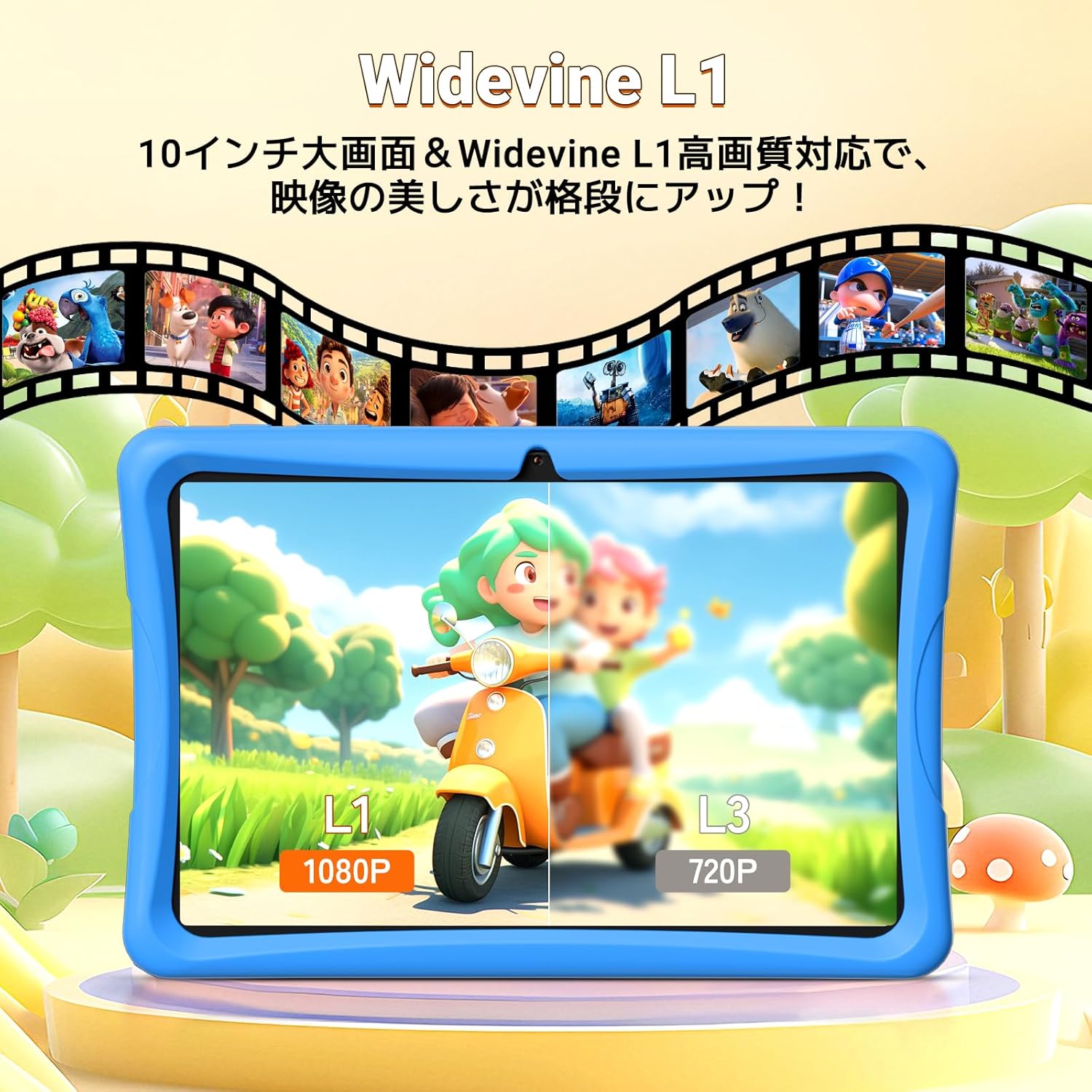
A comparison image showing the difference between Widevine L1 (1080P) and L3 (720P) display quality on the tablet, highlighting enhanced visual clarity.
6.2 Vertoonmodusse
The tablet offers three special display modes to enhance eye comfort:
- Nagmodus: Reduces blue light for comfortable viewin swak lig.
- Donker modus: Uses a darker color scheme to reduce eye strain.
- Lesermodus: Displays content in black and white, mimicking a paper book.

Illustrations of the tablet's three special display modes: Night Mode for reduced blue light, Dark Mode for eye strain reduction, and Reader Mode for a black-and-white paper-like display.
6.3 oudio
Equipped with dual speakers, the tablet delivers an immersive sound experience for videos, games, and educational apps.
7. Storage and Battery
7.1 Geheue en berging
The tablet features 12GB RAM (4GB physical + 8GB virtual) and 64GB of internal storage (ROM). This allows for smooth multitasking and ample space for apps and content. Storage can be expanded up to 2TB using a microSD card (sold separately).

A graphic detailing the tablet's storage capabilities: 12GB RAM, 64GB ROM, and support for up to 2TB TF card expansion, with examples of how many photos, videos, and songs can be stored.
7.2 Batterylewe
The 5000mAh large-capacity battery supports long hours of video viewing, gaming, and learning, ensuring the tablet is ready when your child needs it.
8. Kamera-kenmerke
The TABWEE K10 is equipped with a 2MP front camera and a 5MP rear camera, suitable for video calls, capturing photos, and engaging in educational apps that utilize camera functions.

A graphic showcasing the tablet's 2MP front camera and 5MP rear camera, with example photos of children and pets.
9. Onderhoud
9.1 Skoonmaak
Use a soft, lint-free cloth to clean the screen and tablet body. Avoid using harsh chemicals or abrasive materials.
9.2 Sagteware-opdaterings
Kontroleer gereeld vir stelselopdaterings in Instellings > Stelsel > Stelselopdatering om optimale werkverrigting en sekuriteit te verseker.
9.3 Beskermende saak
The included lightweight EVA case provides excellent shock absorption and drop prevention, protecting the tablet from accidental damage. It also features a 3-stage adjustable stand for comfortable viewing.

A graphic illustrating the features of the EVA protective case, including its high impact resistance, 3-stage angle adjustment, and superior shock absorption.
10. Probleemoplossing
- Tablet skakel nie aan nie: Maak seker dat die tablet voldoende gelaai is. Koppel dit aan die laaier en wag 'n paar minute voordat jy dit weer probeer aanskakel.
- Wi-Fi-verbindingskwessies: Check if Wi-Fi is enabled in settings. Restart your router and the tablet. Ensure you have entered the correct Wi-Fi password.
- Programme wat vasval of vries: Maak agtergrondprogramme toe. Maak die kasgeheue van die problematiese program skoon (Instellings > Programme > [Programnaam] > Berging > Maak kasgeheue skoon). Indien die probleem voortduur, deïnstalleer en herinstalleer die program.
- Stadige werkverrigting: Maak ongebruikte programme toe. Vee onnodige programme uit. files to free up storage space. Consider performing a factory reset if performance issues continue (backup data first).
- Skerm reageer nie: Herbegin die tablet. Kontak kliëntediens as die probleem voortduur.
11. Spesifikasies
| Kenmerk | Spesifikasie |
|---|---|
| Handelsmerk | TABWEE |
| Model Naam | K10 |
| Bedryfstelsel | Android 15 |
| Skerm grootte | 10.1 duim |
| Resolusie | 1280x800 piksels |
| SVE-handelsmerk | Rotsskyfie |
| SVE-spoed | 2 GHz |
| GPU Brand | ARM (Mali G52 3EE) |
| Geheue berging kapasiteit | 64 GB |
| RAM | 12GB (4GB + 8GB Virtual) |
| Draadlose tipe | 802.11ac (Wi-Fi), Bluetooth |
| Voorkamera-resolusie | 2 MP |
| Battery kapasiteit | 5000 mAh |
| Item gewig | 1.16 kilogram |
| Pakket afmetings | 32.6 x 20.1 x 3.9 cm |
12. Waarborg en Ondersteuning
The TABWEE K10 tablet comes with a 24-month warranty. For any questions or support needs, please contact customer service. Support is available in Japanese and English.
You can typically find contact information on the product page or through the seller's store on Amazon.