
Inleiding
This manual provides detailed instructions for the setup, operation, and maintenance of your HANNspree HT240CUA 23.8-inch Multitouch Monitor. Please read this manual thoroughly before using the product to ensure proper functionality and to prevent damage.
Pakketinhoud
Verifieer dat al die items wat hieronder gelys word, in u produkpakket ingesluit is. Indien enige items ontbreek of beskadig is, kontak asseblief u kleinhandelaar.
- HANNspree HT240CUA Multitouch Monitor
- Kragtoevoer
- Kragkabel (1.5 m)
- HDMI kabel
- USB AC kabel
- Waarborgkaart
- Vinnige Begingids
Produk verbyview
The HANNspree HT240CUA is a 23.8-inch multitouch monitor designed for versatile use in various environments. It features PCAP touch technology with 10 touch points, Full HD resolution, optical bonding, and a durable 7H tempered glass surface.
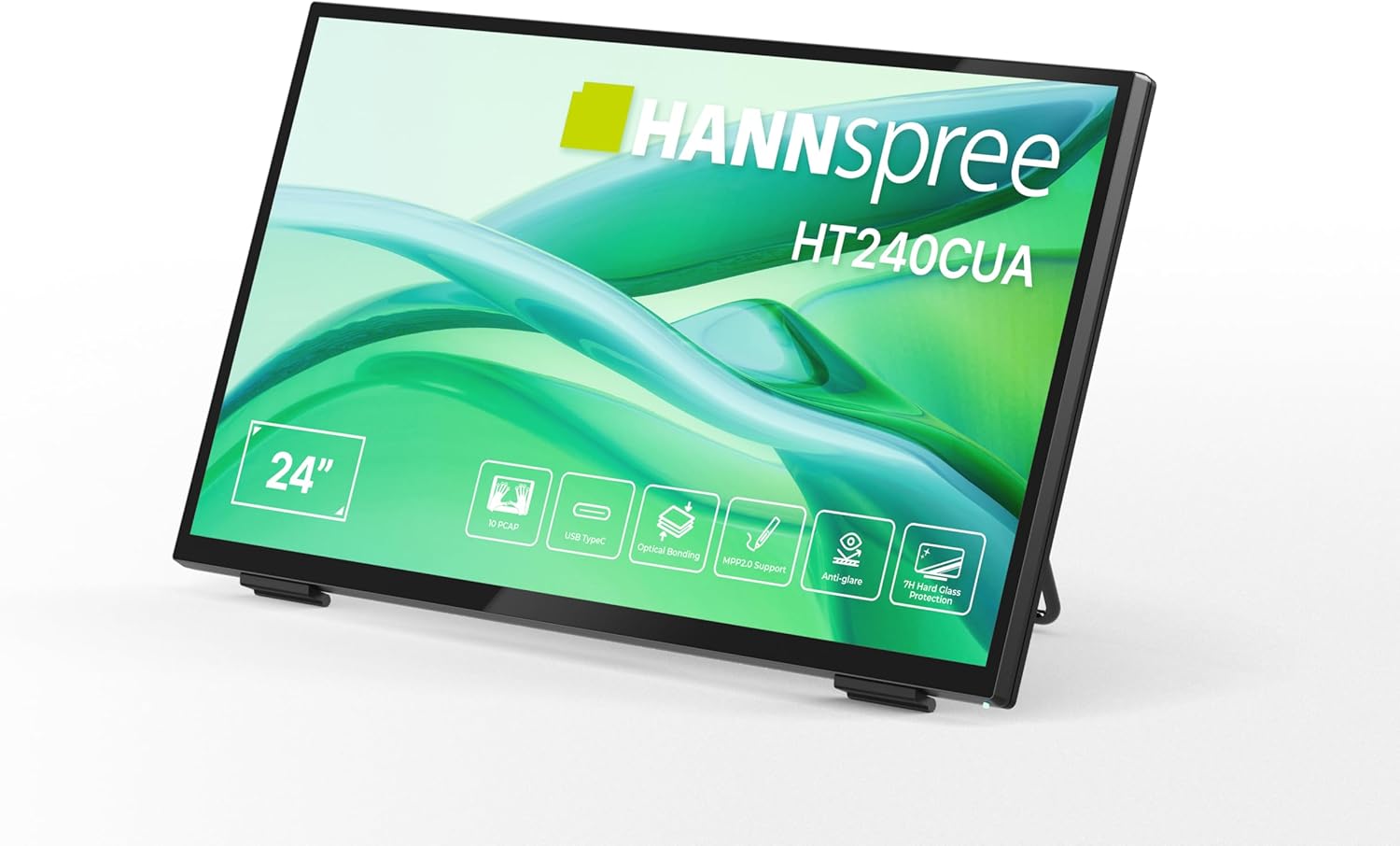
Voorkant view of the HANNspree HT240CUA monitor, showcasing sy slanke ontwerp en 24-duim-skerm.

Agter view of the HANNspree HT240CUA monitor, highlighting the various input/output ports including USB Type-C, HDMI, and DisplayPort.
Opstelling
- Unpacking the Monitor: Verwyder die monitor en alle bykomstighede versigtig uit die verpakking. Plaas die monitor op 'n stabiele, plat oppervlak.
- Verbind die krag:
- Koppel die kragkabel aan die kragtoevoer.
- Plug the power supply into the DC IN port on the back of the monitor.
- Steek die ander kant van die kragkabel in 'n geaarde elektriese aansluiting.
- Koppel aan 'n rekenaar:
- USB Tipe C-verbinding: For video, audio, and touch functionality with a single cable, connect the supplied USB A-C cable to the USB Type-C port on the monitor and to a compatible USB Type-C port on your computer.
- HDMI-verbinding: Connect one end of the HDMI cable to the HDMI port on the monitor and the other end to the HDMI output port on your computer.
- DisplayPort-verbinding: Connect a DisplayPort cable (not included) to the DP port on the monitor and to the DisplayPort output on your computer.
- VGA-verbinding: Connect a VGA cable (not included) to the VGA port on the monitor and to the VGA output on your computer.

Diagram illustrating the versatile connectivity options available on the HANNspree HT240CUA monitor, including USB-C, DisplayPort, HDMI, and VGA.
- Adjusting the Stand: The monitor features an ergonomically adjustable stand with a tilt angle of 15-70 degrees. Adjust the stand to your preferred viewing hoek.
- VESA-montering (opsioneel): The monitor supports VESA mount 100 x 100 mm for alternative mounting solutions, such as wall mounts or mini PC attachments.
Bedryfsinstruksies
Krag aan/af
Druk die aan/af-knoppie aan die kant van die monitor om dit aan of af te skakel.
Using the Multitouch Functionality
The HT240CUA supports 10-point PCAP multitouch. Ensure your operating system is configured for touch input.

Image showing the HANNspree HT240CUA monitor in use with 10-point multitouch functionality, allowing for smooth and precise interactions.
MPP 2.0 Stylus Support
The monitor supports MPP 2.0 compatible styluses (pen not included) for a pen-like writing and drawing experience with precise accuracy and low latency.
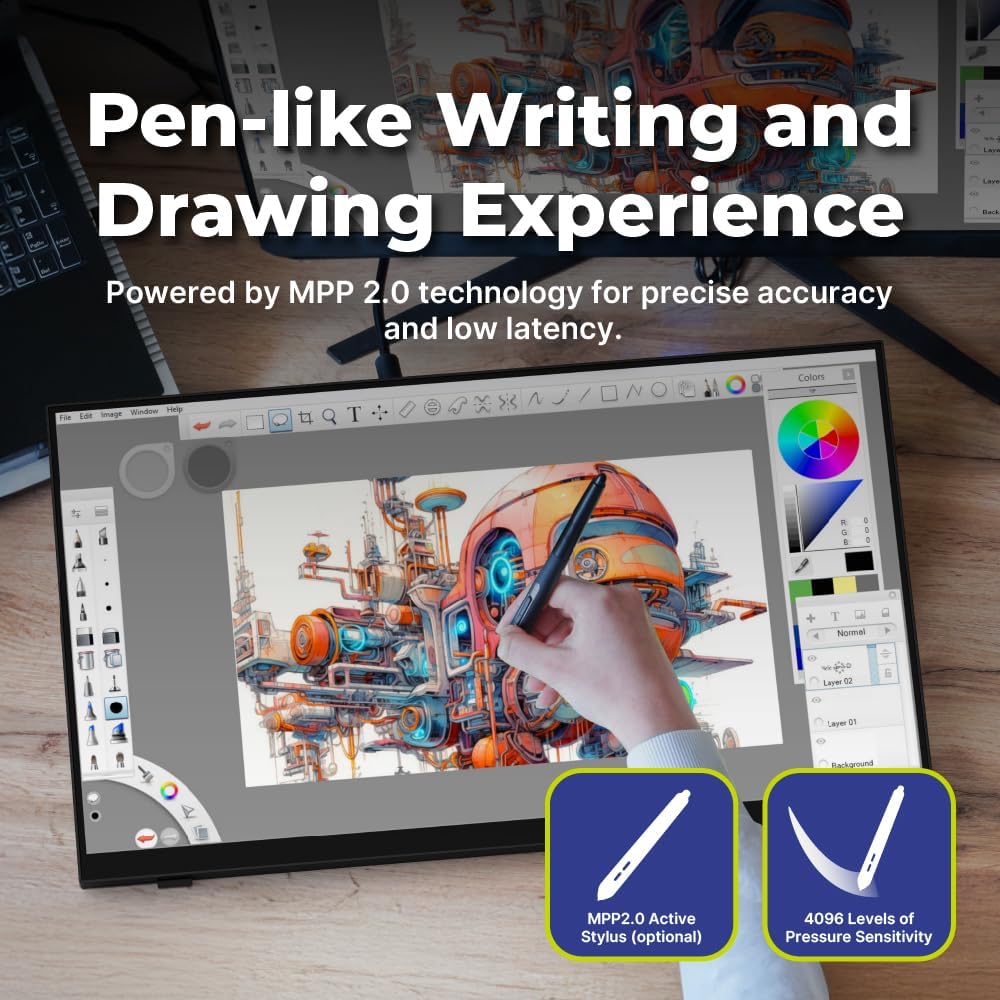
Illustration of the HANNspree HT240CUA monitor's support for MPP 2.0 styluses, enabling a natural writing and drawing experience.
On-Screen Display (OSD)-kieslys
Use the buttons on the side of the monitor to navigate and adjust settings in the OSD menu. Common settings include brightness, contrast, input source selection, and color temperature.
- MENU-knoppie: Maak die OSD-kieslys oop.
- OP/AF-knoppies: Navigeer deur menu-opsies.
- ENTER-knoppie: Kies 'n opsie of bevestig 'n instelling.
- EXIT-knoppie: Verlaat die huidige kieslys of die OSD.
Onderhoud
Maak die monitor skoon
Om die monitorskerm skoon te maak en casing:
- Skakel die monitor af en ontkoppel die kragkabel.
- Gebruik 'n sagte, pluisvrye lap liggies dampmet water of 'n nie-skurende skermreiniger afgevee.
- Vee die skerm liggies af en casing. Avoid applying excessive pressure.
- Do not use alcohol, benzene, thinners, or other harsh chemicals, as these may damage the screen surface or casing.
Berging
Wanneer die monitor vir 'n lang tydperk gestoor word, maak seker dat dit afgeskakel, ontkoppel en op 'n koel, droë plek weg van direkte sonlig en uiterste temperature gestoor is.
Probleemoplossing
Indien u probleme met u monitor ondervind, raadpleeg die volgende algemene probleme en oplossings.
Geen krag
- Maak seker dat die kragkabel stewig aan die monitor en die elektriese aansluiting gekoppel is.
- Verifieer dat die kragaansluiting korrek werk deur 'n ander toestel in te prop.
- Kontroleer die kragadapter vir enige sigbare skade.
Geen beeld op die skerm nie
- Confirm that the monitor is powered on.
- Check the video cable (HDMI, DisplayPort, USB-C, VGA) connections at both the monitor and the computer.
- Maak seker dat die korrekte invoerbron in die monitor se OSD-kieslys gekies is.
- Toets die monitor met 'n ander rekenaar of videobron indien moontlik.
Aanraakfunksionaliteit werk nie
- For USB Type-C connections, ensure the cable supports data transfer for touch.
- If using HDMI/DP/VGA, ensure a separate USB cable is connected from the monitor's USB upstream port to your computer for touch data.
- Check your computer's operating system settings for touch screen calibration or driver issues.
- Restart both the monitor and the computer.
Kwessies met beeldkwaliteit
- Adjust brightness, contrast, and color settings via the OSD menu.
- Maak seker dat die skermresolusie op jou rekenaar ingestel is op die monitor se oorspronklike resolusie (1920 x 1080).
- Kontroleer vir enige fisiese skade aan die skerm of kabels.
Spesifikasies
| Kenmerk | Spesifikasie |
|---|---|
| Skerm grootte | 23.8 duim |
| Resolusie | 1920 x 1080 (Vol HD) |
| Aspekverhouding | 16:9 |
| Raak tegnologie | PCAP, 10-point multitouch |
| Oppervlakhardheid | 7H gehard glas |
| Helderheid | 270 cd/m² |
| Konnektiwiteit | USB Type-C (Video/Audio/Touch), HDMI, DisplayPort, VGA, USB Hub 3.0 (2x) |
| Luidsprekers | Geïntegreerde |
| Kantelhoek | 15-70 grade |
| VESA Mount | 100 x 100 mm |
| Stylus ondersteuning | MPP 2.0 (pen not included) |
| Produkafmetings (L x B x H) | 21.65 x 13.12 x 1.94 duim |
| Item gewig | 12.39 pond |
Waarborg en Ondersteuning
For warranty information, please refer to the included Warranty Card in your package. For technical support or service inquiries, please visit the official HANNspree webwebwerf of kontak hul kliëntediensafdeling.
Keep your purchase receipt and product serial number (found on the back of the monitor) readily available when contacting support.