
1. oorview
The BSTUOKEY TF108 is a state-of-the-art WiFi Fingerprint Access Control System designed for secure and convenient entry management. This integrated stand-alone unit features a robust ABS shell, an IP66 waterproof rating, and supports multiple access methods, making it suitable for various indoor and outdoor applications.
Sleutel kenmerke:
- Veelvuldige toegangsmetodes: Fingerprint, RFID card (125Khz EM & 13.56Mhz MF), User PIN, Tuya App, and temporary passwords.
- Hoë Gebruikerskapasiteit: Supports up to 100 fingerprints and 1000 card users.
- Tuya-app-integrasie: Remote management, user addition/deletion, unlocking records, temporary password generation, and sharing management permissions.
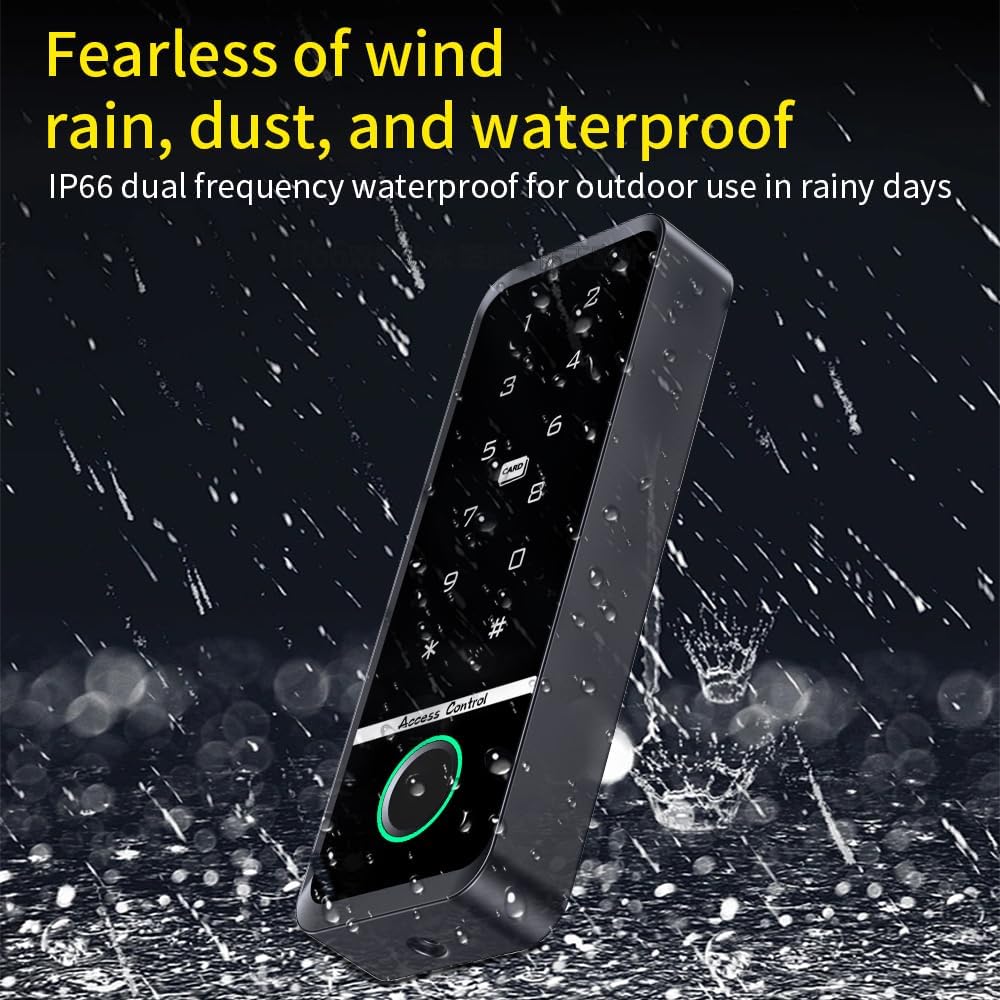
- Duursaam en waterdig: IP66 rated for outdoor use, resistant to rain, dust, and wind.
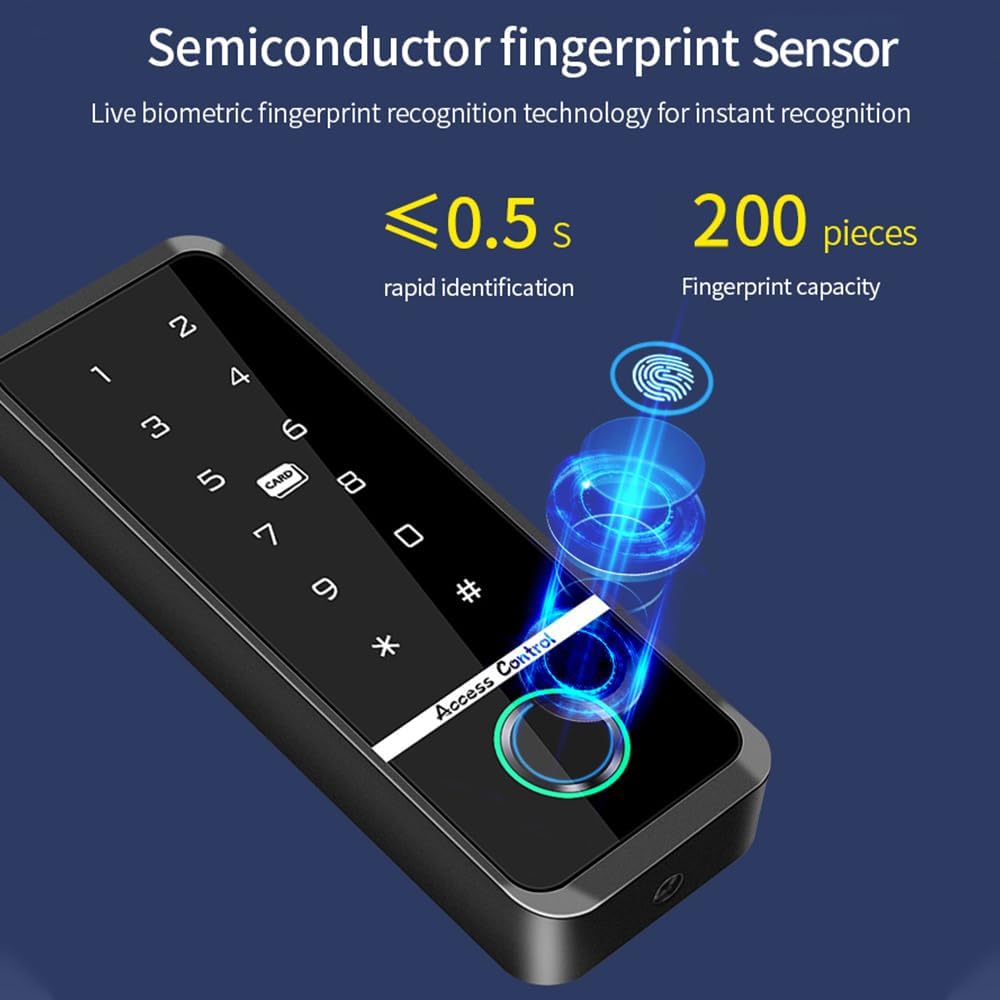
- Biometric Fingerprint Sensor: Live biometric recognition for rapid identification (less than 0.5 seconds).
- Backlit Touch Keypad: Ensures visibility and ease of use in low-light conditions.
- Wiegand Card Reader Functionality: Can be configured as a professional Wiegand card reader.


2. Produkkomponente
The standard package for the BSTUOKEY TF108 Access Control System includes the following items:
- 1 x Door Access Control Keypad (TF108 unit)
- 1 x Installasiehandleiding
- 10 x IC 13.56Mhz Mixed Key Fobs
- Monteer hardeware (skroewe en muurankers)


3. Spesifikasies
| Kenmerk | Detail |
|---|---|
| Modelnommer | TF108 |
| Handelsmerk | BSTUOKEY |
| Kleur | Swart |
| Kragbron | Elektries met koord |
| Voltage | 12 Volt |
| Wattage | 36 Watt |
| Verbindingstegnologie | Wired (with WiFi for App control) |
| Installasie tipe | Draadverbinding |
| Versoenbare toestelle | Glass door, Iron door, Wooden door |
| Itemafmetings (L x B x H) | 5.12 x 1.85 x 0.67 duim (130 x 46 x 16 mm) |
| Item gewig | 0.26 pond (4.2 onse) |
| Waterdigte gradering | IP66 |
| Vingerafdruk kapasiteit | 100 |
| Card User Capacity | 1000 |
| RFID frekwensie | 125Khz EM + 13.56Mhz MF (Dual Frequency) |
| Beheer metode | App, Fingerprint, Card, PIN |

4. Opstelling en installering
Proper installation is crucial for the optimal performance and security of your access control system. It is recommended that installation be performed by individuals with basic electrical knowledge.
4.1 Bedradingsdiagram
Refer to the following diagram for connecting the TF108 unit to your power supply and other access control components (e.g., electric lock, exit button, doorbell).

4.2 System Integration Diagram
This diagram illustrates how the TF108 integrates into a complete access control system, including a power supply, electric lock, doorbell, and exit button.

4.3 Fisiese installasie
- Berei montage-oppervlak voor: Choose a suitable location on the door frame or wall, ensuring it is flat and stable.
- Boorgate: Use the provided template (if available in the physical manual) to mark and drill holes for mounting screws and wiring.
- Koppel bedrading: Follow the wiring diagram (Image 4.1) carefully to connect the TF108 to the power supply, electric lock, and any other peripherals. Ensure all connections are secure and insulated.
- Monteer die eenheid: Secure the TF108 unit to the prepared surface using the provided screws.
- Krag aan: Once all connections are verified, apply power to the system.
5. Bedryfsinstruksies
The TF108 offers multiple methods for unlocking and user management. Detailed instructions for programming and daily use are provided in the included physical manual.
5.1 Tuya App Remote Management
The Tuya App provides comprehensive remote control and management capabilities for your access control system.
- Laai die app af: Soek vir "Tuya Smart" in your mobile app store and install it.
- Toestelsamestelling: Follow the in-app instructions to pair your TF108 device with your smartphone.
- Gebruikersbestuur: Add, modify, or delete user fingerprints, cards, and PINs directly from the app.
- Ontsluit op afstand: Unlock the door remotely via the app.
- Temporary Passwords: Generate time-limited or single-use passwords for visitors.
- Access Records: View a log of all unlocking events and access attempts.
- Outomatiese sluiting: Configure automatic locking functions.

5.2 Ontsluitingsmetodes
The TF108 supports various methods for unlocking the door:
- Vingerafdruk ontsluit: Place a registered finger on the fingerprint recognition area. The system will verify and unlock the door.
- Kaartontsluiting: Present a registered RFID card or key fob to the card swiping area.
- PIN-ontsluiting: Enter a registered user PIN on the keypad, followed by the '#' key.
- Toepassing ontsluit: Use the Tuya App on your smartphone to remotely unlock the door.
- Kombinasie-ontsluiting: The system may support combinations like Card + PIN for enhanced security.

5.3 Fingerprint Enrollment and Recognition
The TF108 utilizes a semiconductor fingerprint sensor for quick and accurate recognition.
- Inskrywing: Follow the instructions in the physical manual or Tuya App to enroll new fingerprints. Typically, this involves placing the finger on the sensor multiple times from different angles.
- Erkenning: For unlocking, place a registered finger firmly and completely on the sensor. The system will identify the fingerprint in approximately 0.5 seconds.
6. Onderhoud
To ensure the longevity and reliable operation of your BSTUOKEY TF108 access control system, follow these maintenance guidelines:
- Skoonmaak: Regularly wipe the keypad and fingerprint sensor with a soft, dry, or slightly damp cloth. Avoid using abrasive cleaners, solvents, or harsh chemicals, as these can damage the surface or internal components.
- Omgewingsbeskerming: Although the device is IP66 waterproof, avoid prolonged exposure to extreme weather conditions or direct high-pressure water jets.
- Firmware -opdaterings: Periodically check the Tuya App for any available firmware updates for the device. Keeping the firmware updated ensures optimal performance and security.
- Kabel inspeksie: Occasionally inspect the wiring connections for any signs of wear, corrosion, or loose connections. Ensure all cables are properly secured and protected.
- Battery (indien van toepassing): This model does not use batteries. It is powered by a corded electric connection.
7. Probleemoplossing
If you encounter issues with your TF108 access control system, refer to the following common problems and solutions:
| Probleem | Moontlike oorsaak | Oplossing |
|---|---|---|
| Toestel skakel nie aan nie. | Geen kragtoevoer nie; los bedrading. | Check power connection and ensure wiring is secure according to the diagram. Verify power source is active. |
| Vingerafdruk nie herken nie. | Finger not placed correctly; unregistered fingerprint; dirty sensor. | Ensure finger covers the entire sensor. Try different angles. Re-enroll fingerprint if necessary. Clean the sensor surface. |
| RFID-kaart werk nie. | Unregistered card; incorrect card type; card damage. | Ensure the card is registered. Verify it's a compatible 125Khz EM or 13.56Mhz MF card. Try another card. |
| PIN code not unlocking. | Incorrect PIN; PIN not registered; '#' key not pressed. | Double-check the PIN. Ensure the PIN is registered. Always press '#' after entering the PIN. |
| Tuya App cannot connect to device. | WiFi signal issue; incorrect pairing; device offline. | Ensure strong 2.4GHz WiFi signal. Re-attempt pairing process. Check device status and power. |
| Deur ontsluit nie na suksesvolle verifikasie nie. | Lock mechanism issue; wiring to lock is faulty; door obstruction. | Check the electric lock for proper function. Inspect wiring between the TF108 and the lock. Ensure no physical obstruction prevents the door from opening. |
For issues not listed here or if troubleshooting steps do not resolve the problem, please contact technical support.
8. Waarborg en Ondersteuning
BSTUOKEY products are designed for reliability and performance. For specific warranty details, please refer to the warranty card included with your product or contact BSTUOKEY customer service.
8.1 Tegniese Ondersteuning
If you require technical assistance, have questions about installation, operation, or troubleshooting, please reach out to our support team. Contact information can typically be found in the product packaging, on the BSTUOKEY official webwebwerf, of deur jou aankooppunt.
Our technical team is available to provide guidance and support to ensure you get the most out of your access control system.