
1. Inleiding
This manual provides essential instructions for setting up, operating, and maintaining your LEFFOT H618 Plus 4K Ultra HD Streaming Device. Please read this guide thoroughly before use to ensure proper functionality and to maximize your entertainment experience.
2. Veiligheidsinligting
- Maak seker dat die toestel op 'n stabiele, plat oppervlak geplaas word om toevallige val te voorkom.
- Moenie die toestel aan water, vog of uiterste temperature blootstel nie.
- Vermy die blokkering van ventilasie-openinge om oorverhitting te voorkom.
- Gebruik slegs die meegeleverde kragadapter om skade te voorkom.
- Hou die toestel en toebehore buite bereik van kinders.
- Moenie probeer om die toestel self uitmekaar te haal of te herstel nie. Kontak gekwalifiseerde dienspersoneel vir hulp.
3. Pakketinhoud
Verifieer dat alle items in die pakket teenwoordig is:
- LEFFOT H618 Plus Streaming Device
- Stem afstandbeheer
- Kragadapter
- HDMI kabel
- Gebruikershandleiding

Figuur 3.1: Pakketinhoud
4. Opstelinstruksies
4.1 Verbind die toestel
- Koppel aan TV: Plug one end of the HDMI cable into the HDMI port on the LEFFOT H618 Plus device and the other end into an available HDMI input on your television.
- Koppel krag: Connect the power adapter to the DC port on the device and then plug the adapter into a wall outlet.
- Krag aan: Die toestel behoort outomaties aan te skakel. Indien nie, druk die aan/af-knoppie op die afstandbeheerder.

Figure 4.1: Connection Overview
4.2 Afstandbeheeropstelling
- Plaas batterye in: Open the battery compartment on the back of the voice remote control and insert two AAA batteries (included), ensuring correct polarity.
- Saambinding: The remote control should automatically pair with the device upon first use. If not, follow the on-screen instructions or press and hold the pairing button (usually located inside the battery compartment or on the side of the remote) until the indicator light flashes.
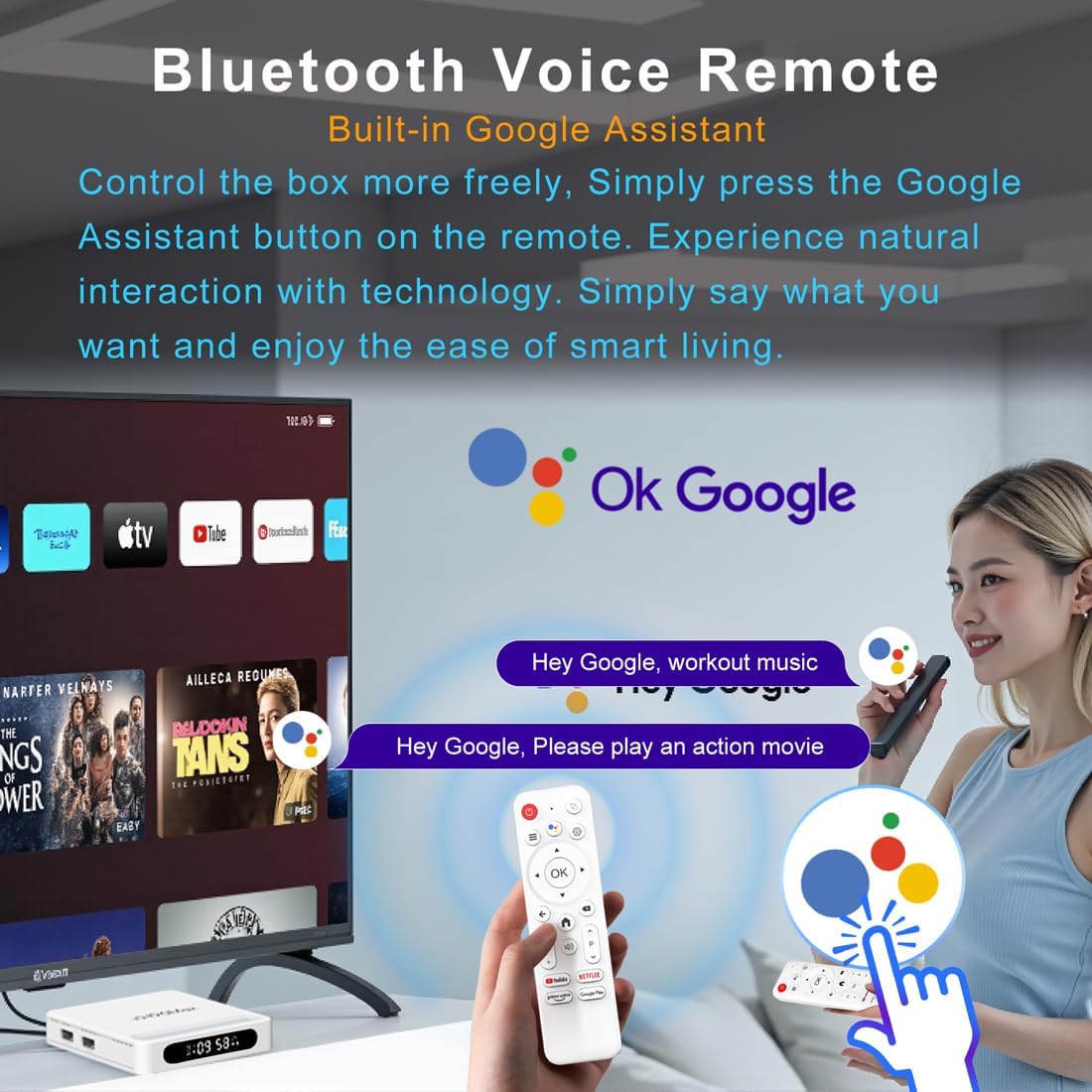
Figuur 4.2: Stem-afstandbeheer
4.3 Aanvanklike Toestelkonfigurasie
Follow the on-screen prompts to complete the initial setup, which typically includes:
- Taalkeuse.
- Connecting to a Wi-Fi network or Ethernet.
- Aanmelding met jou Google-rekening.
- Installing essential applications.
5. Bedryfsinstruksies
5.1 Navigasie en koppelvlak
Use the directional pad (D-pad) on your remote to navigate through the Android TV interface. The 'OK' button confirms selections, 'Back' returns to the previous screen, and 'Home' takes you to the main screen.
5.2 Voice Remote with Google Assistant
Press the Google Assistant button on your remote and speak your commands. You can search for content, open apps, control playback, and more using your voice.
5.3 Toegang tot toepassings
The device comes pre-loaded with Google Play, allowing access to over 5000+ applications. Navigate to the 'Apps' section on the home screen to browse, download, and manage your applications.

Figure 5.1: Accessing Apps via Google Play
5.4 4K UHD Playback and HDR10
The LEFFOT H618 Plus supports 8K@22fps decoding and 4K@60fps playback with HDR10. Ensure your television is 4K HDR compatible and that you are streaming 4K HDR content for the best visual experience.
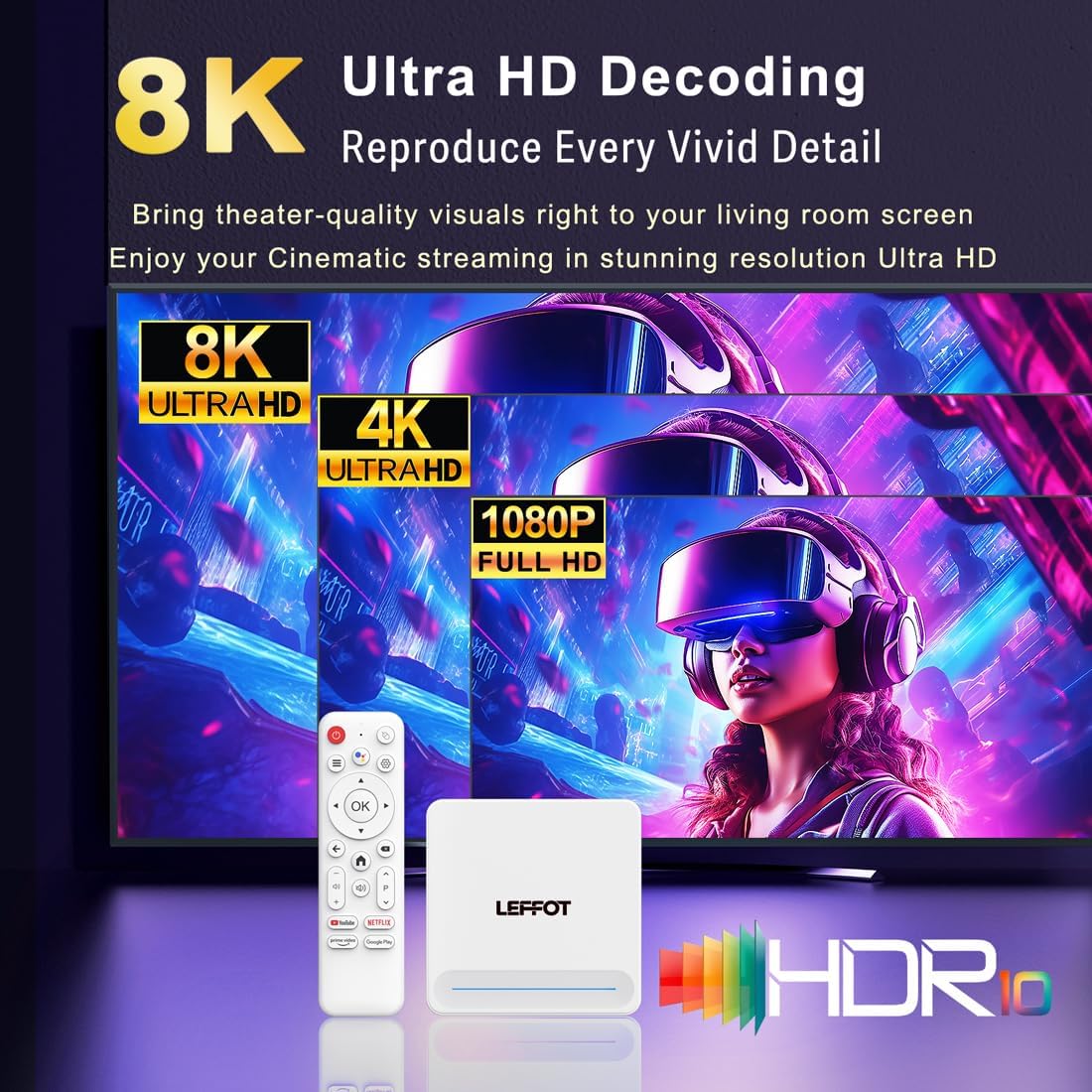
Figure 5.2: 4K UHD and HDR10 Visuals
5.5 Screen Casting
Utilize the built-in Airplay and Miracast features to cast content from your smartphone or tablet directly to your TV screen.
6. Spesifikasies
| Kenmerk | Beskrywing |
|---|---|
| Handelsmerk | LEFFOT |
| Model Naam | H618 Plus |
| Bedryfstelsel | Android 14 |
| SVE | Allwinner H618 Quad-Core ARM Cortex A53 |
| GPU | Mali-G31 MP2 |
| RAM | 2 GB |
| ROM | 16 GB |
| Video-dekodering | 8K@22fps, 4K@60fps with HDR10 |
| Konnektiwiteit | Dual-band WiFi 6 (2.4G/5G), 100M Ethernet, Bluetooth 5.4 |
| Hawens | HDMI 2.0a, USB 2.0 (x2), AV, DC |
| Spesiale kenmerke | Voice Remote with Google Assistant, Airplay, Miracast |
| Afmetings | 3.2 x 3.2 x 0.67 duim |
| Gewig | 4.1 onse |

Figuur 6.1: Belangrike kenmerke oorview
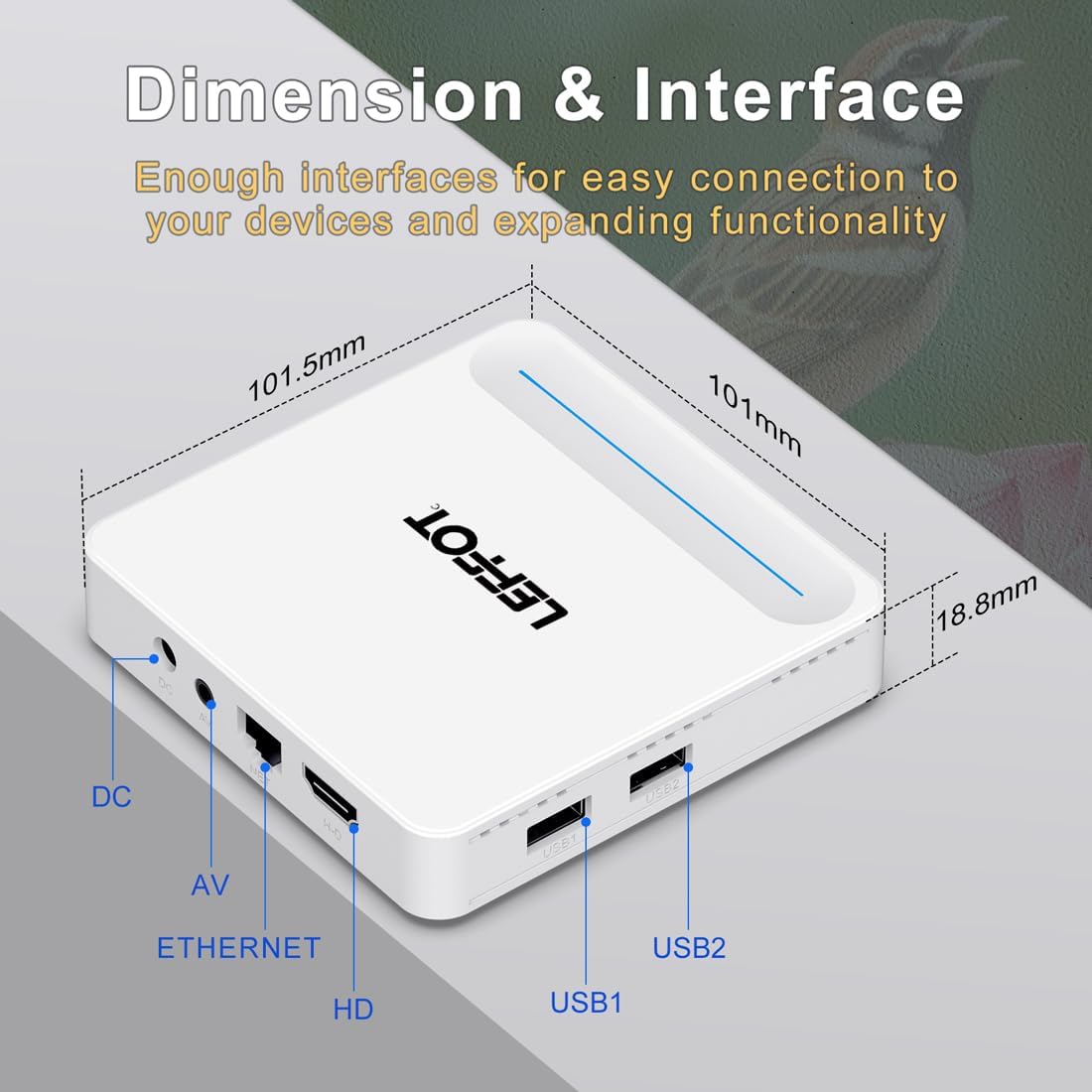
Figure 6.2: Device Dimensions and Interface
7. Probleemoplossing
7.1 Geen krag / Toestel skakel nie aan nie
- Kontroleer of die kragadapter stewig aan die toestel en die kragaansluiting gekoppel is.
- Ensure the power outlet is functional. Try plugging another device into the same outlet.
- Press the power button on the remote control or the device itself.
7.2 No Signal on TV Screen
- Verify that the HDMI cable is securely connected to both the device and the TV.
- Maak seker dat jou TV op die korrekte HDMI-invoerbron ingestel is.
- Try using a different HDMI cable or a different HDMI port on your TV.
- Restart the streaming device and your TV.
7.3 Afstandbeheer reageer nie
- Kontroleer en vervang die batterye in die afstandbeheerder.
- Maak seker dat daar geen obstruksies tussen die afstandbeheer en die toestel is nie.
- Re-pair the remote control with the device by following the instructions in Section 4.2.
7.4 Buffering or Slow Performance
- Check your internet connection speed. A stable and fast connection is crucial for streaming 4K content.
- If using Wi-Fi, try moving the device closer to your router or connecting via an Ethernet cable for a more stable connection.
- Close any unused applications running in the background on the device.
- Clear the cache of streaming applications.
- Restart your router, modem, and the streaming device.
8. Onderhoud
- Maak die toestel gereeld skoon met 'n sagte, droë lap. Moenie vloeibare skoonmaakmiddels of aërosols gebruik nie.
- Keep the device free from dust and debris, especially around ventilation areas.
- Bêre die toestel op 'n koel, droë plek wanneer dit nie vir lang tye gebruik word nie.
9. Waarborg en Ondersteuning
For warranty information and technical support, please refer to the documentation included with your purchase or visit the official LEFFOT webwebwerf. Bewaar u bewys van aankoop vir waarborgeise.