
1. Inleiding
This manual provides detailed instructions for the TECURS Bluetooth Keyboard, designed for use with Microsoft Surface Pro 11, 10, 9, 8, and X (13-inch models). Please read this manual carefully before using the product to ensure proper operation and to maximize its features.
2. Verenigbaarheid
BELANGRIK: Before use, verify your device model. This Bluetooth keyboard is exclusively compatible with Microsoft Surface Pro 11, Surface Pro 10, Surface Pro 9, Surface Pro 8, and Surface Pro X (13-inch models). It is not compatible with other Surface models.
To check your device model, navigate to Settings > System > About on your Surface Pro device.
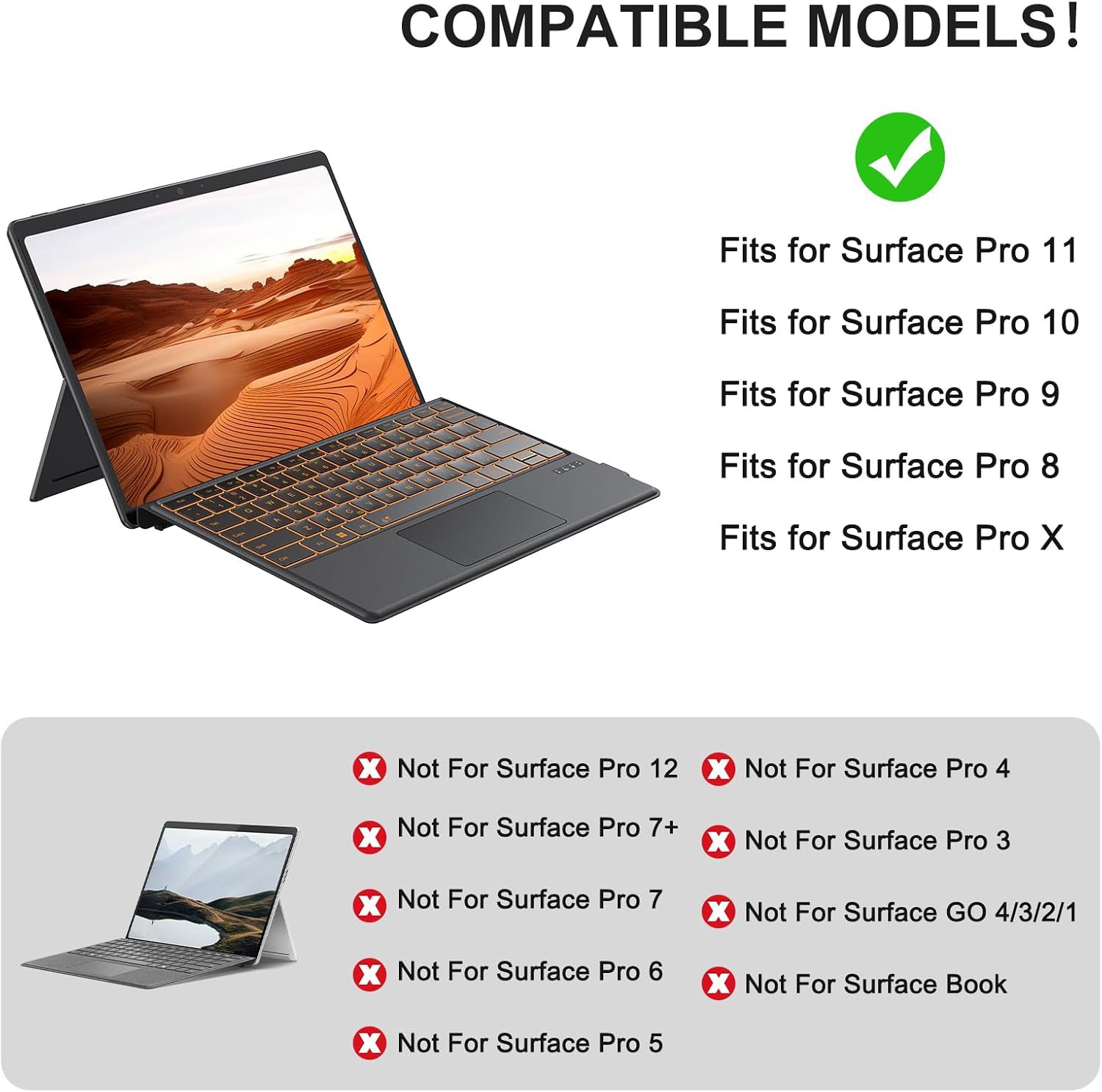
Figure 2.1: Compatible Surface Pro Models. This image illustrates which Surface Pro models are compatible (Surface Pro 11, 10, 9, 8, X) and which are not (e.g., Surface Pro 12, 7+, 7, 6, 5, 4, 3, Go, Book).

Figure 2.2: Steps to check your Surface Pro model. This image displays the steps: 1. Settings, 2. System, 3. About, to confirm your device model.
3. Pakketinhoud
Die pakket sluit die volgende items in:
- 1 x TECURS Bluetooth Keyboard
- 1 x Tipe-C-laaikabel
- 1 x Gebruikershandleiding
4. Opstelling en verbinding
4.1 Physical Attachment
The keyboard attaches to your Surface Pro via a magnetic strip. This strip is designed to securely fix the keyboard to the tablet and allows for two different typing angles:
- Fold Magnetic Stripe: Fold the magnetic stripe to elevate the keyboard for a more ergonomic typing position.
- Attach Directly: Attach the keyboard directly to the Surface Pro for a flat typing surface.
Let wel: The magnetic strip is for physical attachment only and does not provide charging or data connection to the tablet.

Figure 4.1: Two typing angles. This image demonstrates how to position the keyboard for an elevated angle by folding the magnetic strip, or for a flat angle by attaching it directly.
4.2 Bluetooth -koppeling
This keyboard supports Bluetooth manual pairing only. Magnetic automatic connection is not supported.
- Skakel die kragskakelaar aan: Locate the power switch on the keyboard and slide it to the ON position.
- Activate Keyboard Bluetooth: Druk die FN + C keys simultaneously on the keyboard to activate its Bluetooth pairing mode. The Bluetooth indicator light will flash.
- Aktiveer Bluetooth op toestel: On your Microsoft Surface Pro, go to Instellings > Bluetooth en toestelle and ensure Bluetooth is turned ON.
- Select Keyboard for Pairing: In the list of available Bluetooth devices on your Surface Pro, select "Bluetooth Keyboard" to initiate pairing.
- Bevestig verbinding: Once paired, the Bluetooth indicator light on the keyboard will stop flashing and remain solid, and your device will show the keyboard as connected.
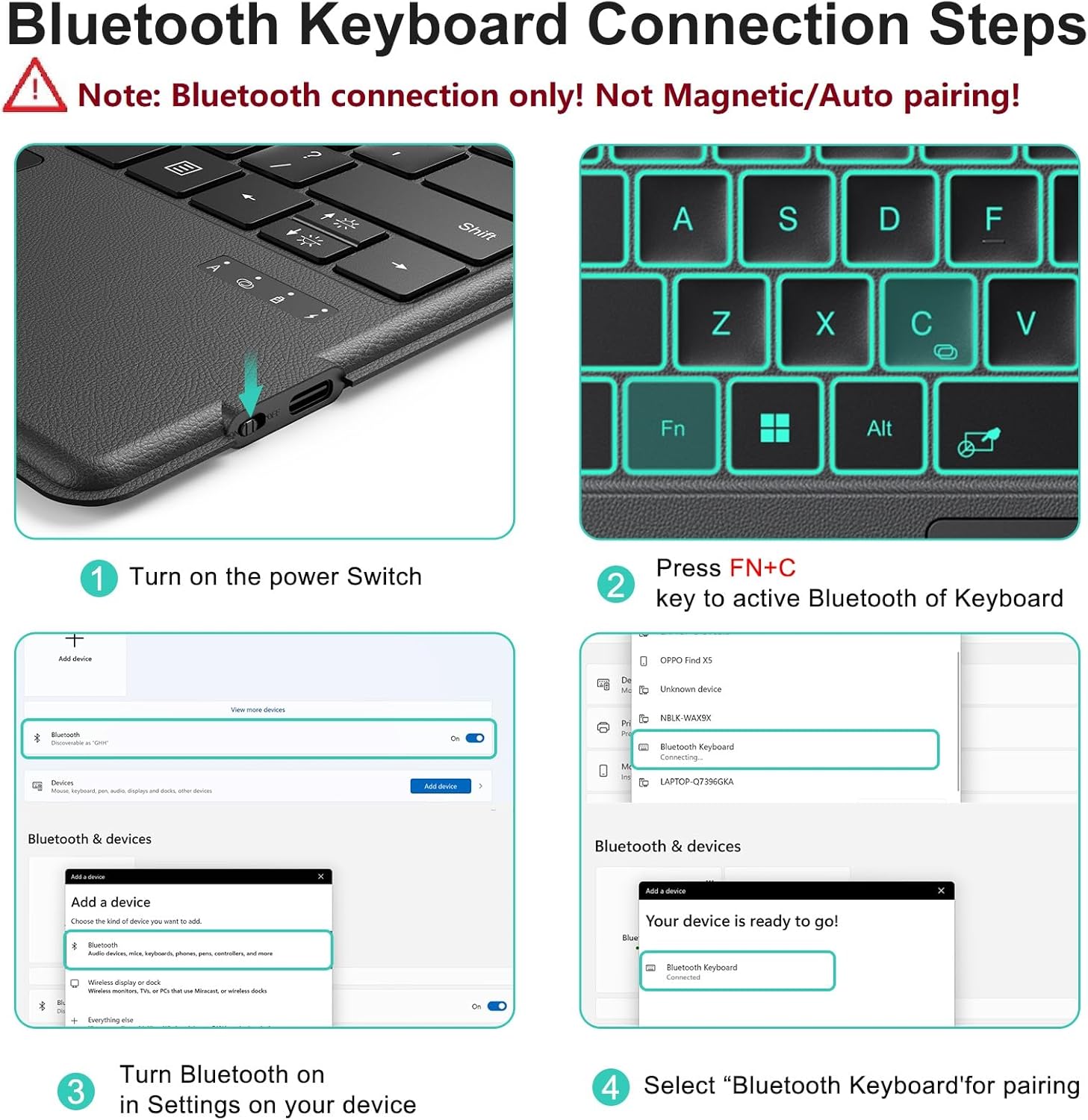
Figure 4.2: Bluetooth Keyboard Connection Steps. This image visually guides through turning on the keyboard, pressing FN+C, enabling Bluetooth on the device, and selecting "Bluetooth Keyboard" for pairing.
5. Laai
The keyboard is equipped with a rechargeable battery. Use the included Type-C charging cable to charge the device.
- Connect the Type-C cable to the charging port on the keyboard and the other end to a USB power source.
- 'n Volle laai neem gewoonlik 2-3 uur.
- The keyboard provides approximately 50 hours of continuous operation on a full charge.
Let wel: The keyboard cannot be charged via the magnetic strip; it must be charged using the provided Type-C cable.

Figure 5.1: Keyboard dimensions and charging port. This image highlights the Type-C charging port and indicates the charging time (2 hours) and working time (50 hours).
6. Bedryfsinstruksies
6.1 Verstelbare Agterlig
The keyboard features a 7-color adjustable backlight with 3 brightness levels for comfortable typing in various lighting conditions.
- To change backlight colors, press FN + 💡 (light bulb icon key).
- To adjust brightness levels, press FN + ⬆️💡 (up arrow with light bulb) or FN + ⬇️💡 (down arrow with light bulb).

Figure 6.1: Backlight adjustment. This image displays the keyboard with different backlight colors and illustrates the three brightness levels.
6.2 Precision Touchpad & Media Shortcuts
The responsive touchpad supports multi-touch gestures for effortless navigation. Cursor sensitivity can be adjusted in your device's settings (Settings > Bluetooth & devices > Touchpad > Cursor speed).
Customizable hotkeys allow you to adjust volume, media playback, and screen brightness without interrupting your workflow.

Figure 6.2: Touchpad and Pen Holder. This image highlights the touchpad area, indicating left and right click zones, and the integrated pen holder (non-charging).
6.3 Funksietoetse
The top row of keys provides various function shortcuts. Press the FN key in combination with the desired function key (F1-F12) to activate its secondary function.
- FN+F1: Decreases or increases keyboard backlight, including off.
- FN+F2: Demp oudio.
- FN+F3: Verlaag volume.
- FN+F4: Verhoog volume.
- FN+F5: Speel/Pause media.
- FN+F6: Dims the screen.
- FN+F7: Brightens the screen.
- FN+F8: Druk skerm.
- FN+F9: Tuis.
- FN+F10: End of the Line.
- FN+F11: Bladsy op.
- FN+F12: Bladsy af.
- Del: Vee uit.
Vriendelike herinnering: The first key on the bottom left of the keyboard is the FN key, not the Ctrl key. When using Ctrl + C for copying, ensure you press the correct combination to avoid accidentally triggering FN + C, which initiates Bluetooth reconnection and can cause the keyboard to disconnect.
7. Onderhoud
To ensure the longevity and optimal performance of your TECURS Bluetooth Keyboard, follow these maintenance guidelines:
- Skoonmaak: Gebruik 'n sagte, droë, pluisvrye lap om die sleutelbordoppervlak skoon te maak. Vir hardnekkige vuiligheid, vee dit effens af.ampMaak die lap skoon met water of 'n sagte skoonmaakoplossing. Vermy harde chemikalieë of skuurmiddels.
- Berging: When not in use, store the keyboard in a clean, dry environment away from extreme temperatures, direct sunlight, and excessive moisture.
- Vermy mors: Hou vloeistowwe weg van die sleutelbord om skade aan interne komponente te voorkom.
- Hanteer versigtig: Vermy om die sleutelbord te laat val of dit aan harde impakte bloot te stel.
8. Probleemoplossing
If you encounter issues with your keyboard, refer to the following troubleshooting steps:
- Sleutelbord Koppel Nie:
- Maak seker dat die sleutelbord aangeskakel is.
- Confirm Bluetooth is enabled on your Surface Pro.
- Re-initiate pairing mode on the keyboard by pressing FN + C.
- Remove any previously paired
Ask a question about this manual
Ask about setup, troubleshooting, compatibility, parts, safety, or missing instructions. Manuals+ will review the question and use this page’s manual context to help answer it.