
1. Inleiding
Welcome to the JMGO PicoPlay Portable Mini Projector user manual. This guide provides essential information for the safe and efficient use of your new projector. Please read it thoroughly before operation and retain it for future reference.
Veiligheidsinligting
- Do not look directly into the projector lens when the device is operating.
- Hou die toestel weg van water of ander vloeistowwe.
- Verseker behoorlike ventilasie om oorverhitting te voorkom.
- Gebruik slegs die meegeleverde kragadapter.
- Vermy om die projektor te laat val of aan harde impakte bloot te stel.
2. Produk verbyview
The JMGO PicoPlay is a versatile portable mini projector designed for immersive entertainment. It combines a 1080P FHD projector, an immersive Bluetooth speaker, and dynamic ambient lighting.
Sleutel kenmerke:
- 1080P Full HD-resolusie: Delivers crisp and clear images up to 200 inches.
- 400 ISO Lumens: Provides bright visuals for various environments.
- Google TV with Licensed Netflix: Access a wide range of streaming apps and content.
- 8W Dolby Audio Speakers: Offers rich and powerful sound.
- 88° Rotatable Gimbal: Allows flexible projection angles from wall to ceiling.
- Automatic Image Optimization: Features auto-focus, auto-keystone correction, and intelligent screen alignment.
- 3D and HDR10 Support: Enhances visual depth and color.
- Draagbare ontwerp: Kompak en liggewig vir maklike vervoer.
- Ambient Light Mode: Customizable lighting to set the mood.
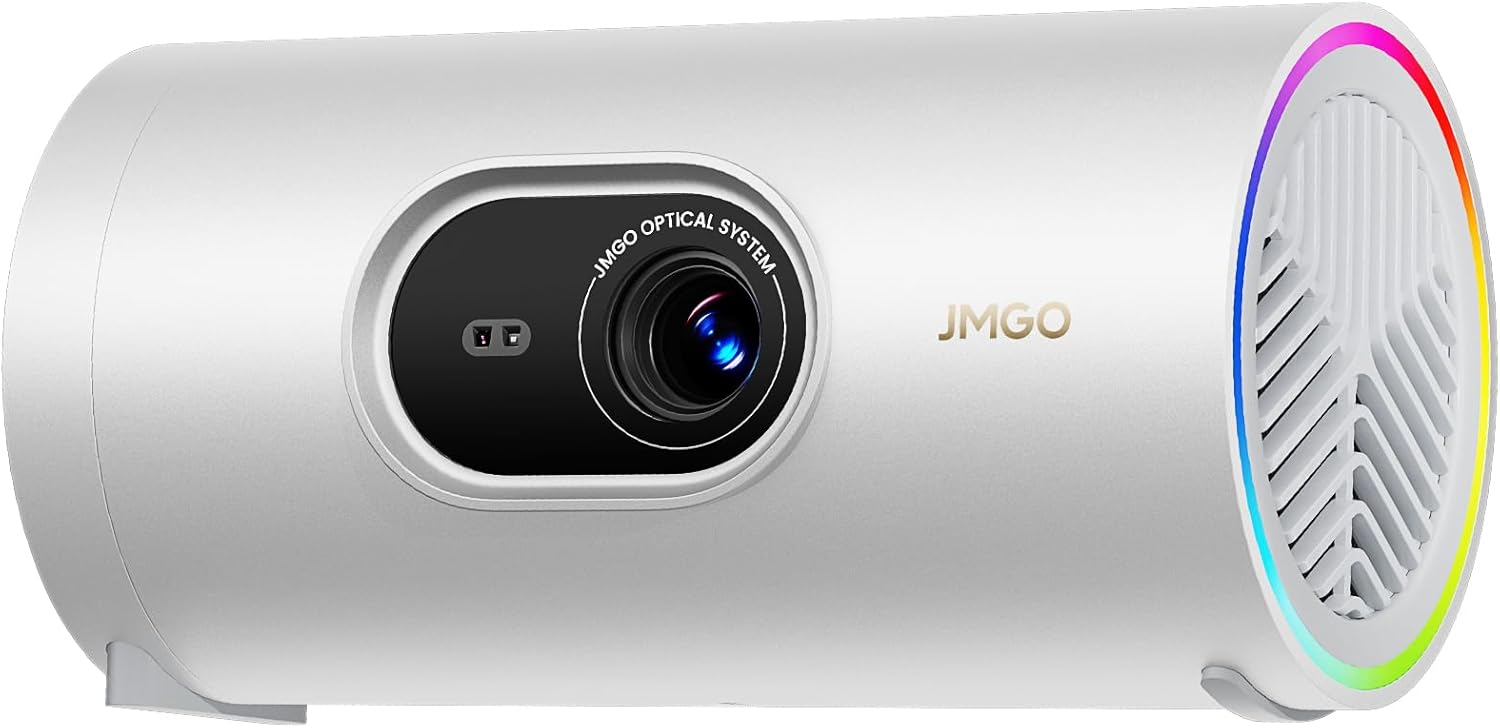
Figure 2.1: The JMGO PicoPlay Portable Mini Projector, showcasing sy kompakte ontwerp en lens.
Wat is in die boks:
- JMGO PicoPlay Projector
- Gebruikershandleiding
- Afstandbeheer
- Kragkoord
- Optical Filter (for ambient light mode)
- Drasak

Figure 2.2: All items included in the JMGO PicoPlay packaging.
3. Opstelling
3.1 Aanskakel
- Koppel die meegeleverde kragkabel aan die projektor se kragtoevoerpoort.
- Steek die kragadapter in 'n muuraansluiting.
- Alternatively, connect to a 65W Type-C external battery for portable use (sold separately).
- Druk die kragknoppie op die projektor of afstandbeheerder om die toestel aan te skakel.

Figure 3.1: The PicoPlay projector connected to an external battery for extended use.
3.2 Initial Setup & Remote Pairing
- Wanneer die projektor vir die eerste keer aangeskakel word, sal dit jou deur die aanvanklike opstellingsproses lei.
- Follow the on-screen instructions to select your language and connect to a Wi-Fi network.
- To pair the remote control, press and hold the indicated buttons on the remote until pairing is successful.
- Log in to your Google account to access Google TV features and licensed Netflix.
3.3 Beeldaanpassing
The PicoPlay features Flexismart System for automatic image optimization:
- Outo-fokus: Die projektor pas outomaties die fokus aan vir 'n duidelike beeld.
- Outo-sleutelsteen-korreksie: Korrigeer verwronge beelde wat deur hoekige projeksie veroorsaak word.
- Intelligente skermbelyning: Automatically aligns the projected image to the screen or wall.
- 88° Rotatable Gimbal: Manually adjust the projection angle by rotating the projector on its base to project from wall to ceiling.

Figure 3.2: Illustration of the automatic focus, keystone correction, and screen alignment.

Figure 3.3: The projector's 88° rotatable gimbal allows for flexible projection angles.
4. Bedryfsinstruksies
4.1 Navigasie en Beheer
Control your PicoPlay using the included remote control, the JMGO app, or the touch buttons on the device.
- Afstandbeheer: Use the directional pad and dedicated buttons for navigation, volume, and quick access to apps like Netflix and YouTube.
- On-Device Touch Buttons: Located on the projector, these buttons allow basic control for volume, power, and menu navigation.
- JMGO App: Download the official JMGO app for advanced control and settings adjustments from your smartphone.

Figure 4.1: Various control methods for the PicoPlay projector.
4.2 Konnektiwiteit
The PicoPlay offers multiple connectivity options:
- HDMI (ARC): Koppel eksterne toestelle soos skootrekenaars, speletjiekonsoles of Blu-ray-spelers.
- USB-A: Vir die koppeling van USB-skywe of ander randapparatuur.
- USB-C: For power input or data transfer.
- Wi-Fi: Connect to your home network for streaming and online features.
- Bluetooth: Pair with external speakers or use the PicoPlay as a standalone Bluetooth speaker.

Figuur 4.2: Agter view of the PicoPlay showing available ports.
4.3 Using Google TV & Streaming
With integrated Google TV, you can access a vast library of entertainment:
- Navigate the Google TV interface to browse movies, TV shows, and apps.
- Enjoy licensed Netflix directly on the projector.
- Use Google Cast to stream content from your smartphone or tablet.
- Utilize Google Assistant for voice commands.

Figure 4.3: The Google TV home screen displaying available streaming applications.
4.4 Bluetooth-luidsprekermodus
Transform your PicoPlay into a powerful Bluetooth speaker:
- Place the projector in a vertical position.
- Select Bluetooth speaker mode from the menu or by pressing the dedicated action button.
- Pair your smartphone or other Bluetooth device with the PicoPlay to play music.
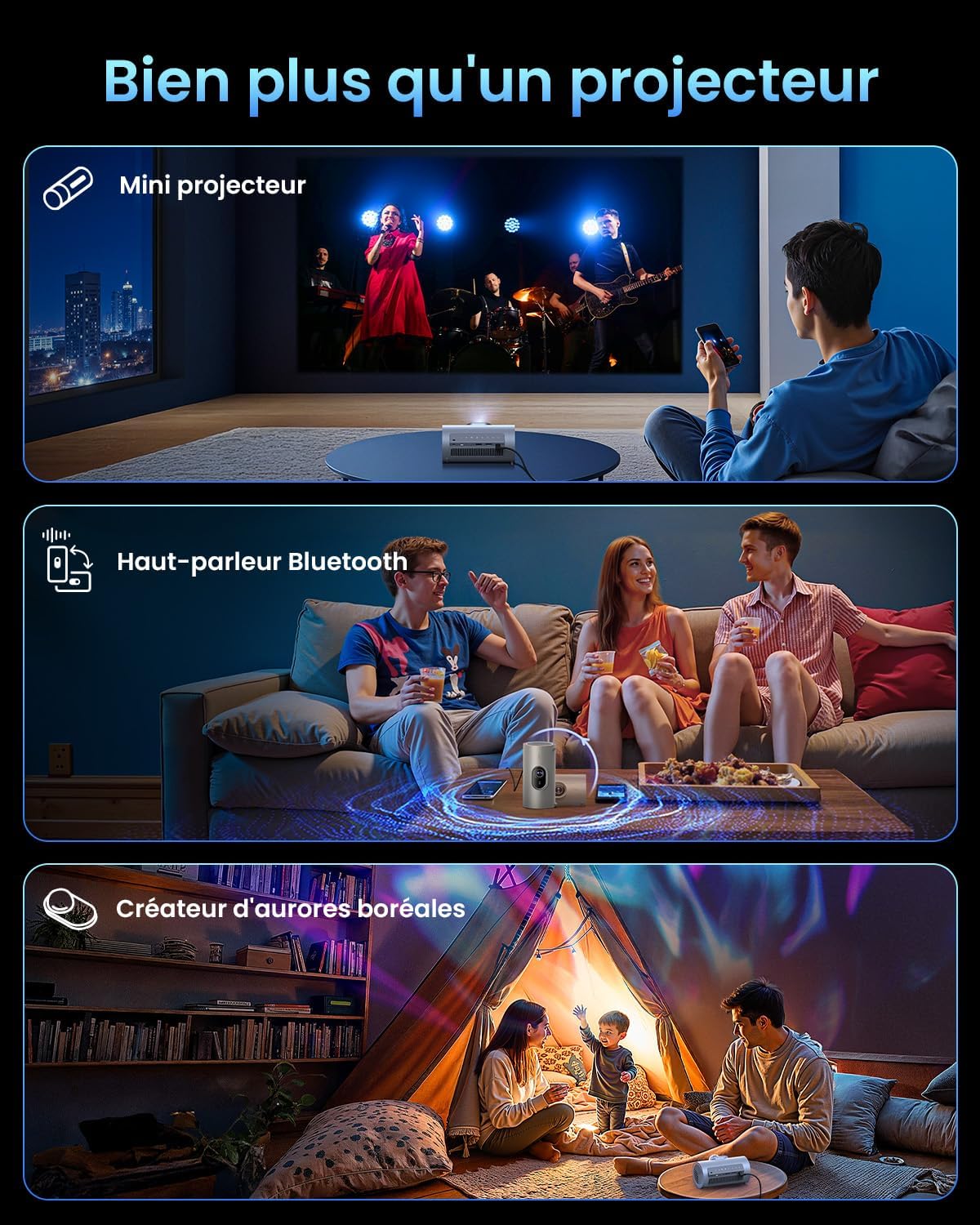
Figure 4.4: The PicoPlay in Bluetooth speaker mode, providing immersive audio.
4.5 Ambient Light Mode
Use the optical filter to create dynamic ambient lighting:
- Attach the optical filter to the projector lens.
- Select Ambient Light mode from the settings.
- Customize colors and effects to create your desired atmosphere.

Figure 4.5: The PicoPlay projecting customizable ambient lighting.
5. Onderhoud
5.1 Skoonmaak
- Lens: Gebruik 'n sagte, pluisvrye lap wat spesifiek vir optiese lense ontwerp is. Moenie skuurmiddels gebruik nie.
- Buitekant: Vee die buitekant van die projektor af met 'n sagte, droë lap. Vir hardnekkige merke, gebruik 'n effens droë lap.amp doek en droog dadelik.
- Ventilasieroosters: Use a soft brush or compressed air to gently remove dust from the ventilation grilles.
5.2 Berging
When not in use, store the projector in a cool, dry place, away from direct sunlight and extreme temperatures. Use the provided carrying pouch for protection during transport or storage.
6. Probleemoplossing
Algemene kwessies en oplossings:
| Kwessie | Moontlike oorsaak | Oplossing |
|---|---|---|
| Geen krag | Kragkabel nie gekoppel nie; probleem met kragpunt. | Maak seker dat die kragkabel stewig gekoppel is. Probeer 'n ander aansluiting. |
| Geen beeld nie | Input source incorrect; cable loose; lens cap on. | Select correct input source. Check HDMI/USB connections. Remove lens cap. |
| Vervaagde beeld | Out of focus; projector too close/far. | Laat outofokus toe om aan te pas. Verstel projektorafstand van skerm. |
| Verwronge beeld | Projector not aligned with screen. | Allow auto-keystone correction to adjust. Manually adjust if needed. |
| Geen klank nie | Volume too low; external audio device connected. | Increase volume. Disconnect external audio or select internal speakers. |
7. Spesifikasies
| Kenmerk | Detail |
|---|---|
| Handelsmerk | JMGO |
| Model | PicoPlay |
| Vertoon tegnologie | DLP, LED |
| Inheemse resolusie | 1920 x 1080 (Vol HD) |
| Helderheid | 400 ISO Lumen |
| Oudio | 8W Dolby Audio Speakers |
| Konnektiwiteit | Wi-Fi, HDMI (ARC), USB-A, USB-C |
| Spesiale kenmerke | HDR10, 3D, APP Control, Google TV, Netflix, 88° Rotatable Gimbal, Auto-focus |
| Afmetings (L x B x H) | 8.5 x 8.5 x 16.6 cm |
| Vormfaktor | Draagbaar |
| Aanbevole gebruik | Home cinema, Gaming, Business, Education |
8. Waarborg en Ondersteuning
8.1 Vervaardigerwaarborg
The JMGO PicoPlay projector comes with a 2-year manufacturer warranty. Please retain your proof of purchase for warranty claims.
8.2 Kliëntediens
For technical assistance, troubleshooting, or warranty inquiries, please contact JMGO customer service. You can find contact information on the official JMGO webwebwerf of deur jou kleinhandelaar.

Vir meer inligting, besoek die JMGO Brand Store.