
NIMO Nimo N156
NIMO 15.6" FHD Business Laptop User Manual
Model: Nimo N156
Inleiding
This user manual provides comprehensive instructions for setting up, operating, maintaining, and troubleshooting your NIMO 15.6" FHD Business Laptop. Please read this manual carefully before using your device to ensure optimal performance and longevity. Keep this manual for future reference.
Wat is in die boks
Verifieer dat alle items in die pakket teenwoordig is:
- 1 x Nimo N156 Laptop
- 1 x Type-C 100W PD Fast Charger
- 1 x Gebruikershandleiding (hierdie dokument)
- Windows 11 Home (pre-installed)
- 2 Years Warranty, 90 Days Return information
Produk verbyview
Familiarize yourself with the key components of your NIMO laptop.

Figuur 1: Voorkant view of the NIMO 15.6 inch FHD Business Laptop, showcasing its full HD IPS display, Intel Core i5 processor, fingerprint reader, Type-C PD charger port, and backlit keyboard.

Figuur 2: Close-up of the NIMO laptop's backlit full keyboard, highlighting the integrated webcam shield, fingerprint sensor, and numeric keypad for enhanced productivity and security.

Figuur 3: Diagram illustrating the multiple ports on the NIMO laptop, including Micro SD slot, USB 2.0, USB 3.0, Headphone Jack, Kensington lock, Type-C (multifunction), Type-C (PD Charger Only), HDMI, and Charge LED.
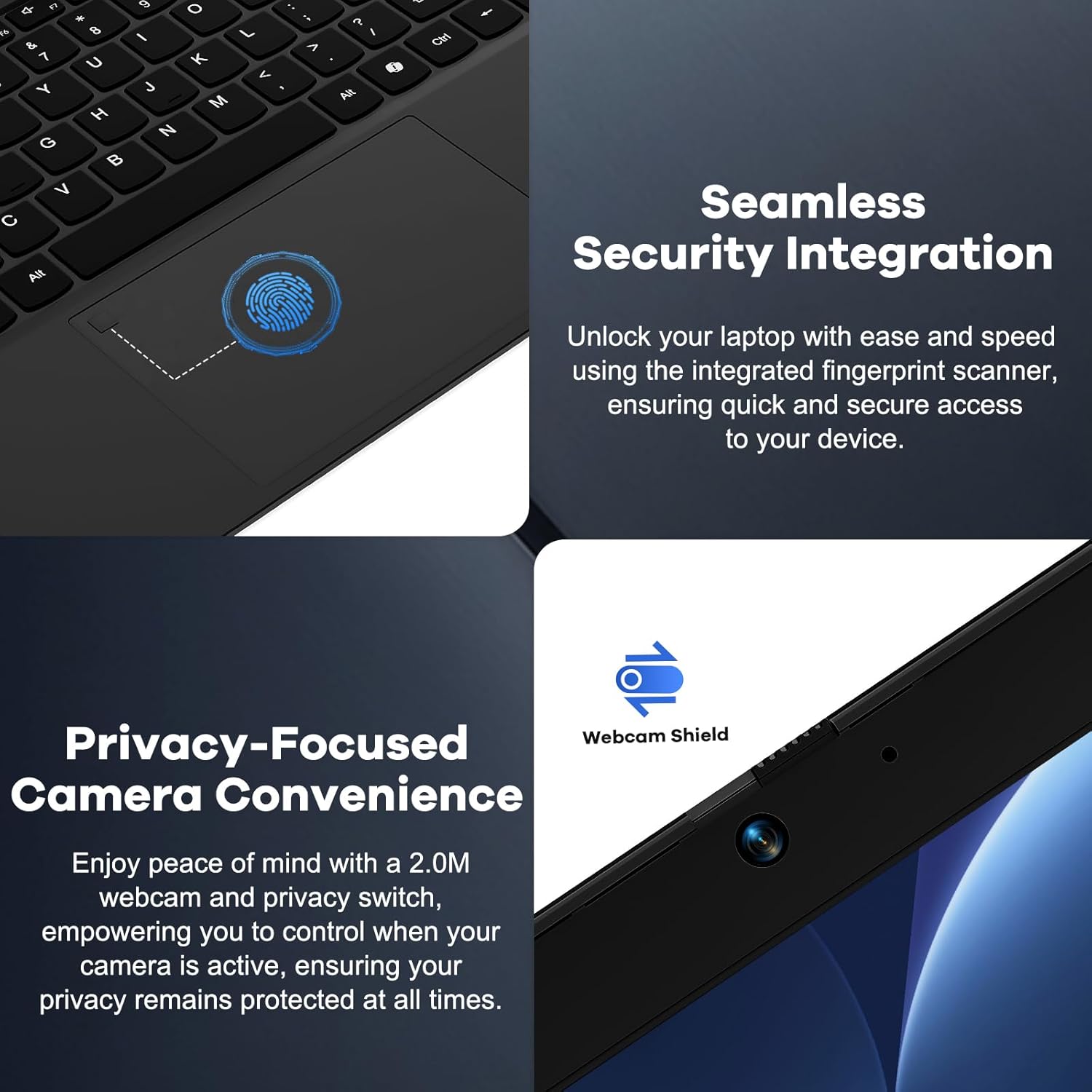
Figuur 4: Details on the seamless security integration with the fingerprint sensor for quick login and the privacy-focused camera convenience with a built-in webcam shield.

Figuur 5: The compact 100W GaN Type-C PD Fast Charger included with the NIMO laptop, capable of charging to 50% in 15 minutes and compatible with various devices.
Opstelling
1. Aanvanklike aanskakeling
- Pak uit: Verwyder die skootrekenaar en alle bykomstighede versigtig uit die verpakking.
- Koppel krag: Plug the 100W GaN Type-C PD Fast Charger into a power outlet and connect the USB-C cable to the laptop's Type-C charging port. The Charge LED will illuminate.
- Eerste selflaai: Open the laptop lid. The system may power on automatically or you may need to press the power button (located on the top right of the keyboard).
- Windows-opstelling: Volg die instruksies op die skerm om die Windows 11 Home-opstellingsproses te voltooi. Dit sluit in die keuse van jou streek en taal, die verbinding met 'n Wi-Fi-netwerk en die skep van 'n gebruikersrekening.
2. Aansluiting van randapparatuur
Your NIMO laptop offers various ports for connecting external devices:
- USB-toestelle: Connect USB flash drives, external hard drives, mice, or keyboards to the USB 2.0 or USB 3.0 ports.
- Eksterne vertoning: Gebruik die HDMI-poort om 'n eksterne monitor of projektor aan te sluit.
- Oudio: Plug headphones or external speakers into the 3.5mm Headphone Jack.
- Geheue kaarte: Insert a Micro SD card into the Micro SD slot for additional storage.
Bedryfsinstruksies
1. Basiese werking
- Krag aan/af: Press the power button to turn the laptop on. To shut down, click the Start button in Windows, then Power > Shut down.
- Slaap stelling: Maak die deksel toe of klik die Start-knoppie, dan Aan/Uit > Slaap om die skootrekenaar in slaapmodus te plaas.
- Fingerprint Login: Utilize the integrated fingerprint sensor for quick and secure login to Windows. Register your fingerprints through Windows Settings > Accounts > Sign-in options.
- Verligte sleutelbord: The keyboard features backlighting for low-light conditions. Use the dedicated function key (Fn + F key combination, typically F3 or F4) to toggle or adjust the backlight brightness.
- Webcam Privacy: The laptop includes a physical webcam shield. Slide the switch next to the webcam to cover or uncover the camera lens for privacy.
2. Windows 11 Features
Your laptop comes with Windows 11 Home pre-installed. Explore its features for enhanced productivity and entertainment:
- Snap-uitlegte: Easily organize open windows on your screen.
- Legstukke: Access personalized information at a glance.
- Microsoft Store: Download and install applications.
- Sekuriteit: Windows Defender provides built-in antivirus and firewall protection.
Onderhoud
- Skoonmaak: Use a soft, lint-free cloth to clean the screen and chassis. For stubborn smudges, slightly dampMaak die lap skoon met water of 'n skermskoonmaakoplossing. Vermy harde chemikalieë.
- Batterysorg: Om die batterylewe te verleng, vermy om die battery gereeld volledig te ontlaai. Dit word aanbeveel om die batterylading tussen 20% en 80% te hou wanneer moontlik. Bêre die skootrekenaar op 'n koel, droë plek as dit nie vir lang tye gebruik word nie.
- Sagteware-opdaterings: Kontroleer gereeld vir Windows-opdaterings en dryweropdaterings en installeer dit om stelselstabiliteit en -sekuriteit te verseker. Gaan na Windows-instellings > Windows-opdatering.
- Bergingbestuur: Maak gereeld onnodige dinge skoon files and applications to free up storage space and improve performance.
Probleemoplossing
| Probleem | Moontlike oorsaak | Oplossing |
|---|---|---|
| Skootrekenaar skakel nie aan nie. | Probleem met lae battery of kragadapter. | Ensure the charger is properly connected and the power outlet is working. Allow the laptop to charge for at least 30 minutes before attempting to power on again. |
| Die skerm is leeg of flikker. | Incorrect display settings or driver issue. | Probeer om 'n eksterne monitor te koppel om te kyk of die probleem met die skootrekenaar se skerm is. Dateer grafiese drywers op. Herbegin die skootrekenaar. |
| Wi-Fi-verbindingsprobleme. | Incorrect network settings or driver issue. | Ensure Wi-Fi is enabled. Restart your router and laptop. Update Wi-Fi drivers. Forget and reconnect to the network. |
| Sleutelbord se agterlig werk nie | Backlight feature is off or driver issue. | Press the Fn + F key combination (e.g., F3 or F4) to toggle the backlight. Check keyboard settings in Windows. |
If the problem persists, please refer to the Warranty and Support section for assistance.
Spesifikasies
| Kenmerk | Detail |
|---|---|
| Handelsmerk | NIMO |
| Model Naam | Nimo N156 |
| Skerm grootte | 15.6 duim |
| Skermresolusie | 1920 x 1080 piksels (FHD IPS) |
| Verwerker | Intel Core i5-12450H (8 kerns, tot 4.4 GHz) |
| RAM | 8 GB DDR4 (Upgradable) |
| Hardeskyf | 256 GB PCIe SSD (Upgradable) |
| Grafiese medeverwerker | Geïntegreerde Intel-grafika |
| Bedryfstelsel | Windows 11 Tuis |
| Draadlose tipe | 802.11a/b/g/n/ac (WiFi 6) |
| Bluetooth | BT5.2 |
| Hawens | 1x USB 2.0, 3x USB 3.0, Type-C (PD Charger Only), Type-C (Multifunction), HDMI, Headphone Jack, Micro SD Slot |
| Kragadapter | 100W GaN Type-C PD Fast Charger |
| Gemiddelde batterylewe | 5 Hours (54Wh Smart Battery for up to 9 Hours Standby) |
| Item gewig | 3.8 pond |
| Produk afmetings | 14.07 x 8.98 x 0.76 duim |
| Spesiale kenmerke | Backlit Keyboard, Fingerprint Reader, HD Audio, Memory Card Slot, Numeric Keypad, Webcam Shield |
Waarborg en Ondersteuning
NIMO stands behind the quality of its products. Your NIMO laptop comes with the following:
- 2-jaar waarborg: A 2-Year Warranty from NIMO Direct Inc. covers manufacturing defects and hardware failures.
- 90-dae moeitevrye terugsendings: Enjoy a 90-day return policy for your peace of mind.
- 24/7 Dedicated Support: For any issues or inquiries, dedicated support is available to provide instant resolution.
For warranty claims or technical assistance, please contact NIMO customer support through the contact information provided on the official NIMO webwebwerf of u aankoopdokumentasie.
Video: 'n verbyview of the NIMO laptop, highlighting its features, performance, and the comprehensive 90-day return policy and 2-year warranty, demonstrating NIMO's commitment to customer satisfaction.
Ask a question about this manual
Ask about setup, troubleshooting, compatibility, parts, safety, or missing instructions. Manuals+ will review the question and use this page’s manual context to help answer it.