
1. Inleiding
This manual provides comprehensive instructions for the setup, operation, maintenance, and troubleshooting of your TECURS 75% Mechanical Keyboard. Please read this manual thoroughly before using the product to ensure optimal performance and longevity.
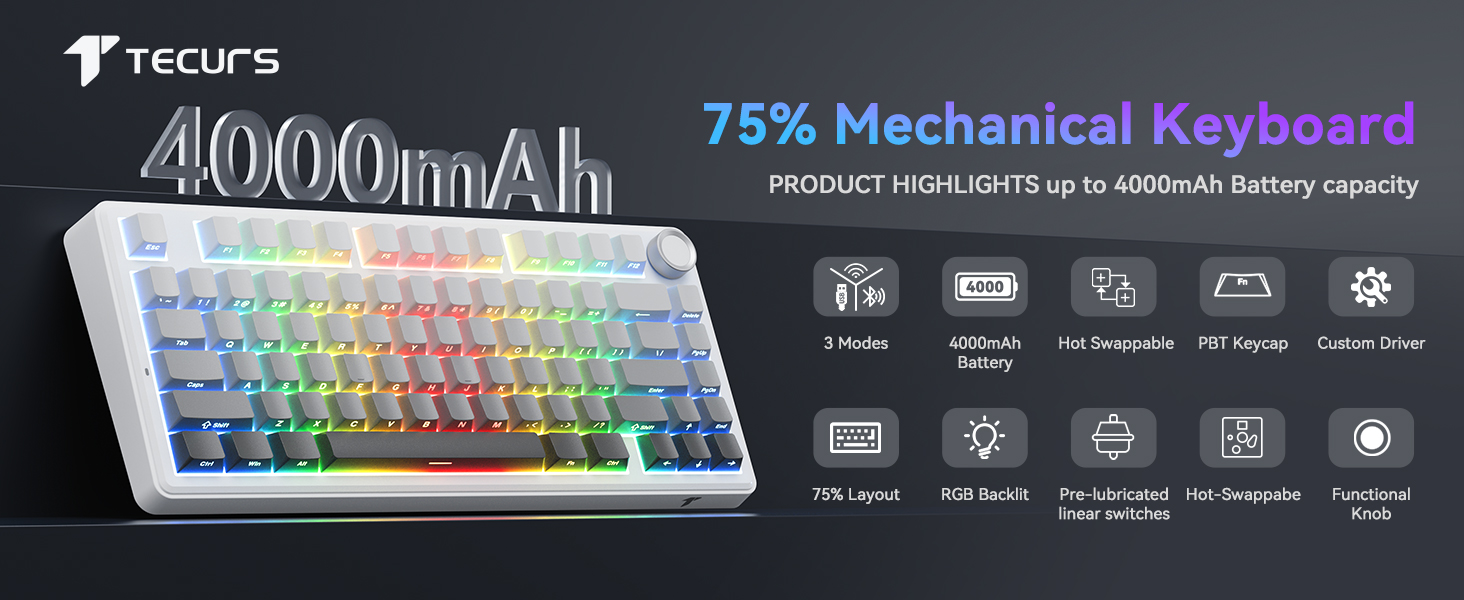
The TECURS 75% Mechanical Keyboard is designed for both gaming and office use, featuring a compact 81-key layout, Gasket Mount construction for enhanced typing feel, hot-swappable switches, and versatile tri-mode connectivity (2.4G wireless, Bluetooth 5.0, and wired USB-C).
2. Pakketinhoud
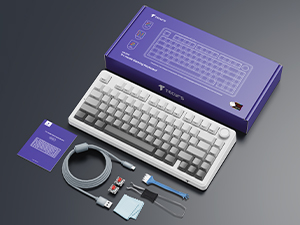
Verifieer dat alle items in die pakket teenwoordig is:
- TECURS 75% Mechanical Keyboard
- USB-C-kabel
- 2.4 GHz draadlose ontvanger
- Skakeltrekker
- Sleutelkap trekker
- Extra Switches (2 units)
- Gebruikershandleiding
3. Produk verbyview
3.1 Sleutelkenmerke
- Gasket Mount Design: Incorporates 5-layer dampening for reduced noise and a consistent typing feel.
- Warm-uitruilbare PCB: Versoenbaar met 3-pen en 5-pen meganiese skakelaars, wat maklike skakelaar-aanpassing sonder soldeerwerk moontlik maak.
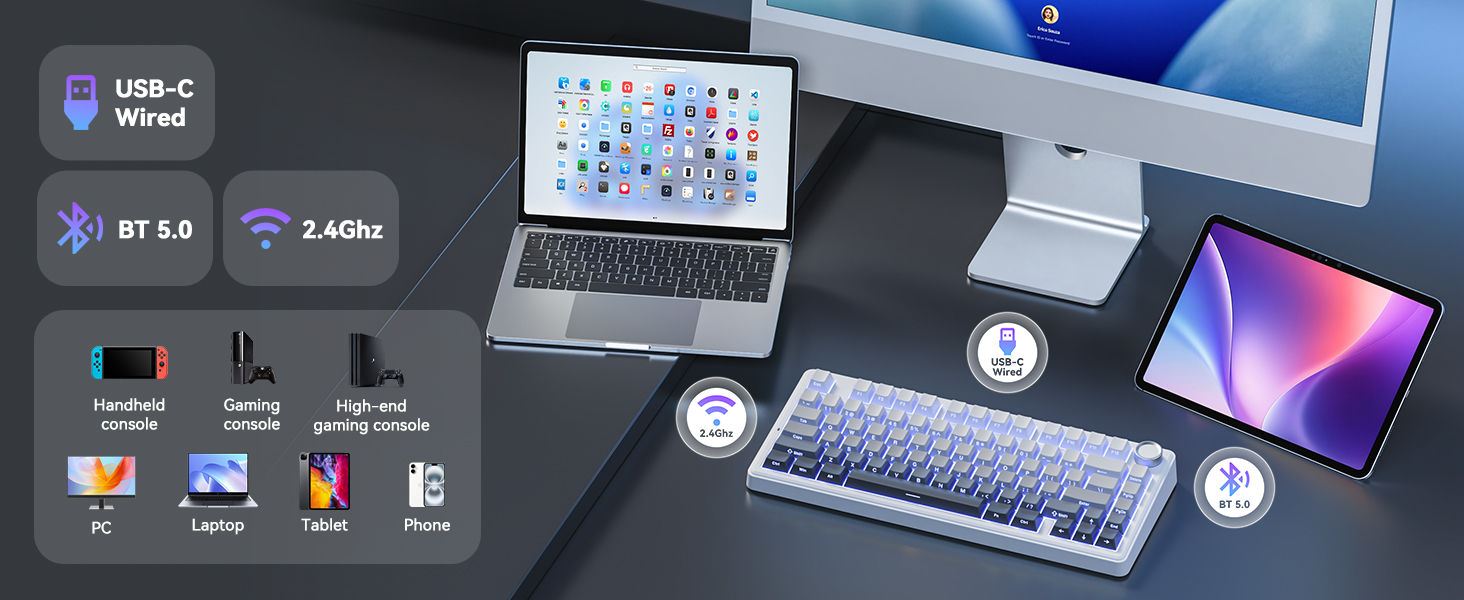
- Drie-modus-konnektiwiteit: Supports 2.4GHz wireless, Bluetooth 5.0, and wired USB-C connections for broad compatibility.
- RGB-agterbeligting: Customizable RGB lighting with various effects and brightness levels.
- Multi-funksie knop: Controls volume in office mode and RGB brightness/effects in gaming mode.
- Programmeerbare sleutels: Macro recording and key remapping available via software (Windows only, wired mode).
- 4000mAh battery: Bied uitgebreide draadlose gebruik.
- Anti-spookbeeld: Ensures accurate registration of multiple simultaneous key presses.
- Side-Printed PBT Keycaps: Durable keycaps with legends printed on the side for longevity and shine-through visibility.

3.2 Keyboard Layout and Indicators

- 2.4G Mode Indicator: Lights up when in 2.4GHz wireless mode.
- Android Mode Indicator: Lights up when connected to an Android device.
- Windows Mode Indicator: Lights up when connected to a Windows device.
- MacOS Mode Indicator: Lights up when connected to a macOS device.
- Caps Lock-aanwyser: Dui die Caps Lock-status aan.
- Wenslot-aanwyser: Indicates Windows key lock status.
- Laaistatus-aanwyser: Toon batterylaaistatus.
4. Opstelling
4.1 Laai die sleutelbord
Before first use, fully charge the keyboard. Connect the provided USB-C cable to the keyboard's USB-C port and the other end to a USB power source (e.g., computer, wall adapter). The charging indicator will show the charging status.
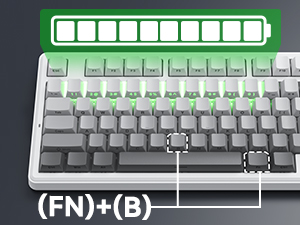
Om die batteryvlak na te gaan, druk Fn+B. The corresponding number row keys will light up to indicate the battery percentage (e.g., keys 1-0 for 10%-100%).
4.2 Die sleutelbord koppel
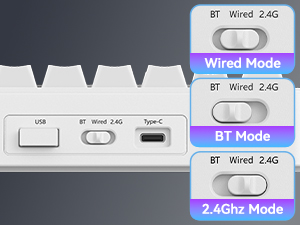
The keyboard supports three connection modes: 2.4GHz Wireless, Bluetooth 5.0, and Wired USB-C. Use the switch located on the back of the keyboard to select your desired mode.
4.2.1 Bedrade modus (USB-C)
- Set the mode switch to "Wired".
- Connect the USB-C cable to the keyboard and your computer's USB port.
- Die sleutelbord sal outomaties deur jou stelsel herken word.
4.2.2 2.4GHz Draadlose Modus
- Set the mode switch to "2.4G".
- Insert the 2.4GHz USB receiver into an available USB port on your device.
- The keyboard will automatically connect. The 2.4G indicator light on the keyboard will illuminate.
4.2.3 Bluetooth-modus
- Set the mode switch to "BT".
- Druk en hou fn+1, fn+2, of fn+3 for 3-5 seconds to enter pairing mode. The corresponding key (1, 2, or 3) will flash rapidly.
- Aktiveer Bluetooth op jou toestel (rekenaar, skootrekenaar, tablet, slimfoon) en soek vir nuwe toestelle.
- Select "TECURS Keyboard" from the list of available devices.
- Once paired, the indicator light for the selected Bluetooth channel will stop flashing and remain solid.
- Om tussen gepaarde Bluetooth-toestelle te wissel, druk fn+1, fn+2, of fn+3.

4.3 System Compatibility Switching
The keyboard supports Windows, macOS, and Android operating systems. To switch between system layouts:
- Druk Fn + W. for Windows mode.
- Druk fn + A for Android mode.
- Druk Fn + S for macOS mode.
The corresponding indicator light (Windows, Android, or MacOS) will illuminate.
5. Bedryfsinstruksies
5.1 RGB-agterbeligtingsbeheer
Die sleutelbord beskik oor aanpasbare RGB-agtergrondbeligting. Gebruik die volgende sleutelkombinasies om beligtingseffekte aan te pas:
- Fn + \ |: Toggle Light Mode (cycle through various lighting effects).
- Fn + Tab: Toggle Light Color (change static backlight color).
- Fn + ↑: Increase Lighting Brightness.
- Fn + ↓: Decrease Lighting Brightness.
- Fn + ←: Decrease Lighting Speed.
- Fn + →: Increase Lighting Speed.

5.2 Multifunksieknop
The knob on the top right of the keyboard has dual functionality, depending on the active mode:
| Modus | Aksie | Funksie |
|---|---|---|
| Kantoormodus | Draai kloksgewys | Volume op |
| Draai teen die kloksgewys | Volume af | |
| Druk | Demp/ontdemp oudio | |
| Speelmodus | Draai kloksgewys | Increase RGB Brightness (CAPS blinks at max) |
| Draai teen die kloksgewys | Decrease RGB Brightness (CAPS blinks at min) | |
| Druk | Cycle 17 Lighting Effects |

5.3 Programmable Keys and Custom Software
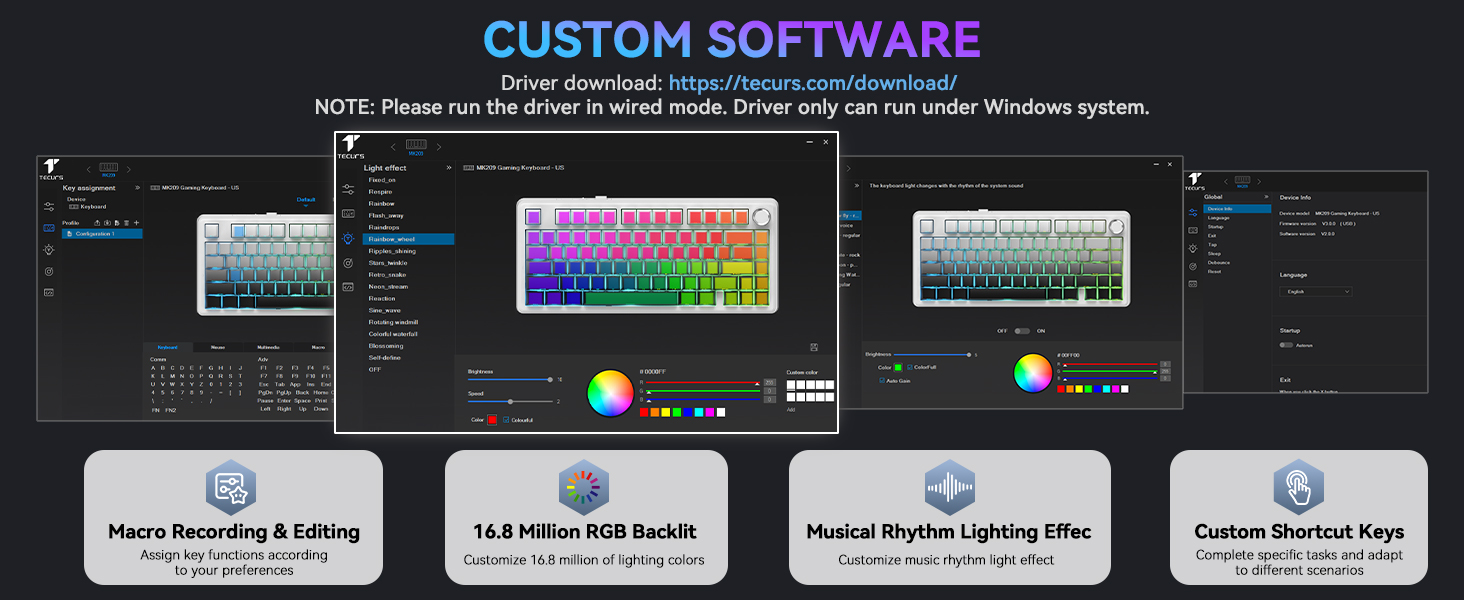
The keyboard supports macro recording and key remapping through dedicated software. This functionality is available only when the keyboard is in wired mode and connected to a Windows operating system.
Download the custom software from the official TECURS webwebwerf: https://www.tecurs.com/download/
Die sagteware laat jou toe om:
- Assign key functions.
- Customize RGB backlighting with 16.8 million colors.
- Set musical rhythm lighting effects.
- Create custom shortcut keys.
6. Onderhoud
6.1 Skoonmaak
- Ontkoppel die sleutelbord van alle kragbronne en toestelle voordat u dit skoonmaak.
- Gebruik 'n sagte, pluisvrye lap effens dampmet water of 'n sagte skoonmaakoplossing om die oppervlak van die sleutelbord af te vee.
- For cleaning between keycaps, use a can of compressed air to remove dust and debris.
- Avoid using harsh chemicals, abrasive cleaners, or solvents, as these can damage the keyboard's finish and keycap legends.
6.2 Warm-omruilbare skakelaars
The keyboard features a hot-swappable PCB, allowing you to change switches without soldering. Use the provided switch puller for this process.
- Gently use the switch puller to grip the top and bottom clips of the switch you wish to remove.
- Pull the switch straight up with even pressure until it detaches from the PCB.
- Rig die penne van die nuwe skakelaar met die gate op die PCB. Maak seker dat die penne reguit is.
- Press the new switch firmly into place until it clicks. Do not force it if there is resistance; check pin alignment.
The keyboard supports both 3-pin and 5-pin mechanical switches.


7. Probleemoplossing
| Probleem | Moontlike oorsaak | Oplossing |
|---|---|---|
| Sleutelbord reageer nie in draadlose modus nie. | Low battery, incorrect mode selected, receiver not connected, pairing issue. |
|
| Sleutels registreer nie of dubbeltik nie. | Stof/rommel onder sleuteldop/skakelaar, foutiewe skakelaar. |
|
| RGB-beligting werk nie of is vas. | Software glitch, incorrect settings. |
|
| Custom software not detecting keyboard. | Not in wired mode, not on Windows OS. |
|
8. Spesifikasies
| Kenmerk | Detail |
|---|---|
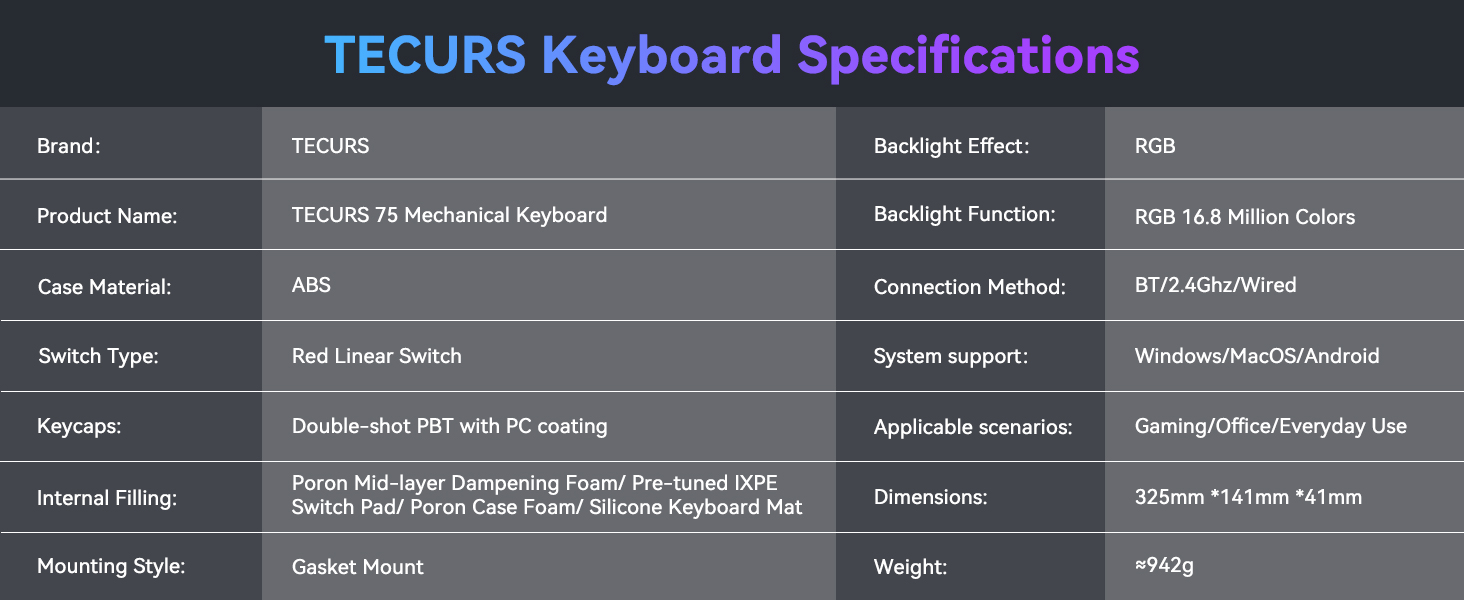
| Handelsmerk | TECURS |
| Produk Naam | TECURS 75 Mechanical Keyboard |
| Model | B0FC62VJRB |
| Materiaal van die saak | ABS |
| Skakel Tipe | Red Linear Switch (Pre-lubed) |
| Sleutels | Double-shot PBT with PC coating (Side-printed) |
| Interne Vulsel | Poron Mid-layer Dampening Foam, Pre-tuned IXPE Switch Pad, Poron Case Foam, Silicone Keyboard Mat |
| Monteer styl | Gasket Mount |
| Agterlig-effek | RGB |
| Backlight Funksie | RGB 16.8 miljoen kleure |
| Verbindingsmetode | Bluetooth 5.0, 2.4GHz draadloos, USB-C bedraad |
| Stelselondersteuning | Windows, MacOS, Android |
| Versoenbare toestelle | Skootrekenaar, rekenaar, speletjiekonsole, tablet, slimfoon |
| Aanbevole gebruike | Speletjies, Kantoor |
| Spesiale kenmerke | Backlit, Hot-Swappable, Mechanical, Programmable Keys |
| Kleur | Gradiëntgrys |
| Produk afmetings | 12.8"L x 5.55"B x 1.6"H (325mm x 141mm x 41mm) |
| Item gewig | 2.77 pounds (~942g) |
| Batterye | 1 Lithium Ion battery (included), 4000mAh capacity |
9. Waarborg en Ondersteuning
For warranty information and technical support, please refer to the official TECURS website or contact their customer service directly. Details regarding product registration, warranty claims, and support resources can typically be found on the manufacturer's webwebwerf.
Vervaardiger: TECURS
Vir verdere hulp, besoek die TECURS Store on Amazon.