
ClokoWe HY300PRO+
CLOKOWE Mini Projector User Manual
Model: HY300PRO+
Inleiding
This manual provides detailed instructions for the safe and efficient operation of your CLOKOWE Mini Projector. Please read this manual thoroughly before using the product and retain it for future reference. The CLOKOWE Mini Projector is a portable device designed for versatile projection, featuring built-in streaming apps, Wi-Fi 6, Bluetooth 5.2, 180° rotation, and automatic keystone correction.

Image: The CLOKOWE Mini Projector, a compact white cylindrical device with a lens, shown projecting content onto a curved screen displaying various streaming app logos and a movie scene.
Wat is in die boks
Verifieer dat alle items teenwoordig is tydens uitpak:
- CLOKOWE Mini Projector (Model: HY300PRO+)
- Kragkoord
- HDMI kabel
- Afstandbeheer
- Gebruikershandleiding (hierdie dokument)
Produk Kenmerke
The CLOKOWE Mini Projector offers a range of features for enhanced viewervarings:
- Ingeboude stroomtoepassings: Access platforms like YouTube, Disney+, and more directly via Wi-Fi.
- Veelsydige verbindings: Supports wireless mirroring (iPhone, Android, tablet, laptop) and wired connections (HDMI, USB).
- 180° Rotatable Projection: The projector body can rotate 180° for flexible projection angles, including ceiling projection.
- Outomatiese Keystone-korreksie: Ensures aligned visuals automatically.
- Handmatige fokus: Allows for fine-tuning image clarity.
- Wi-Fi 6 & Bluetooth 5.2: Provides fast, stable wireless streaming and audio pairing with external speakers.
- Ultra-draagbare ontwerp: Compact size (3.73 × 3.73 × 6.17 inches) and lightweight (0.77 lb).
- High Clarity Display: 8000 Lux brightness, supports 1080P display, with a 0.9:1 short throw ratio.
- Aanpasbare agtergronde: Upload personal background images via USB.
- Outomatiese afskakeltydteller: Set a timer for controlled usage.

Image: A visual representation of the projector's built-in app store, showing various streaming service icons like Netflix, YouTube, Spotify, and Prime Video on a projected screen.

Image: A family watching a movie projected onto the ceiling of a bedroom, demonstrating the 180° rotation feature for ceiling projection.
Opstelgids
1. Initial Placement and Power
- Plaas die projektor op 'n stabiele, plat oppervlak.
- Koppel die kragkabel aan die projektor en dan aan 'n kragpunt.
- Druk die aan/af-knoppie op die projektor of afstandbeheerder om dit aan te skakel.
2. Adjusting Projection Angle (180° Rotation)
The projector features a 180° rotatable body, allowing projection onto walls, screens, or ceilings without needing a tripod.
- Gently rotate the projector body to achieve the desired projection angle.
- Ensure the lens is facing the intended projection surface.
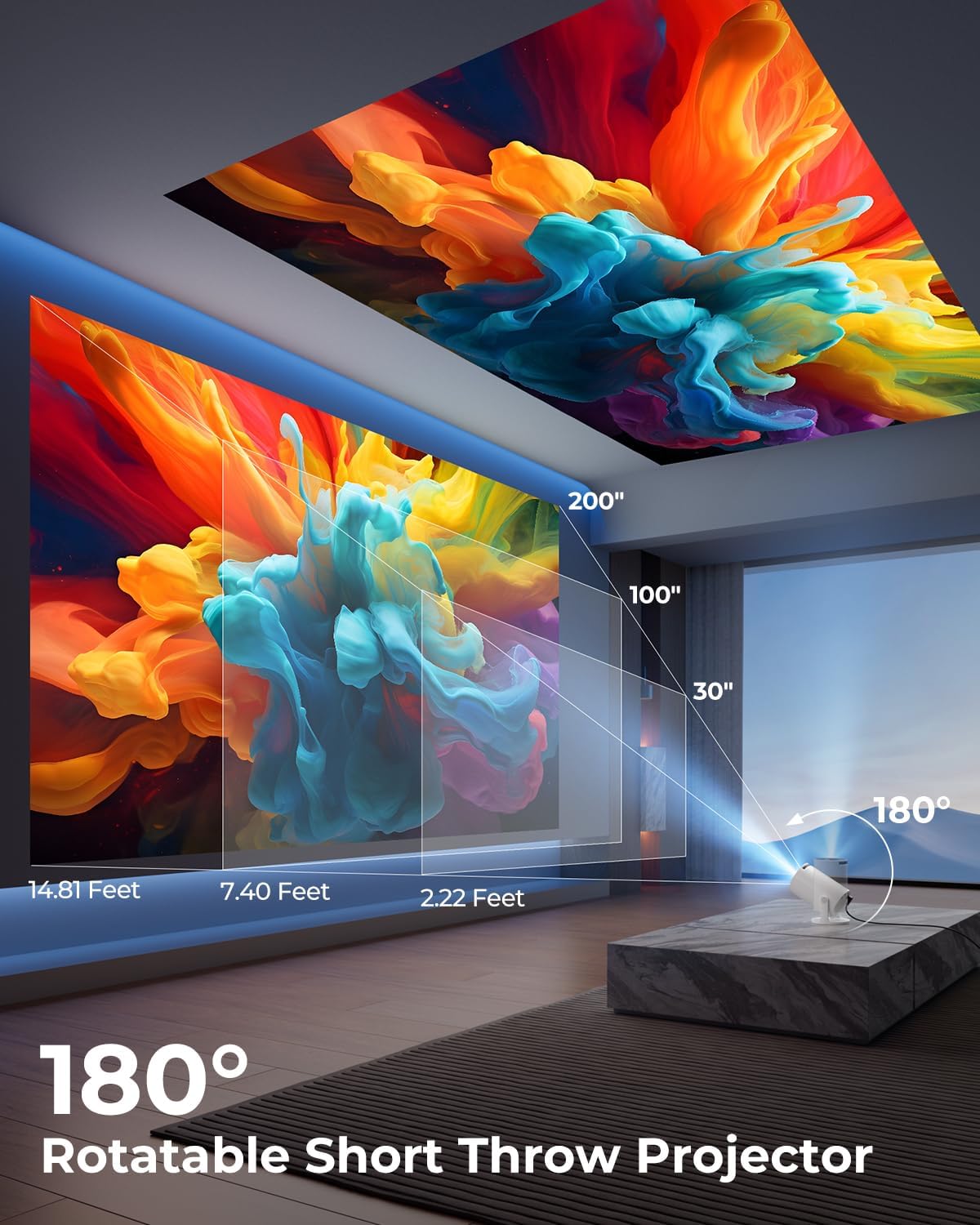
Image: A diagram illustrating the 180° rotation capability of the projector and various projection distances (30", 100", 200") with corresponding throw distances in feet.
3. Fokus en Keystone Correction
- Outomatiese Keystone-korreksie: The projector will automatically adjust the image to be rectangular. If further adjustment is needed, navigate to the settings menu.
- Handmatige fokus: Rotate the focus ring around the lens until the image appears sharp and clear.

Image: A projected image on a wall demonstrating automatic keystone correction and manual focus adjustments, with icons for ±45° Auto Keystone, Manual Focus, and 50%-100% Zoom.
4. Network and Bluetooth Connection
- Wi-Fi-verbinding:
- Navigeer na die "Instellings"-kieslys op die projektor.
- Kies "Netwerk" of "Wi-Fi-instellings".
- Choose your Wi-Fi network from the list and enter the password. The projector supports Wi-Fi 6 (2.4G and 5G).
- Bluetooth-verbinding:
- Go to "Settings" and select "Bluetooth".
- Aktiveer Bluetooth en soek vir beskikbare toestelle.
- Kies jou Bluetooth-luidspreker of -oorfone uit die lys om te koppel.

Image: A projected image showing Wi-Fi 6 and Bluetooth 5.2 connectivity, with a smartphone mirroring content to the projector and a soundbar connected via Bluetooth.
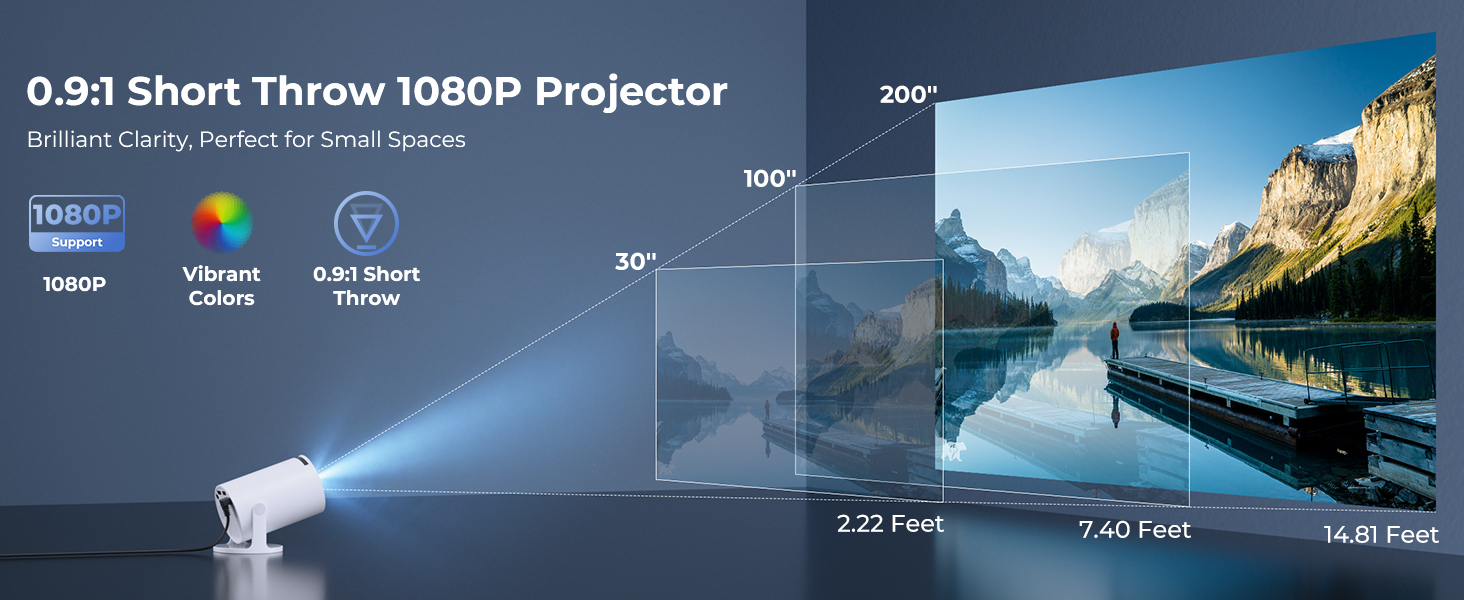
Image: A visual demonstrating Bluetooth 5.2 audio connection, showing the projector wirelessly paired with headphones and a portable speaker.
Bedryfsinstruksies
1. Navigeer die koppelvlak
- Use the provided remote control to navigate through menus and select options.
- Basic navigation buttons are also available on the projector unit.
2. Gebruik van ingeboude toepassings
- Once connected to Wi-Fi, access the main interface to find pre-installed streaming applications.
- Select an app (e.g., YouTube, Disney+) and log in with your credentials to start streaming.
3. Skermspieëling
The projector supports wireless mirroring from compatible smartphones, tablets, and laptops.
- Maak seker dat jou toestel en die projektor aan dieselfde Wi-Fi-netwerk gekoppel is.
- Select the "Screen Mirroring" or "Wireless Display" option on the projector's menu.
- On your mobile device, activate its screen mirroring feature (e.g., AirPlay for iOS, Smart View for Android) and select the projector from the list of available devices.
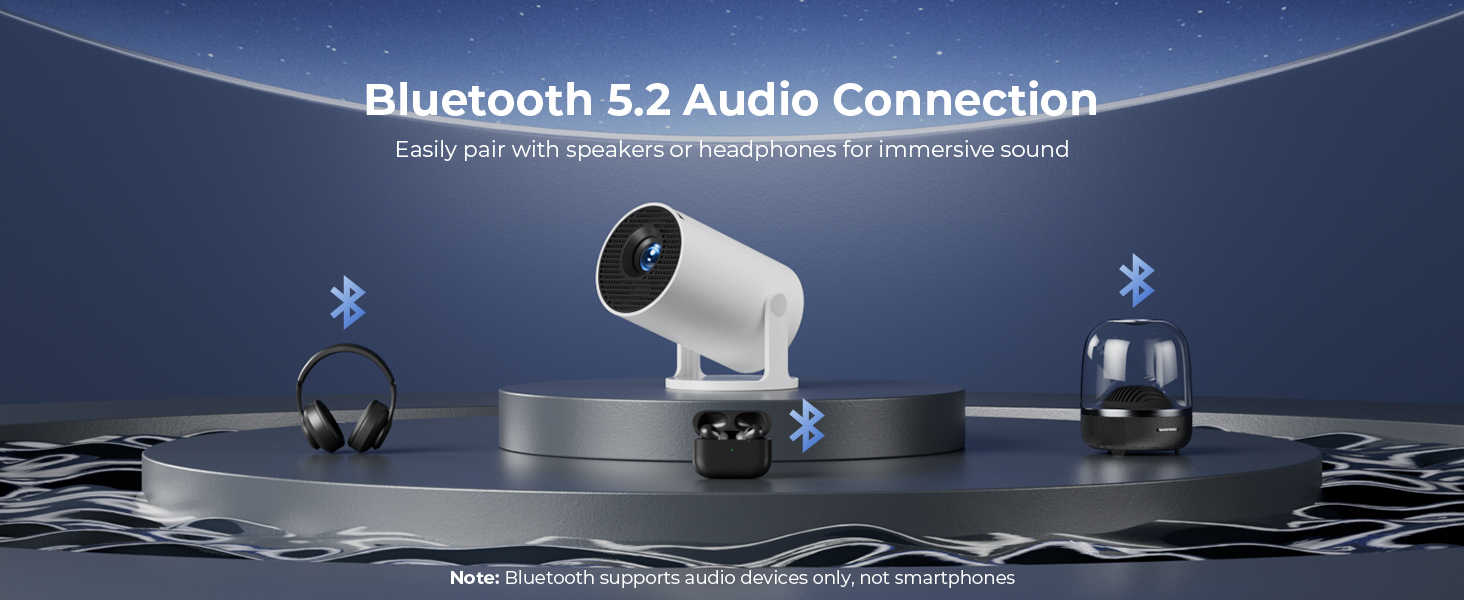
Image: A diagram illustrating Dual-Band Wi-Fi 6 connection for faster, smoother screen mirroring from various devices like smartphones, tablets, and laptops to the projector.
4. Wired Connections (HDMI/USB)
- Connect devices like game consoles, TV sticks, or computers using the HDMI port.
- Gebruik die USB-poort om media te speel files directly from a USB drive or to upload custom wallpapers.
- To select the input source, press the "Source" button on the remote control and choose HDMI or USB.
Beeld: 'n Nabyskoot view of the projector's rear panel, highlighting the HDMI, USB, and power ports, along with an ON/OFF switch and manual focus ring.
5. Custom Wallpapers and Timer
- Custom Wallpapers: Insert a USB drive containing your desired background images. Navigate to the settings to select and apply them.
- Outomatiese afskakeltydteller: Access the system settings to set a timer for the projector to automatically power off after a specified duration.
Onderhoud
- Maak die lens skoon: Gebruik 'n sagte, pluisvrye lap wat spesifiek vir optiese lense ontwerp is. Moenie skuurmiddels of oplosmiddels gebruik nie.
- Skoonmaak van die buitekant: Wipe the projector's exterior with a soft, dry cloth. For stubborn marks, lightly dampen die lap met water.
- Ventilasie: Maak seker dat die projektor se ventilasie-openinge nie geblokkeer is om oorverhitting te voorkom nie.
- Berging: Wanneer dit nie vir lang tye gebruik word nie, bêre die projektor op 'n koel, droë plek, weg van direkte sonlig en uiterste temperature.
Probleemoplossing
| Probleem | Moontlike oorsaak | Oplossing |
|---|---|---|
| Geen beeld of vae beeld | Incorrect focus; lens cap on; input source not selected; projector too far/close. | Adjust manual focus; remove lens cap; select correct input source; adjust projection distance. |
| Beeld is trapesiumvormig of verwring | Projektor nie loodreg op die skerm nie. | Utilize automatic keystone correction or manually adjust in settings. Ensure projector is on a level surface. |
| Geen klank of lae volume nie | Volume too low; external audio device not connected/paired; projector's internal speaker off. | Increase volume on projector/source device; ensure Bluetooth speaker is paired; check audio settings. |
| Afstandbeheer reageer nie | Batteries low/dead; obstruction between remote and projector; remote sensor blocked. | Replace batteries; ensure clear line of sight to projector's IR sensor. |
| Wi-Fi-verbindingskwessies | Incorrect password; out of range; network interference. | Re-enter password; move projector closer to router; restart router and projector. |
Spesifikasies
| Kenmerk | Detail |
|---|---|
| Modelnommer | HY300PRO+ |
| Handelsmerk | ClokoWe |
| Produk afmetings | 3.73 x 6.17 x 3.73 duim |
| Item gewig | 1.61 pond (0.73 kg) |
| Vertoon resolusie | 1280 x 720 (Supports 1080P) |
| Helderheid | 8000 Lux |
| Verbindingstegnologie | Bluetooth 5.2, HDMI, USB, Wi-Fi 6 (2.4G & 5G) |
| Spesiale kenmerke | Built-in Apps, Digital Keystone Correction, Short Throw (0.9:1), 50%-100% Zoom, 180° Rotatable Projection, Mini Portable Design |
| Aanbevole gebruike | Home Cinema, Gaming, Business, Education |
Waarborg en Ondersteuning
The CLOKOWE Mini Projector includes 2-years factory support. For technical assistance, troubleshooting, or warranty claims, please contact ClokoWe customer support through the retailer where the product was purchased or visit the official ClokoWe webwebwerf vir kontakinligting.
Bewaar asseblief u aankoopbewys vir waarborgvalidering.
Verwante Dokumente - HY300PRO+
 |
LQWELL HY300 Slim Projektor Vinnige Installasiegids 'n Beknopte gids vir die installering en gebruik van die LQWELL HY300 Slimprojektor, wat die opstelling, funksies soos Miracast en Airplay, en veiligheidsinstruksies dek. |
 |
Akiyo O2 LED Projektor Gebruikershandleiding Comprehensive user manual for the Akiyo O2 Mini Portable LED Projector. Learn about its Smart OS, Full HD 1080P resolution, WiFi6, Bluetooth 5.4, 180° rotation, App Integrada, Auto Keystone, and various connection options like HDMI, USB, and smartphone mirroring. |
 |
XBJ BL360 Mini 4K Projector Product Manual Product manual for the XBJ BL360 Mini 4K Projector, covering product information, manufacturer details, safety warnings, and usage instructions. |
 |
LQWELL HY300 Mini Projektor Gebruikershandleiding Omvattende gebruikershandleiding vir die LQWELL HY300 Mini-projektor, wat die opstelling, kenmerke en probleemoplossing dek. Leer hoe om toestelle te koppel, instellings te navigeer en jou projektor te optimaliseer. viewondervinding. |
 |
Slim Projektor HY300 Vinnige Installasiegids 'n Beknopte gids vir die installering en gebruik van die Smart Projector HY300, wat die opstelling, netwerk, taalinstellings en projeksiemodusse dek. |
 |
LQWELL HY320-M Mini-projektor-eienaarshandleiding Verken die LQWELL HY320-M Mini-projektor, 'n veelsydige Inheemse 1080P 4K-tuisteatertoestel. Hierdie gebruikershandleiding bied noodsaaklike leiding oor opstelling, funksies soos outomatiese Keystone-korreksie, konnektiwiteitsopsies, mediaterugspeel en veiligheidsmaatreëls vir 'n optimale ... viewondervinding. |
Ask a question about this manual
Ask about setup, troubleshooting, compatibility, parts, safety, or missing instructions. Manuals+ will review the question and use this page’s manual context to help answer it.