
BOTSLAB G980H 4 Channel
BOTSLAB G980H 4-kanaal Dash Cam Gebruikershandleiding
Model: G980H 4 Channel
Handelsmerk: BOTSLAB
1. Inleiding
Thank you for choosing the BOTSLAB G980H 4 Channel Dash Cam. This manual provides detailed instructions on how to install, operate, and maintain your dash cam to ensure optimal performance and longevity. Please read this manual thoroughly before using the product and keep it for future reference.
2. Produk verbyview
2.1. Pakketinhoud
Verifieer dat al die items wat hieronder gelys word, in jou pakket ingesluit is:
- Hoofeenheid x 1
- Rear camera x 1 (6.5M)
- 3M Tape x 2
- Car charger x 1 (3.5M)
- 128GB TF Card x 1
- Elektrostatiese film x 2
- Vinnige aanvangsgids x 1
- Gebruikershandleiding x 1
- Waarskuwingskaart x 1
- Installasie pry bar x 1

Image: All components included in the BOTSLAB G980H 4 Channel Dash Cam package, neatly arranged.
2.2. Sleutel kenmerke
- 4 Channel Dash Cam: Records simultaneously with a 170° front camera, dual 120° side cameras, and a 150° rear camera, providing 560° coverage. The side cameras feature a detachable magnetic mount, allowing flexible configuration between 4-channel, 3-channel (4K+1080P*2), or dual dash cam (4K+1080P) modes.
- 24/7 Parking Mode: Offers three parking surveillance modes (requires hardwiring kit): Time-Lapse Recording (1 frame/sec), Sentry Mode (1-minute emergency video on front camera movement detection), and Collision Detection (1-minute video lock on impact).
- Nagvisie: Equipped with F1.8 Aperture, 6 lenses, 940nm infrared LED, and Wide Dynamic Range (WDR) for clear, balanced footage in lae lig toestande.
- Voice Control & 3.18" Touch Screen: Allows hands-free operation via voice commands and easy settings adjustment through the 3.18" touchscreen. Features a 4-way split screen playback.
- Ingeboude GPS: High-precision GPS module records location, speed, and travel route. Compatible with [DVplayer] software for dynamic route animations and AR-enhanced interface in the Botslab App.
- 5.8 GHz Wi-Fi: Provides 300% faster transfer speeds for instant 4K video transmission to your phone. Includes static-cling mounts and a free 128GB SD card.
- Veiligheidskenmerke: Features an "8-second pre-recording function" activated by the high-precision G-sensor during collisions or abnormal vibrations, ensuring comprehensive event capture. Supports up to 512GB storage.
- Super kapasitor: Ensures stable performance in extreme temperatures (-20°C to 70°C), prevents data loss during power cuts, and extends lifespan. Ideal for all-weather parking monitoring (requires hardwired kit).

Image: Illustrates the 3K Super HD view capturing all angles, including front, left, right, and rear camera feeds.

Image: Diagram showing the 560° field of view with 170° front, 120° left, 120° right, and 150° rear camera angles, eliminating blind spots.
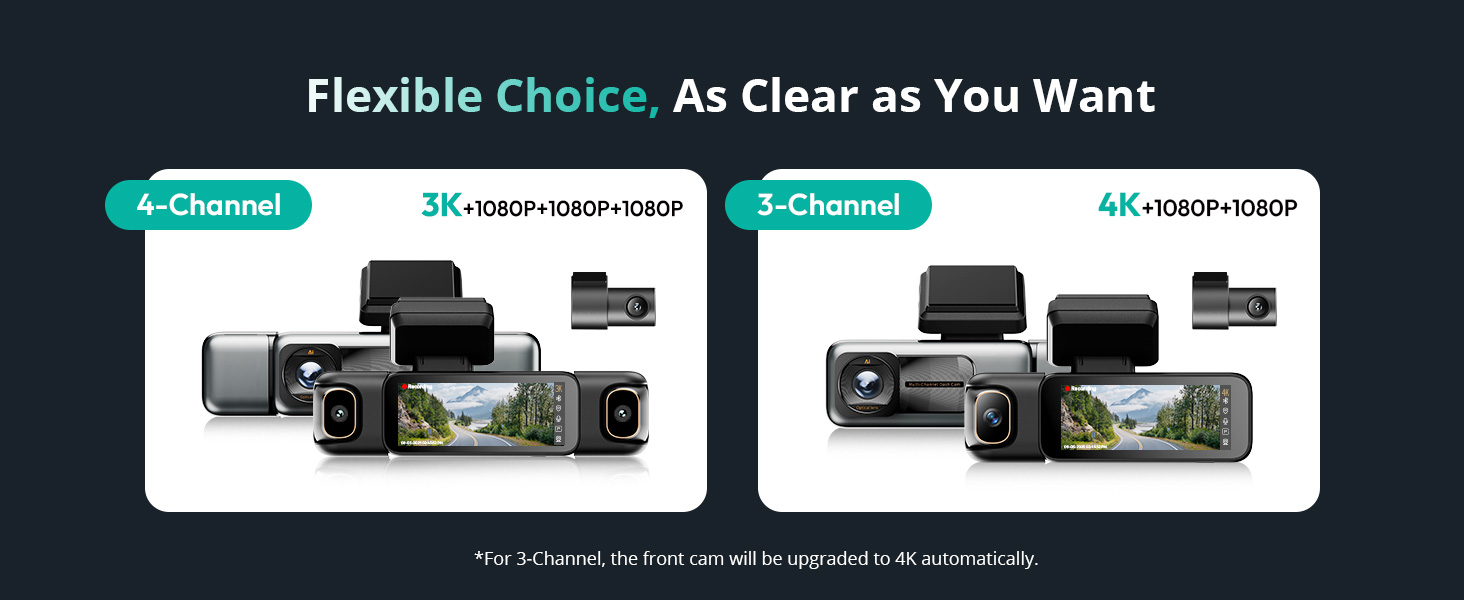
Image: Depicts the flexible choice between 4-channel (3K+1080P+1080P+1080P) and 3-channel (4K+1080P+1080P) configurations.

Image: Visual representation of the 24/7 Smart Parking Protection features, including Sentry Mode, Collision-Detected Recording, and Time-Lapse Recording.

Image: Diagram illustrating the 24/7 Smart Parking Monitor functionality, highlighting Sentry Mode, Collision-detected recording, and Time-lapse recording.
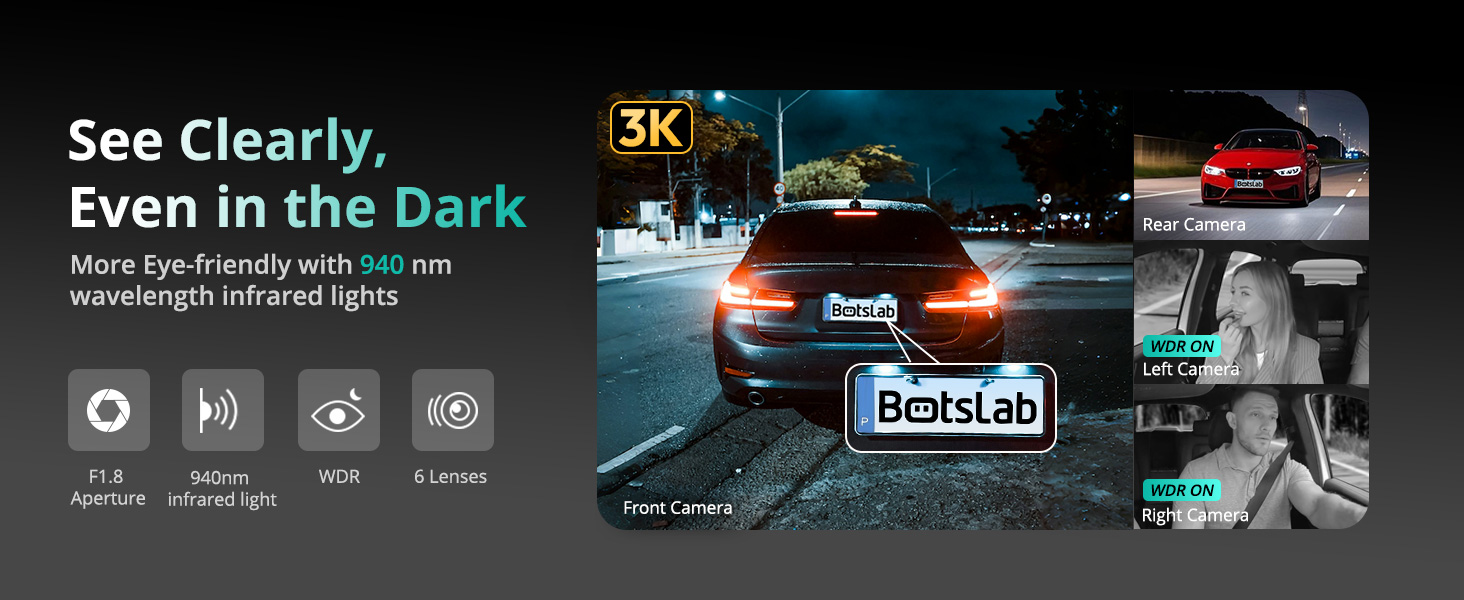
Image: Demonstrates the dash cam's ability to record clearly in the dark, highlighting F1.8 Aperture, 940nm infrared light, WDR, and 6 lenses.

Image: A hand interacting with the 3.18-inch touchscreen display of the dash cam, showing intuitive control.

Image: Illustrates various voice commands for hands-free operation, such as 'Take photo', 'Video start', and 'Turn on screen'.

Image: Shows the built-in GPS functionality tracking a drive on a map, with integration for Google Maps and real-time data display.

Image: Highlights the 5.8GHz Wi-Fi feature, emphasizing 5X faster data transfer speeds for quick preview en terugspeel op 'n slimfoon.

Image: Illustrates how the dash cam secures footage in emergencies, including 8 seconds of buffered recording before an event and subsequent emergency recording.

Image: The main product view of the BOTSLAB G980H 4 Channel Dash Cam alongside a smartphone displaying its companion app interface.

Image: Shows the dash cam's snap-on design for side cameras and their 90-degree rotation capability, allowing users to choose their preferred view.
3. Opstelling
3.1. Installasie
- Berei die voorruit voor: Clean the area on your windshield where the dash cam will be mounted. Apply the electrostatic film first to prevent adhesive residue.
- Monteer die hoofeenheid: Attach the main unit to the windshield using the provided 3M tape. Ensure it is positioned to capture the desired front view without obstructing your driving vision.
- Koppel krag: Plug the car charger into your vehicle's cigarette lighter socket and connect the other end to the main unit. Route the cable neatly using the installation pry bar to tuck it along the vehicle's interior trim.
- Installeer agterkamera: Mount the rear camera on your rear windshield. Connect its cable to the main unit and route the cable discreetly.
- Attach Side Cameras: The side cameras attach magnetically to the main unit. Ensure they are securely snapped into place. Adjust their angles (90° rotation) to cover the left and right interior/exterior views soos benodig.

Image: Diagram showing the easy installation process, including placement of the front camera, power connection, and rear camera.
3.2. Aanvanklike Opstelling
- Plaas SD-kaart in: Insert the provided 128GB TF card into the designated slot on the dash cam.
- Krag aan: Start your vehicle to power on the dash cam. The device will automatically turn on and begin recording.
- Formateer SD-kaart: It is recommended to format the SD card upon first use and periodically thereafter to ensure stable recording performance. Access the settings menu via the touchscreen to find the format option.
- Adjust Basic Settings: Use the 3.18" touchscreen to set the date, time, video resolution, and other preferences.
4. Operasie
4.1. Basiese Opname
Once powered on, the dash cam automatically begins loop recording. Video files are saved to the SD card in segments. When the card is full, the oldest unlocked files sal oorskryf word.
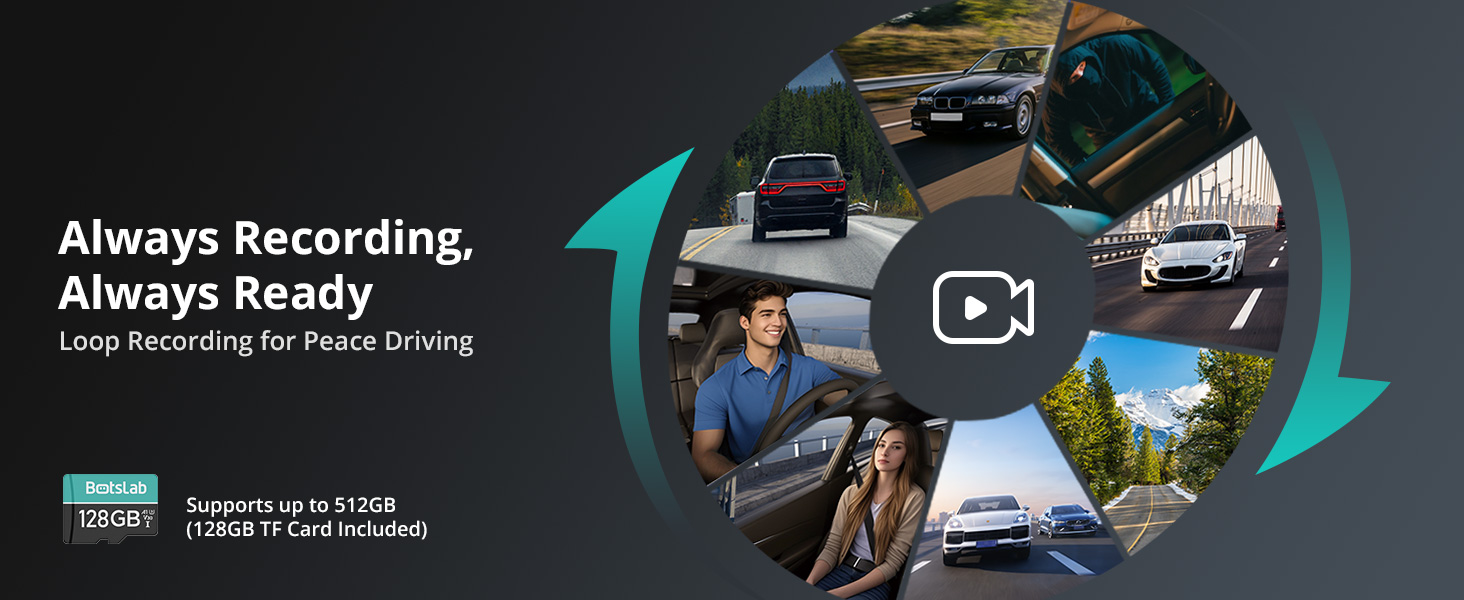
Image: Illustrates the continuous loop recording function, ensuring the dash cam is always ready to capture footage.
4.2. Stembeheer
The dash cam supports hands-free voice commands for common operations. Speak clearly and directly to the device:
- "Neem foto"
- "Video start"
- "Turn on screen"
- "Turn off screen"
- "Show front camera"
- "Show rear camera"
- "Inside video"
- "Skakel klank aan"
- "Turn off audio"
4.3. Aanraakskermnavigasie
The 3.18" touchscreen allows for intuitive navigation and settings adjustment. Swipe and tap to access menus, review footage, and change camera views (including 4-way split screen playback).
4.4. Parkeermodus
To enable 24/7 parking surveillance, a dedicated hardwiring kit (ASIN: B0DT1633D2) is required. Once installed, you can select from:
- Tydsverloopopname: Records at 1 frame per second to conserve storage while providing continuous monitoring.
- Sentry Mode: Automatically records a 1-minute emergency video when the front camera detects movement within 5 meters.
- Botsingsopsporing: Locks a 1-minute video upon impact to preserve crucial evidence.
4.5. Wi-Fi en toepassingskonnektiwiteit
Connect your smartphone to the dash cam via 5.8GHz Wi-Fi for fast video transfer, live view, and playback. Download the Botslab App from your app store. The app also features a built-in video editor for sharing moments.

Image: Screenshot of the Botslab App showing its built-in video editor and sharing options for recorded footage.
4.6. GPS-funksionaliteit
The built-in GPS module accurately records your vehicle's location, speed, and travel route. Use the [DVplayer] software on your PC or the Botslab App to review driving paths with dynamic route animations and AR-enhanced data overlays.
4.7. Noodopname
The high-precision G-sensor detects collisions or abnormal vibrations. When triggered, it initiates emergency recording and includes an 8-second pre-recording buffer to capture the full event sequence.
5. Onderhoud
5.1. SD-kaartbestuur
Regularly format the SD card (at least once a month) to prevent data corruption and ensure optimal recording performance. Back up any important footage voor formatering.
5.2. Skoonmaak
Use a soft, dry cloth to clean the dash cam's lenses and screen. Avoid using abrasive cleaners or solvents that could damage the device.
5.3. Super Capacitor Care
The super capacitor is designed for durability and performance in varying temperatures. No specific user maintenance is required for the super capacitor itself, but ensure the device is operated within its specified temperature range (-20°C to 70°C).
6. Probleemoplossing
If you encounter issues with your BOTSLAB G980H Dash Cam, please refer to the following common problems and solutions:
| Probleem | Moontlike Oplossing |
|---|---|
| Dashcam skakel nie aan nie. | Check the power connection to the car charger and ensure the vehicle's cigarette lighter socket is functioning. Try a different power source if available. |
| Opname stop of footage is korrup. | Format the SD card. Ensure you are using a high-endurance SD card. Replace the SD card if the issue persists. |
| Swak videokwaliteit in die nag. | Ensure the lens is clean. Verify that WDR and night vision settings are enabled. |
| Stembeheer reageer nie. | Speak clearly and ensure there is no excessive background noise. Check the microphone settings. |
| Wi-Fi-verbindingsprobleme. | Restart the dash cam and your smartphone. Ensure you are within range of the dash cam's Wi-Fi signal. |
| Parking mode not activating. | Confirm that the hardwiring kit is correctly installed and connected. Check parking mode settings in the menu. |
If the problem persists after trying these solutions, please contact BOTSLAB customer support for assistance.
7. Spesifikasies
| Kenmerk | Detail |
|---|---|
| Produk afmetings | 6.02 x 5.39 x 3.94 duim |
| Item gewig | 1.03 pond |
| ASIN | B0F8W7CWHK |
| Item Modelnommer | G980H 4 Channel |
| Batterye | 1 Litium-ioonbatterye benodig. |
| Datum Eerste Beskikbaar | 16 Mei 2025 |
| Vervaardiger | BOTSLAB |
| Land van oorsprong | China |
| Handelsmerk | BOTSLAB |
| Model Naam | G980H 4 Channel Dash Cam |
| Oriëntering | Bestuurderskant |
| Voertuigdiens tipe | Kar |
| Verbindingstegnologie | Draadloos |
| Spesiale kenmerk | 4 Kanaal |
| Video-opname-resolusie | 3K |
| Ingesluit komponente | Blu-ray (Note: This appears to be an error in the source data, typically refers to the included SD card or manual) |
| Montage tipe | Wall (Note: This appears to be an error in the source data, typically refers to windshield mount) |
| Kleur | silwer |
8. Waarborg en Ondersteuning
8.1. Waarborginligting
BOTSLAB offers a 365-dae kwaliteitswaarborg for this product. This warranty covers manufacturing defects and ensures the product meets quality standards for one year from the date of purchase.
8.2. Kliëntediens
For any technical assistance, inquiries, or support needs, BOTSLAB is committed to providing comprehensive customer service:
- Lifetime Technical Help: Access ongoing technical support for the lifespan of your product.
- 30-dae gratis terugsendings: Enjoy a hassle-free return policy within 30 days of purchase.
- 48 Hours Fast Support: Expect a prompt response to your support queries within 48 hours.
You can reach BOTSLAB customer support through the following channels:
- 24 Hours Live Chat: Download the Botslab APP, register and sign in, then navigate to Me > Support > Live Chat.
- Webwebwerf: Visit the official BOTSLAB webwebwerf by global.botslab.com
- E-pos: Send your inquiries to Service@botslab.com
- Botslab Users Group: Join the community on Facebook for peer support and updates.

Image: Provides contact information for BOTSLAB customer support, including live chat via app, website, email, and Facebook group.
Ask a question about this manual
Ask about setup, troubleshooting, compatibility, parts, safety, or missing instructions. Manuals+ will review the question and use this page’s manual context to help answer it.