
1. Belangrike veiligheidsinligting
Please read this section carefully before using your Veidoo W40 tablet to ensure safe and proper operation. Keep this manual for future reference.
Algemene Voorsorgmaatreëls
- Vermy die blootstelling van die tablet aan uiterste temperature, direkte sonlig of hoë humiditeit.
- Do not drop, bend, or puncture the tablet.
- Keep the tablet away from water and other liquids. If it gets wet, power it off immediately and allow it to dry completely before use.
- Use only accessories approved by Veidoo. Unauthorized accessories may damage the tablet or pose safety risks.
- Do not attempt to disassemble, repair, or modify the tablet yourself. Contact customer support for assistance.
Batteryveiligheid
- The tablet contains a non-removable lithium-ion battery. Do not attempt to replace it yourself.
- Moenie die battery aan vuur of uiterste hitte blootstel nie.
- Dispose of the tablet and its battery responsibly, following local regulations.
Laai veiligheid
- Charge the tablet using the provided USB-C cable and a compatible power adapter.
- Do not charge the tablet in damp voorwaardes.
- Unplug the charger when the tablet is fully charged or not in use.
2. Produk verbyview
The Veidoo W40 is an 11-inch Android tablet designed for versatile use, featuring an Octa-Core processor, ample storage, and modern connectivity options.
Sleutel kenmerke
- Vertoon: 11-inch In-Cell HD Touch Screen with 1280x800 resolution.
- Verwerker: 2.0 GHz Octa-Core processor for smooth performance.
- Geheue en berging: 8GB RAM (4GB + 4GB expandable) and 128GB internal storage, expandable up to 1TB via MicroSD card.
- Bedryfstelsel: Android 14.
- Kameras: 2MP front camera and 5MP rear camera.
- Verbinding: WiFi 6 (802.11ax) and Bluetooth 5.0.
- Battery: 5000mAh kapasiteit.

Image: Veidoo W40 Tablet configuration summary, highlighting key features like Android 14, 11-inch In-Cell display, 1280x800 resolution, Octa-Core processor, 8GB RAM, 128GB ROM, 5000mAh battery, WiFi 6, Bluetooth 5.0, and dual cameras.
3. Wat is in die boks
The standard package for your Veidoo W40 tablet typically includes the following items:
- Veidoo W40 11-inch Android Tablet
- USB-C-laaikabel
- Kragadapter
- Gebruikershandleiding
Let wel: Inhoud kan effens verskil afhangende van die streek of kleinhandelaar.
4. Aan die gang kom (Opstelling)
4.1 Laai die tablet
- Connect the USB-C cable to the tablet's charging port.
- Koppel die ander kant van die USB-C-kabel aan die kragadapter.
- Steek die kragadapter in 'n muuraansluiting.
- Allow the tablet to charge fully before first use. The battery indicator on the screen will show charging status.
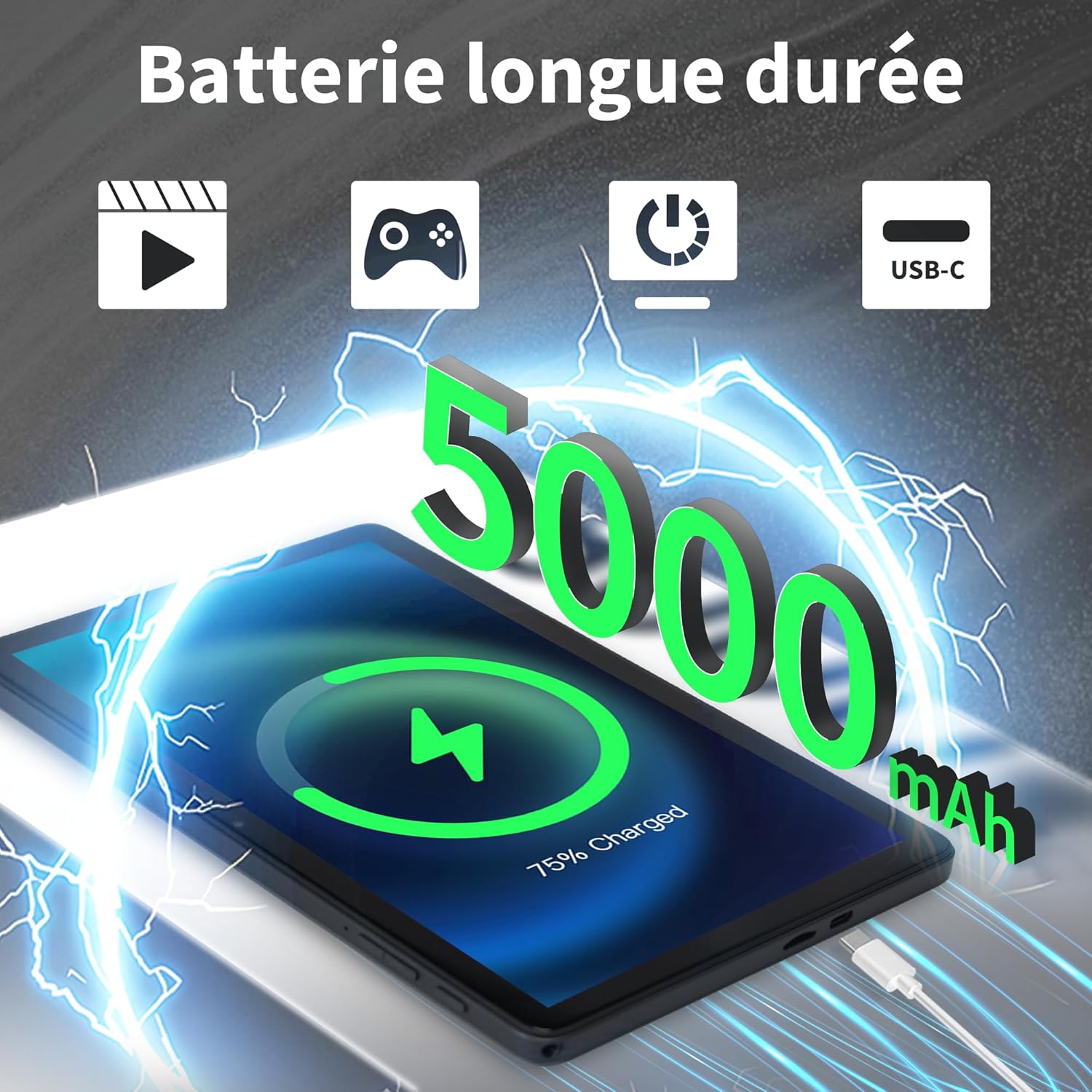
Image: Veidoo W40 Tablet connected to a USB-C charger, showing the battery icon and 5000mAh capacity.
4.2 Aan-/afskakel
- Om aan te skakel: Press and hold the Power button until the Veidoo logo appears on the screen.
- Om af te skakel: Druk en hou die aan/af-knoppie in totdat die kragopsies-kieslys verskyn. Kies "Skakel af" en bevestig.
- Om weer te begin: Kies "Herbegin" in die kragopsies-kieslys en bevestig.
4.3 Aanvanklike Opstellingsassistent
Upon first power-on, the tablet will guide you through an initial setup process:
- Kies jou voorkeurtaal.
- Koppel aan 'n Wi-Fi-netwerk.
- Aanvaar die bepalings en voorwaardes.
- Meld aan met jou Google-rekening of skep 'n nuwe een. Dit is nodig om programme van die Google Play Winkel af te laai.
- Set up screen lock (PIN, pattern, or password) and other security features.
- Review en pas ander instellings aan soos gevra.
4.4 Invoeging van 'n MicroSD-kaart
The tablet supports expandable storage up to 1TB using a MicroSD card.
- Vind die MicroSD-kaartgleuf aan die kant van die tablet.
- Plaas die MicroSD-kaart versigtig in die gleuf met die goue kontakte na onder totdat dit in plek klik.
- The tablet will detect the card and may prompt you to format it for use as portable or internal storage. Follow the on-screen instructions.
5. Basiese werking
5.1 Raak Gebare
- Tik: Touch the screen once to select an item or open an app.
- Raak en hou: Press and hold an item to access contextual menus or drag items.
- Swiep: Sleep jou vinger oor die skerm om deur bladsye of lyste te blaai.
- Knyp: Gebruik twee vingers om in of uit te zoem op foto's en web bladsye.
5.2 Koppel aan Wi-Fi
- Gaan na Instellings > Netwerk en internet > Wi-Fi.
- Wi-Fi wissel On.
- Kies jou verlangde Wi-Fi-netwerk uit die lys.
- Voer die wagwoord in indien gevra en tik Koppel.
5.3 Koppel aan Bluetooth-toestelle
- Gaan na Instellings > Gekoppelde toestelle > Verbindingsvoorkeure > Bluetooth.
- Wissel Bluetooth On.
- Maak seker dat jou Bluetooth-toestel in paringsmodus is.
- Select the device from the list of available devices and follow any on-screen prompts to complete pairing.
5.4 Gebruik van die kameras
The tablet features a 2MP front camera and a 5MP rear camera.
- Maak die oop Kamera app.
- Tik die kamera-ikoon om tussen die voorste en agterste kameras te wissel.
- Tik die sluiterknoppie om 'n foto te neem of video-opname te begin/stop.
- Access photos and videos in the Gallery app.

Image: Tablet cameras (2MP front, 5MP rear) with example photos, demonstrating its capability to capture moments.
5.5 Bergingbestuur
The tablet comes with 128GB of internal storage and supports up to 1TB expandable storage.
- Gaan na Instellings > Berging aan view berging gebruik.
- You can free up space by uninstalling unused apps, deleting old photos/videos, or moving files to a MicroSD card.

Image: Tablet storage illustration, showing how photos, videos, and music can be stored on the 128GB ROM and expanded with 8GB RAM.
5.6 Installing/Uninstalling Apps
- Installeer toepassings: Maak die oop Google Play Winkel toepassing, soek vir jou verlangde toepassing en tik Installeer.
- Deïnstalleer toepassings: Touch and hold the app icon on the home screen or app drawer, then drag it to "Uninstall" or select "App info" and tap "Uninstall". Alternatively, go to Instellings > Toepassings > select the app > Deïnstalleer.

Image: Tablet in use for various activities such as watching movies, playing games, working, and video calls, demonstrating its versatility.
6. Onderhoud en versorging
6.1 Skoonmaak van die tablet
- Gebruik 'n sagte, pluisvrye lap om die skerm en liggaam van die tablet skoon te maak.
- Vir hardnekkige vlekke, effens dampMaak die lap skoon met water of 'n skermreiniger wat vir elektronika ontwerp is.
- Vermy die gebruik van harde chemikalieë, skuurmiddels of aërosolspuitmiddels.
6.2 Battery-optimalisering
To maximize battery life (5000mAh):
- Verminder die helderheid van die skerm.
- Skakel Wi-Fi en Bluetooth af wanneer dit nie gebruik word nie.
- Maak agtergrondprogramme toe.
- Aktiveer batteryspaarmodus in Instellings.
- Avoid extreme temperatures during charging and use.
6.3 Sagteware-opdaterings
Kontroleer gereeld vir sagteware-opdaterings en installeer dit om optimale werkverrigting en sekuriteit te verseker.
- Gaan na Instellings > Stelsel > Stelselopdatering.
- Volg die instruksies op die skerm om te kyk vir enige beskikbare opdaterings en dit te installeer.
6.4 Fabrieksterugstelling
’n Fabrieksherstel sal alle data van jou tablet uitvee en dit na sy oorspronklike fabrieksinstellings herstel. Rugsteun belangrike data voordat jy voortgaan.
- Gaan na Instellings > Stelsel > Stel opsies terug.
- Kies Vee alle data uit (fabriekterugstelling).
- Bevestig jou besluit en voer jou PIN/patroon/wagwoord in indien gevra.
7. Probleemoplossing
If you encounter issues with your Veidoo W40 tablet, try the following solutions:
Tablet skakel nie aan nie
- Ensure the tablet is sufficiently charged. Connect it to a power source and wait a few minutes before attempting to power on.
- Druk en hou die aan/af-knoppie vir 10-15 sekondes in om 'n herbegin te forseer.
Wi-Fi-verbindingskwessies
- Maak seker dat Wi-Fi in Instellings geaktiveer is.
- Herbegin jou Wi-Fi-router.
- Vergeet die netwerk in tabletinstellings en koppel weer aan.
- Maak seker dat jy binne die bereik van die Wi-Fi-sein is.
Slow Performance or App Crashes
- Maak ongebruikte agtergrondtoepassings toe.
- Clear the cache of problematic apps (Settings > Apps > [App Name] > Storage & cache > Clear cache).
- Herbegin die tablet.
- Maak seker dat voldoende stoorplek beskikbaar is.
- Check for system and app updates.
Skerm reageer nie
- Herbegin die tablet deur die aan/uit-knoppie in te hou.
- Maak seker dat die skerm skoon en vry van puin is.
8. Spesifikasies
Below are the technical specifications for the Veidoo W40 11-inch Android Tablet:
| Kenmerk | Spesifikasie |
|---|---|
| Model | W40 |
| Vertoon grootte | 11 duim |
| Skermresolusie | 1280 x 800 pixels (In-Cell HD Touch Screen) |
| Verwerker | 2.0 GHz Octa-Core (Allwinner) |
| RAM | 8GB (4GB + 4GB Expand) |
| Interne berging (ROM) | 128 GB |
| Uitbreidbare berging | Tot 1 TB via MicroSD-kaart |
| Bedryfstelsel | Android 14 |
| Voorste kamera | 2MP |
| Agterste kamera | 5MP |
| Wi-Fi | WiFi 6 (802.11ax) |
| Bluetooth | Bluetooth 5.0 |
| Battery kapasiteit | 5000mAh |
| Afmetings (LxBxH) | 9.57 x 6.34 x 0.31 duim |
| Gewig | 1.13 pond |
| Kleur | Grys |

Image: Octa-Core processor illustration, highlighting the 2.0 GHz speed and performance benefits.
9. Waarborg en Ondersteuning
Waarborg inligting
Your Veidoo W40 tablet is covered by a standard manufacturer's warranty. Please refer to the warranty card included in your package or visit the official Veidoo webwebwerf vir gedetailleerde bepalings en voorwaardes rakende waarborgdekking, duur en eisproses.
Kliënte ondersteuning
If you require technical assistance, have questions about your product, or need to report an issue, please contact Veidoo customer support. For inquiries, you may consult via email. Contact details are typically available on the official Veidoo webwebwerf of deur jou aankoopplatform.