
E-ACE DMMRUTXB
E-ACE 4.3-Inch Dual Lens Car DVR Rearview Gebruikershandleiding Mirror Dash Cam
Model: DMMRUTXB
1. Produk verbyview
The E-ACE 4.3-inch Dual Lens Car DVR Rearview Mirror Dash Cam is designed to enhance driving safety by providing comprehensive video recording of your journeys. This device integrates a front-facing camera and supports an optional rear-facing camera, offering a wide field of view and continuous recording capabilities. Its sleek design replaces your existing rearview mirror, providing a discreet and integrated solution for vehicle surveillance.
Key features include a 4.3-inch high-definition display, dual-lens recording, night vision, loop recording, and a G-sensor for automatic incident detection.

Image: The E-ACE rearview mirror dash cam displaying both front and rear camera feeds on its integrated screen.
2. Pakketinhoud
Kontroleer asseblief die pakket vir die volgende items:
- E-ACE Rearview Mirror Dash Cam Unit
- Motorlaaier
- Fixed Bandages (for mounting)
- Gebruikershandleiding
- Kaartleser
- Opsioneel: Agter View Camera + Cable (6M or 10M, depending on variant)
- Optional: Buck Line (for parking monitoring power)
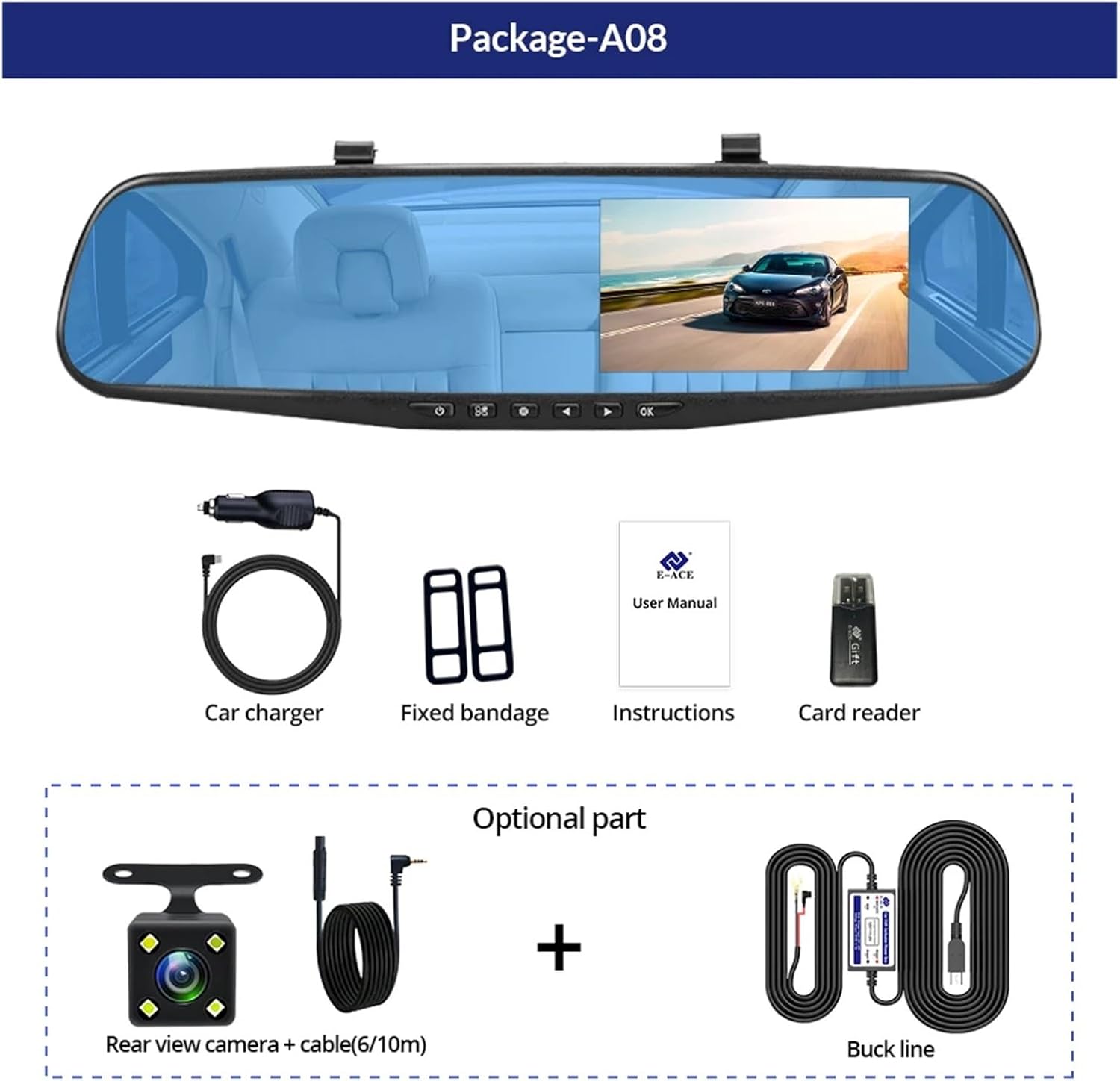
Image: A visual representation of the items included in the E-ACE dash cam package, showing the main unit and accessories.
3. Produkkenmerke
- 4.3-inch High-Definition Display: Provides clear visibility for real-time monitoring and playback.
- Dubbele lensontwerp: Captures both front and rear footage simultaneously for comprehensive coverage.
- Built-in Night Vision Technology: Ensures clear recordings in low-light conditions.
- Gebruikersvriendelike installasie: Sleek rearview mirror design integrates seamlessly into your vehicle.
- Loop opname: Oorskryf outomaties die oudste voedseltage wanneer die geheuekaart vol is, wat deurlopende opname verseker.
- G-Sensor Feature: Detects sudden movements or impacts and automatically locks the current video file om te keer dat dit oorskryf word.
- Parkeermonitering: Records video when motion or impact is detected while the vehicle is parked (requires buck line connection).
- 170-Degree Wide Angle: Bied 'n breë view van die pad vorentoe.
- Omgekeerde prent: Displays the rear camera view with parking guidelines when reversing.
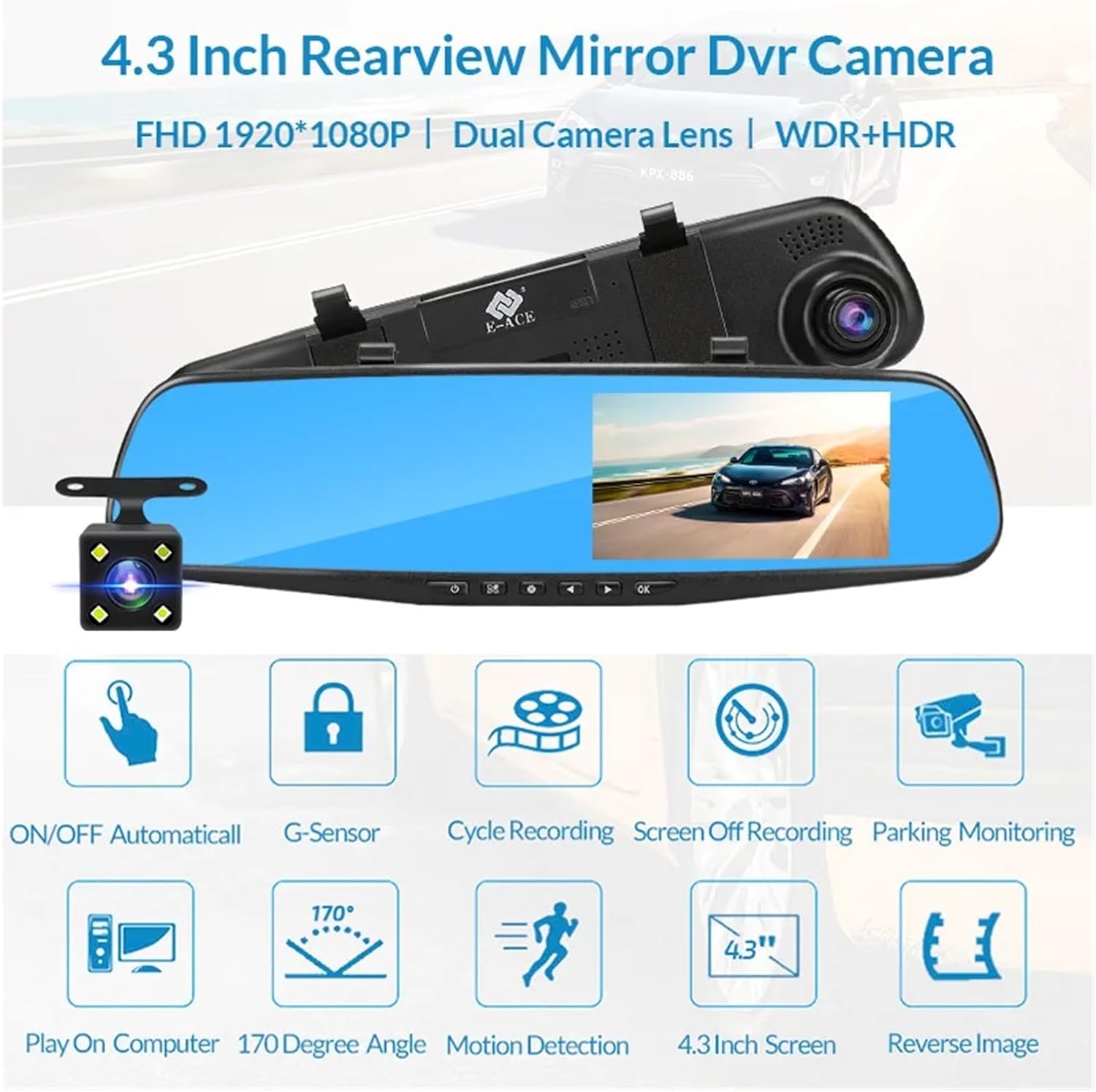
Image: An illustration highlighting the various functional features of the E-ACE dash cam.
4. Komponentidentifikasie
Familiarize yourself with the various parts and controls of your E-ACE dash cam:

Image: A detailed diagram identifying the buttons, ports, and features on the E-ACE dash cam unit.
- AAN/UIT-knoppie: Skakel die toestel aan of af.
- Kieslys-knoppie: Kry toegang tot instellings en opsies.
- Modusknoppie: Switches between video recording, photo, and playback modes.
- UP -knoppie: Navigates up in menus or adjusts settings.
- Af-knoppie: Navigates down in menus or adjusts settings.
- OK knoppie: Confirms selections or starts/stops recording.
- TF-kaartgleuf: Insert your MicroSD (TF) card here.
- AV-IN Port: Verbind die agterste kamera.
- USB-poort: For power supply and data transfer.
- Herstel-knoppie: Resets the device to factory settings (use a thin pin).
- Mikrofoon: Neem klank binne die voertuig op.
5. Opstelling en installering
5.1 Plaas die geheue kaart
Before installation, insert a high-speed MicroSD (TF) card (Class 10 or higher, up to 64GB recommended) into the TF Card Slot (7) with the contacts facing the screen. Ensure the card is inserted correctly until it clicks into place.
5.2 Montering van die Dash Cam
- Attach the fixed bandages to the back of the dash cam unit.
- Securely strap the dash cam over your vehicle's existing rearview mirror using the fixed bandages. Ensure it is centered and stable.
5.3 Aansluiting van die kragtoevoer
- Connect the car charger to the USB Port (9) on the dash cam.
- Steek die ander kant van die motorlaaier in jou voertuig se sigaretaansteker-sok.
- Route the power cable neatly along the windshield trim to avoid obstructing your view.
5.4 Installing the Rear Camera (Optional)
- Connect the rear camera cable to the AV-IN Port (8) on the dash cam.
- Route the rear camera cable from the dash cam to the rear of your vehicle. This typically involves tucking the cable under the headliner and along the side pillars.
- Mount the rear camera on the rear windshield or near the license plate using its adhesive or screws. Ensure it has a clear view van die pad agter.
- If using the reverse image function, connect the red wire from the rear camera cable to your vehicle's reverse light power supply.
6. Bedryfsinstruksies
6.1 Krag aan/af
- Outomatiese: The dash cam will automatically power on and start recording when your vehicle's ignition is turned on (if connected to a switched power source).
- handleiding: Press and hold the ON/OFF Button (1) to manually power the device on or off.
6.2 Basiese werking
- Skakelmodusse: Press the Mode Button (3) to cycle between Video Recording, Photo, and Playback modes.
- Toegangkieslys: In any mode, press the Menu Button (2) to enter the settings menu. Use the UP (4) and Down (5) buttons to navigate, and OK (6) to select.
- Begin/stop opname: In Video Recording mode, press the OK Button (6) to manually start or stop recording.
6.3 Vertoonmodusse
While recording, you can typically switch between different display views by pressing the UP or Down buttons:
- Front Camera Only
- Rear Camera Only
- Picture-in-Picture (Front main, Rear sub-window)
- Picture-in-Picture (Rear main, Front sub-window)
6.4 Loopname
Set the loop recording duration (e.g., 1, 3, or 5 minutes) in the settings menu. When the memory card is full, the oldest unlocked files sal deur nuwe opnames oorskryf word.
6.5 G-sensor
The G-sensor automatically detects collisions or sudden braking. When triggered, it locks the current video file, preventing it from being overwritten by loop recording. Adjust sensitivity in the settings.
6.6 Parking Monitoring (Optional)
If the buck line is installed, the dash cam can monitor your vehicle while parked. When motion or impact is detected, it will automatically record a short video. Enable this feature in the settings.
6.7 Datum en Tyd instelling
It is important to set the correct date and time in the system settings for accurate timestamps op jou opnames.
7. Onderhoud
- Skoonmaak: Use a soft, dry cloth to clean the lens and screen. Avoid abrasive cleaners or solvents.
- Geheuekaart: Format the MicroSD card regularly (e.g., once a month) within the dash cam's settings to maintain optimal performance and prevent data corruption. Back up important files voor formatering.
- Temperatuur: Avoid exposing the device to extreme temperatures, as this can affect battery life and component integrity.
- Firmware -opdaterings: Gaan die vervaardiger na website periodically for firmware updates that may improve performance or add features.
8. Probleemoplossing
| Probleem | Moontlike oorsaak | Oplossing |
|---|---|---|
| Dashcam skakel nie aan nie. | No power supply; faulty charger; loose connection. | Check car charger connection and vehicle's cigarette lighter. Try a different USB cable/charger. |
| Opname stop outomaties. | Memory card full; slow memory card; G-sensor sensitivity too high. | Format the memory card. Use a Class 10 or higher MicroSD card. Lower G-sensor sensitivity in settings. |
| Video footage is vaag. | Beskermende film op lens; vuil lens; verkeerde fokus. | Remove any protective film. Clean the lens with a soft cloth. |
| Agterkamera wys nie. | Los konneksie; foutiewe kabel/kamera. | Check the AV-IN connection. Ensure the rear camera is properly installed. |
| Device freezes or crashes. | Software issue; memory card error. | Press the Reset Button (10) with a thin pin. Format the memory card. |
9. Spesifikasies
- Model Naam: DMMRUTXB
- Vertoon: 4.3 duim
- Kamera: Dual Lens (Front & Rear support)
- Video resolusie: FHD 1920x1080P (Front)
- Kenmerke: Loop Recording, G-Sensor, Night Vision, Parking Monitoring, 170-degree wide angle
- Berging: Supports MicroSD (TF) card, Class 10 or higher (up to 64GB)
- Verbinding: USB, AV-IN (for rear camera)
- Item gewig: Ongeveer 1.76 onse (50 gram)
- Pakket afmetings: Ongeveer 0.39 x 0.39 x 0.39 duim
- Vervaardiger: DMMRUTXB
10. Waarborg en Ondersteuning
Vir waarborginligting en tegniese ondersteuning, verwys asseblief na die dokumentasie wat saam met u aankoop verskaf is of kontak die kleinhandelaar/vervaardiger direk. Bewaar u aankoopbewys as bewys van aankoop.
Ask a question about this manual
Ask about setup, troubleshooting, compatibility, parts, safety, or missing instructions. Manuals+ will review the question and use this page’s manual context to help answer it.