
Xdrukker XP-420B
Xprinter XP-420B USB Direkte Termiese Etiketdrukker Gebruikershandleiding
Model: XP-420B
1. Produk verbyview
The Xprinter XP-420B is a high-speed direct thermal label printer designed for various applications, including shipping labels. It offers a maximum print speed of 152 mm/s (6 inches/second) and a resolution of 203 DPI, ensuring clear and precise prints. Its robust double-walled clamshell design enhances durability, and the intelligent print head temperature control system ensures stable output. This printer is compatible with both Windows and Mac operating systems, making it a versatile solution for your labeling needs.
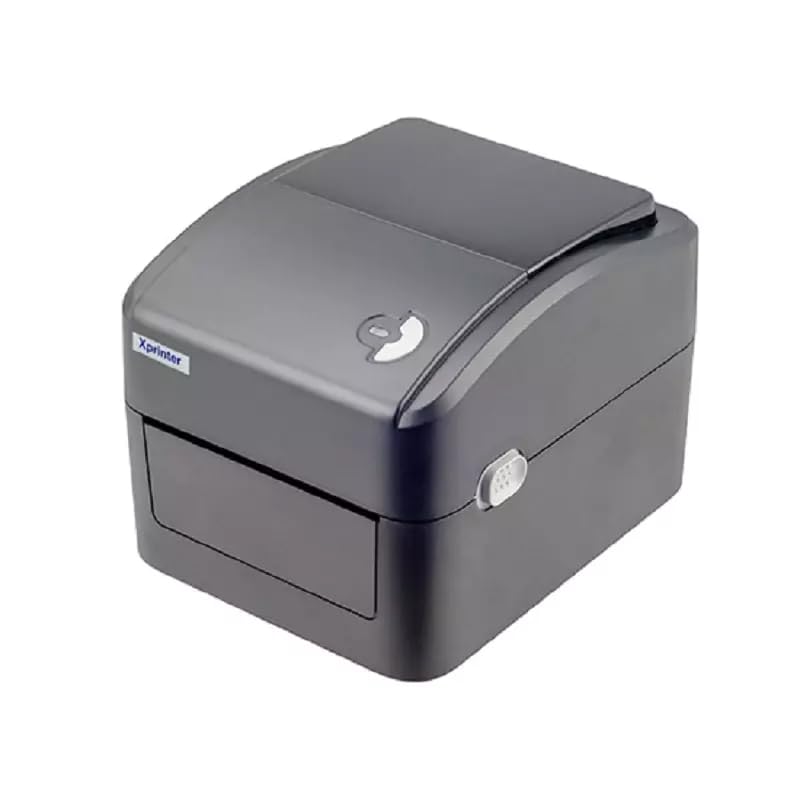
Figuur 1: Voorkant view of the Xprinter XP-420B thermal label printer.
2. Opstelgids
2.1 Uitpak en Aanvanklike Inspeksie
- Verwyder die drukker en alle bykomstighede versigtig uit die verpakking.
- Verify that all components are present: printer unit, power adapter, USB cable, and user manual.
- Inspect the printer for any visible damage that may have occurred during transit.
2.2 Koppel die drukker
- Koppel die kragadapter aan die drukker se kragpoort en steek dit dan in 'n kragaansluiting.
- Connect one end of the provided USB cable to the printer's USB port and the other end to an available USB port on your computer.
- Power on the printer using the power switch, usually located on the side or rear.

Figure 2: Xprinter XP-420B showing USB connectivity.
2.3 Laai van etikette
- Maak die drukker se boonste deksel oop deur die ontgrendelknoppe aan beide kante te druk.
- Place the roll of thermal labels onto the label spindle, ensuring the labels feed from the bottom of the roll.
- Feed the leading edge of the labels through the label guide until it extends slightly past the print head.
- Adjust the movable label guides to fit the width of your labels snugly, without pinching them.
- Close the top cover firmly until it latches securely.
- The printer will automatically calibrate and detect the label size.
2.4 Bestuurderinstallasie
Before printing, you must install the appropriate printer drivers on your computer. Drivers are typically provided on a CD included with the printer or can be downloaded from the official Xprinter website. The XP-420B supports both Windows and Mac operating systems.
- Vir Windows: Run the setup executable from the driver CD or downloaded file en volg die instruksies op die skerm.
- Vir Mac: Download the Mac driver from the Xprinter website and follow the installation prompts.
3. Bedryfsinstruksies
3.1 Basiese drukwerk
- Maak seker dat die drukker aangeskakel en aan jou rekenaar gekoppel is.
- Open the document or application from which you wish to print (e.g., shipping software, word processor).
- Kies "Druk" vanaf die toepassing se spyskaart.
- Choose "Xprinter XP-420B" as your printer.
- In the printer settings or preferences, ensure the correct label size is selected. The printer supports adjustable label sizes.
- Klik "Druk" om die taak na die drukker te stuur.
3.2 Adjusting Label Size
The XP-420B allows for adjustable label sizes. This adjustment is primarily done through the printer driver settings on your computer and by physically adjusting the label guides within the printer.
- Sagteware-aanpassing: In your printing application or printer driver settings, navigate to the "Page Setup" or "Paper Size" options. Select or define the custom dimensions for your labels (e.g., 4x6 inches for shipping labels).
- Physical Adjustment: As described in Section 2.3, ensure the internal label guides are set correctly to the width of your loaded labels.
4. Onderhoud
4.1 Skoonmaak van die drukkop
Regular cleaning of the print head is crucial for maintaining print quality and extending the printer's lifespan. It is recommended to clean the print head after every roll of labels or if print quality degrades.
- Skakel die drukker af en ontkoppel die kragkabel.
- Maak die boonste deksel van die drukker oop.
- Wag 'n paar minute totdat die drukkop afkoel as die drukker onlangs gebruik is.
- Gently wipe the print head surface with an alcohol swab or a lint-free cloth lightly dampgeëindig met isopropylalkohol.
- Laat die drukkop heeltemal droog word voordat u die deksel toemaak en die krag weer aanskakel.
4.2 Algemene Skoonmaak
- Gebruik 'n sagte, droë lap om die buitekant van die drukker af te vee.
- Remove any dust or label debris from the inside of the printer using a soft brush or compressed air.
- Moenie skuur skoonmaakmiddels of oplosmiddels gebruik nie.
5. Probleemoplossing
| Probleem | Moontlike oorsaak | Oplossing |
|---|---|---|
| Drukker reageer nie | Power off; USB cable disconnected; Driver issue. | Ensure power is on and connected. Check USB cable. Reinstall printer driver. |
| Swak drukkwaliteit (vervaagde lyne) | Vuil drukkop; Verkeerde etikettipe; Lae drukdigtheidinstelling. | Clean the print head (Section 4.1). Ensure you are using direct thermal labels. Adjust print density in driver settings. |
| Etikette word nie korrek ingevoer nie | Labels improperly loaded; Label guides not adjusted; Sensor obstruction. | Reload labels correctly. Adjust label guides. Clean any dust or debris from sensors. |
| Drukker druk leë etikette | Labels loaded upside down; Not a direct thermal label. | Ensure labels are loaded with the printable side facing up. Verify labels are direct thermal. |
6. Produkspesifikasies
| Kenmerk | Detail |
|---|---|
| Handelsmerk | Xprinter |
| Model Naam | XP-420B |
| Verbindingstegnologie | USB |
| Druk tegnologie | Direkte termiese |
| Resolusie | 203 DPI |
| Maksimum drukspoed | 152 mm/s (6 duim/sekonde) |
| Geheue | 8MB SDRAM, 8MB flits |
| Drukker Uitset | Monochroom |
| Item gewig | 3 kilogram |
| Produk afmetings | 20D x 6B x 10H Sentimeter |
| Verenigbaarheid | Windows, Mac |
7. Waarborg en Ondersteuning
7.1 Waarborginligting
Die Xprinter XP-420B word voorsien met 'n 1-jaar waarborg vanaf die aankoopdatum. Hierdie waarborg dek vervaardigingsdefekte en wanfunksies onder normale gebruik. Bewaar asseblief u bewys van aankoop vir waarborgeise.
7.2 Kliëntediens
For technical assistance, troubleshooting beyond this manual, or warranty service, please contact Xprinter customer support. Refer to the contact information provided with your product packaging or visit the official Xprinter webwebwerf vir die mees onlangse ondersteuningsbesonderhede.
Ask a question about this manual
Ask about setup, troubleshooting, compatibility, parts, safety, or missing instructions. Manuals+ will review the question and use this page’s manual context to help answer it.